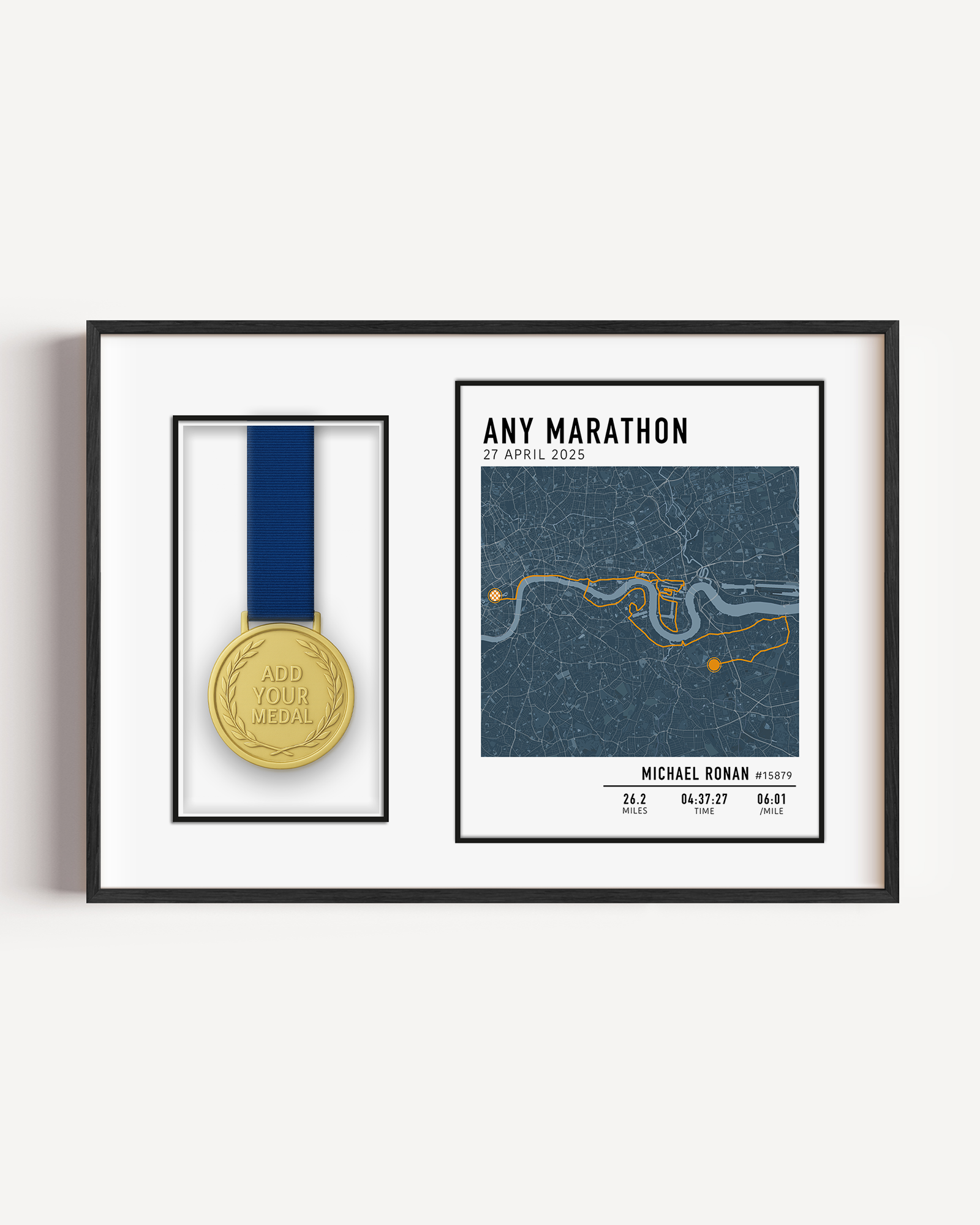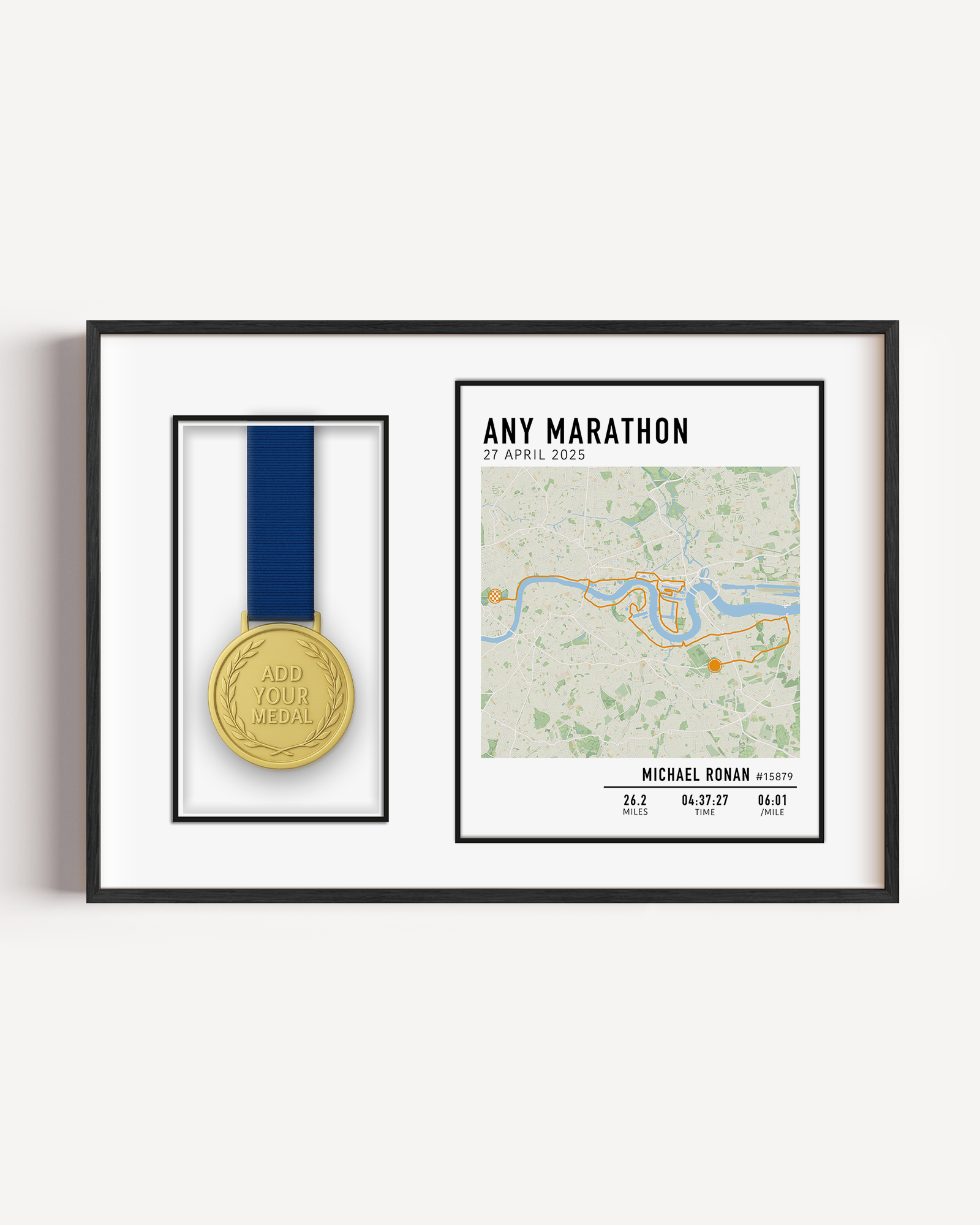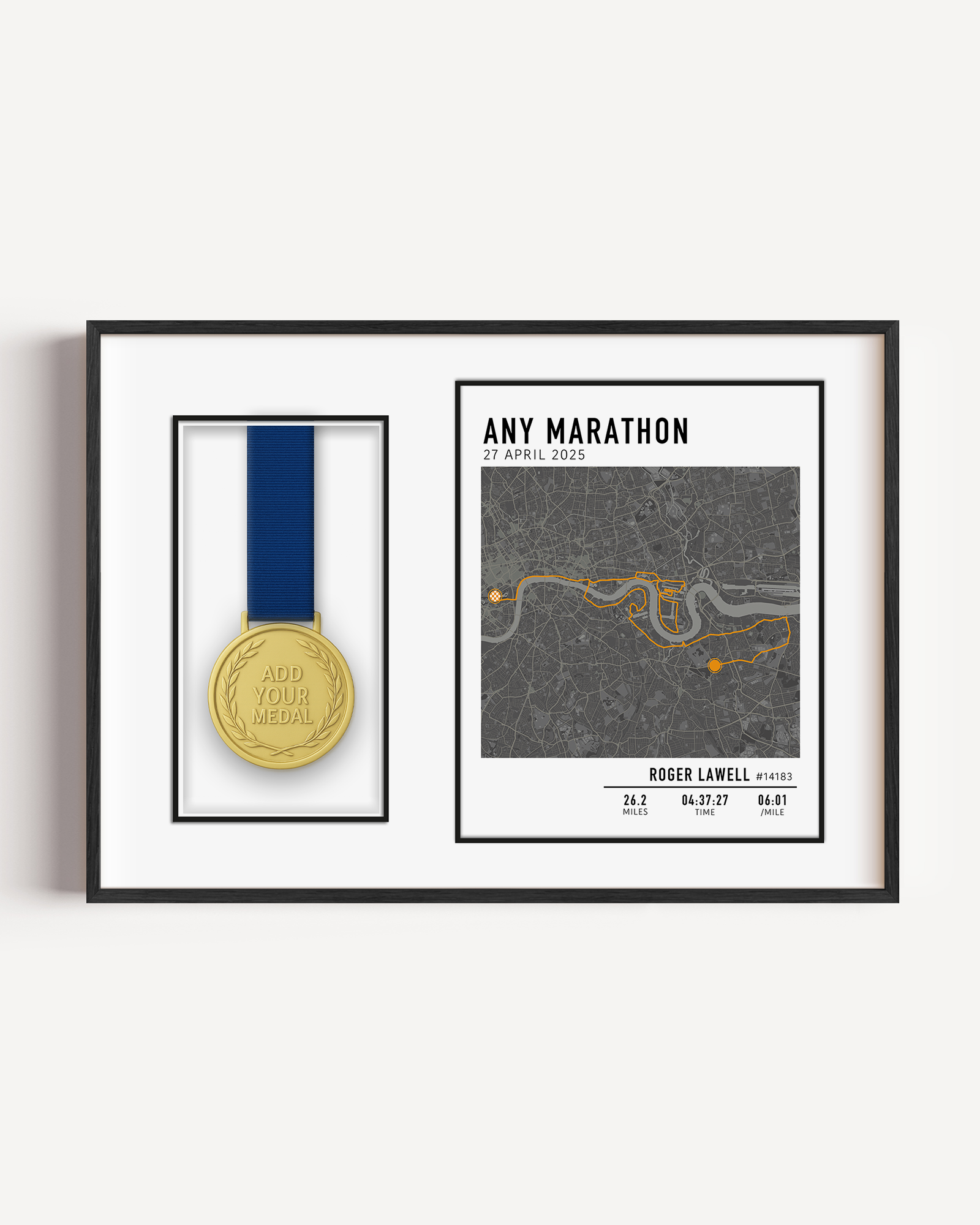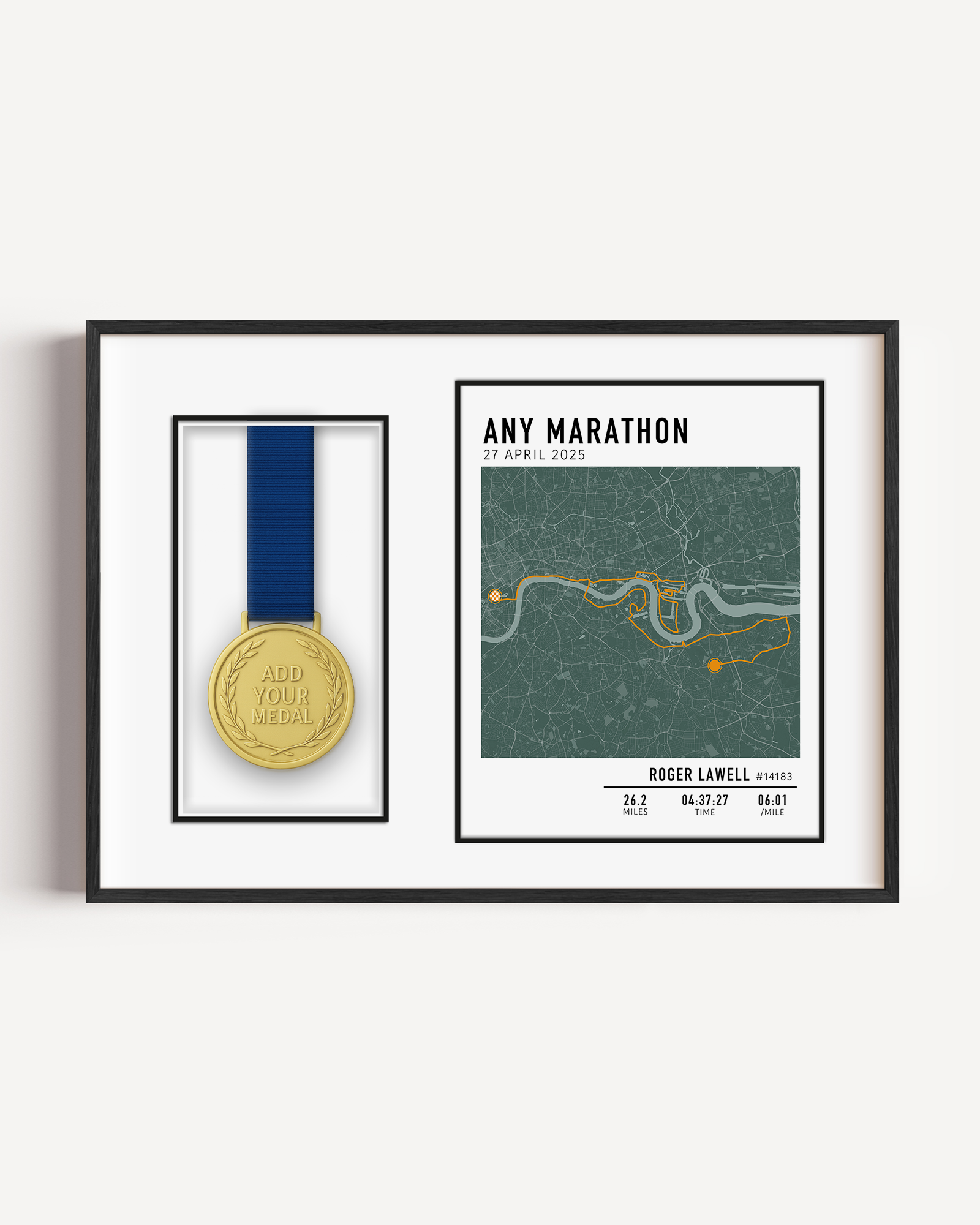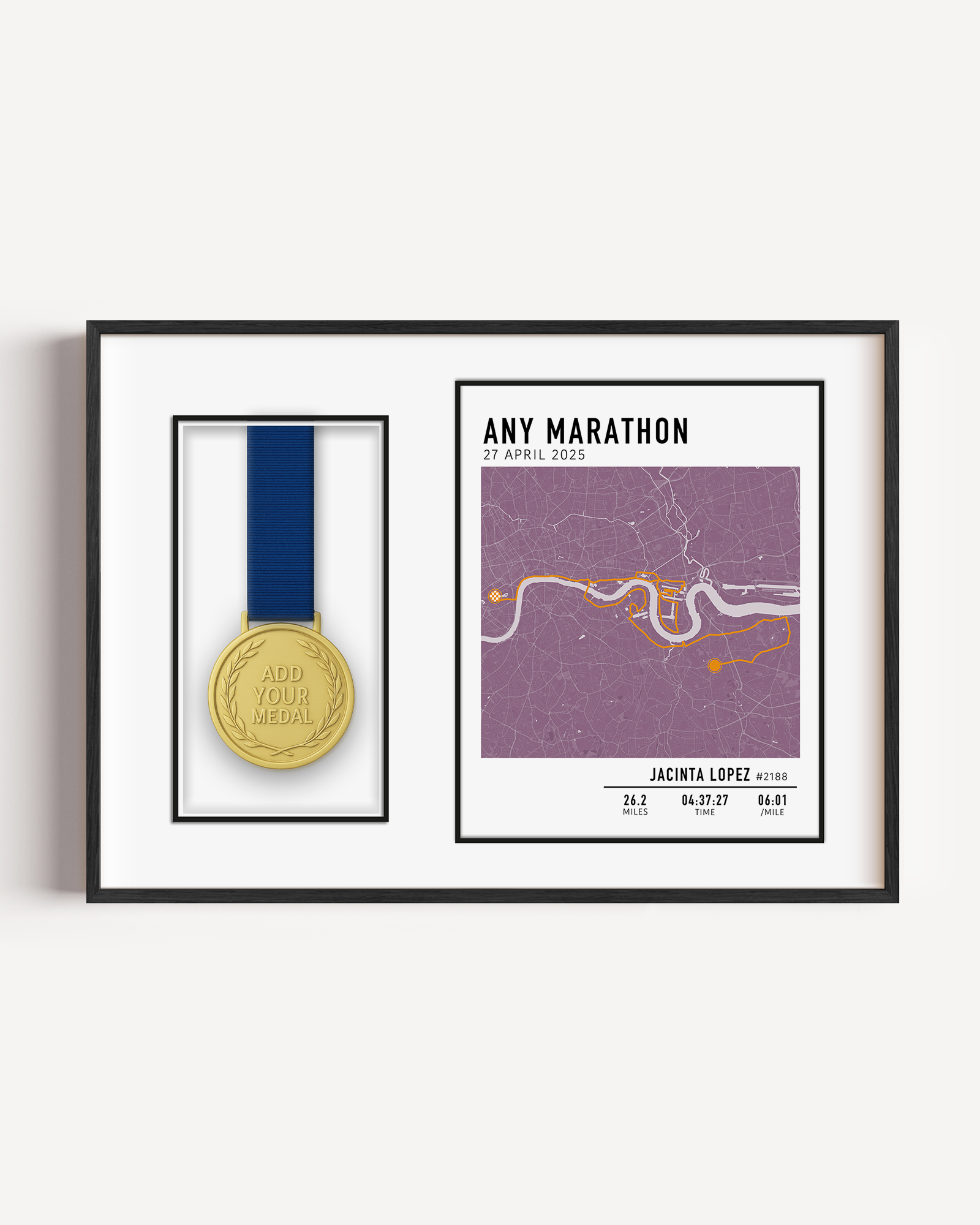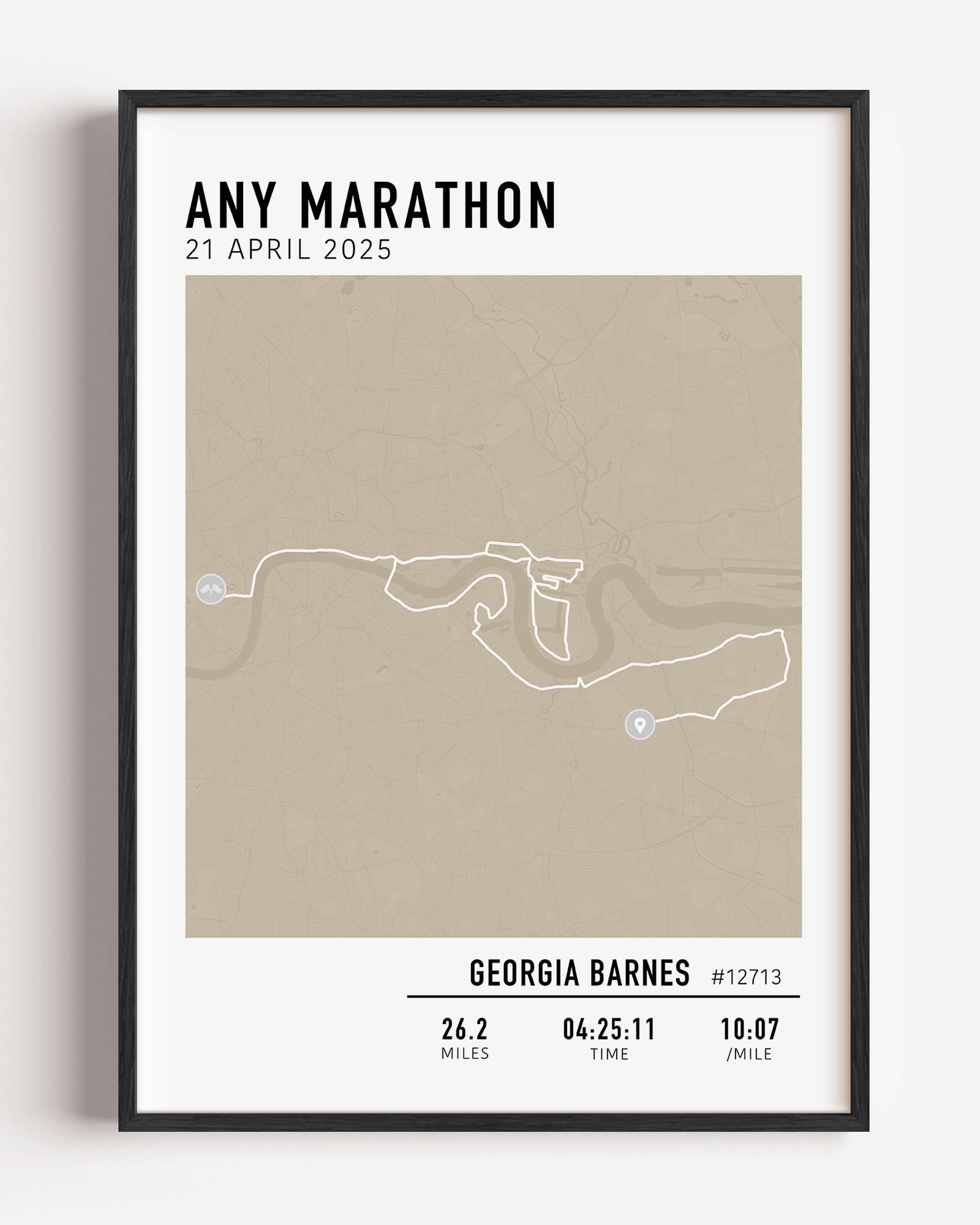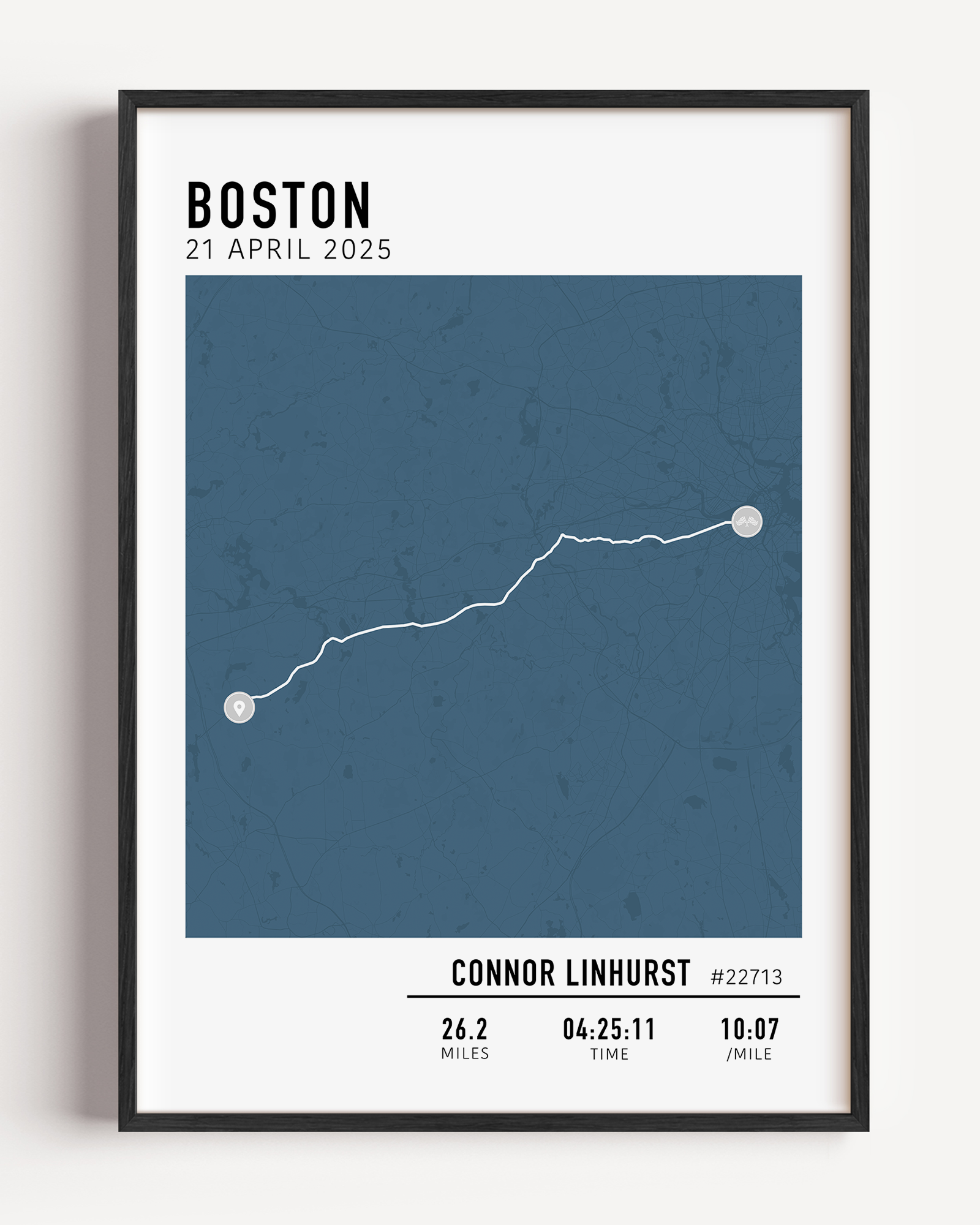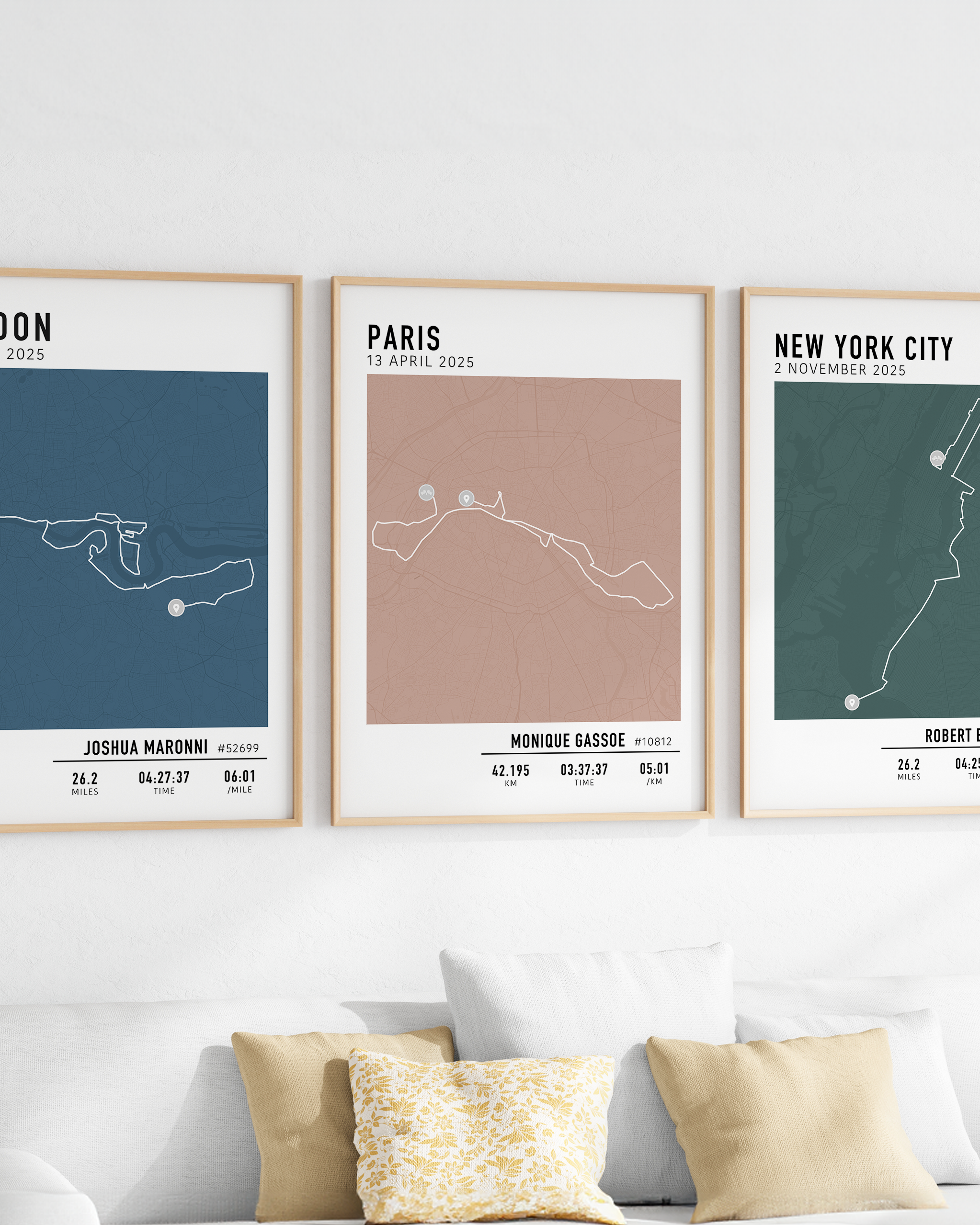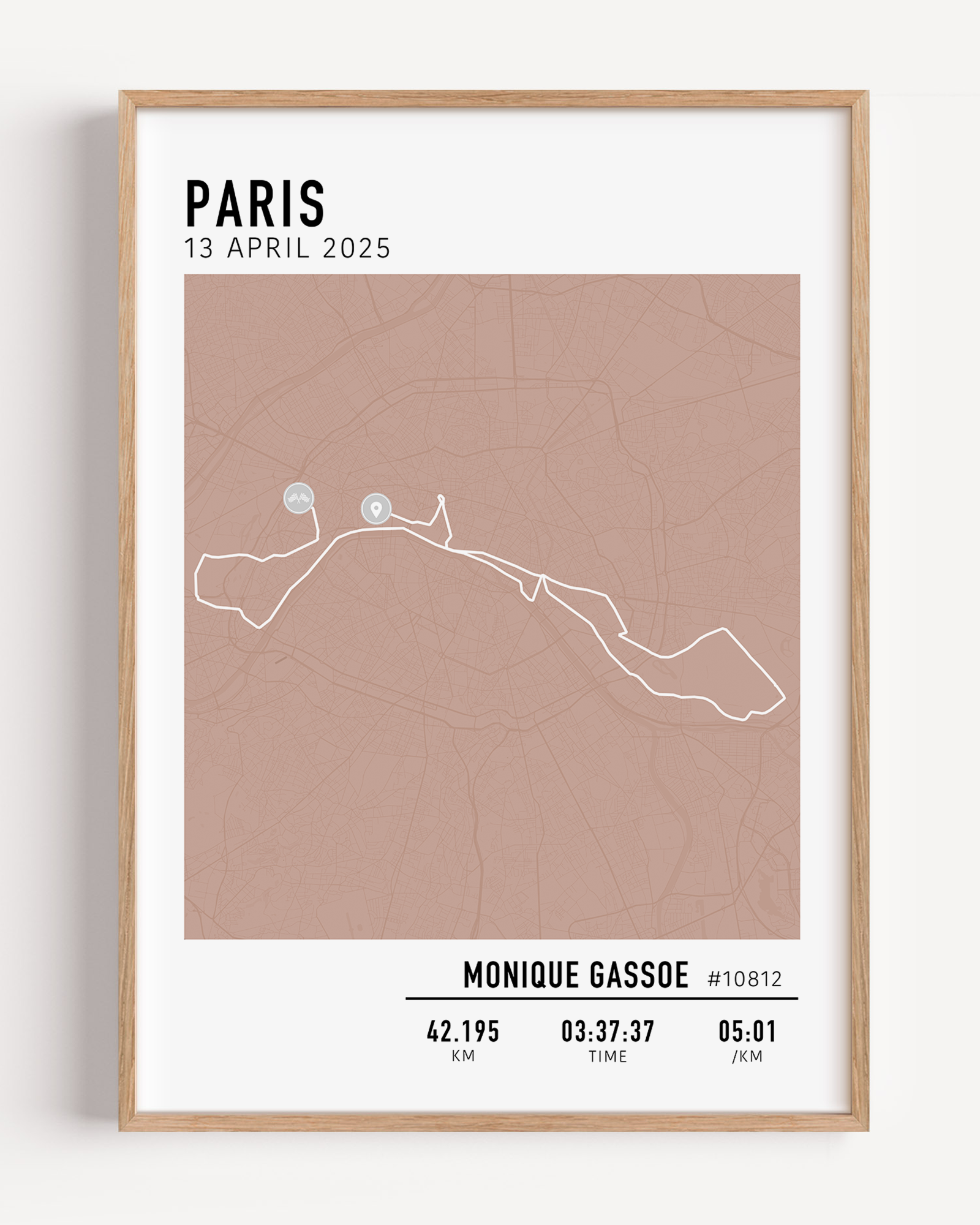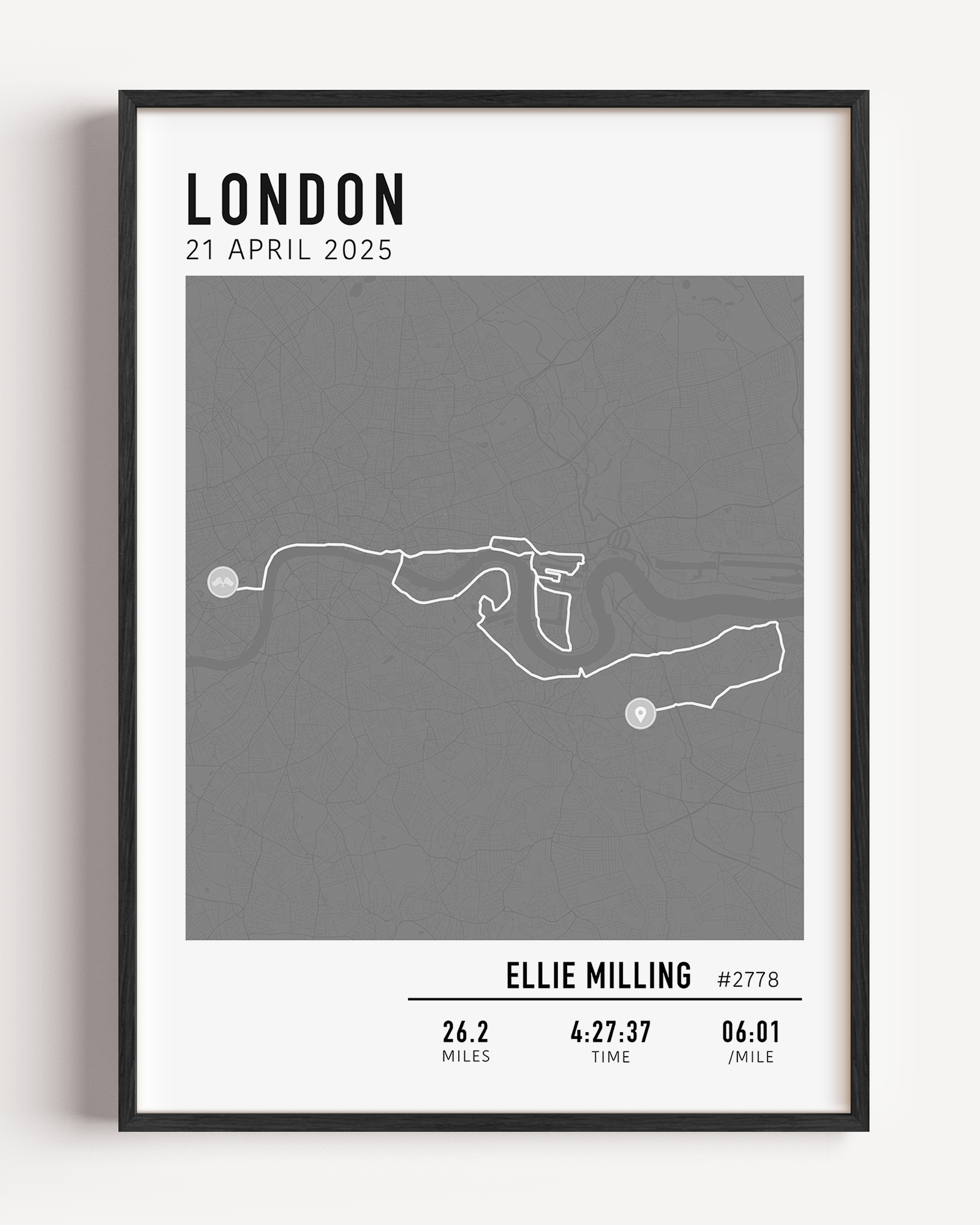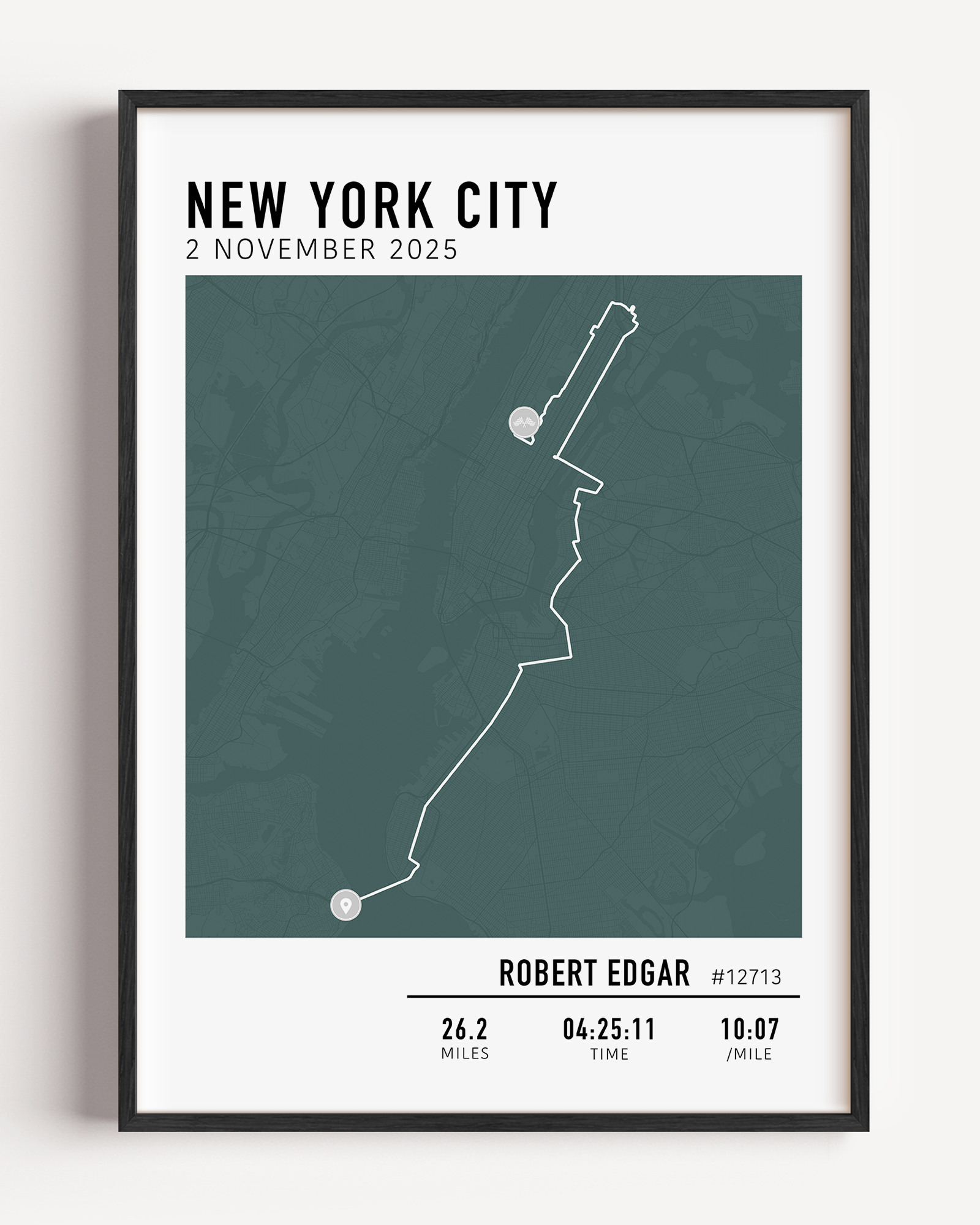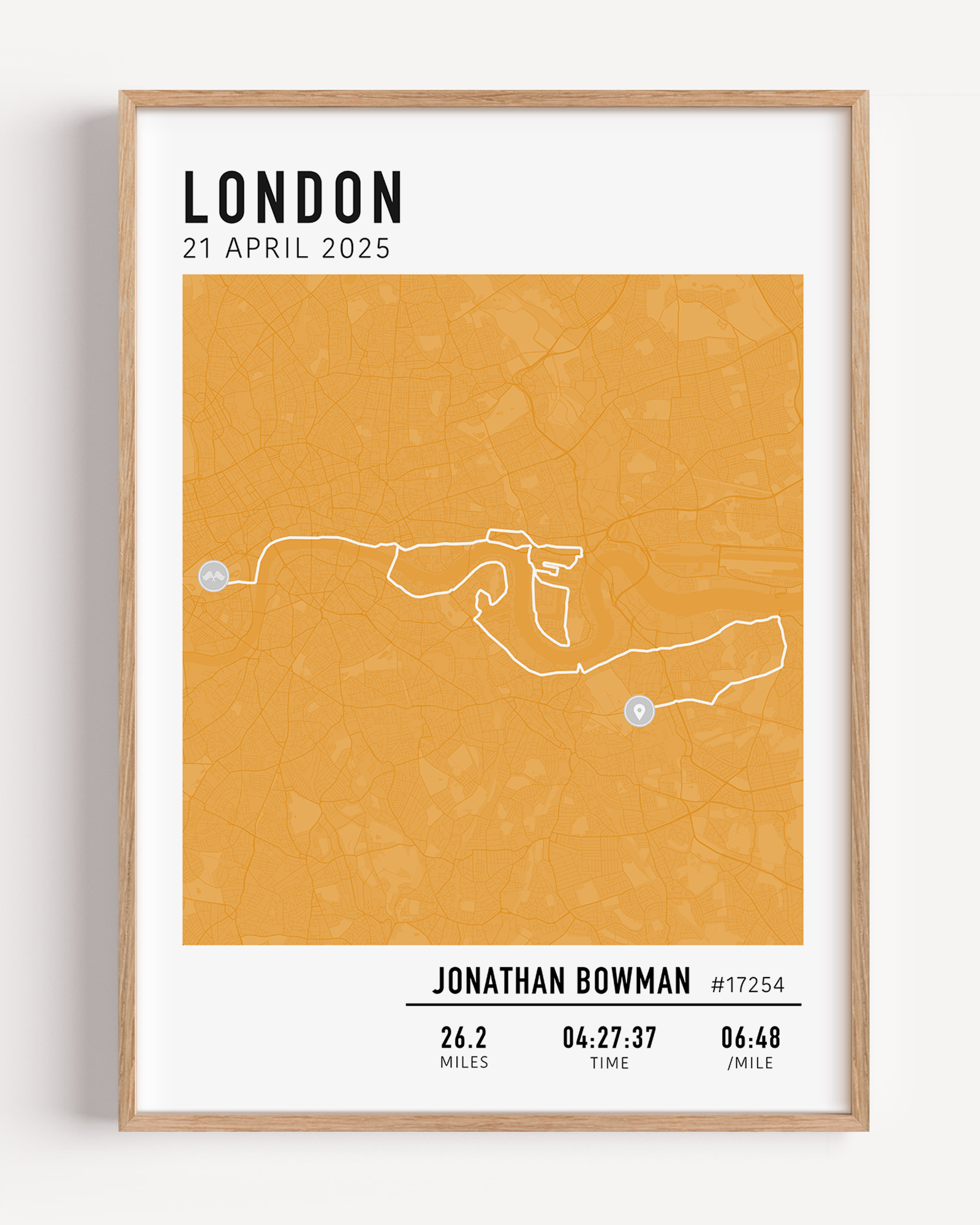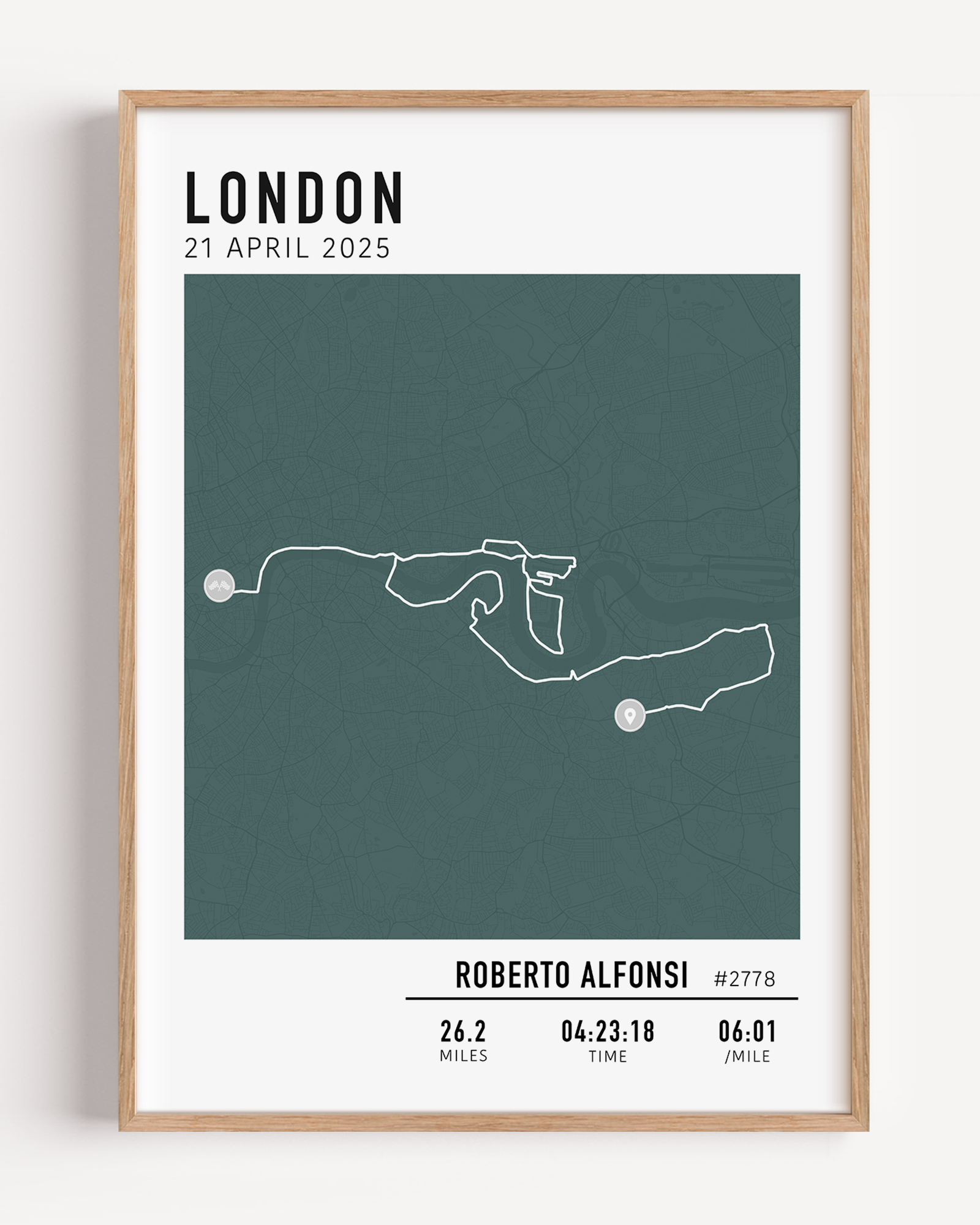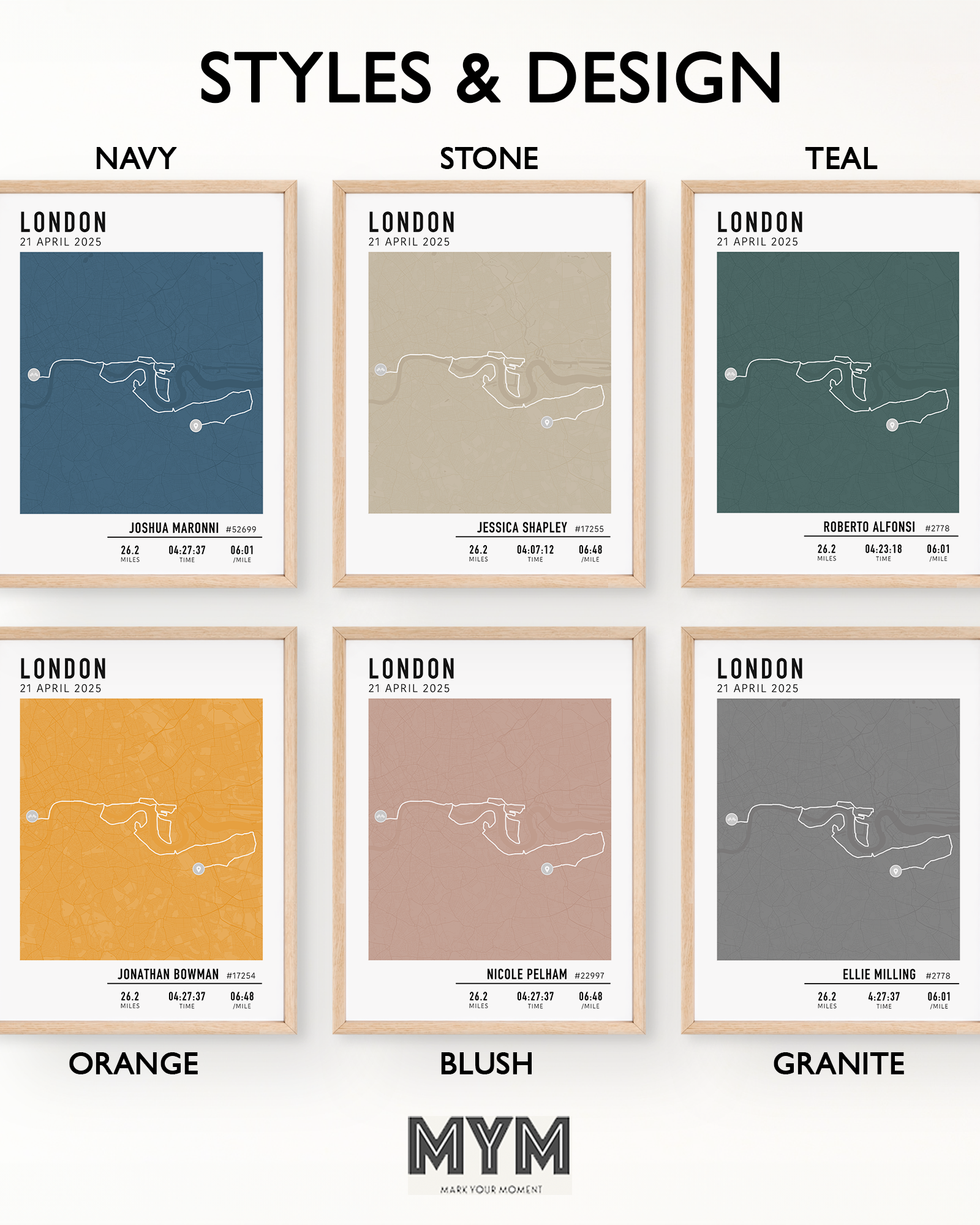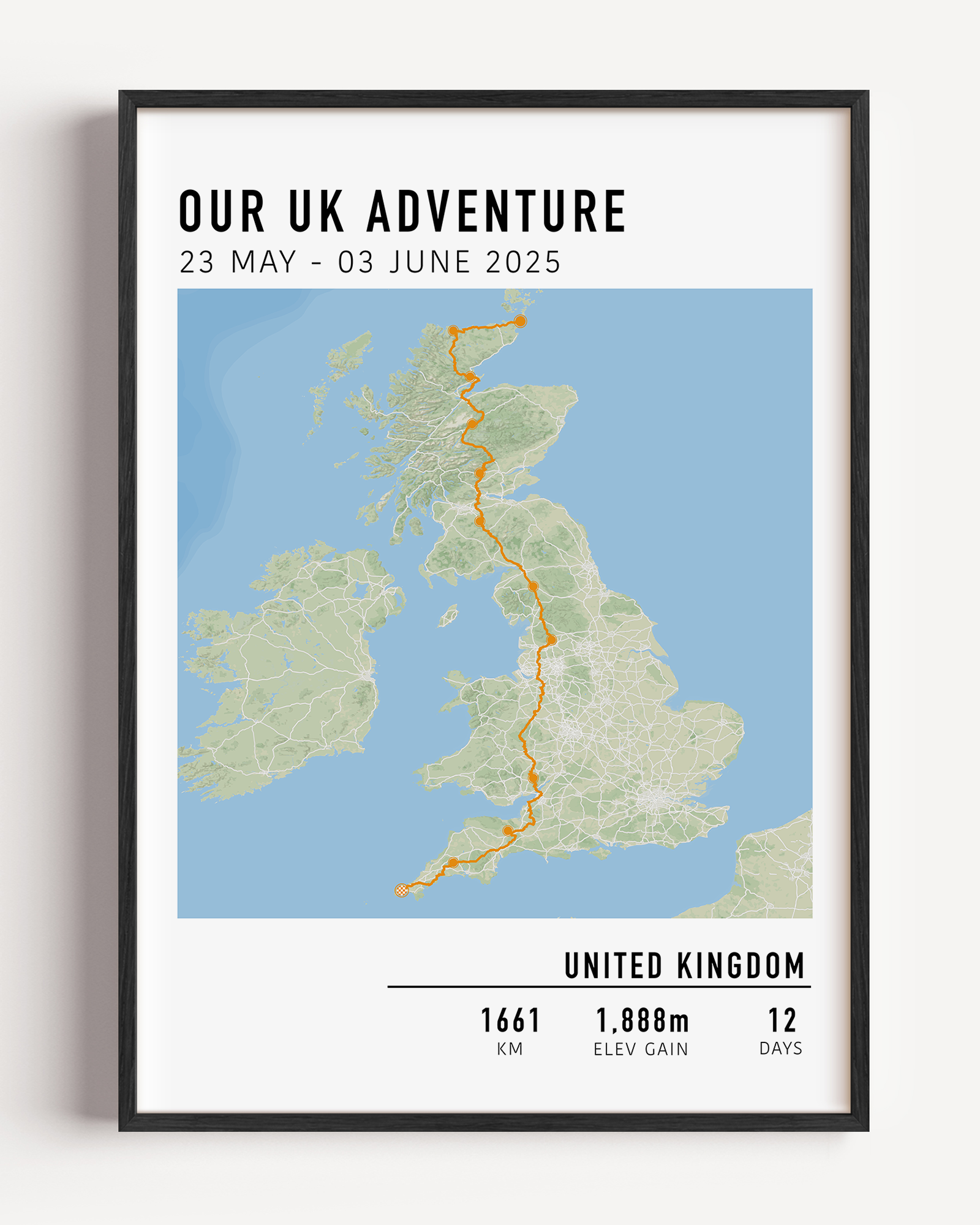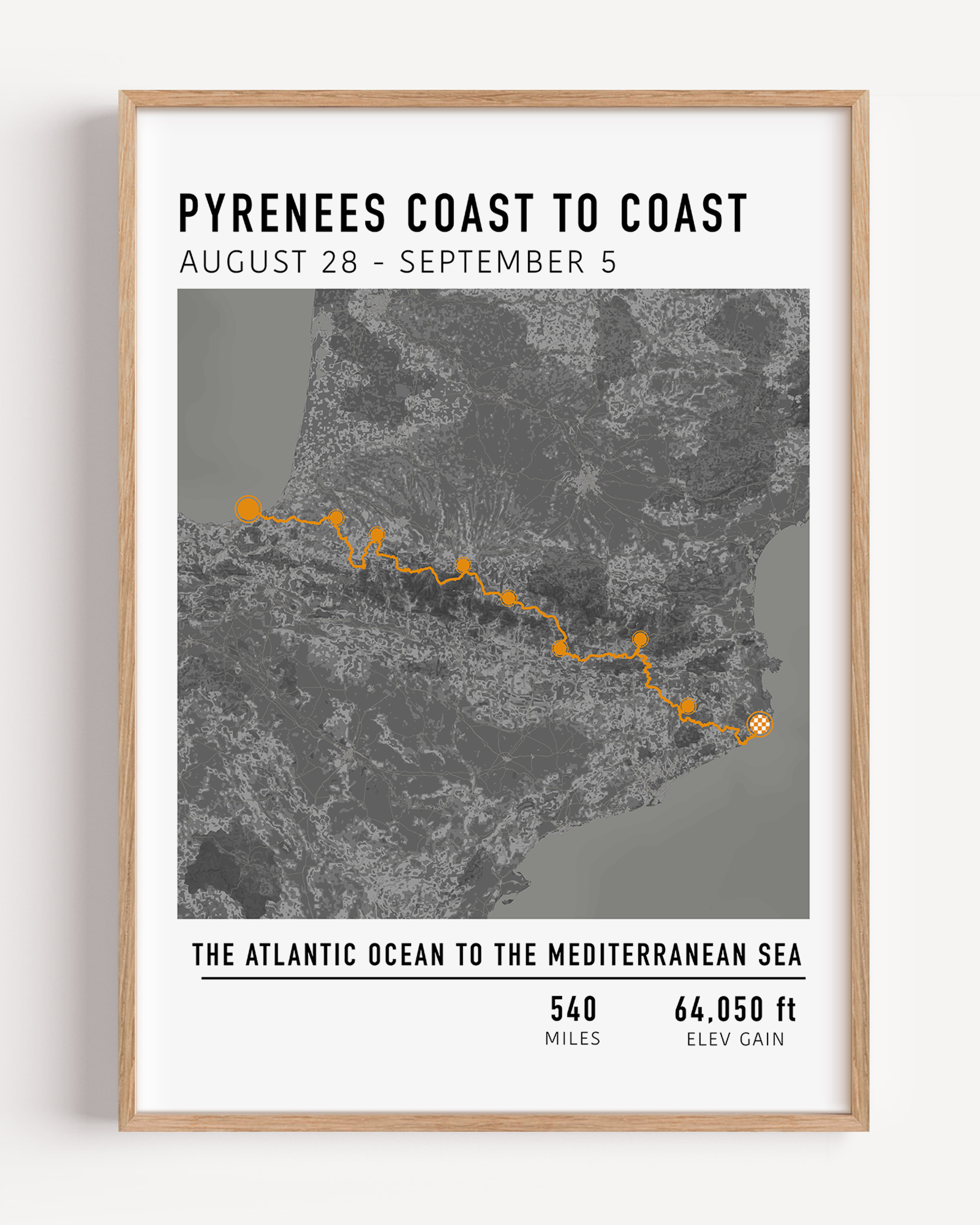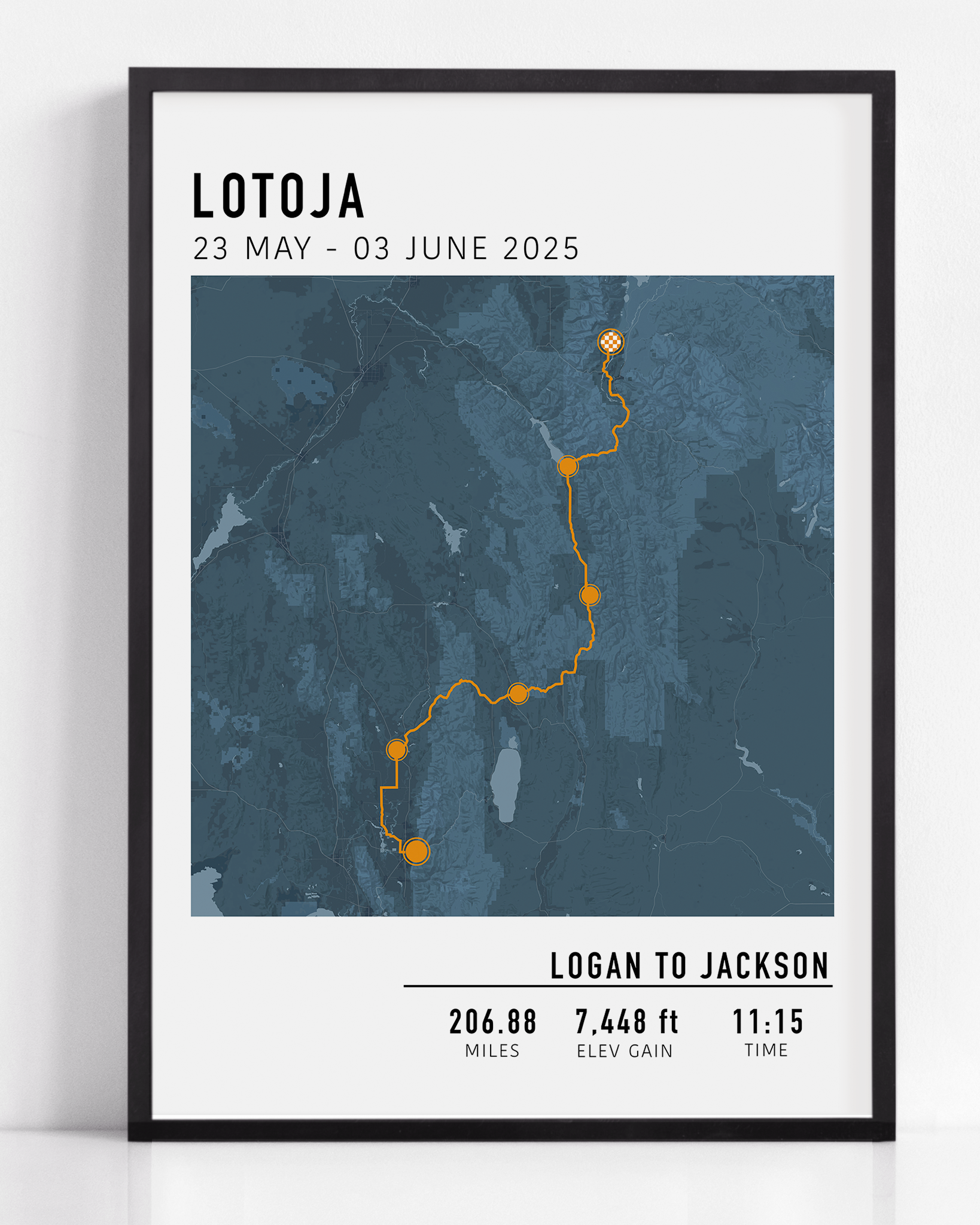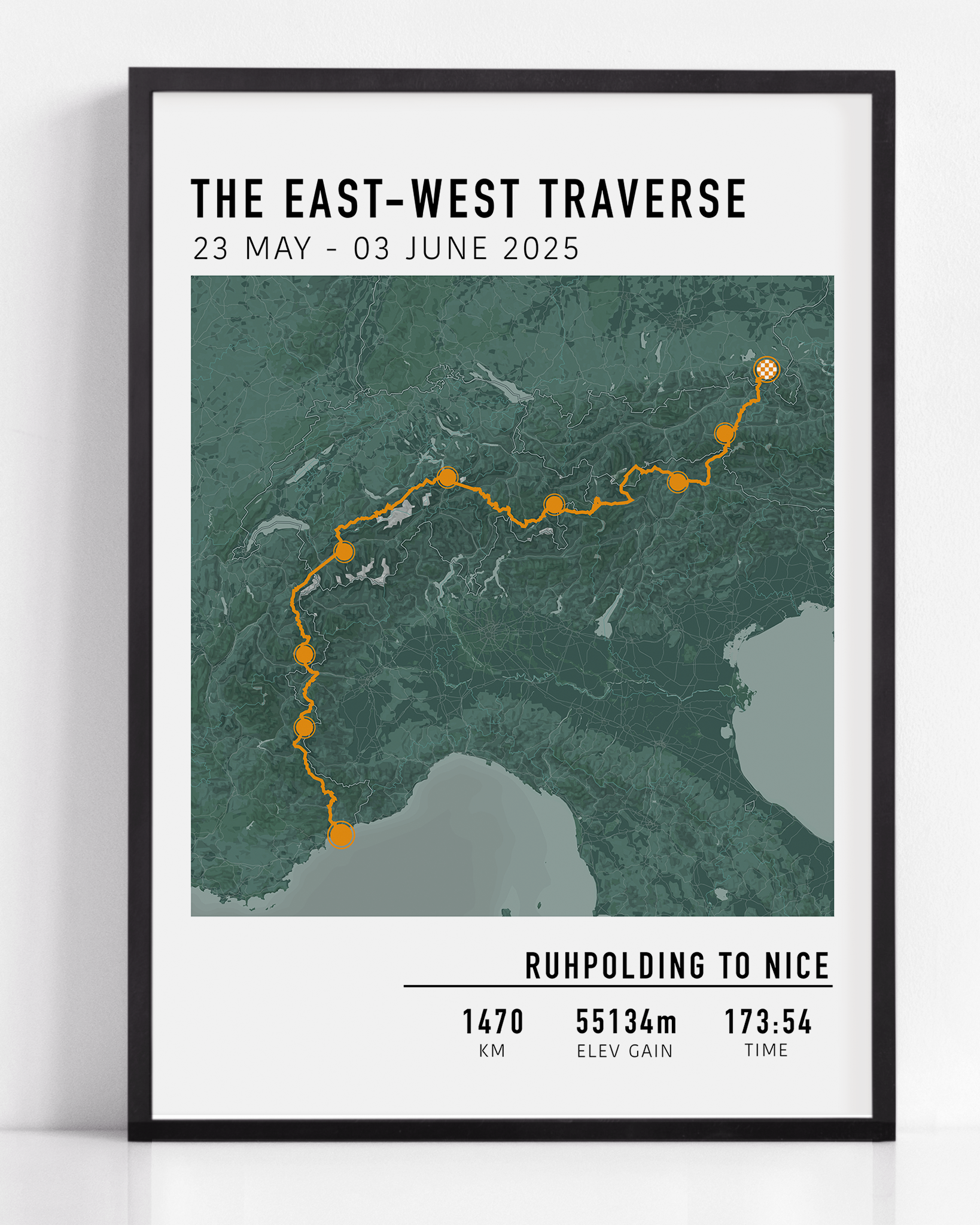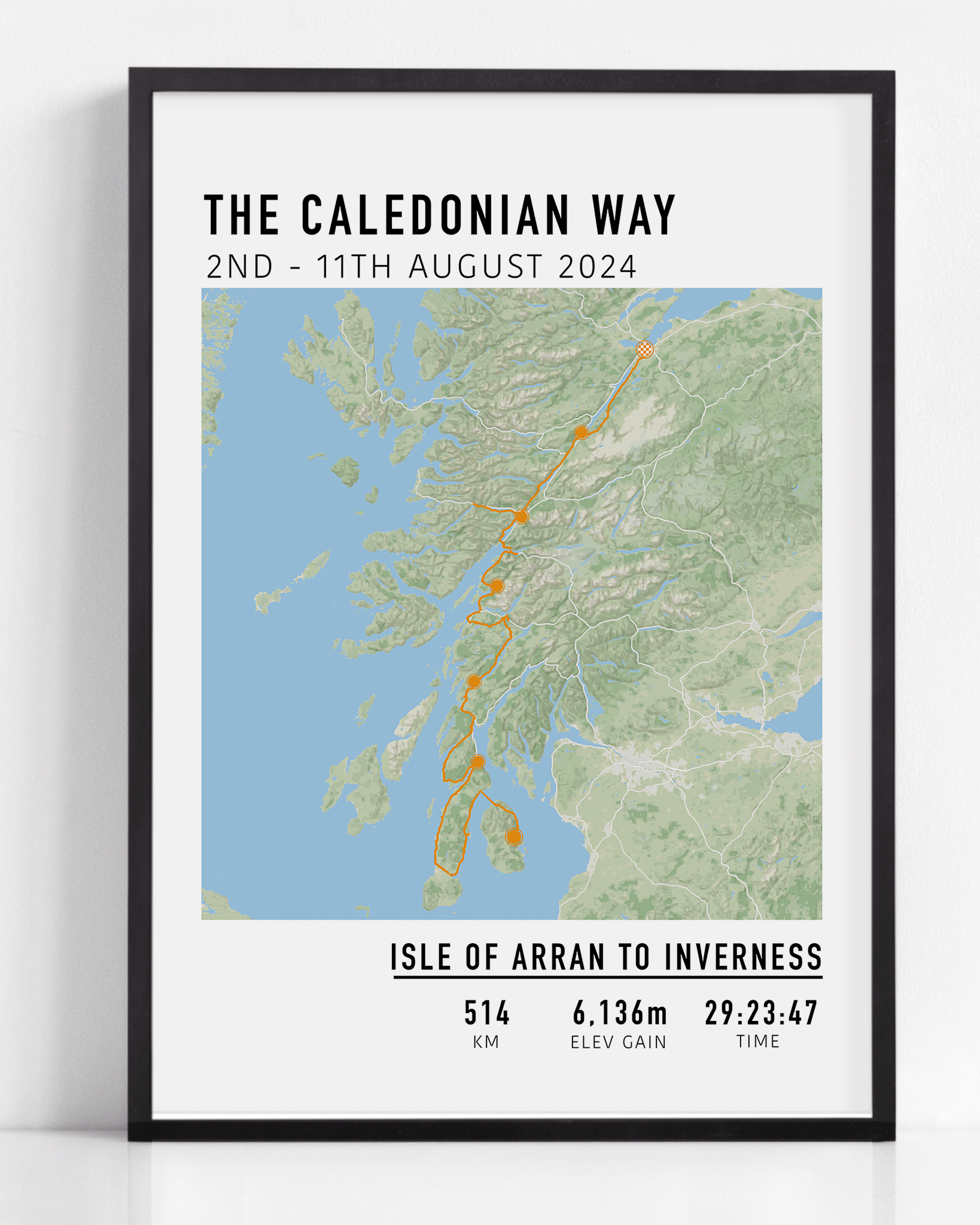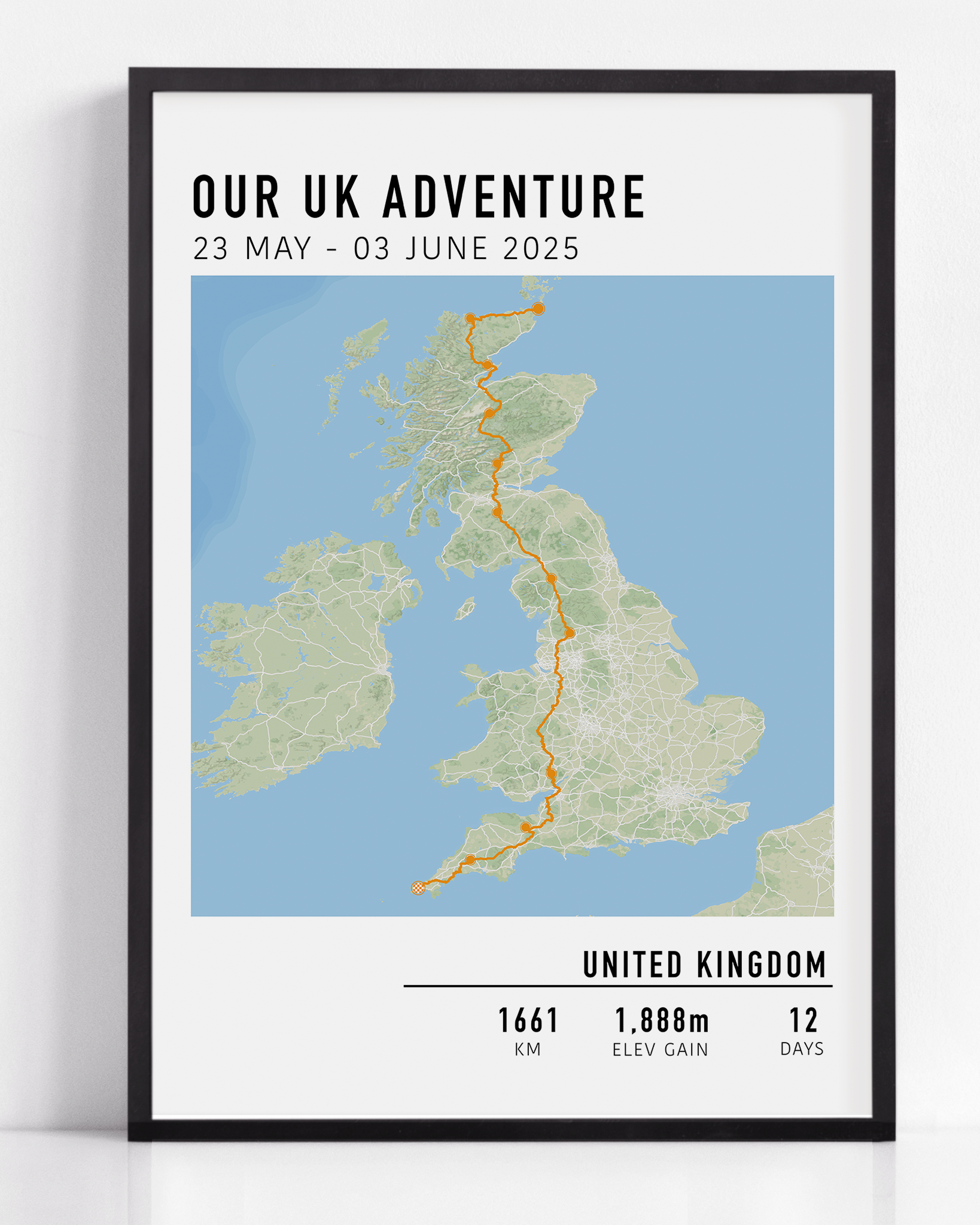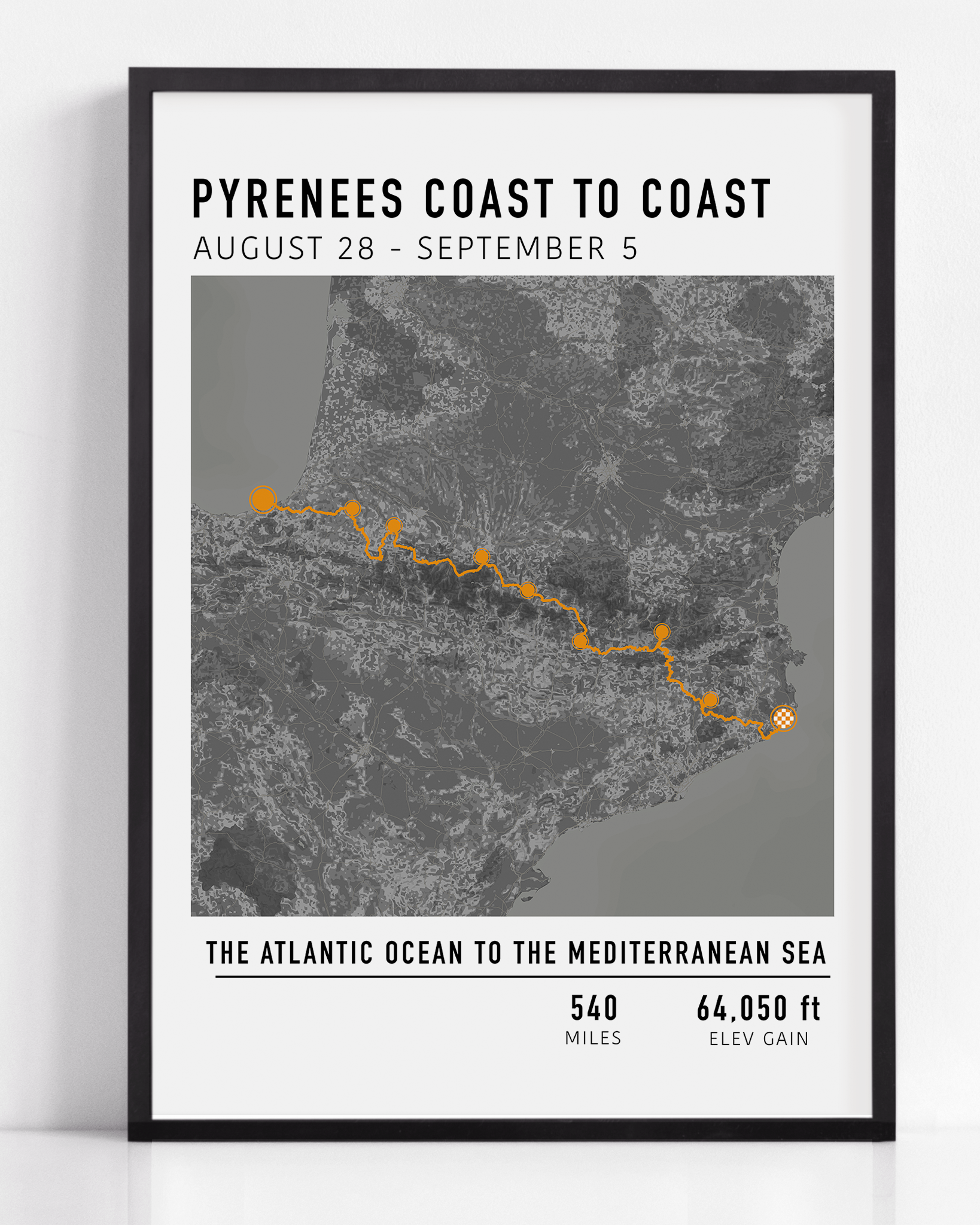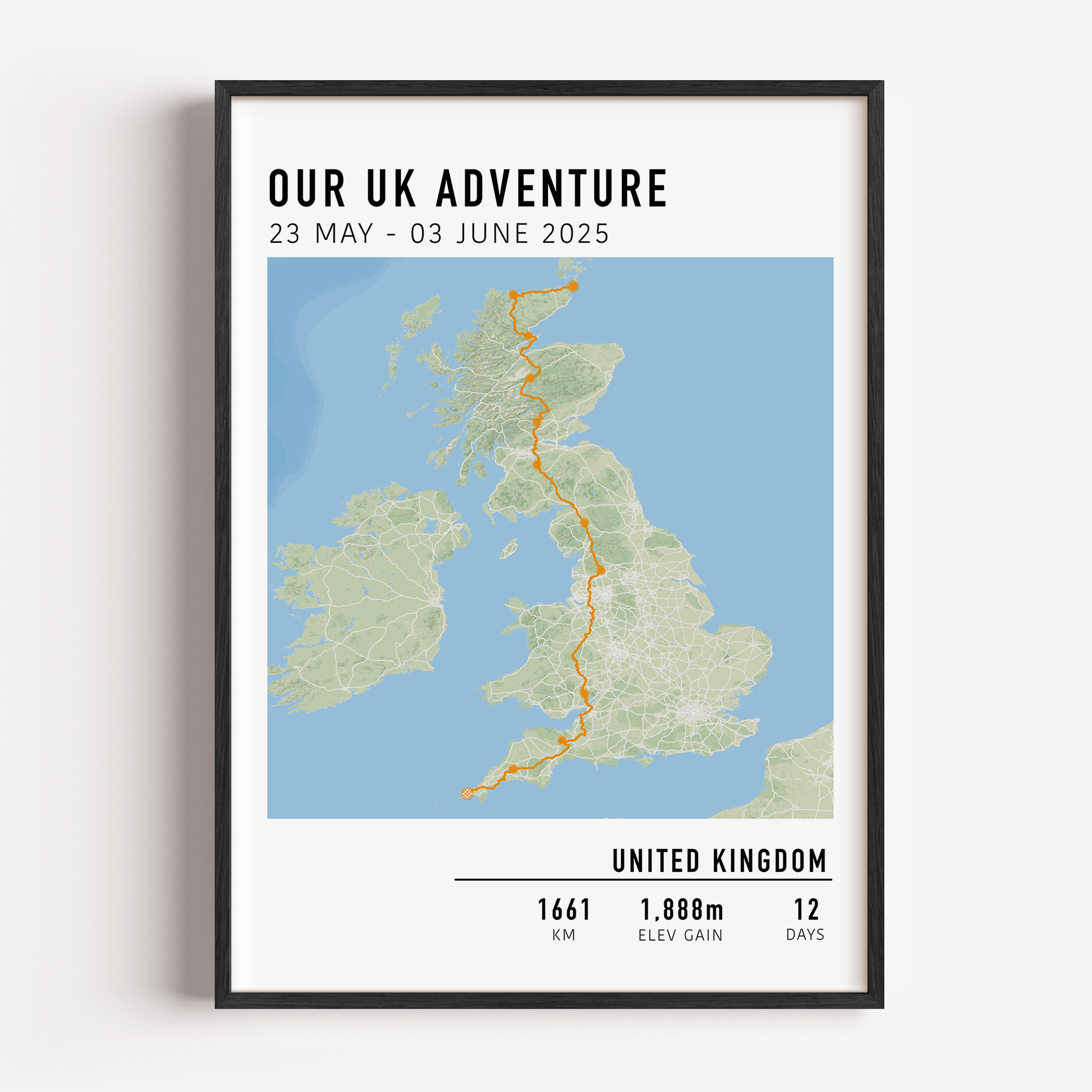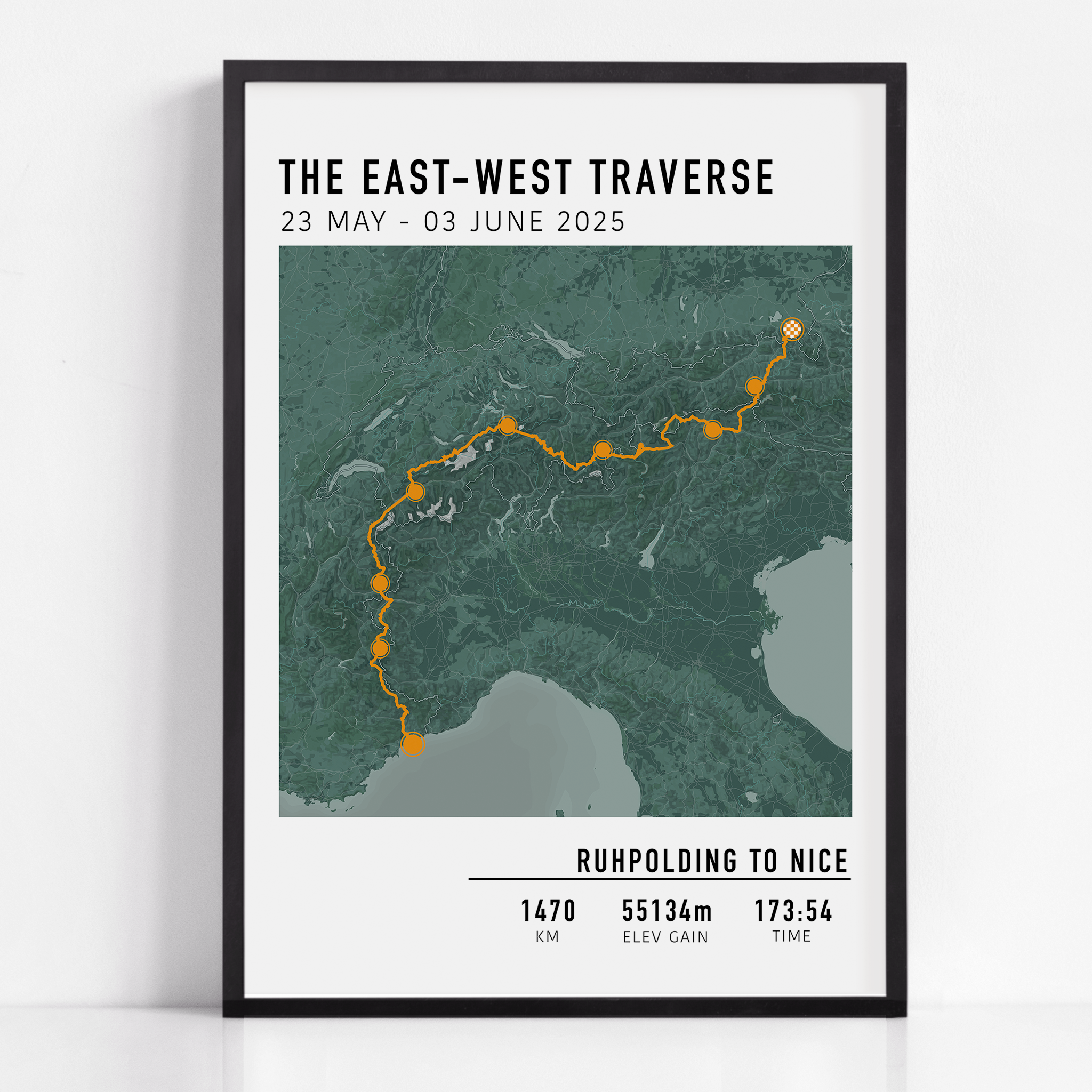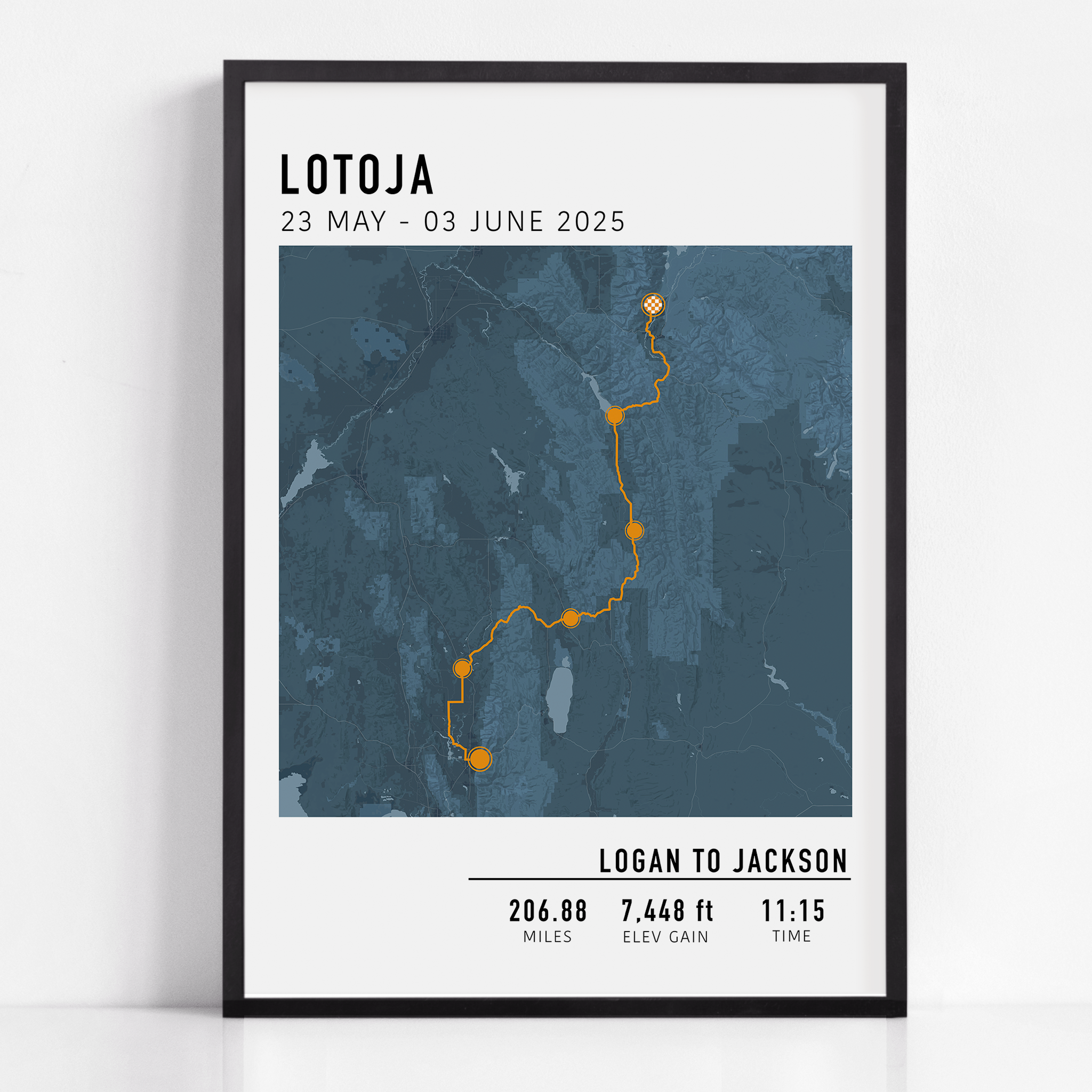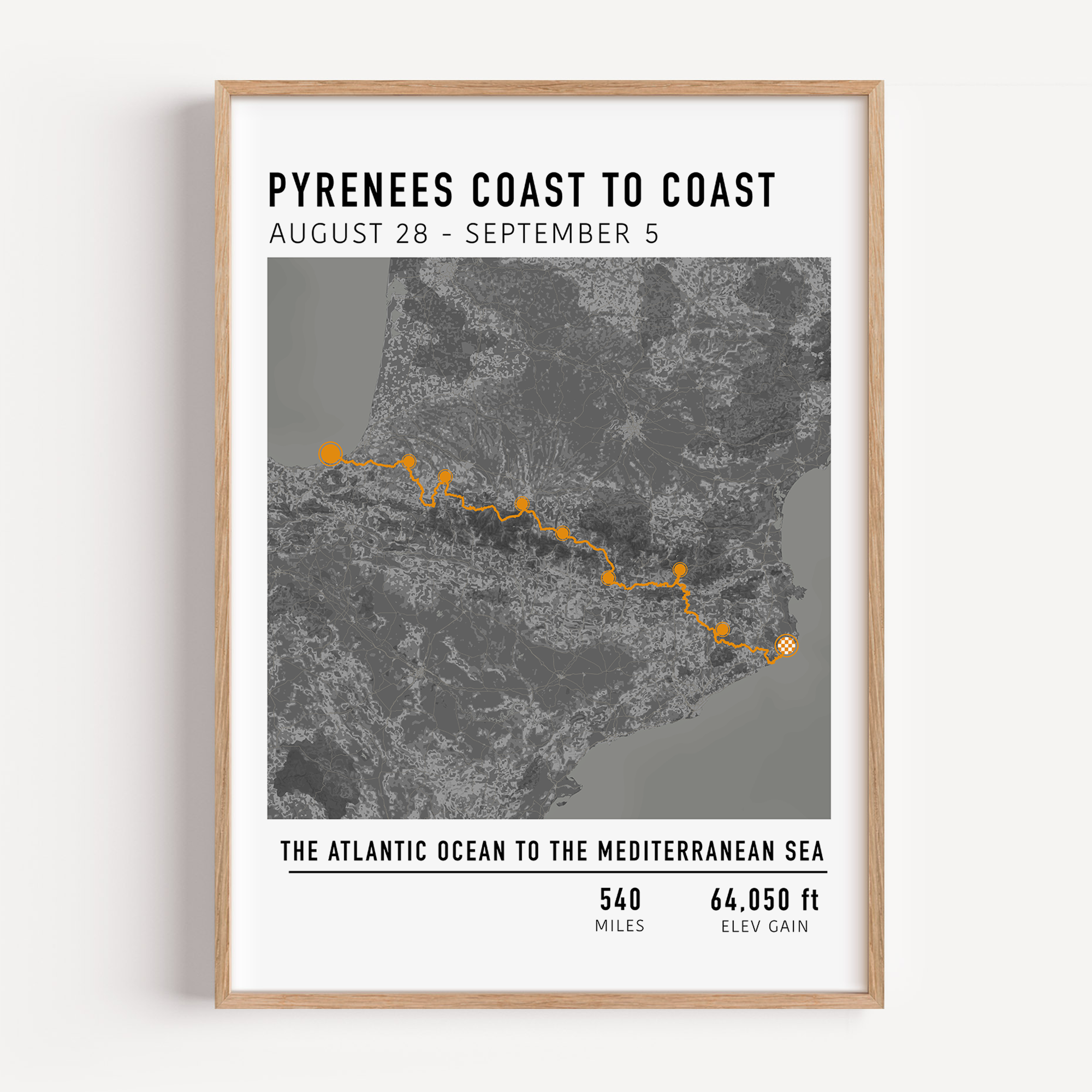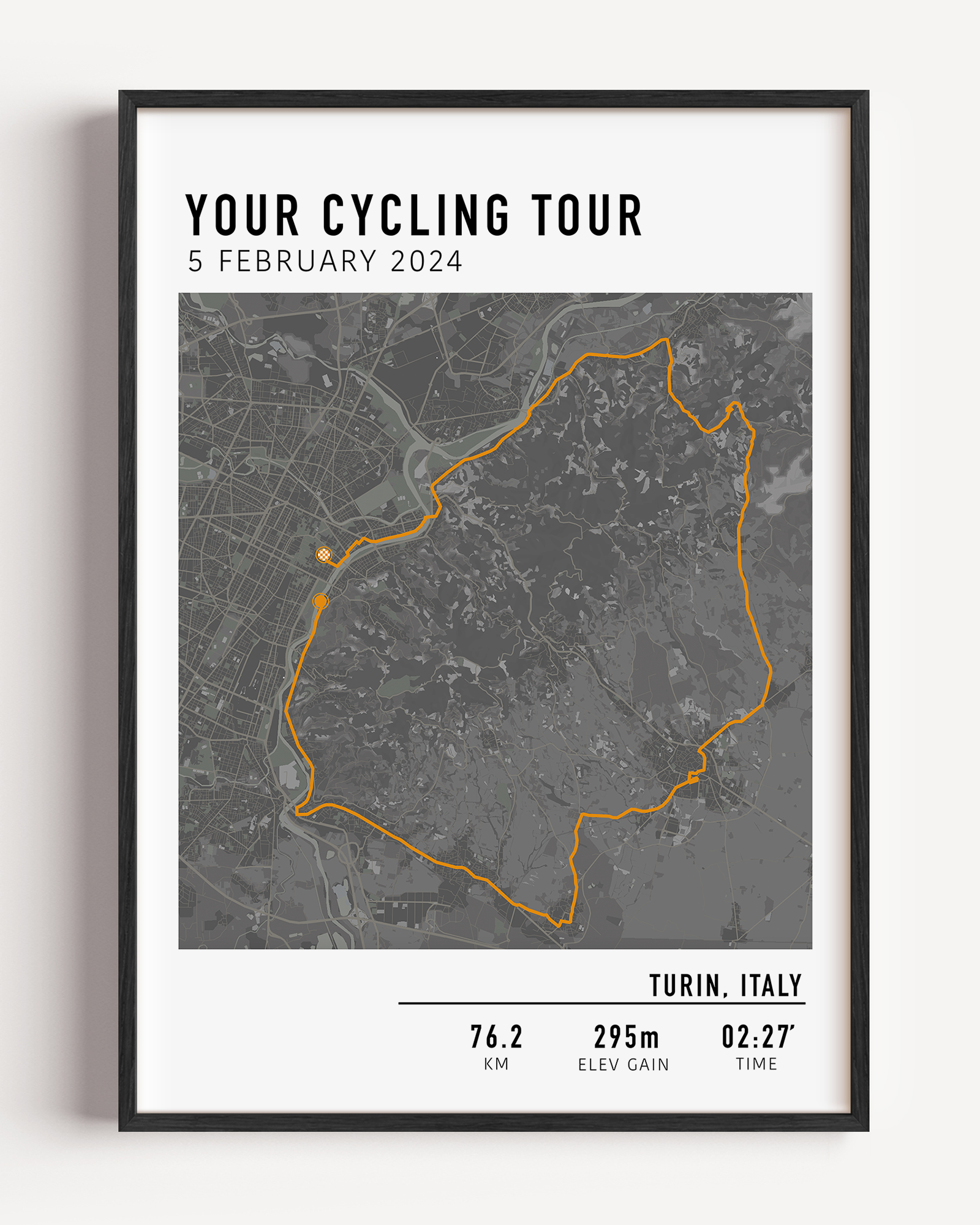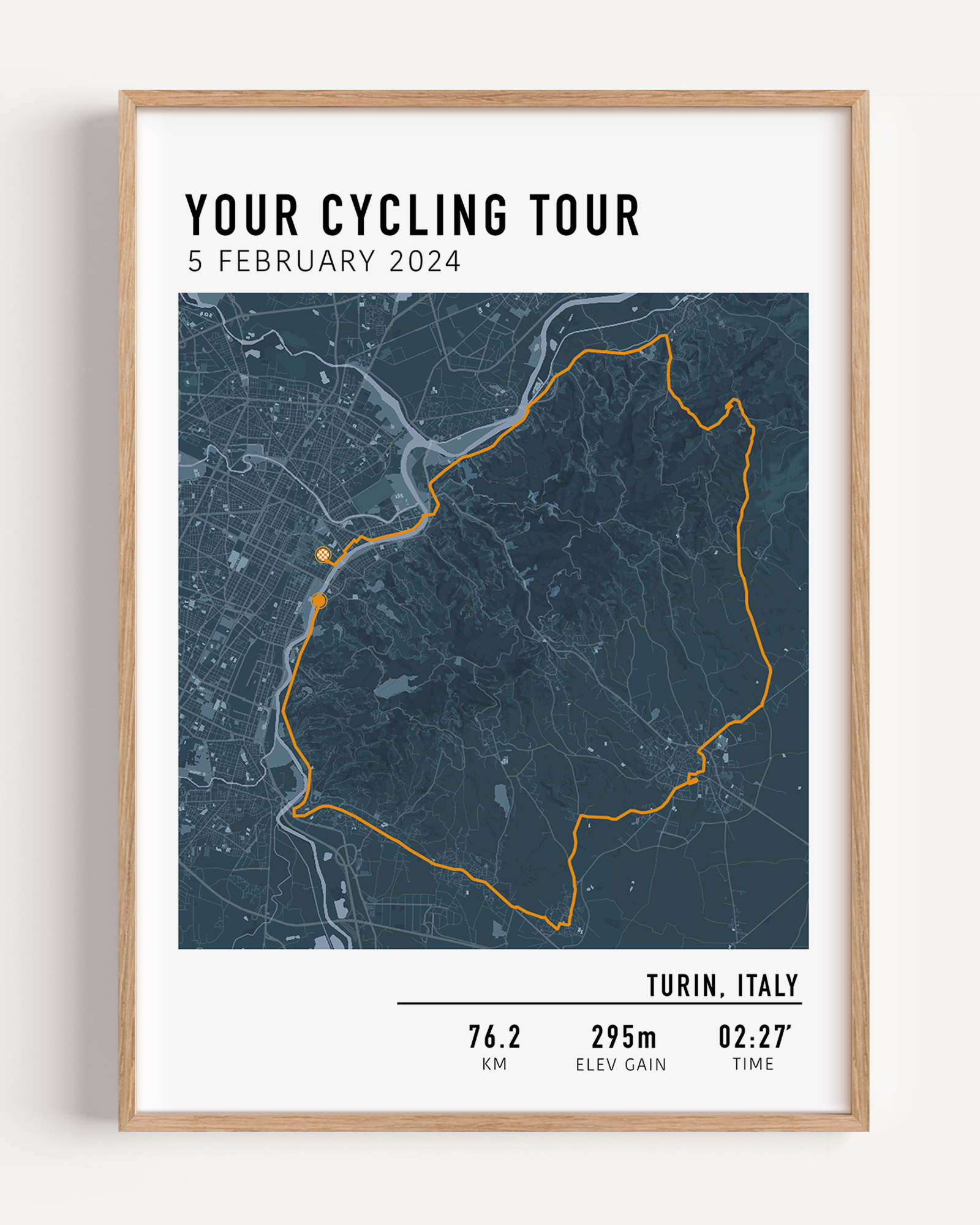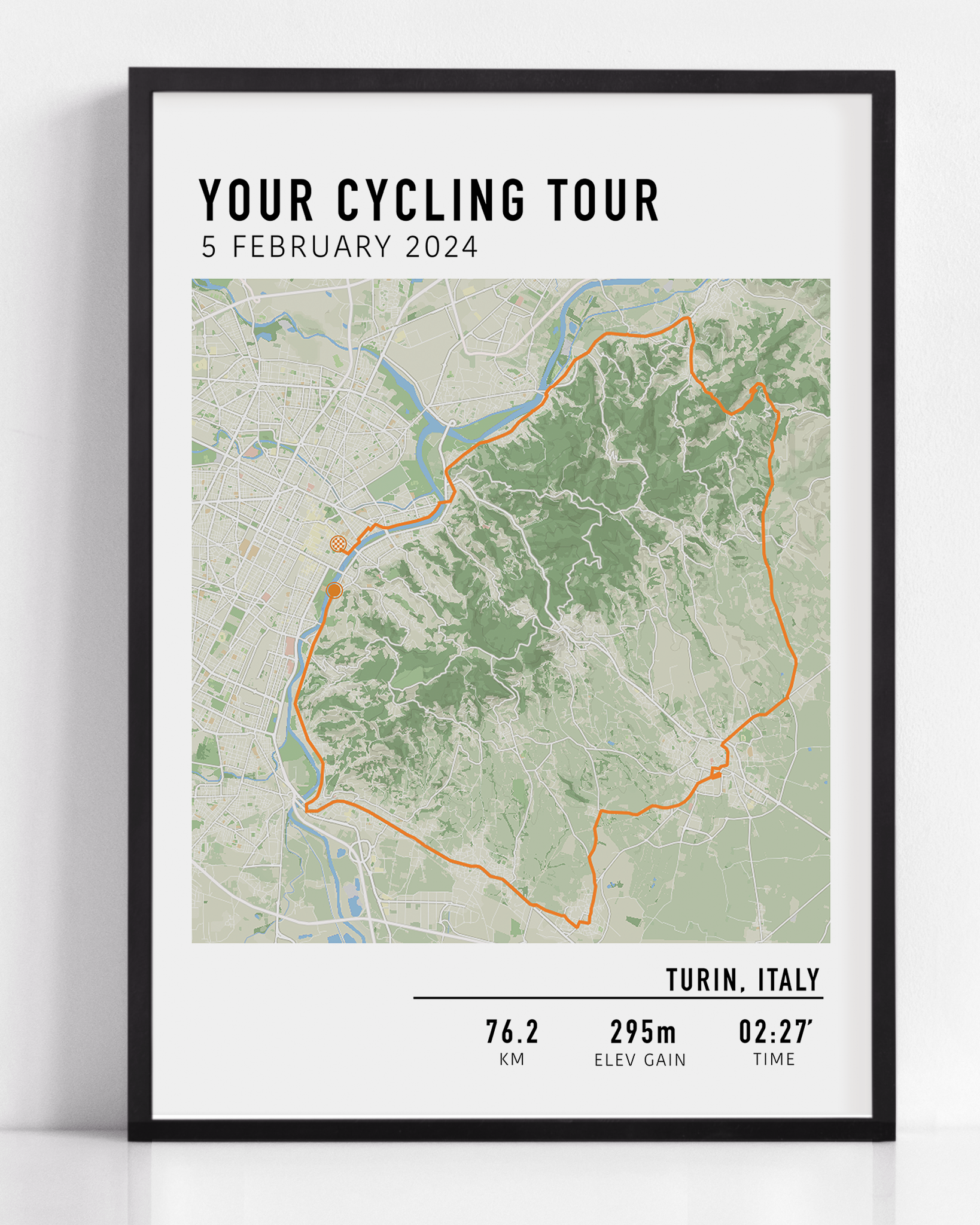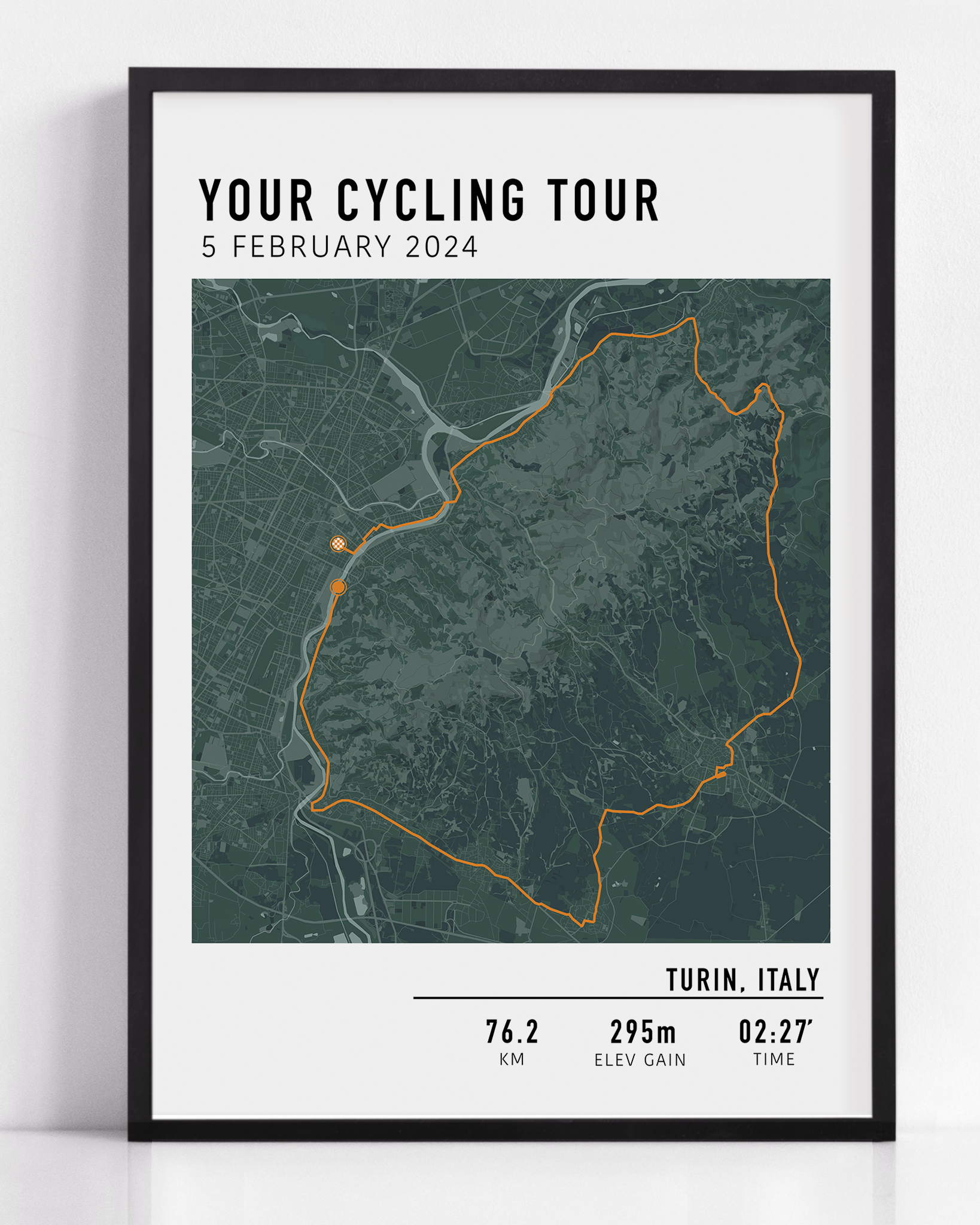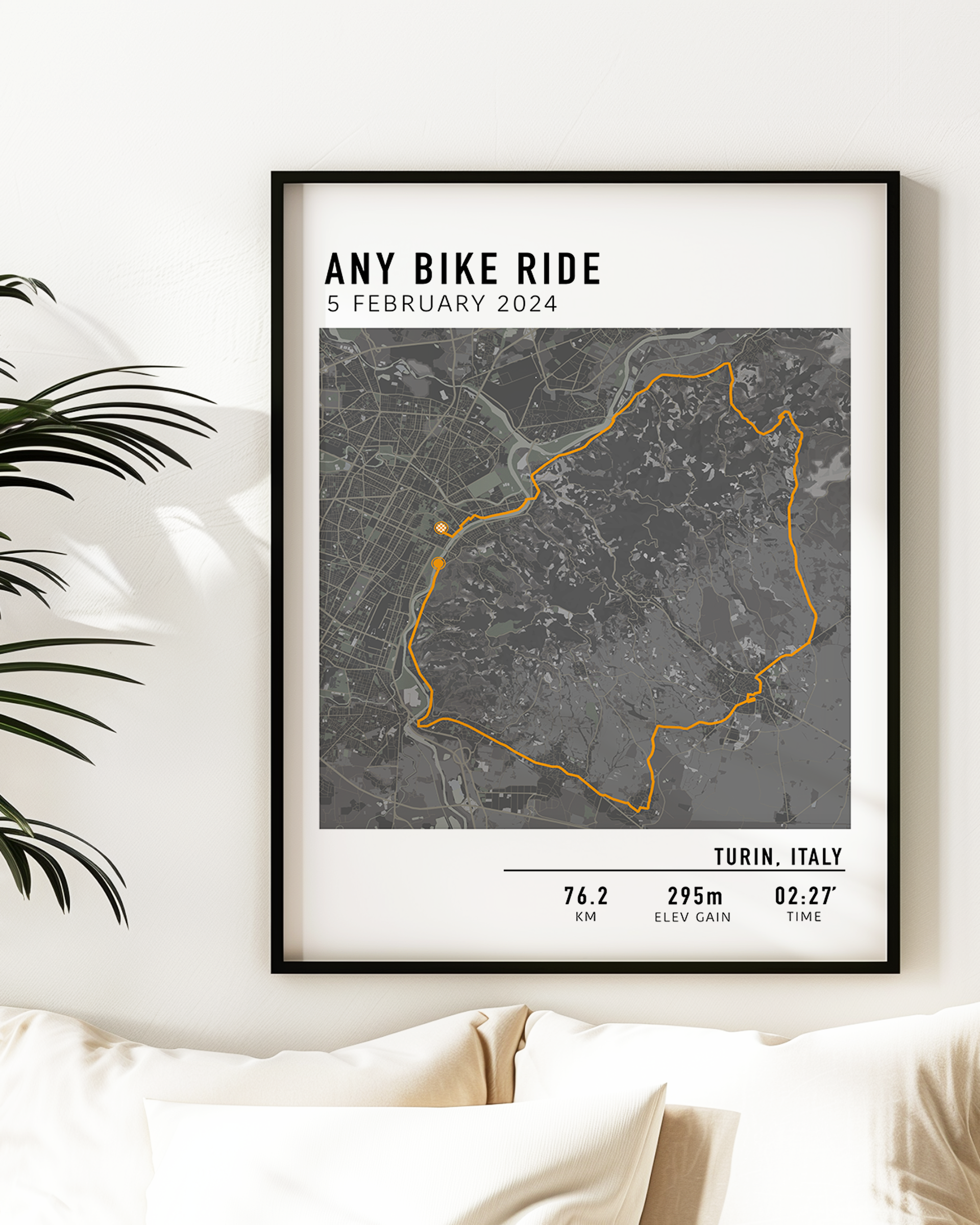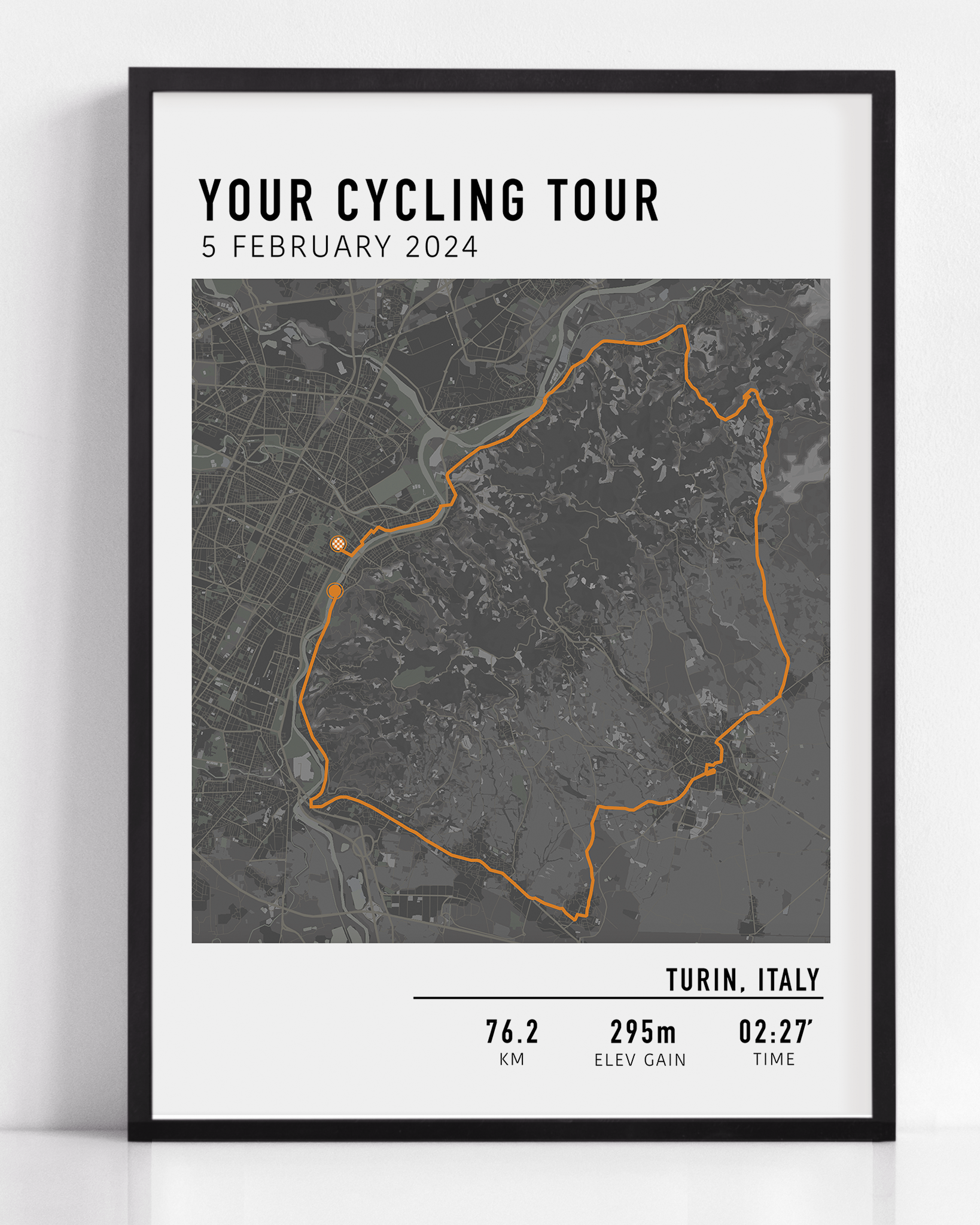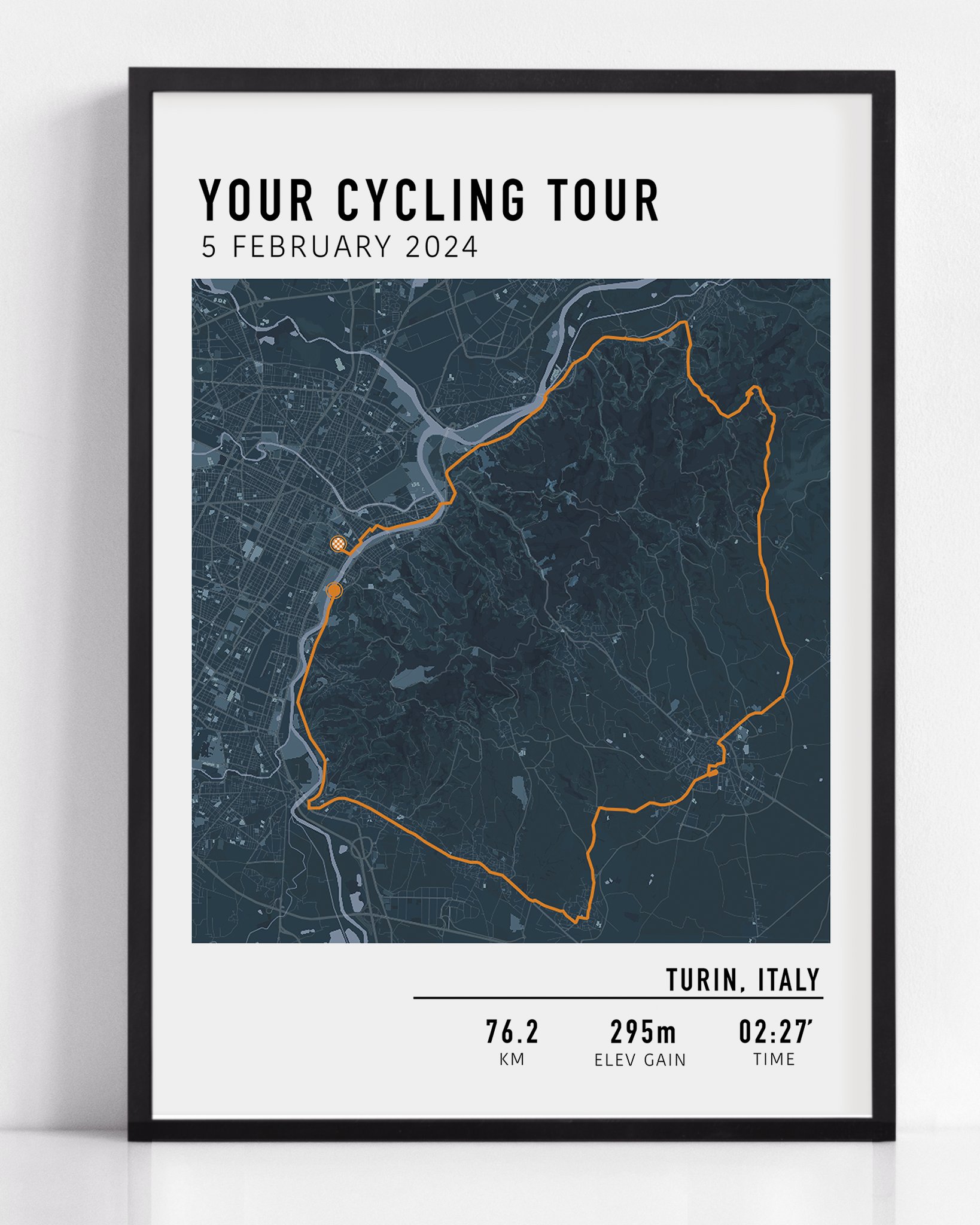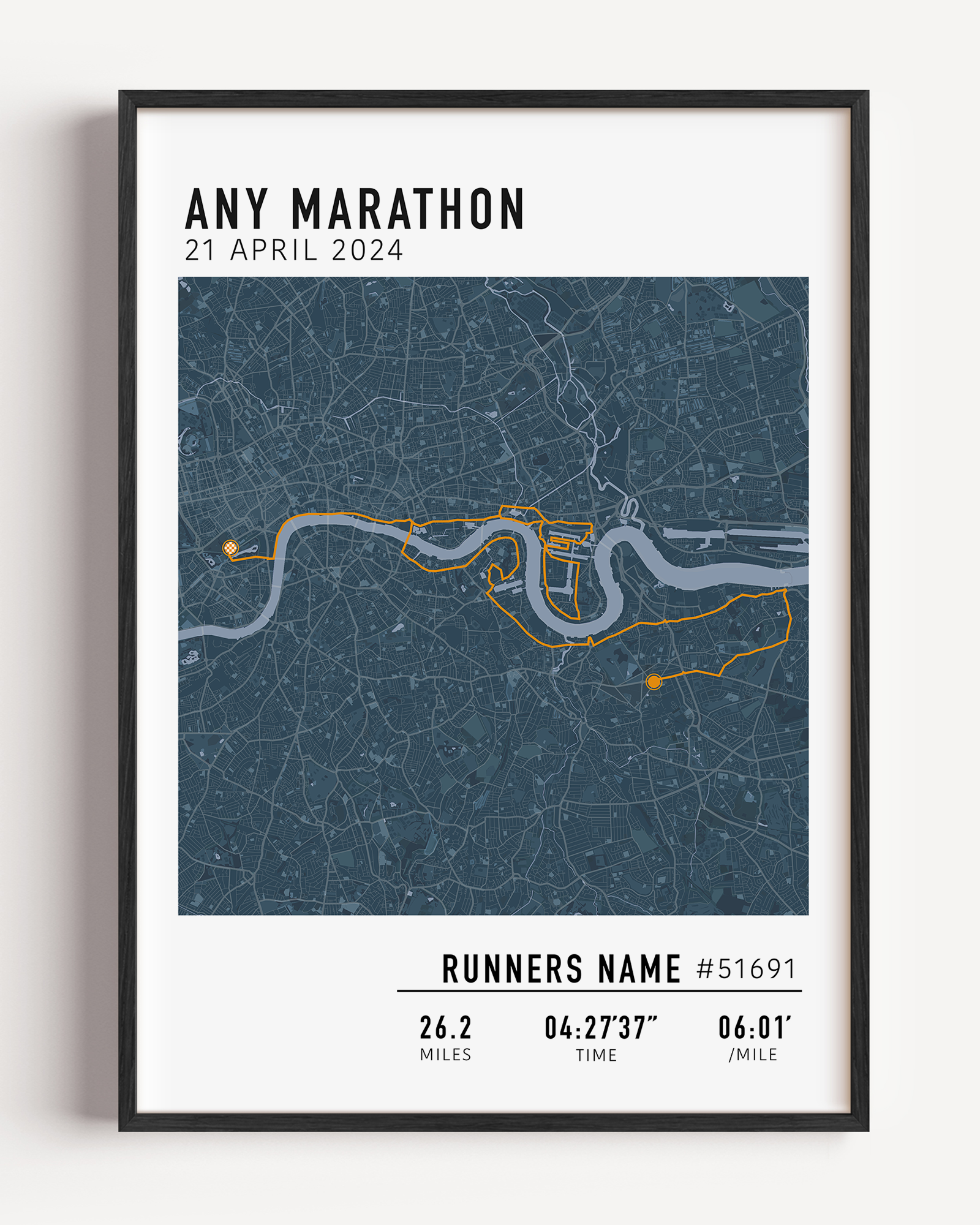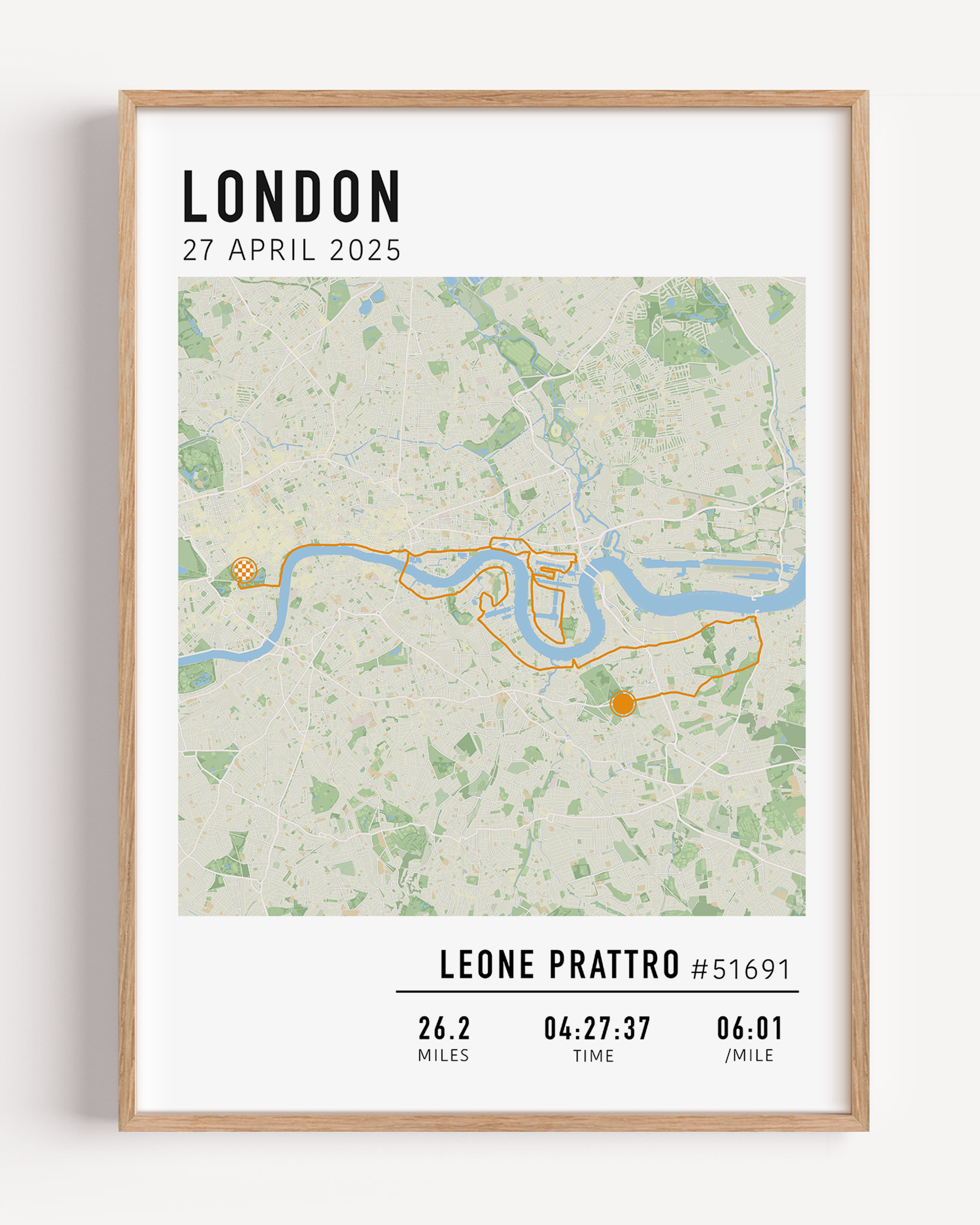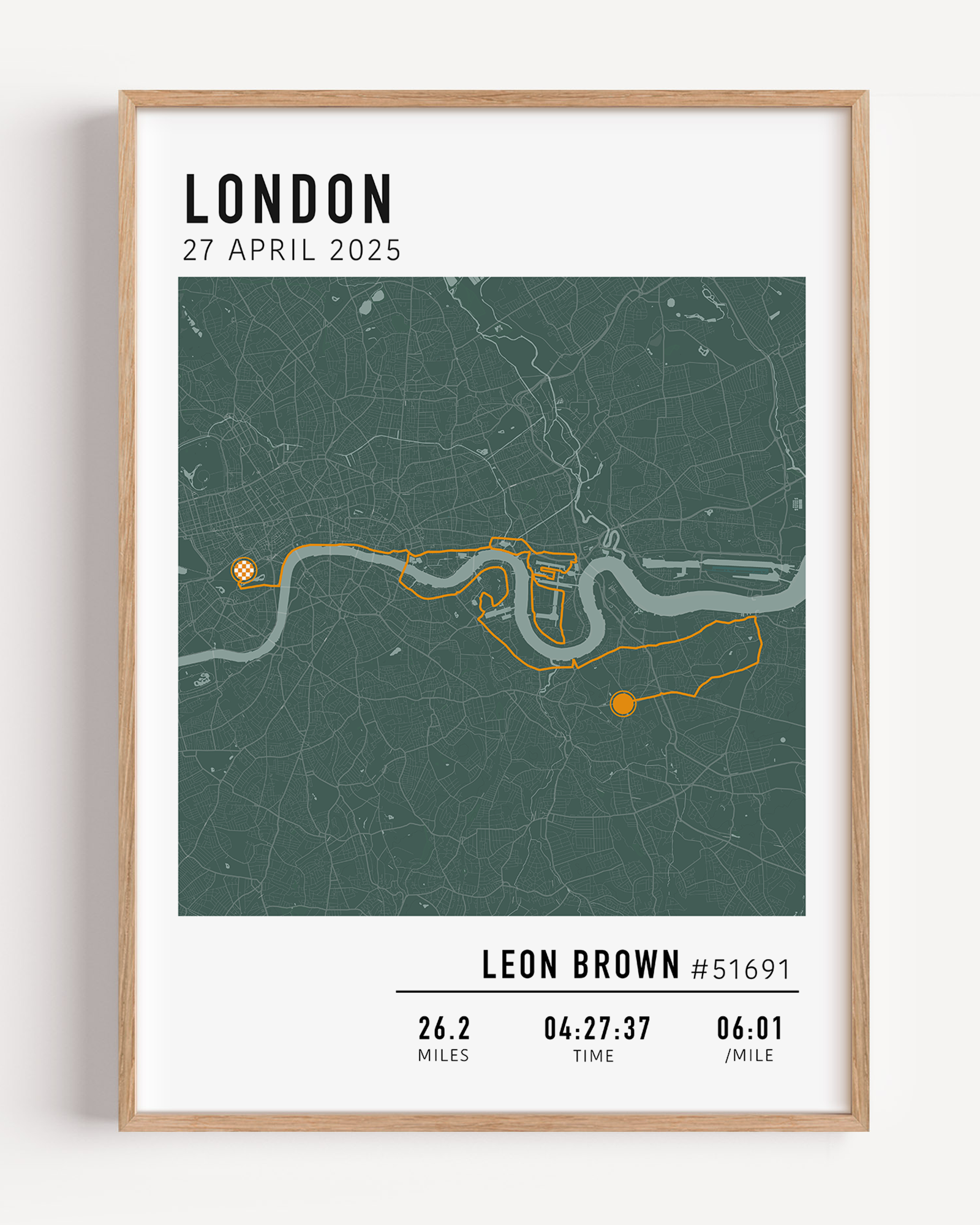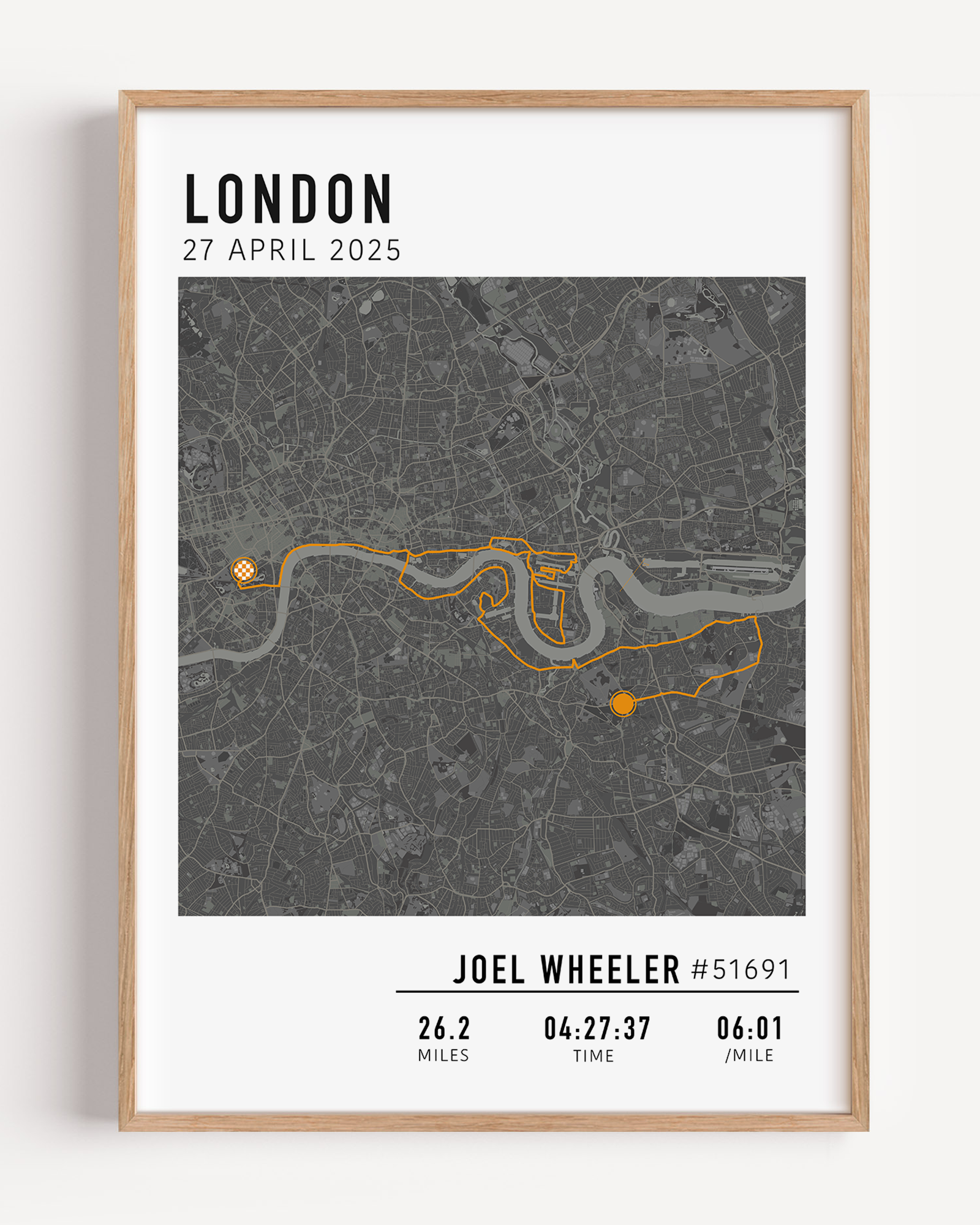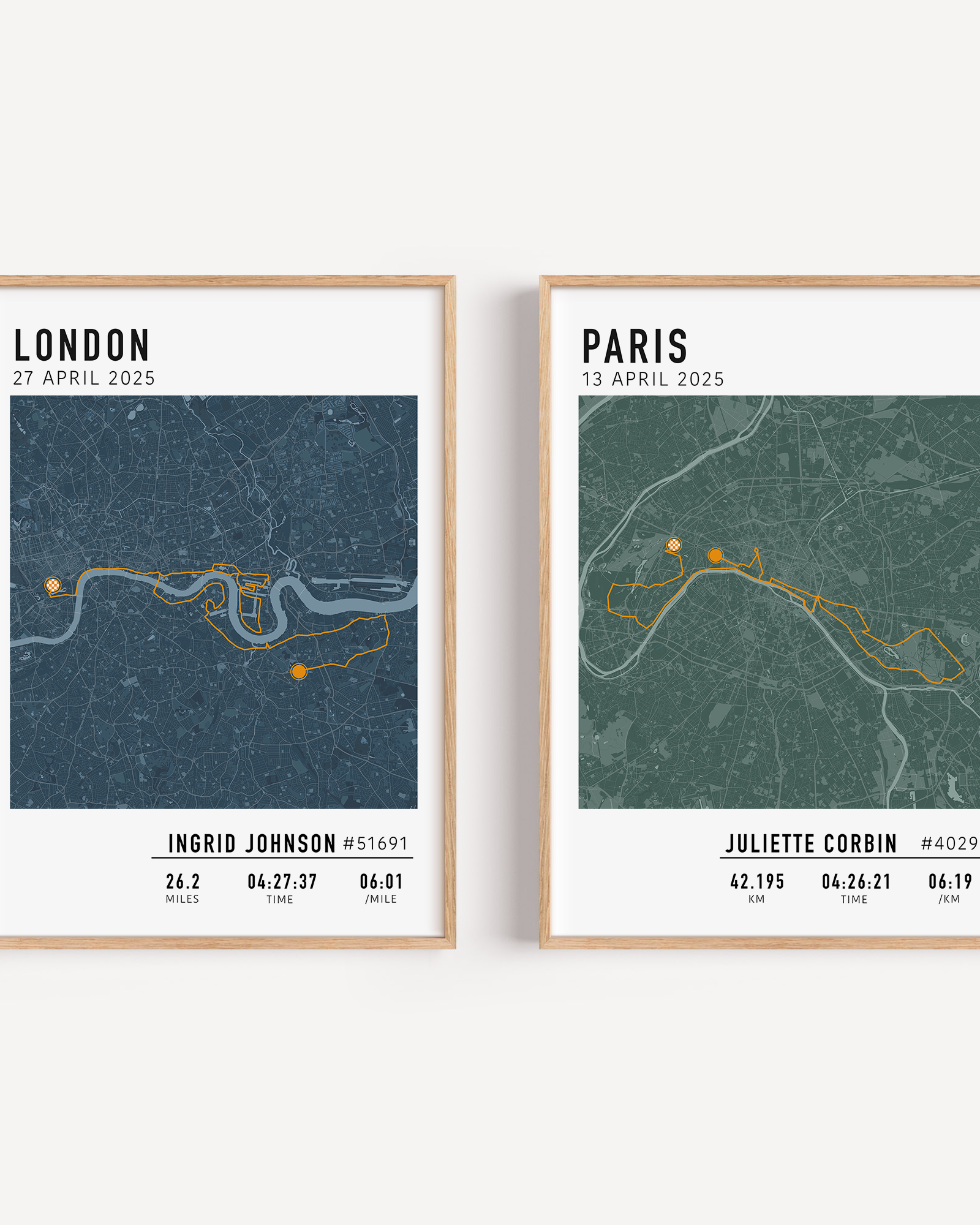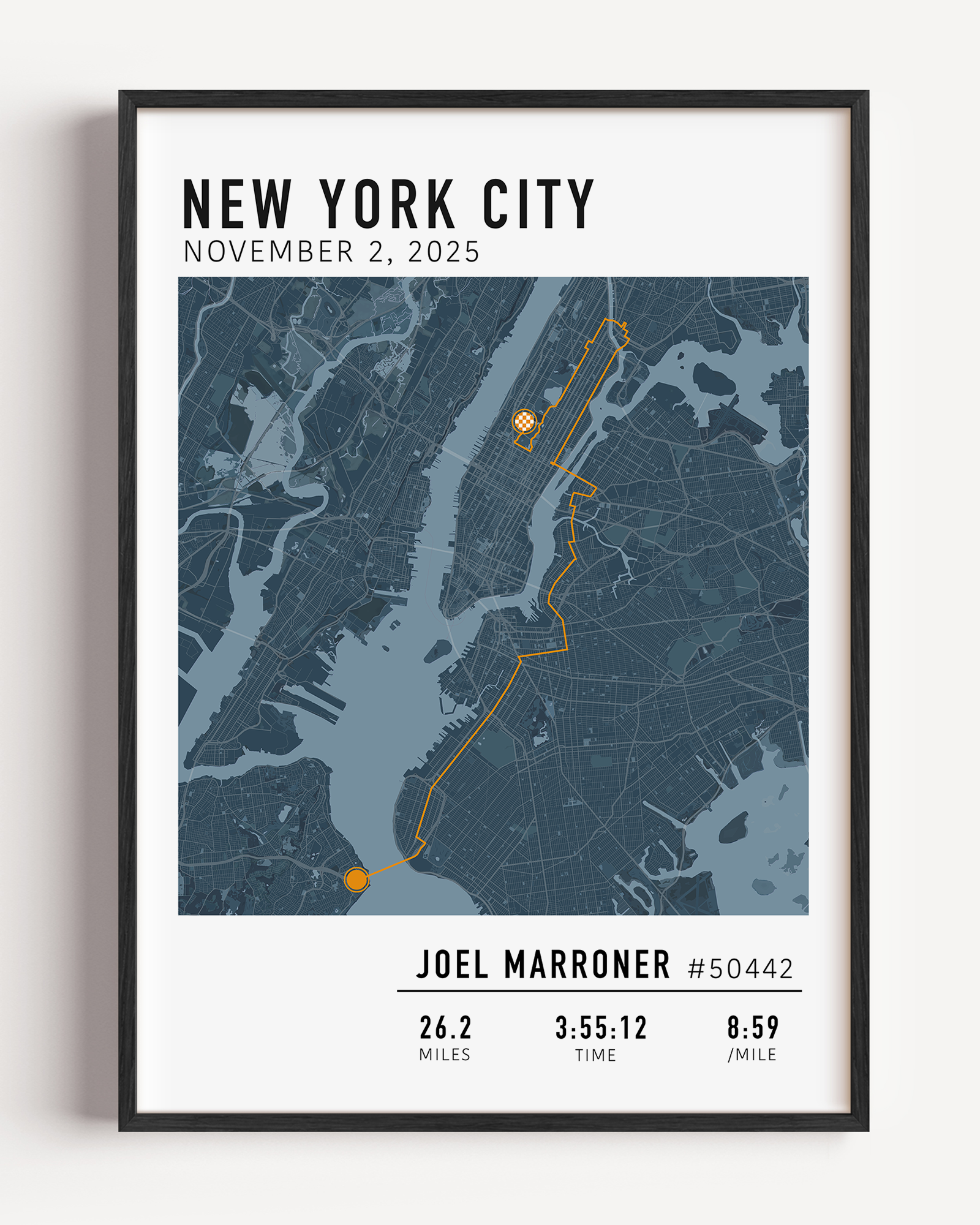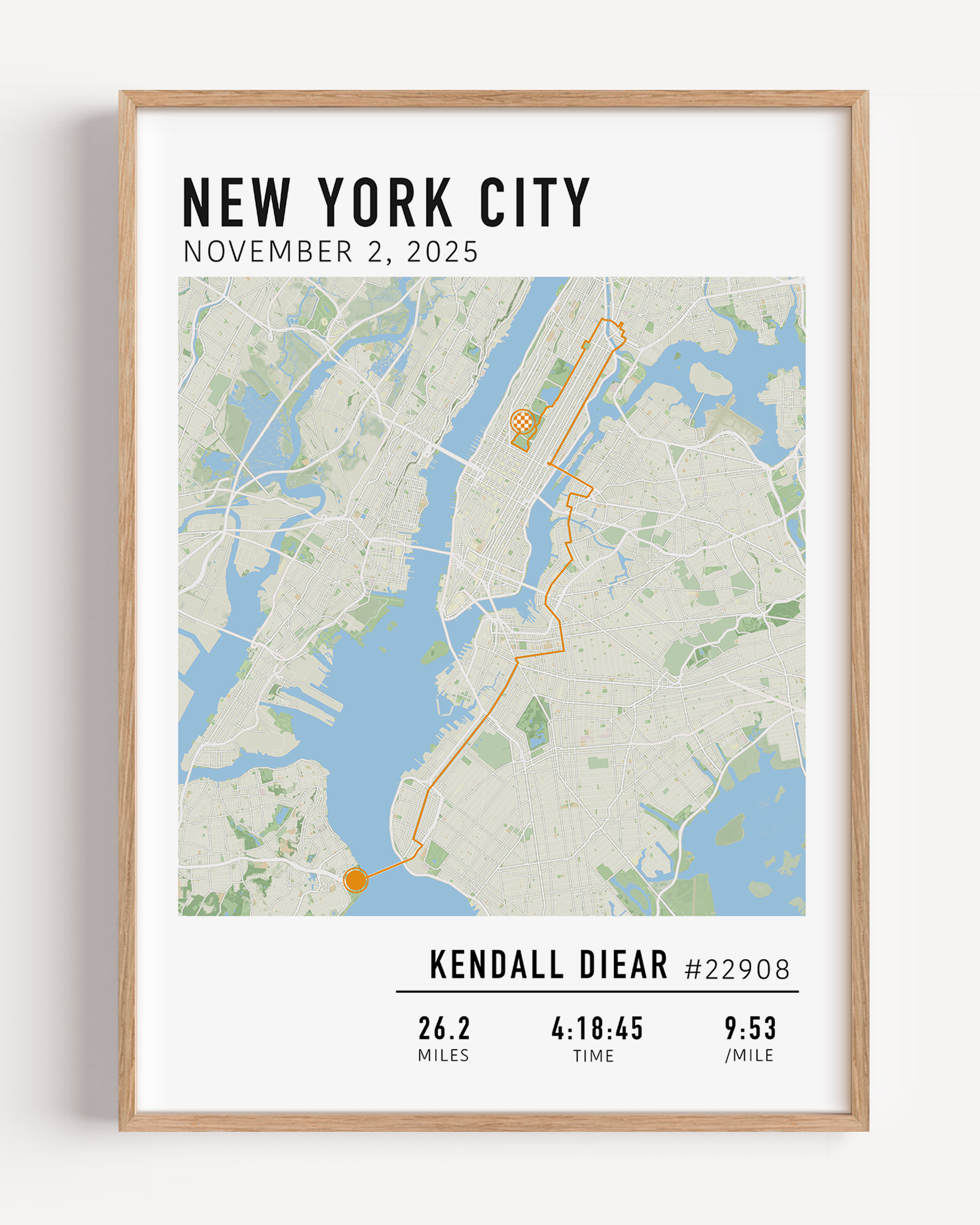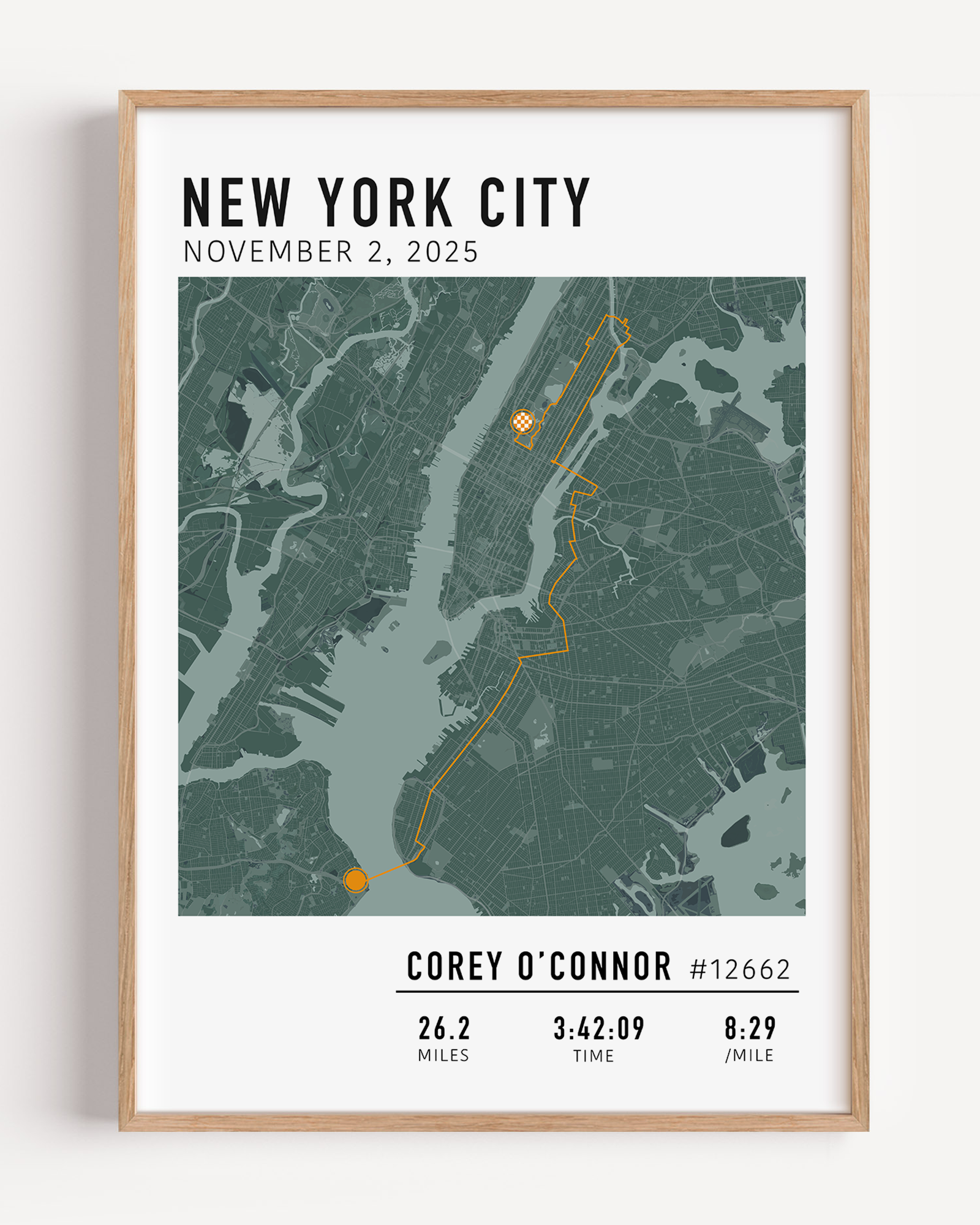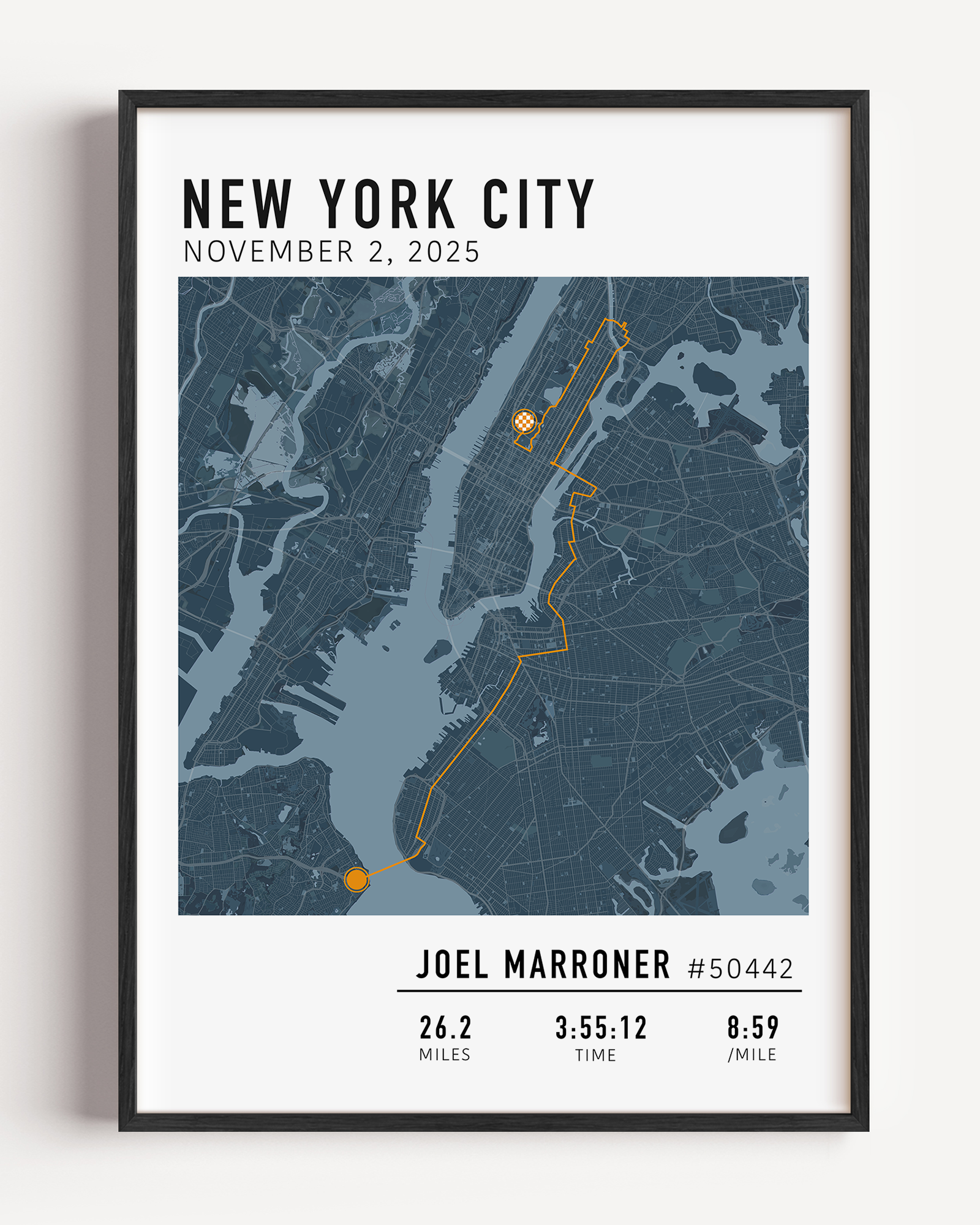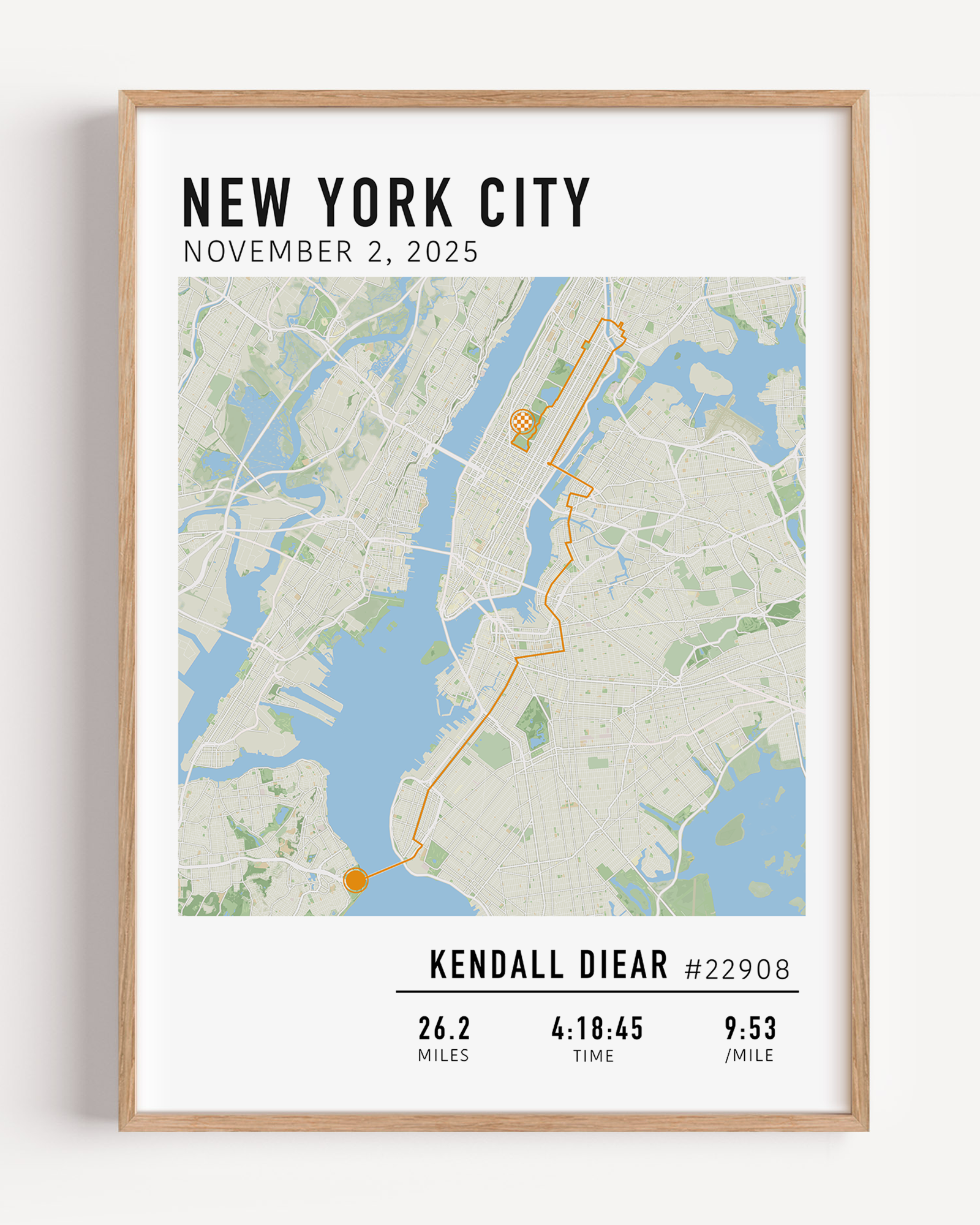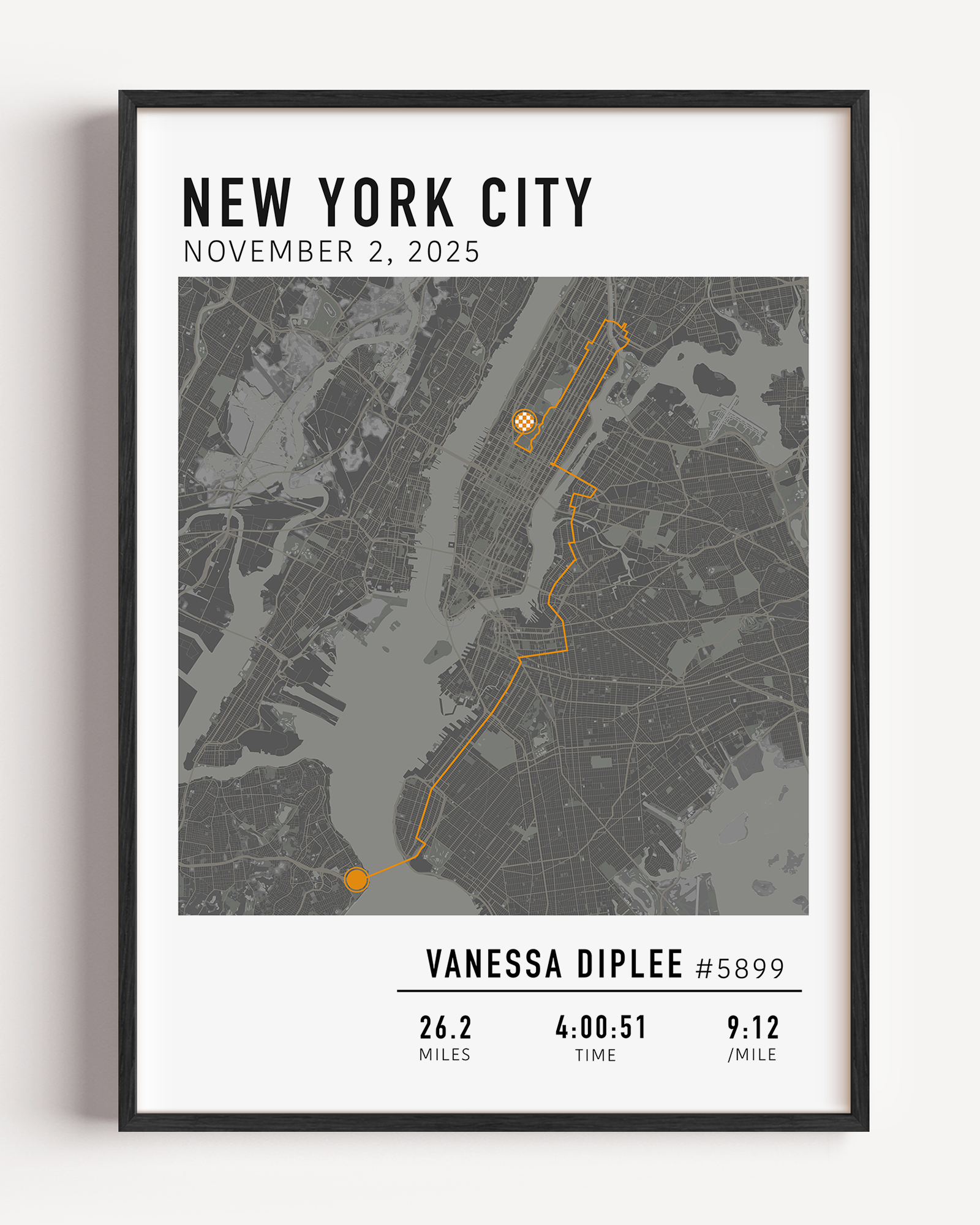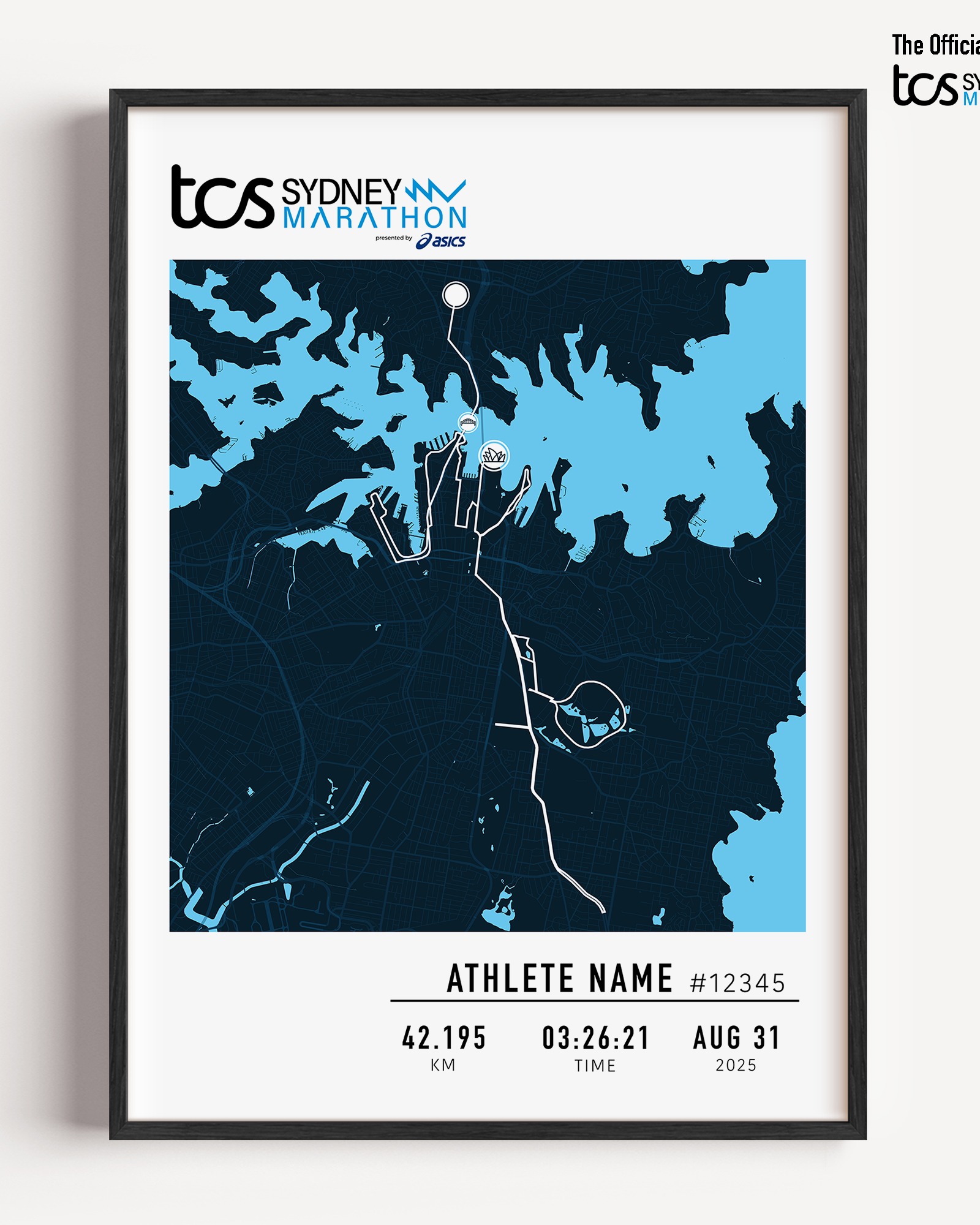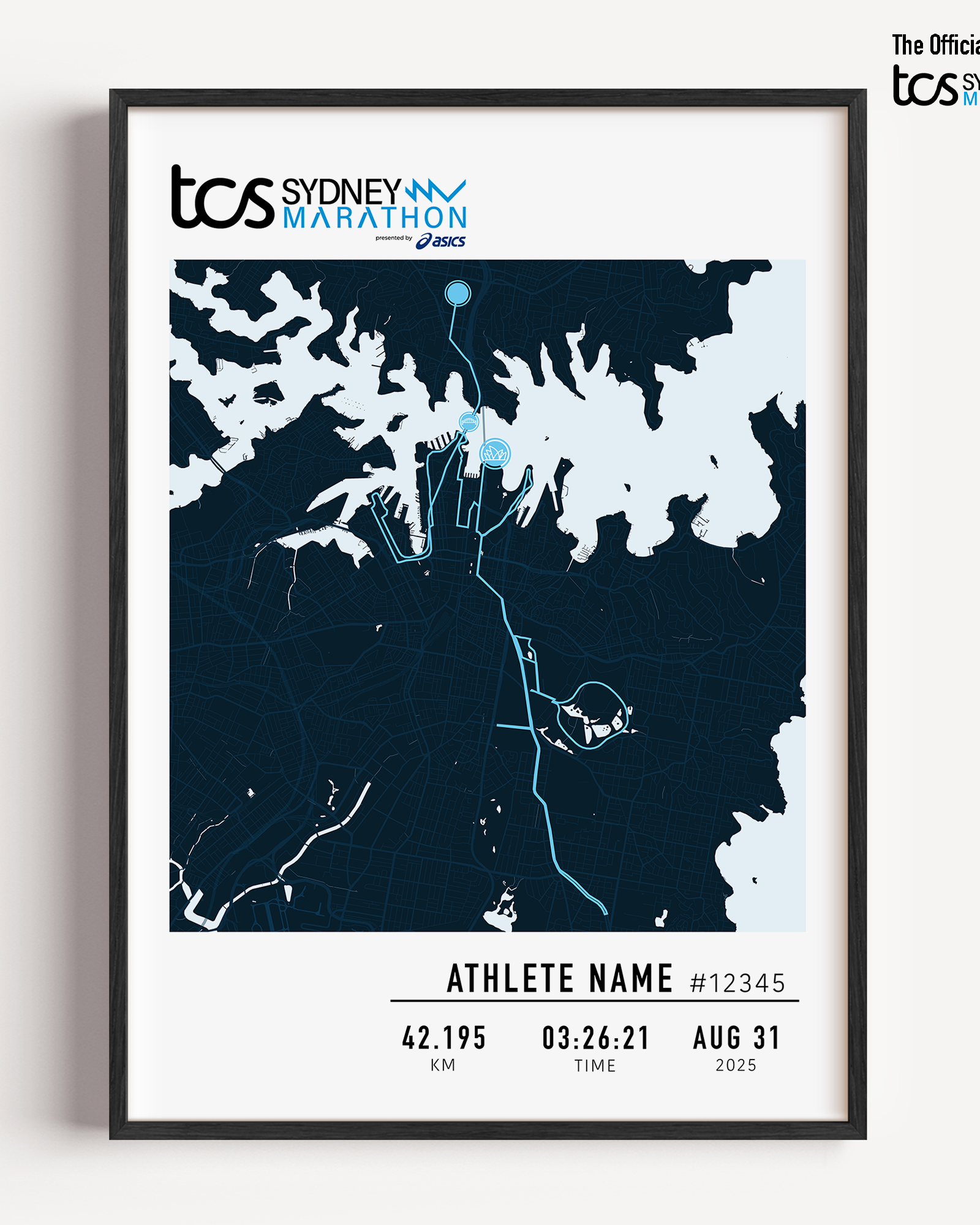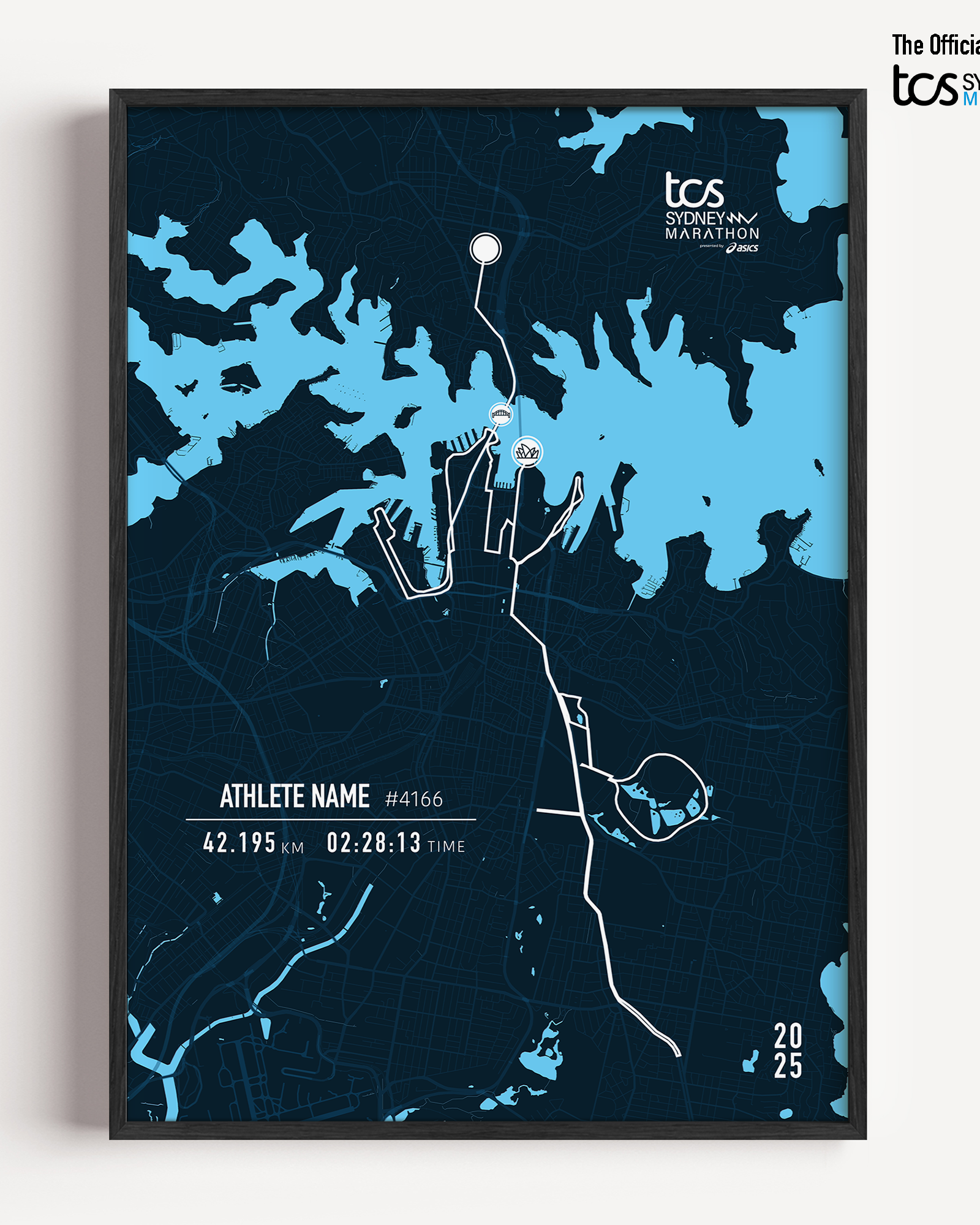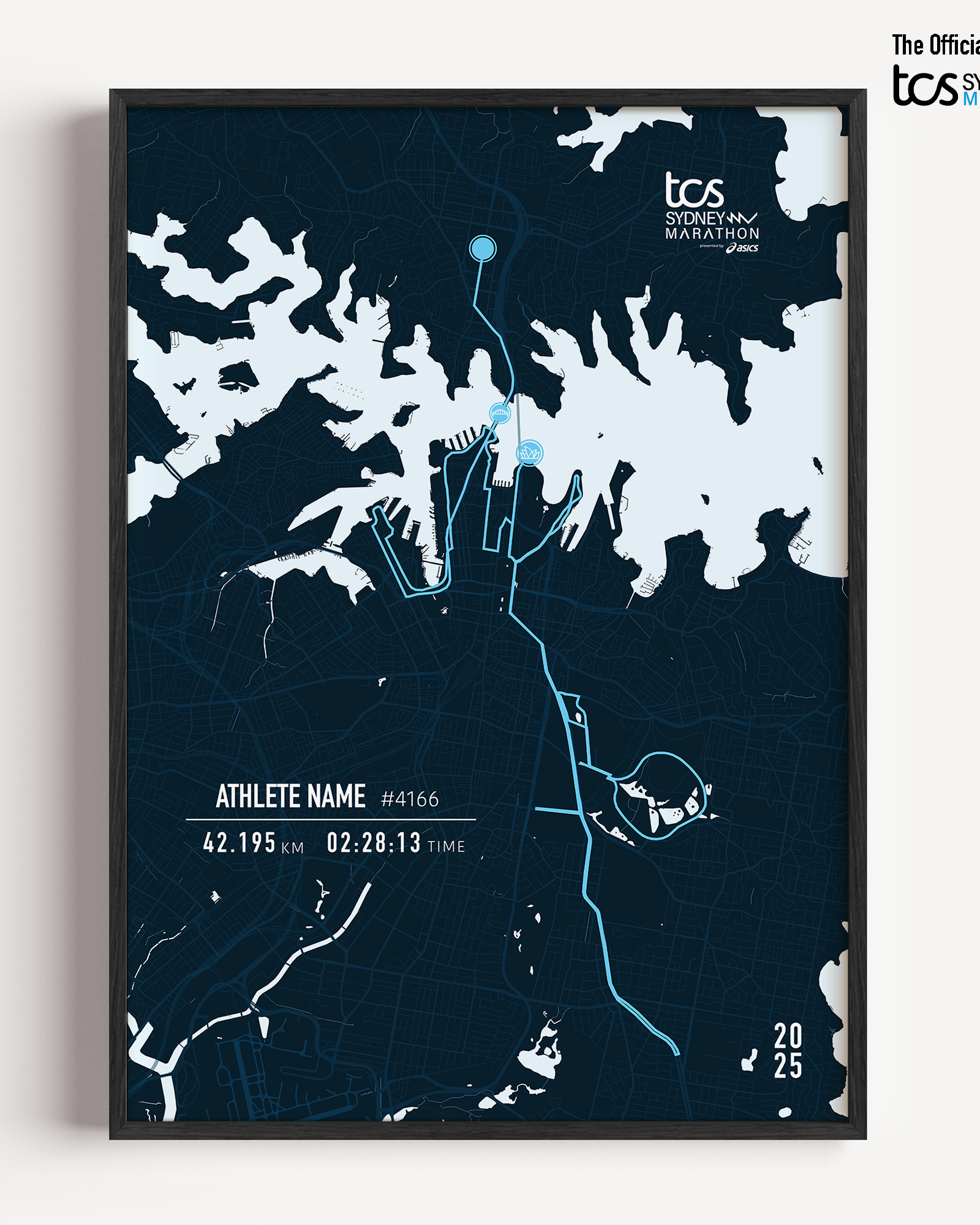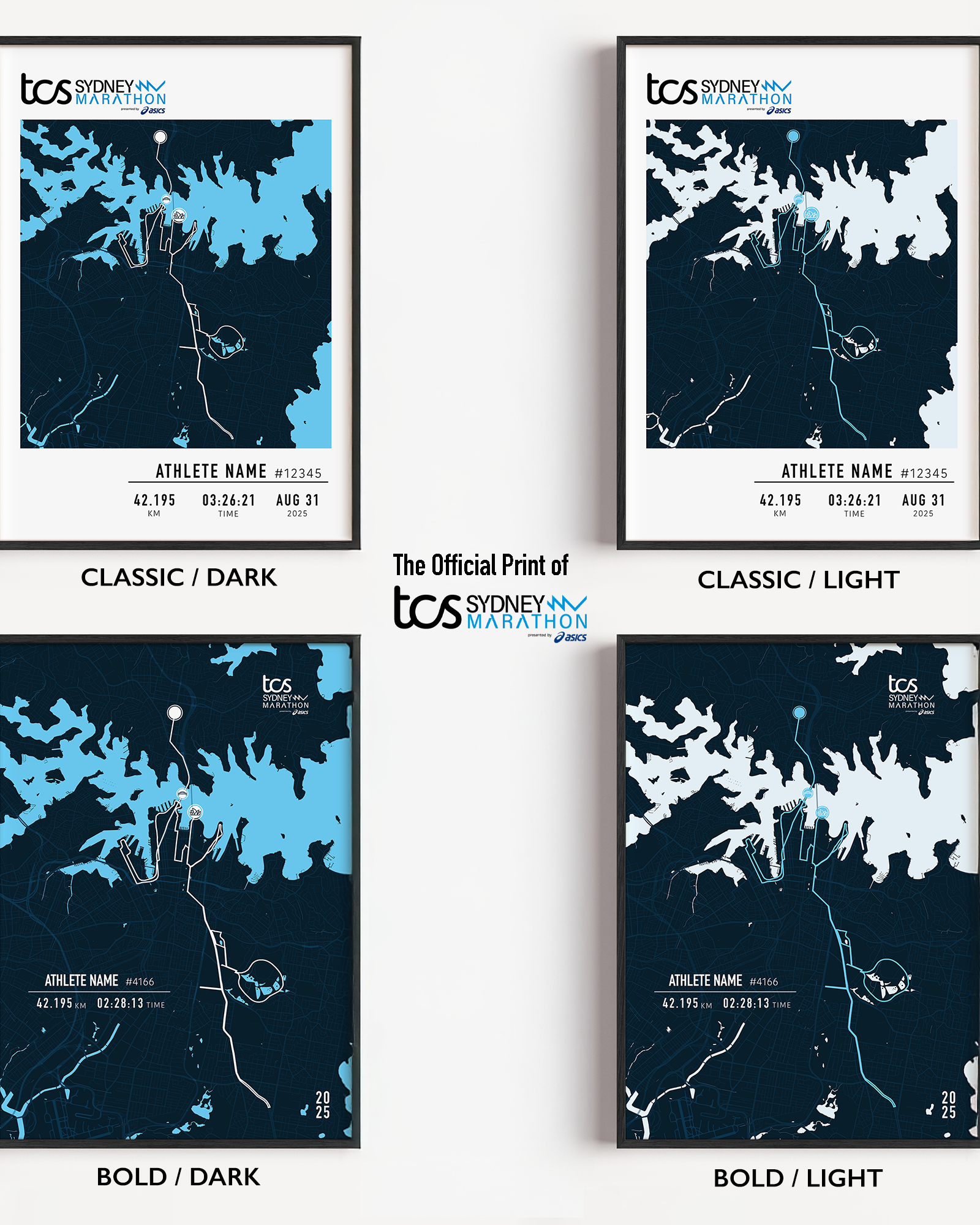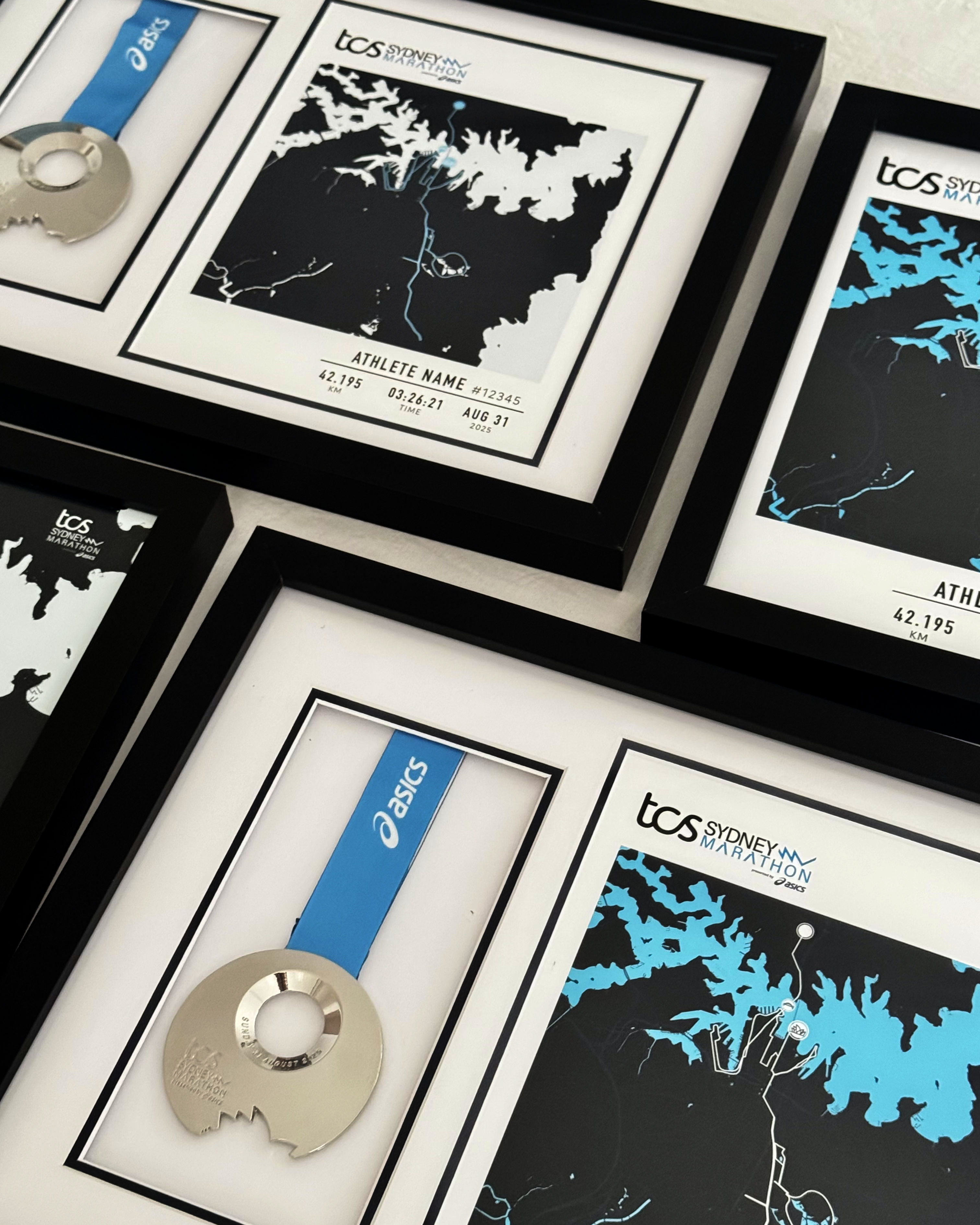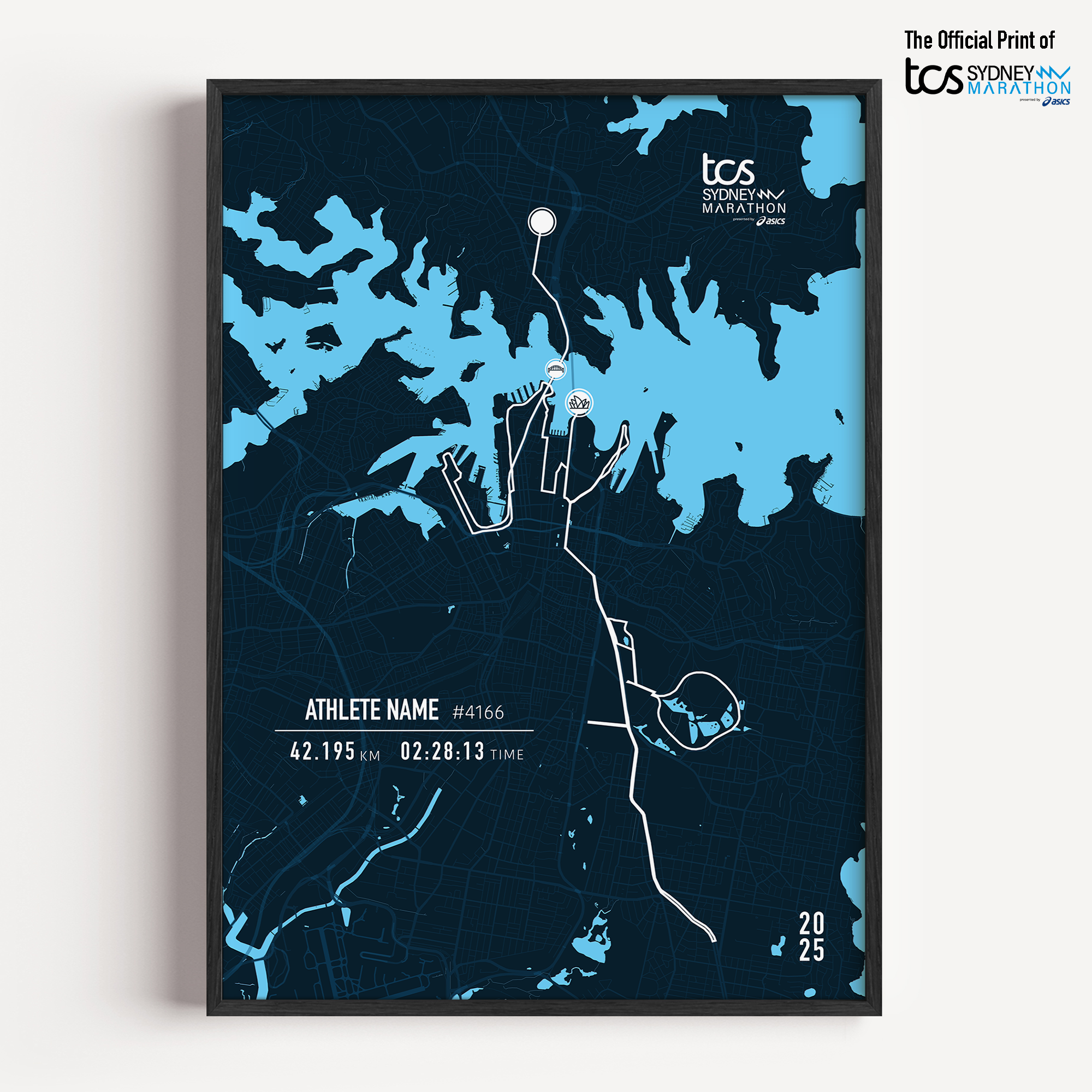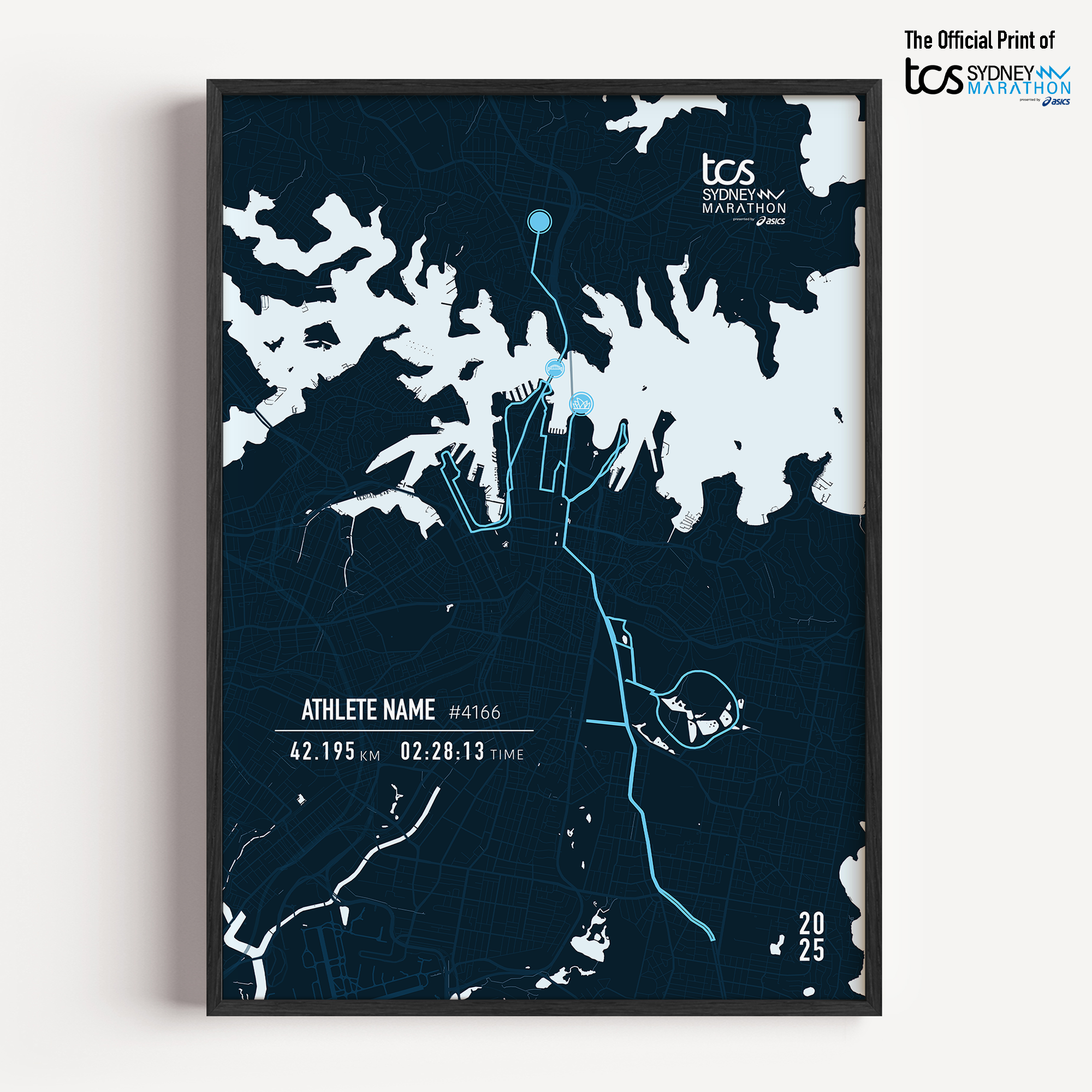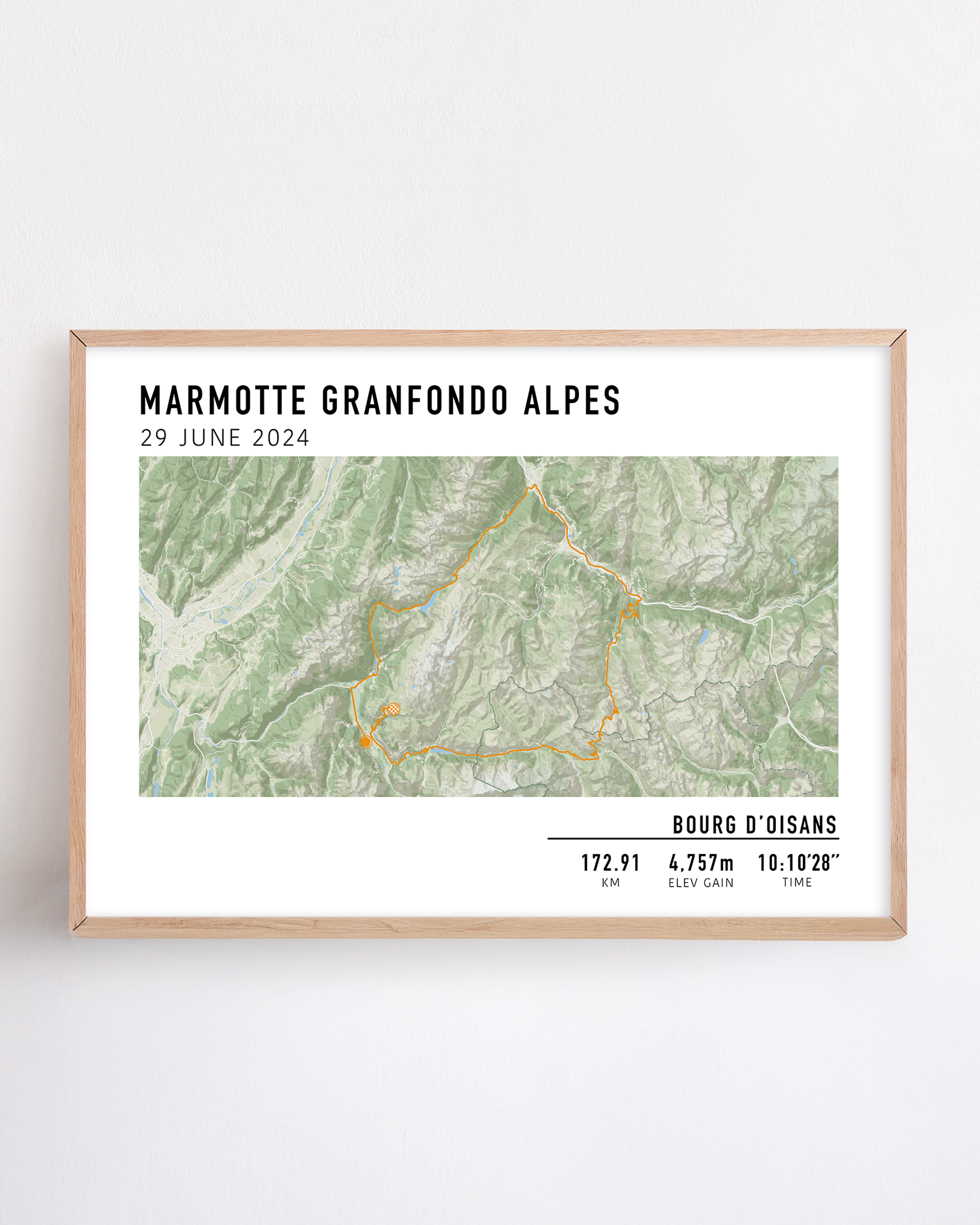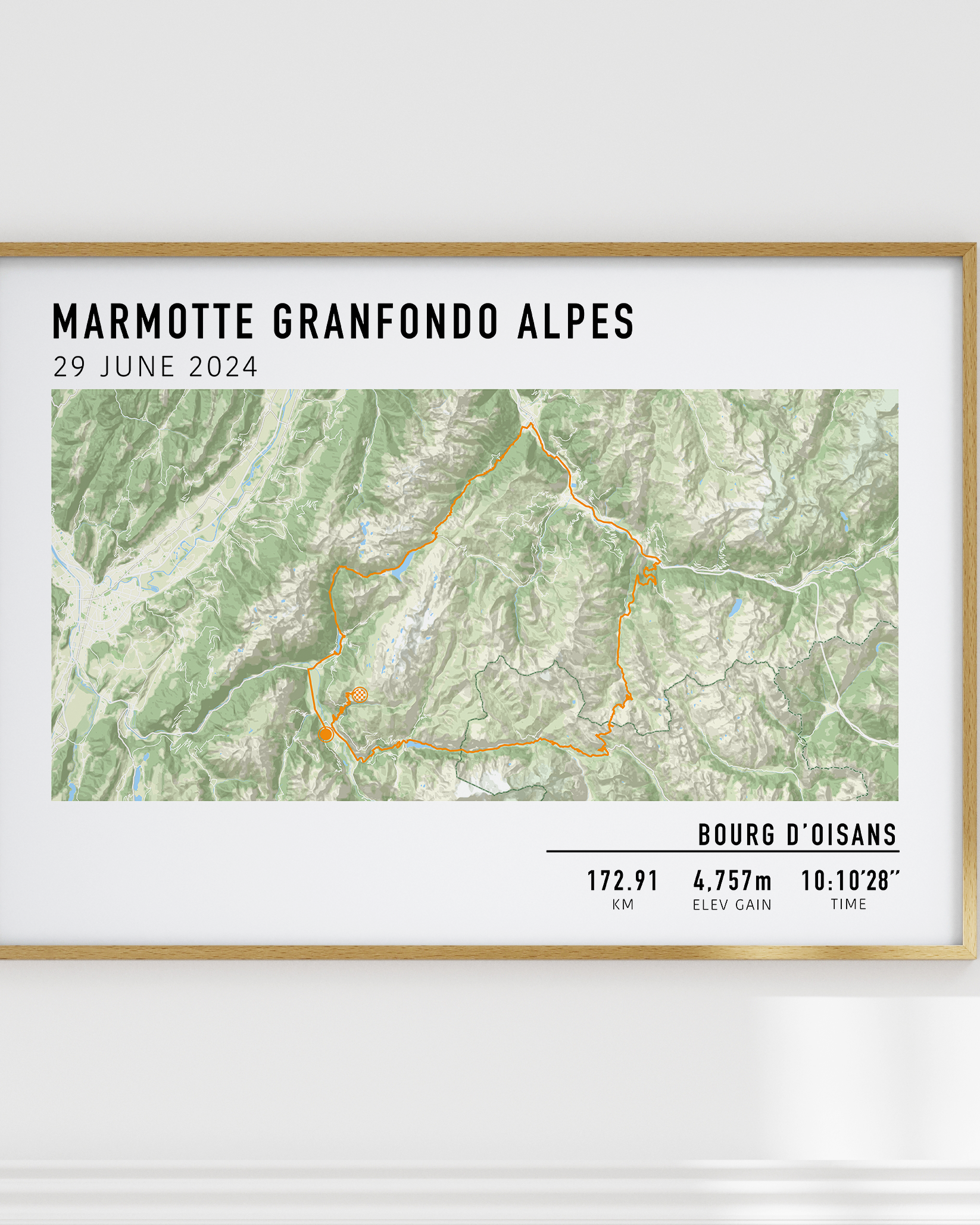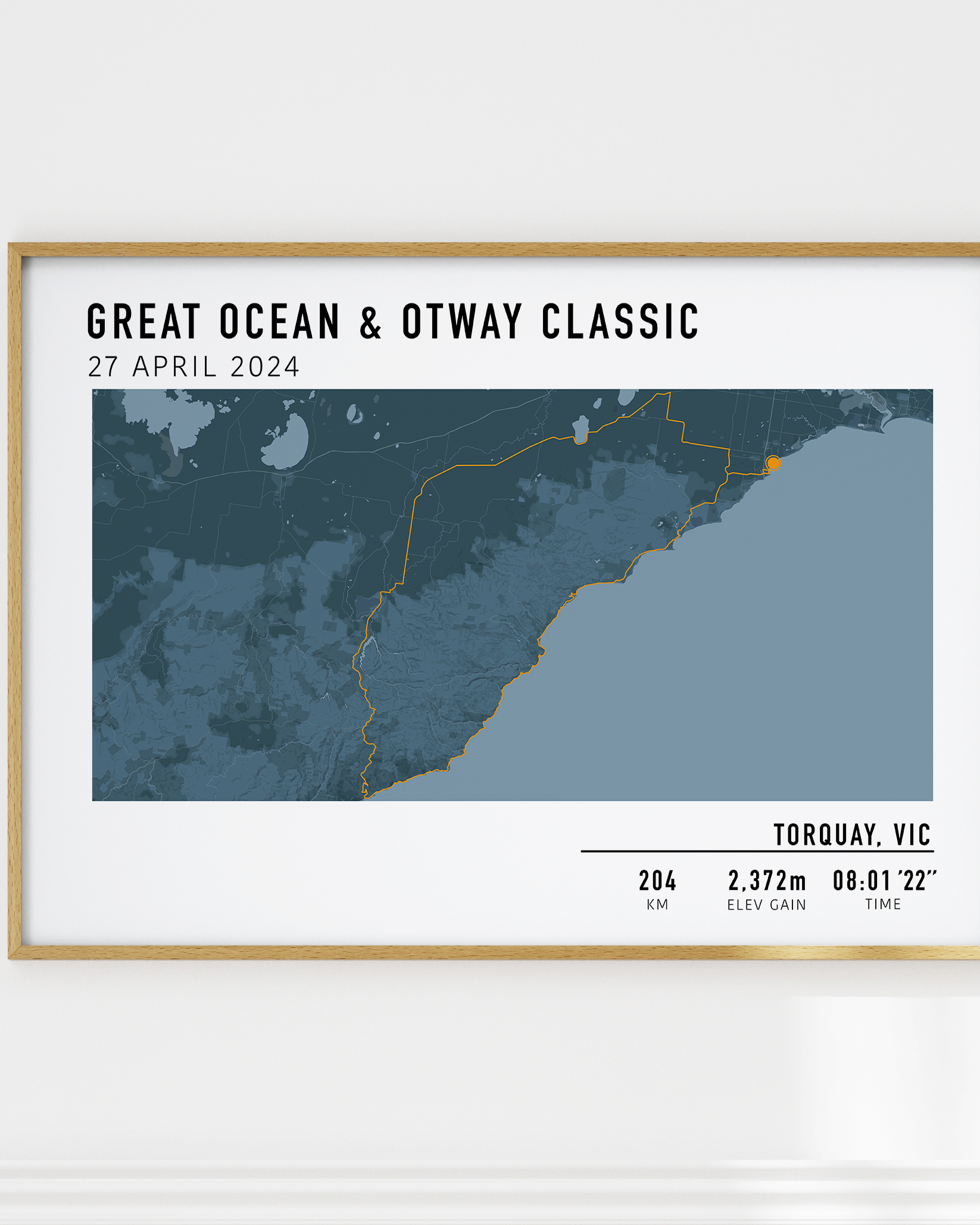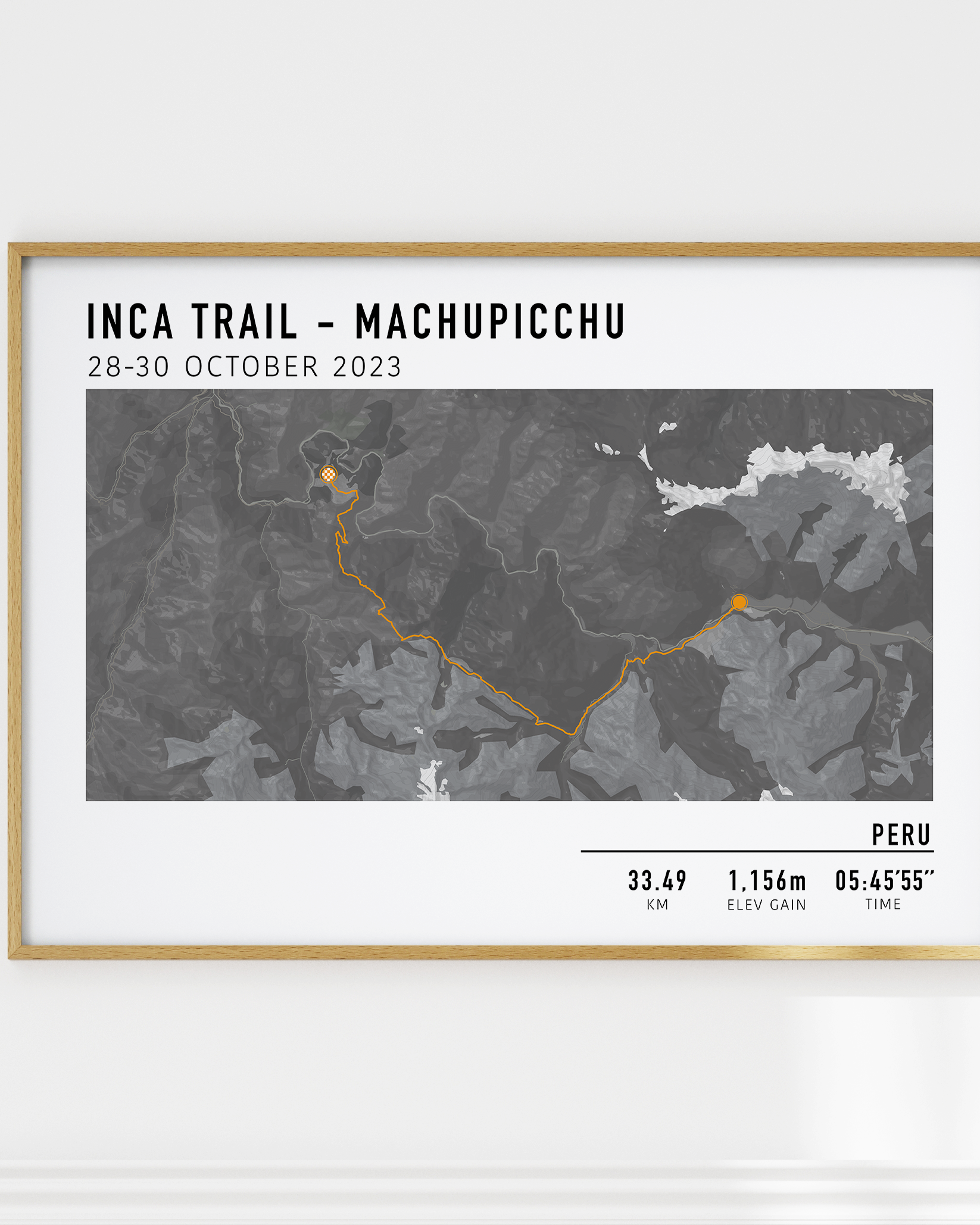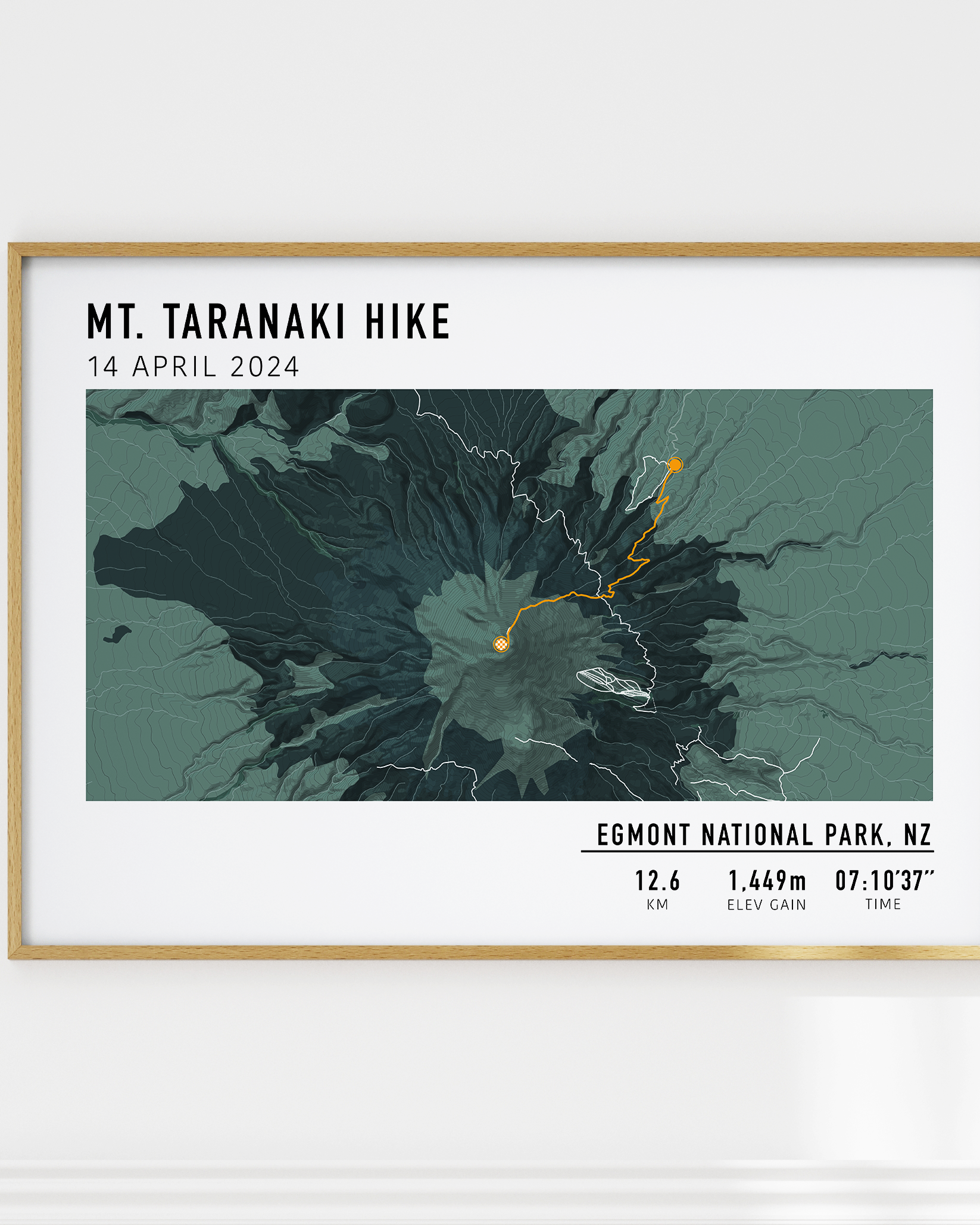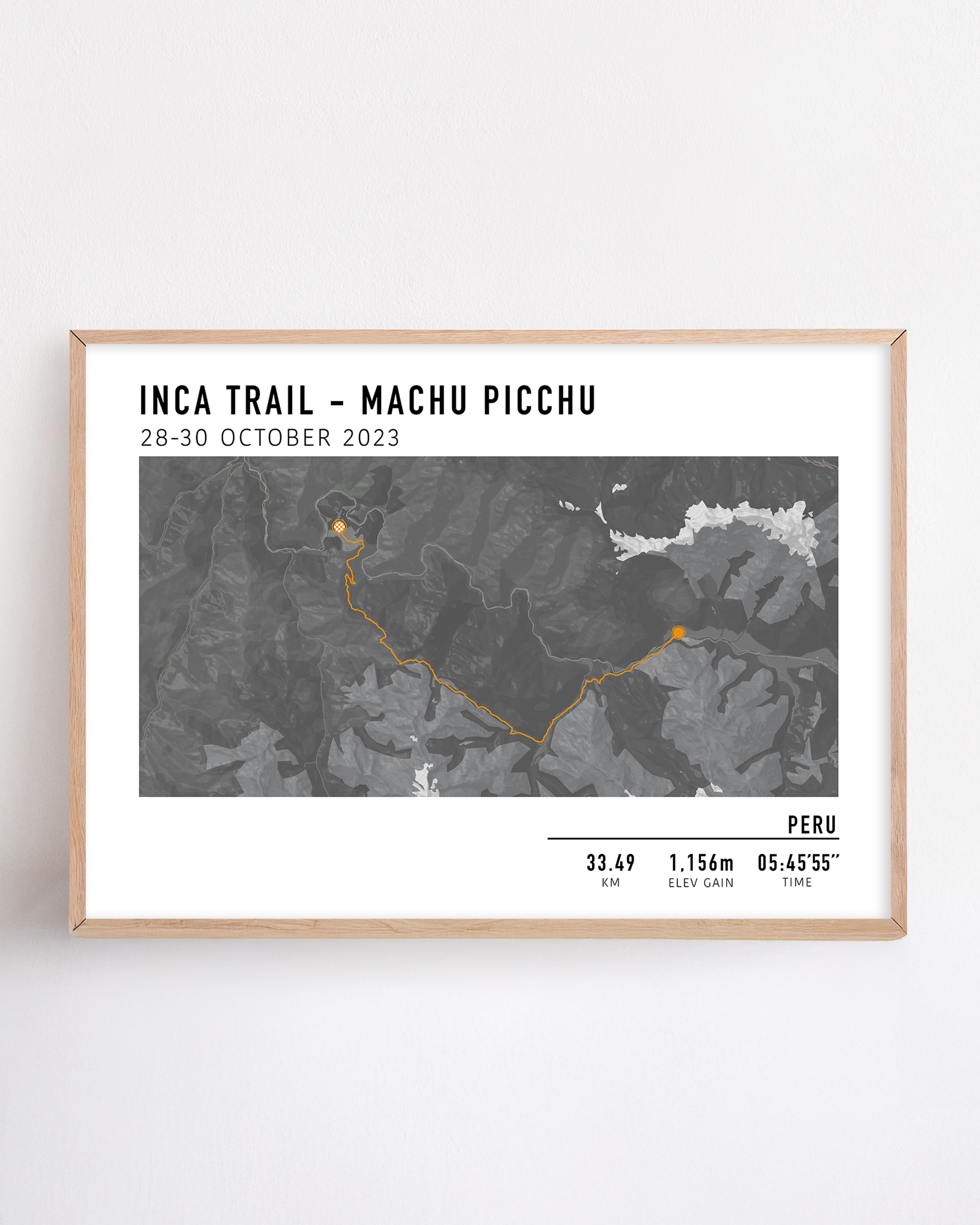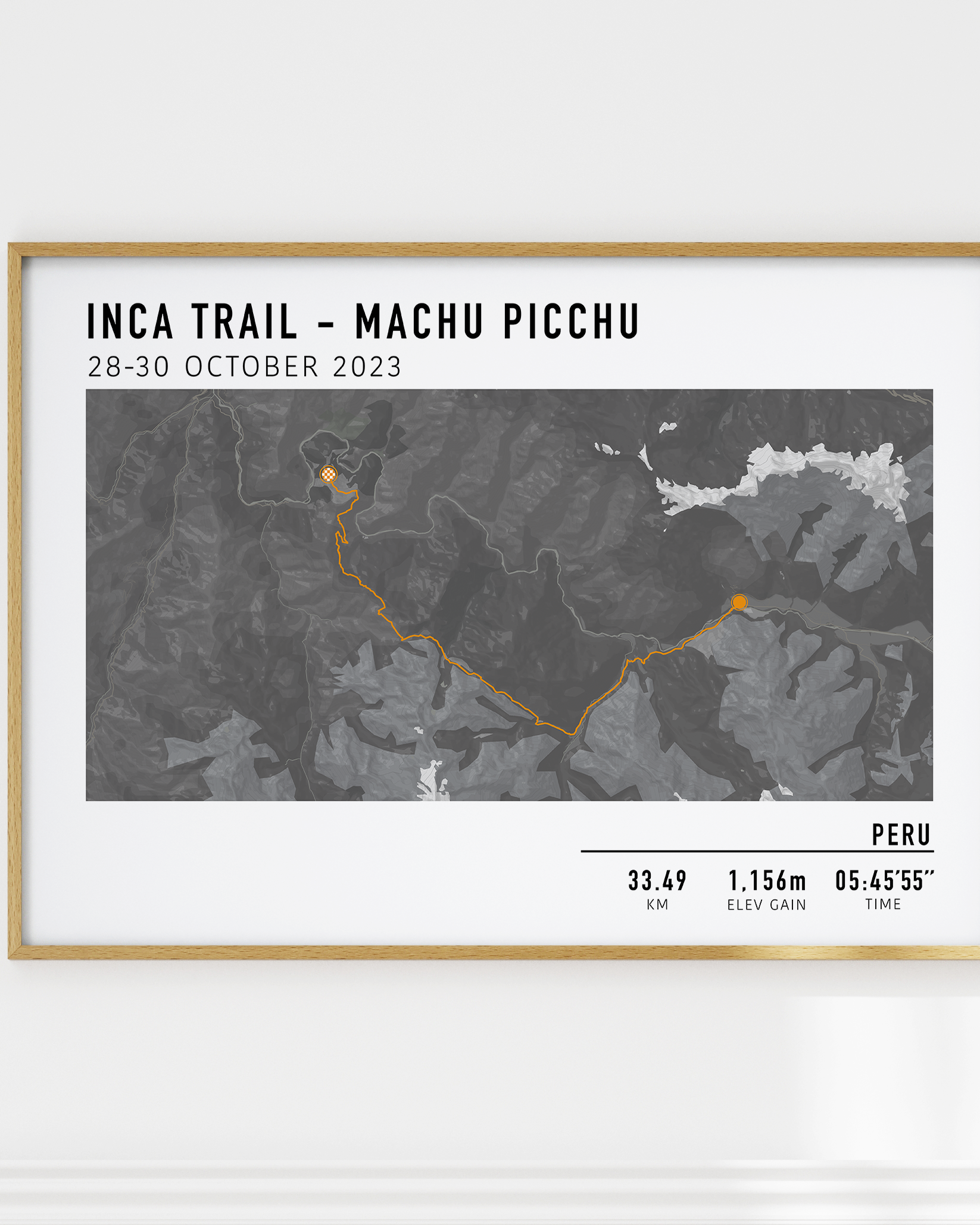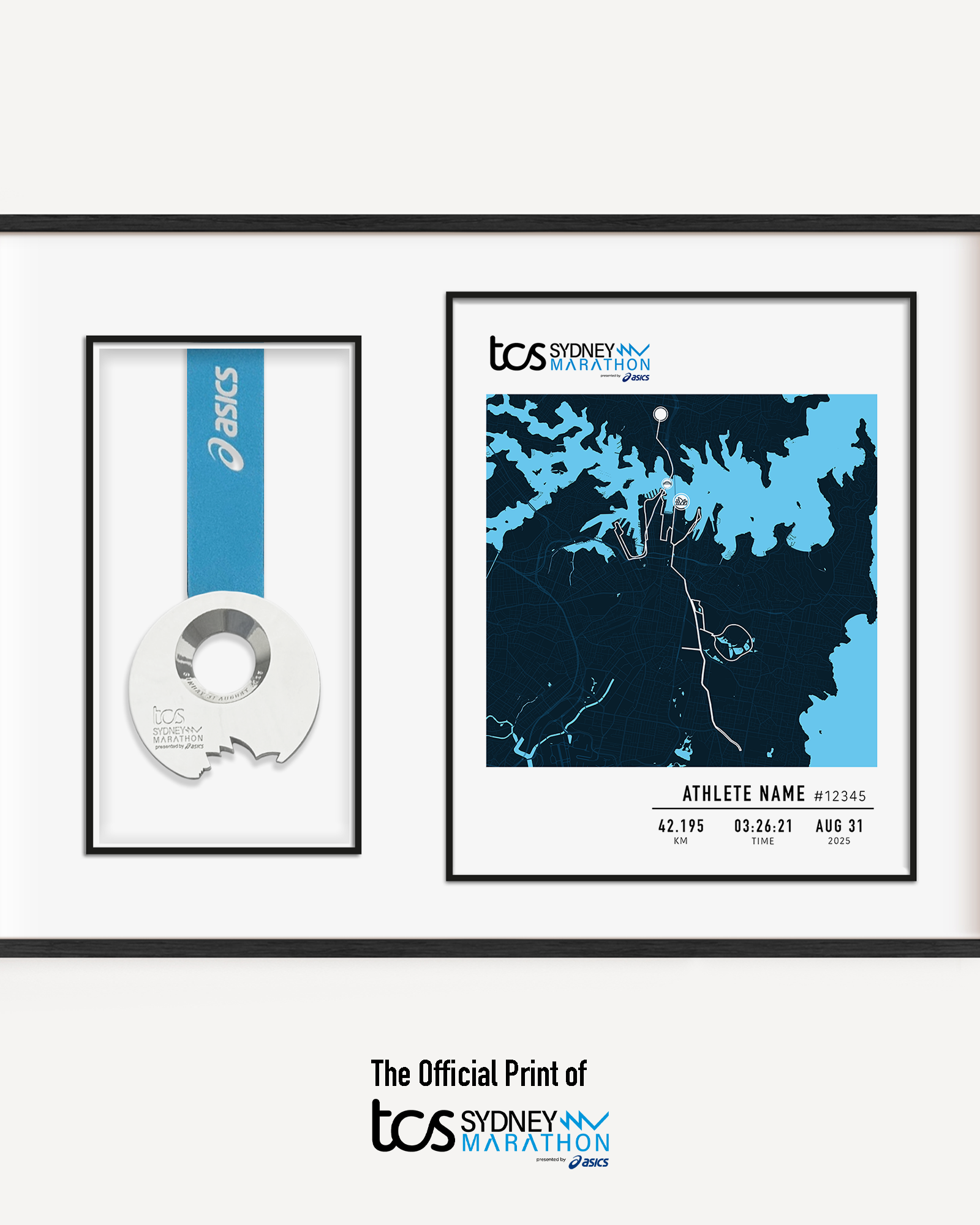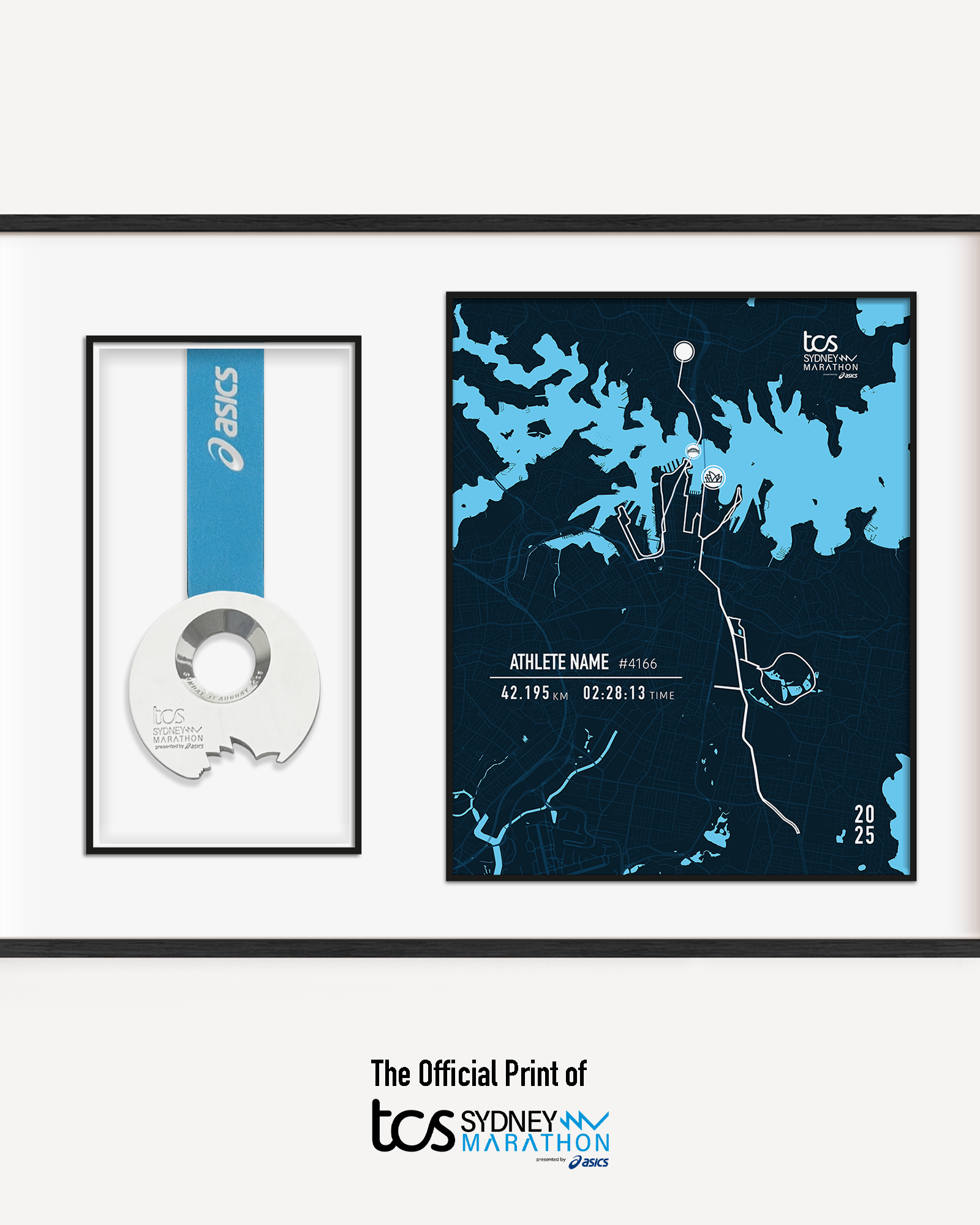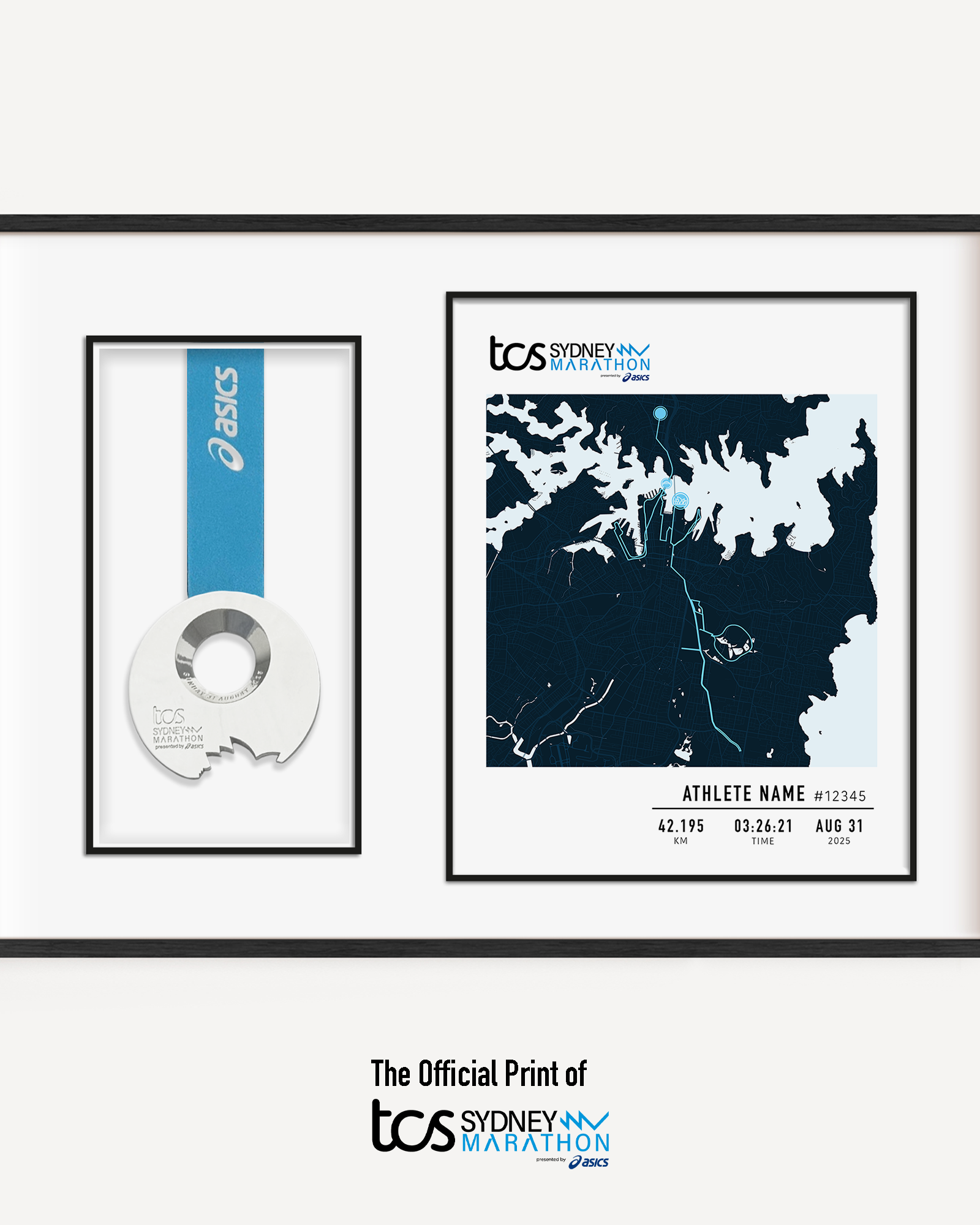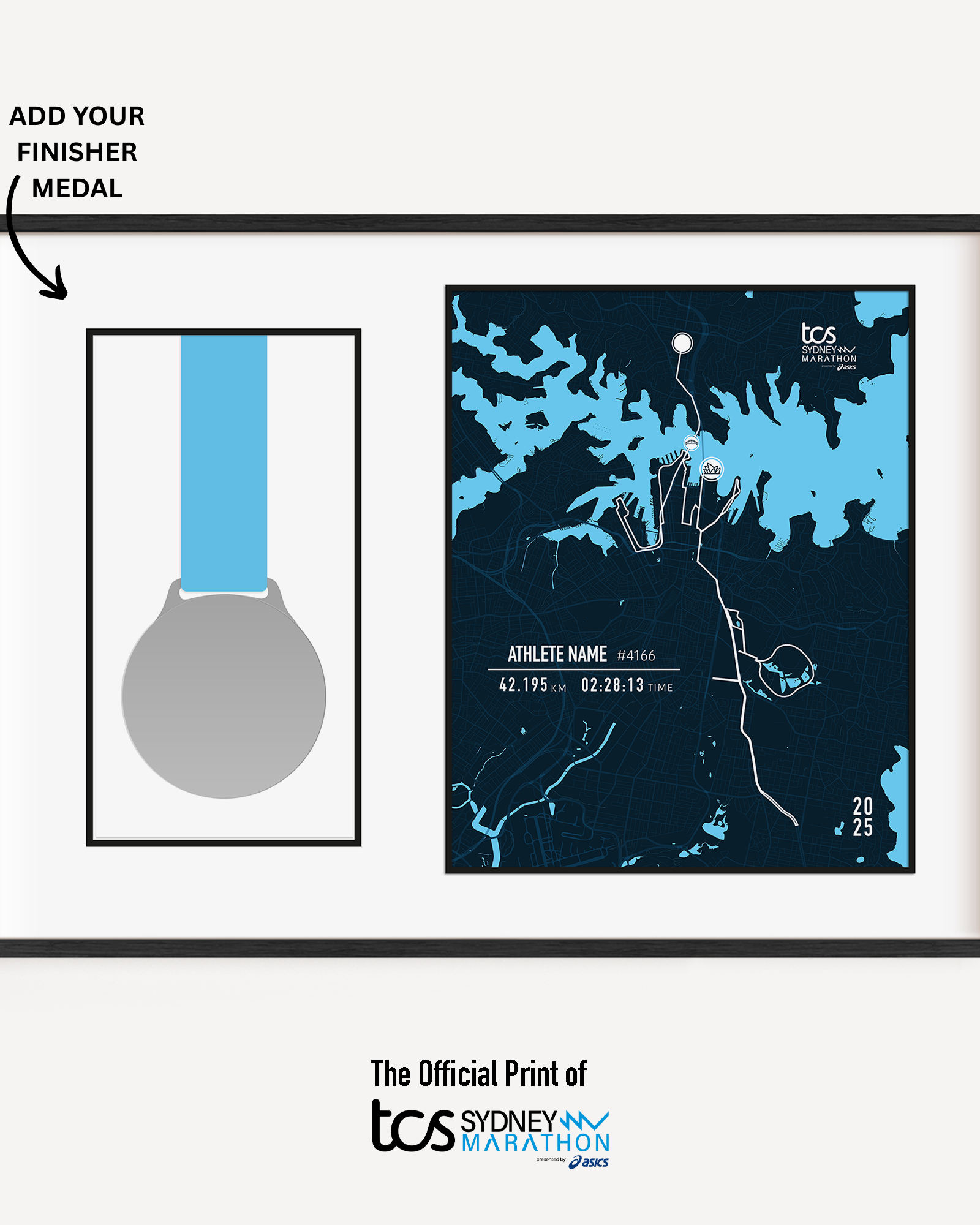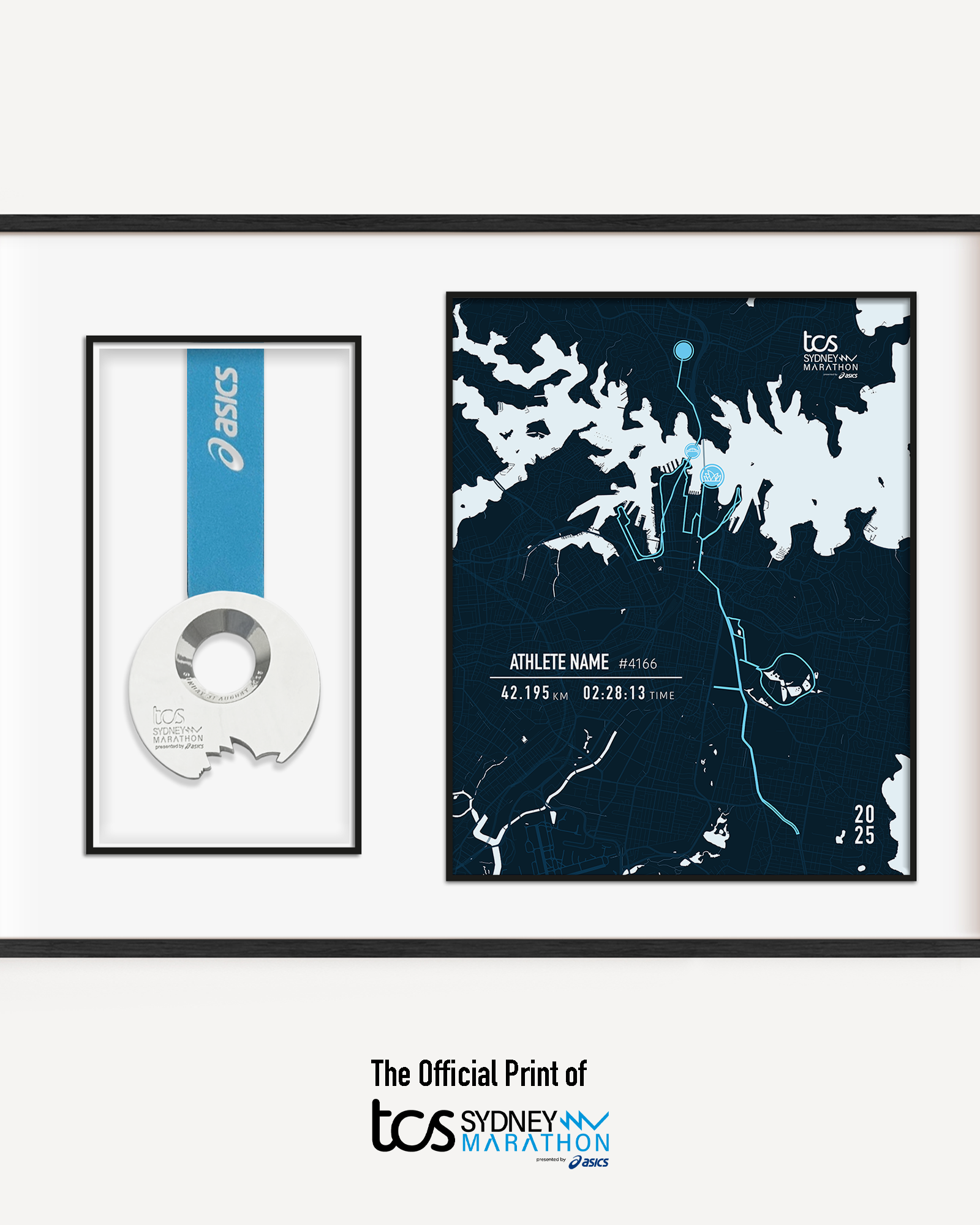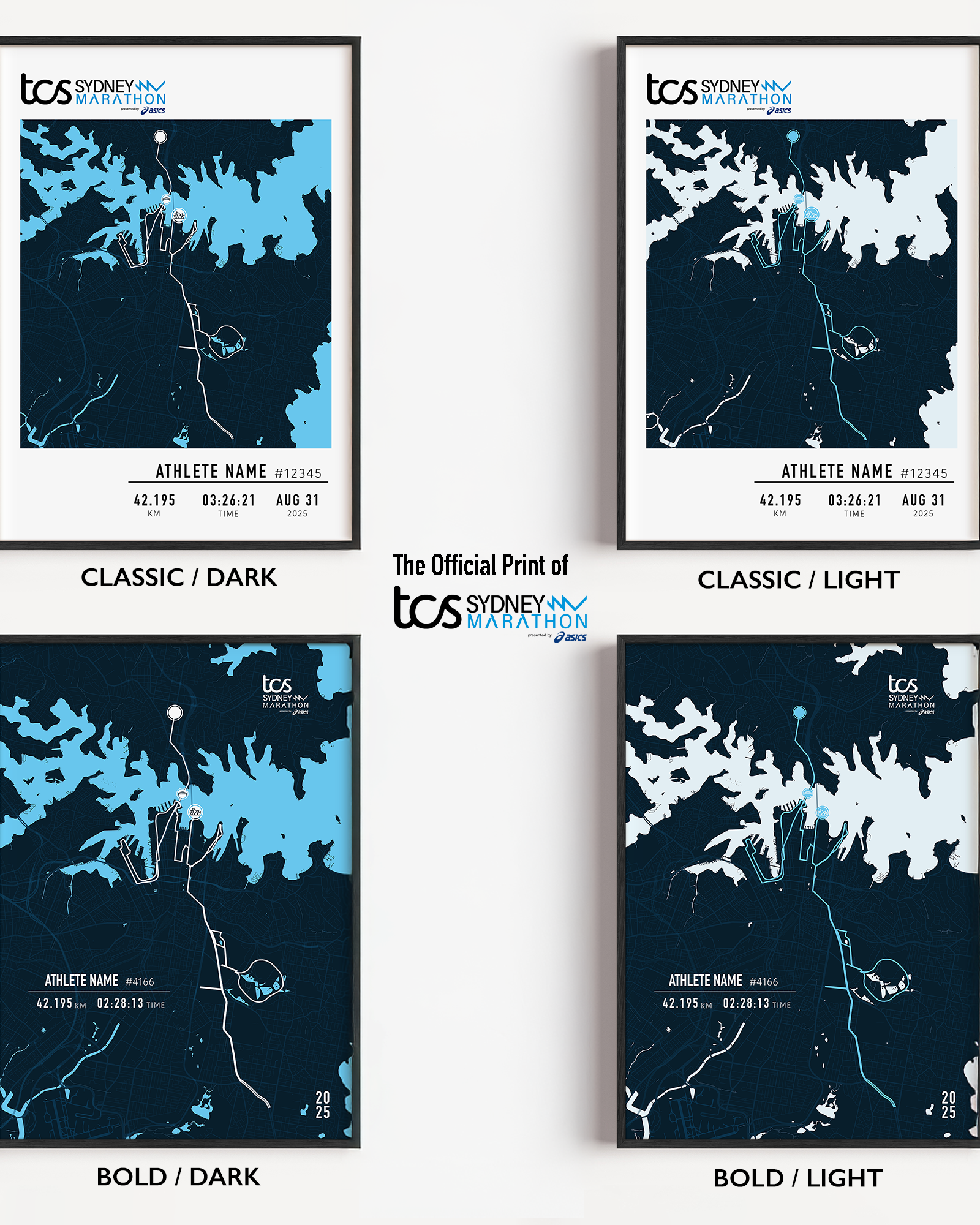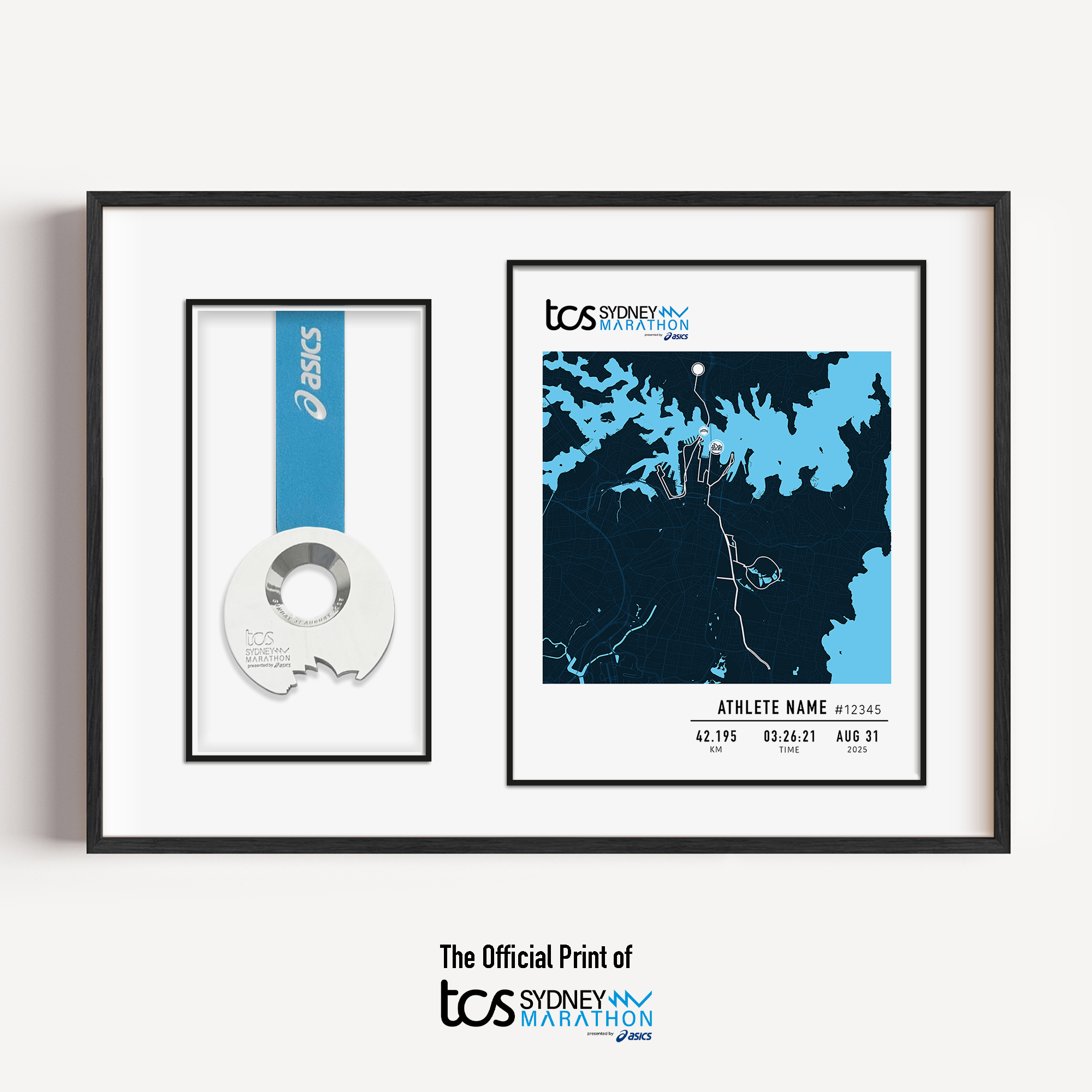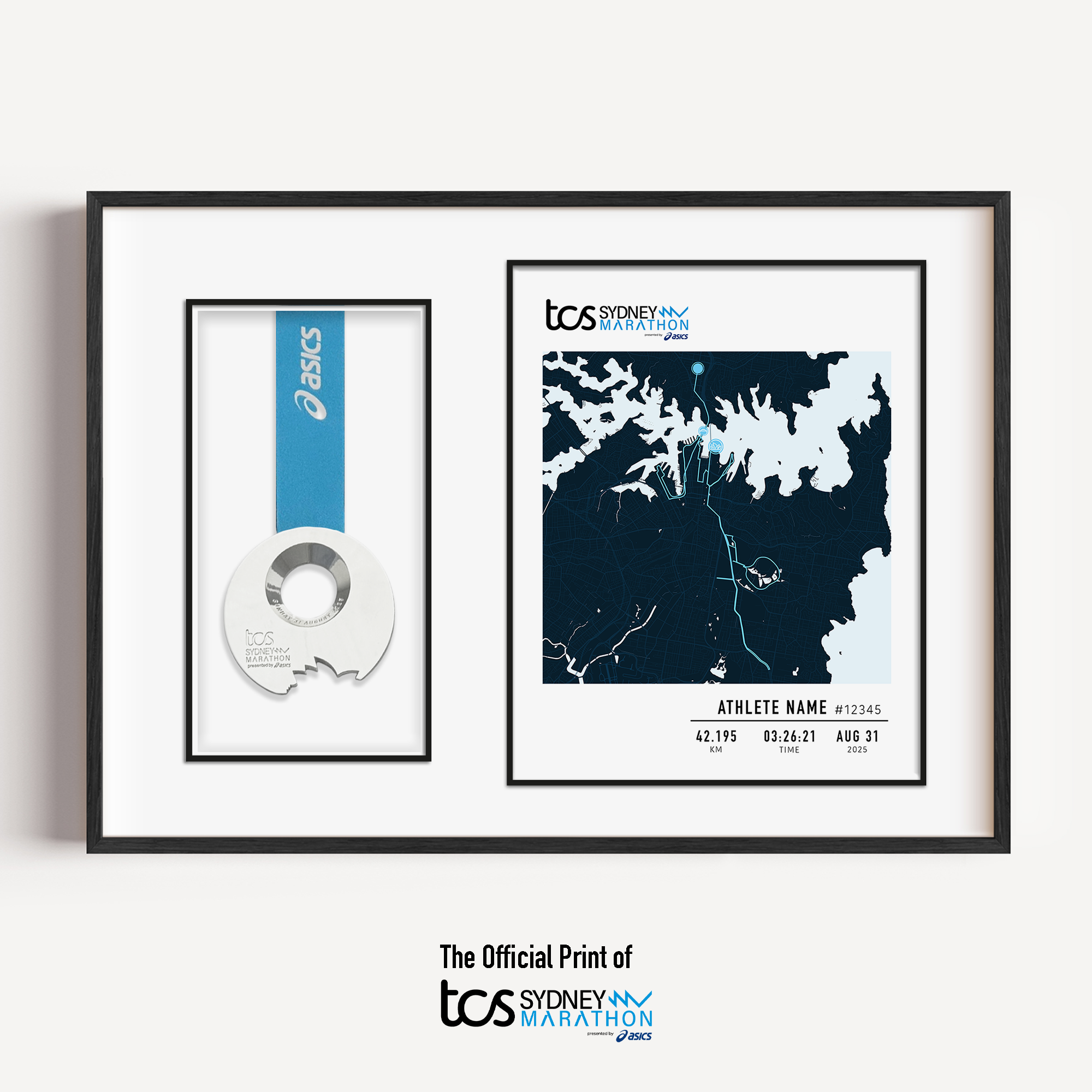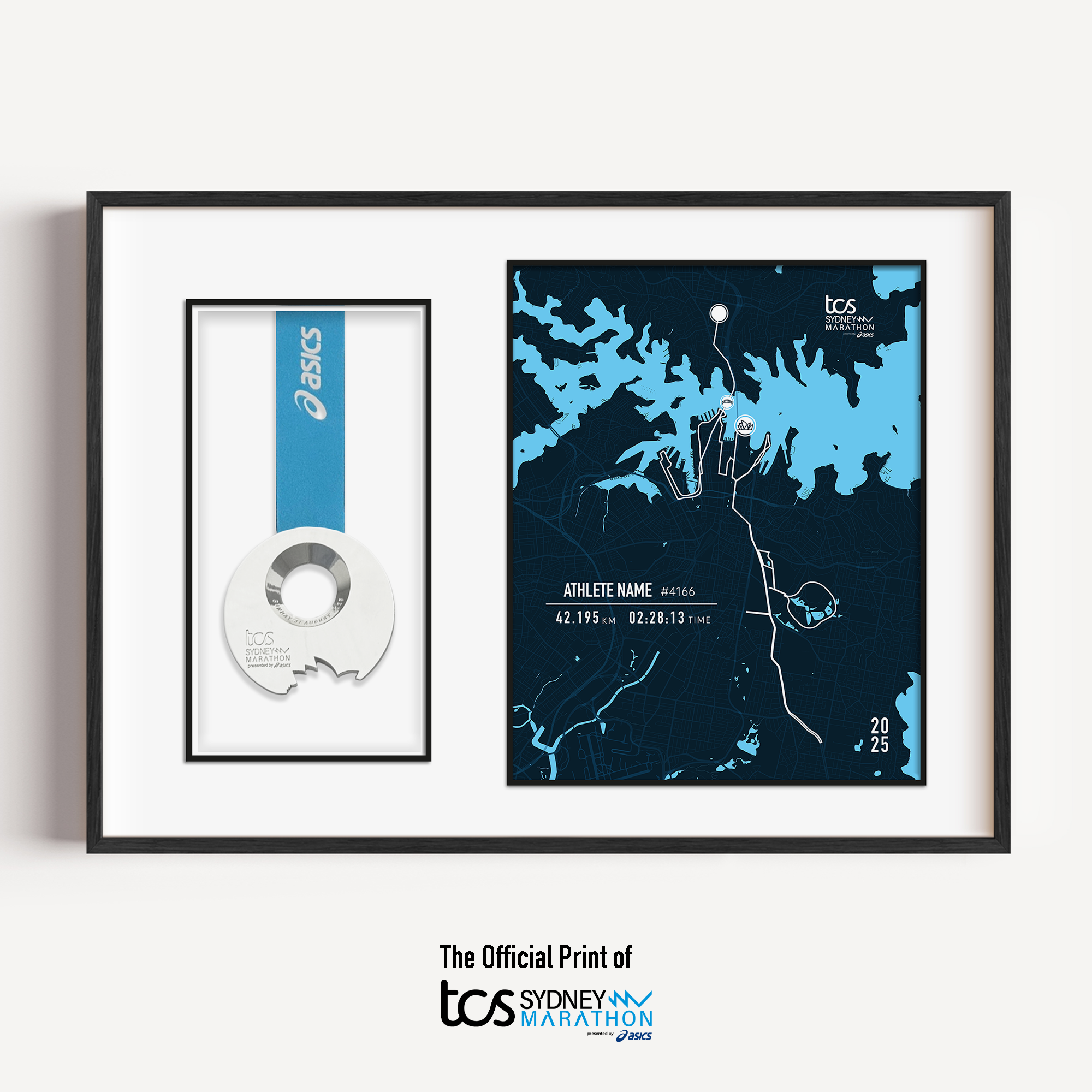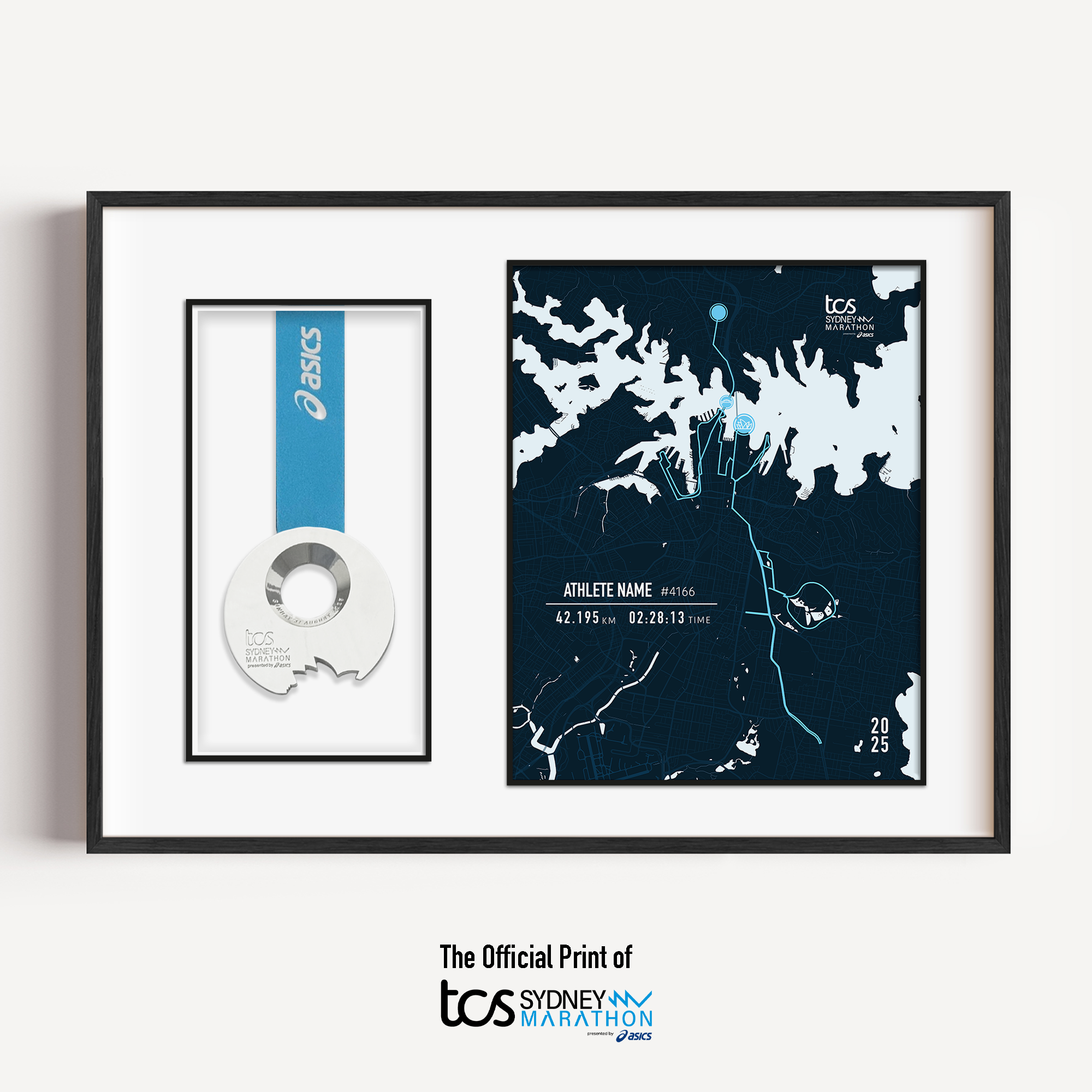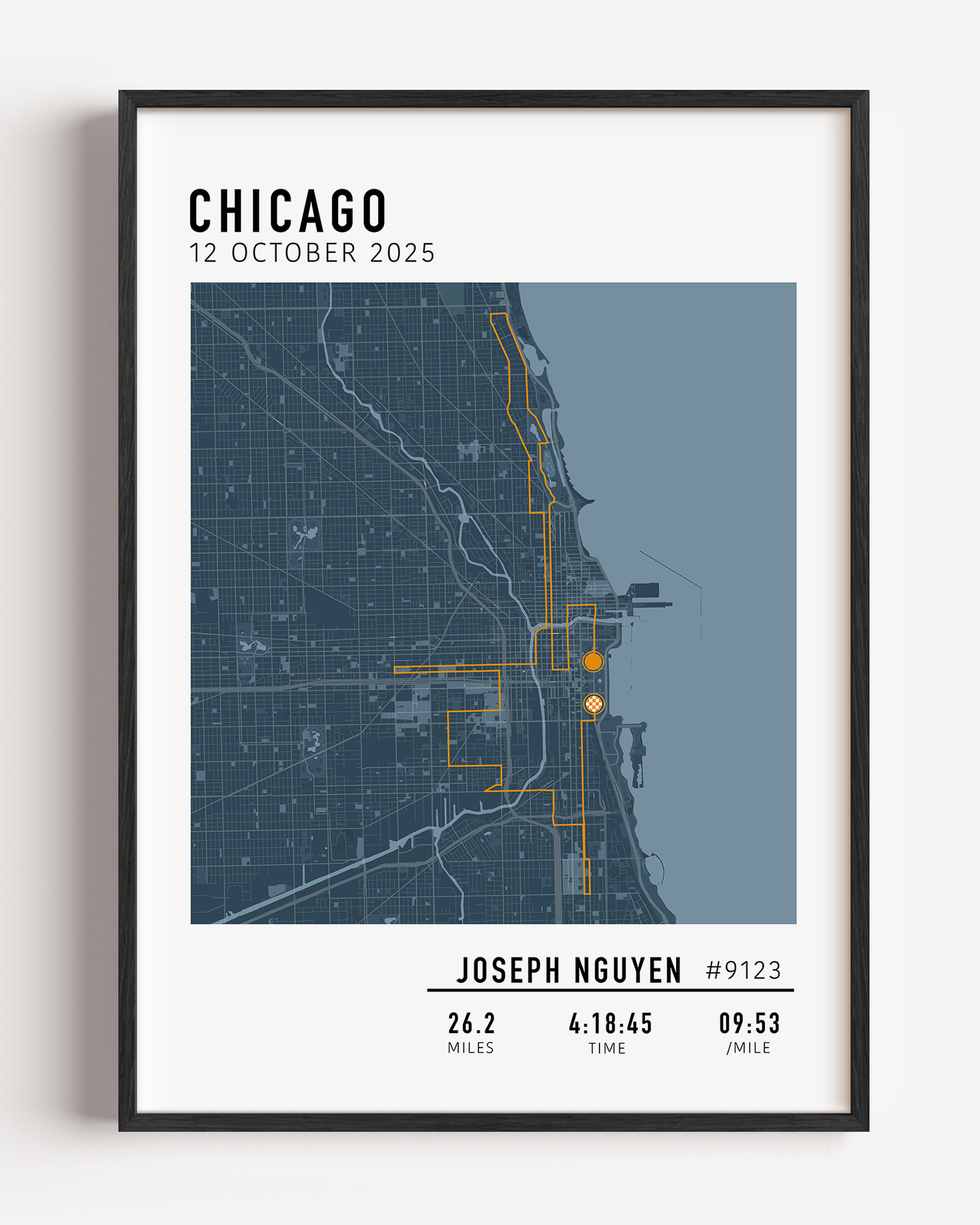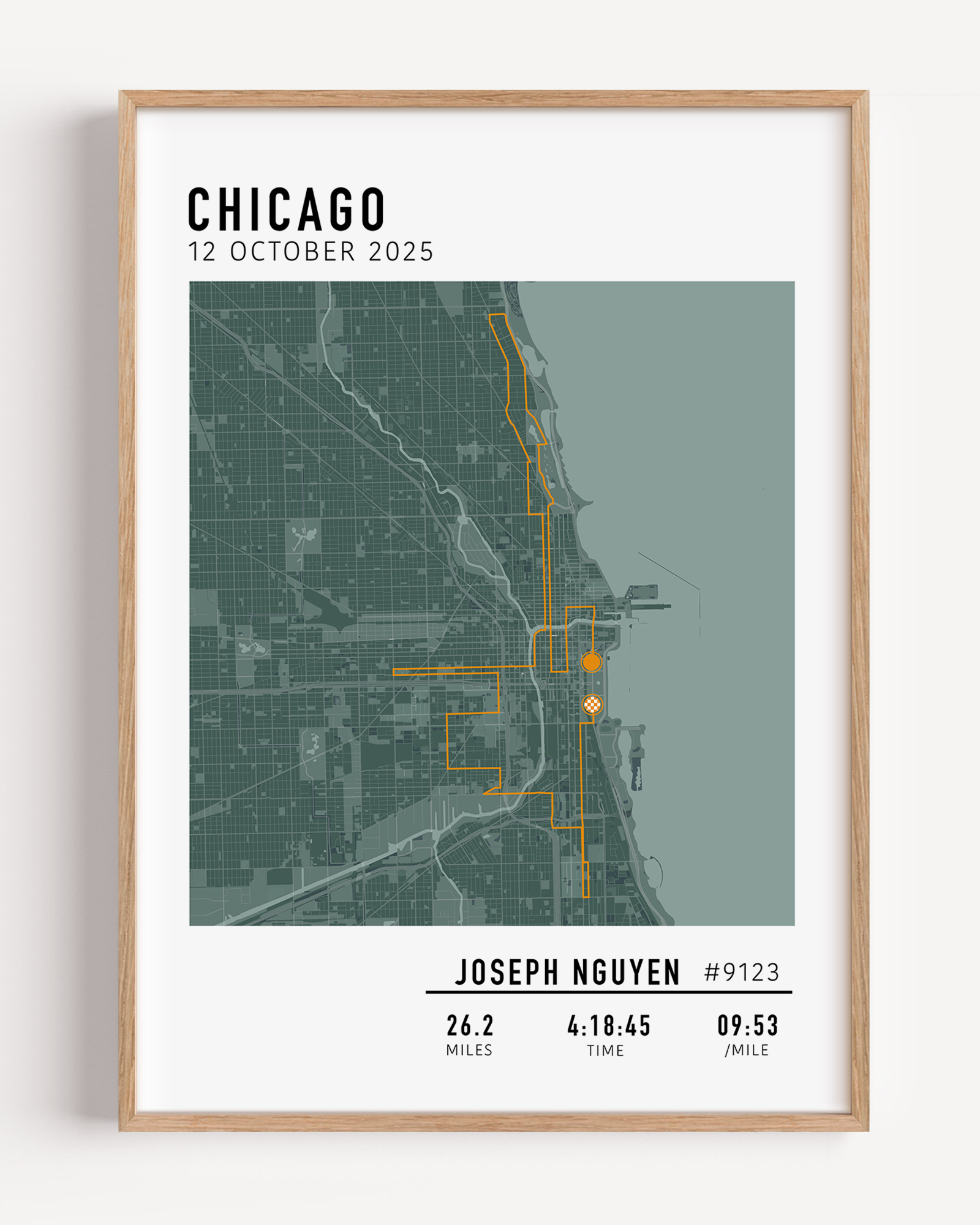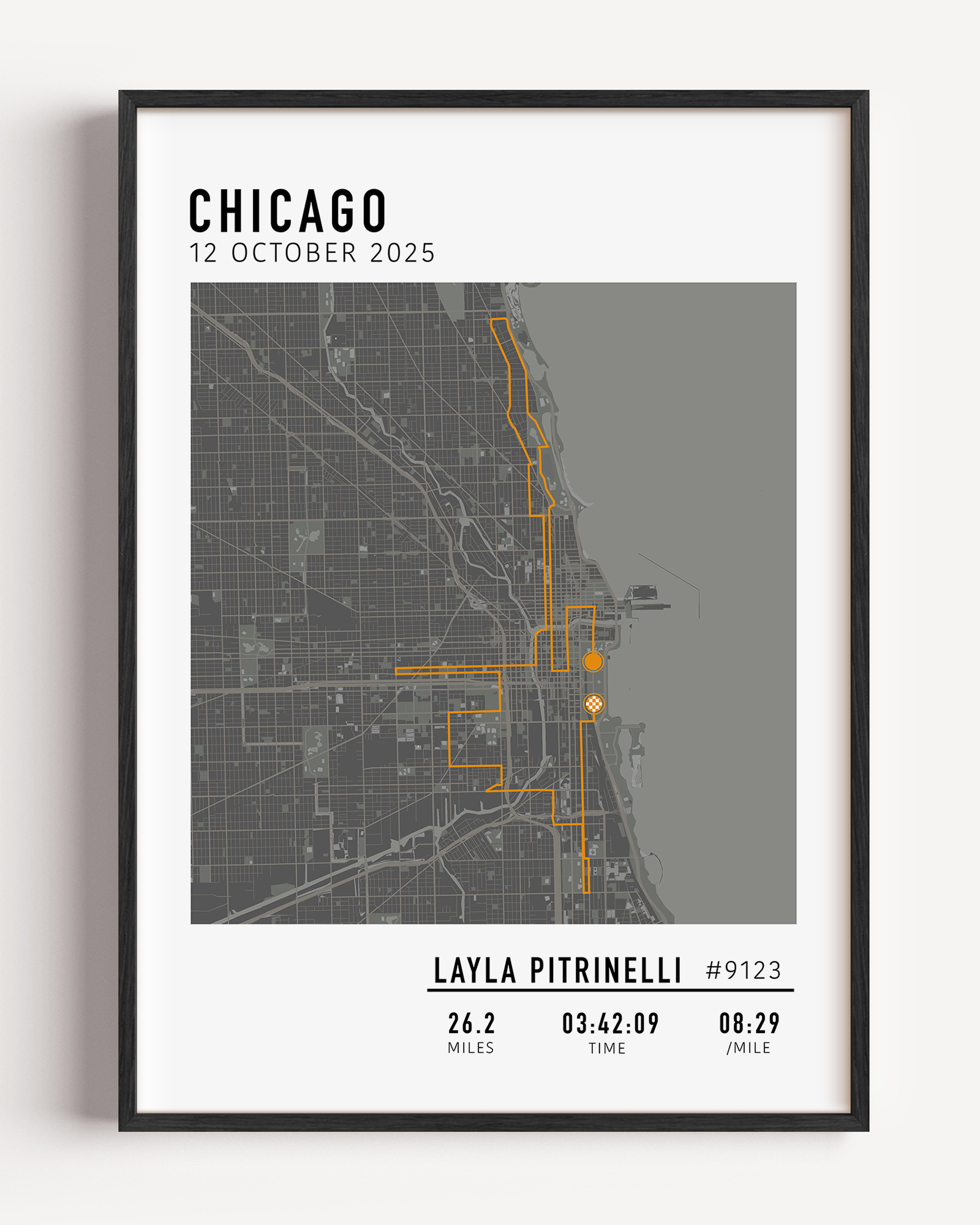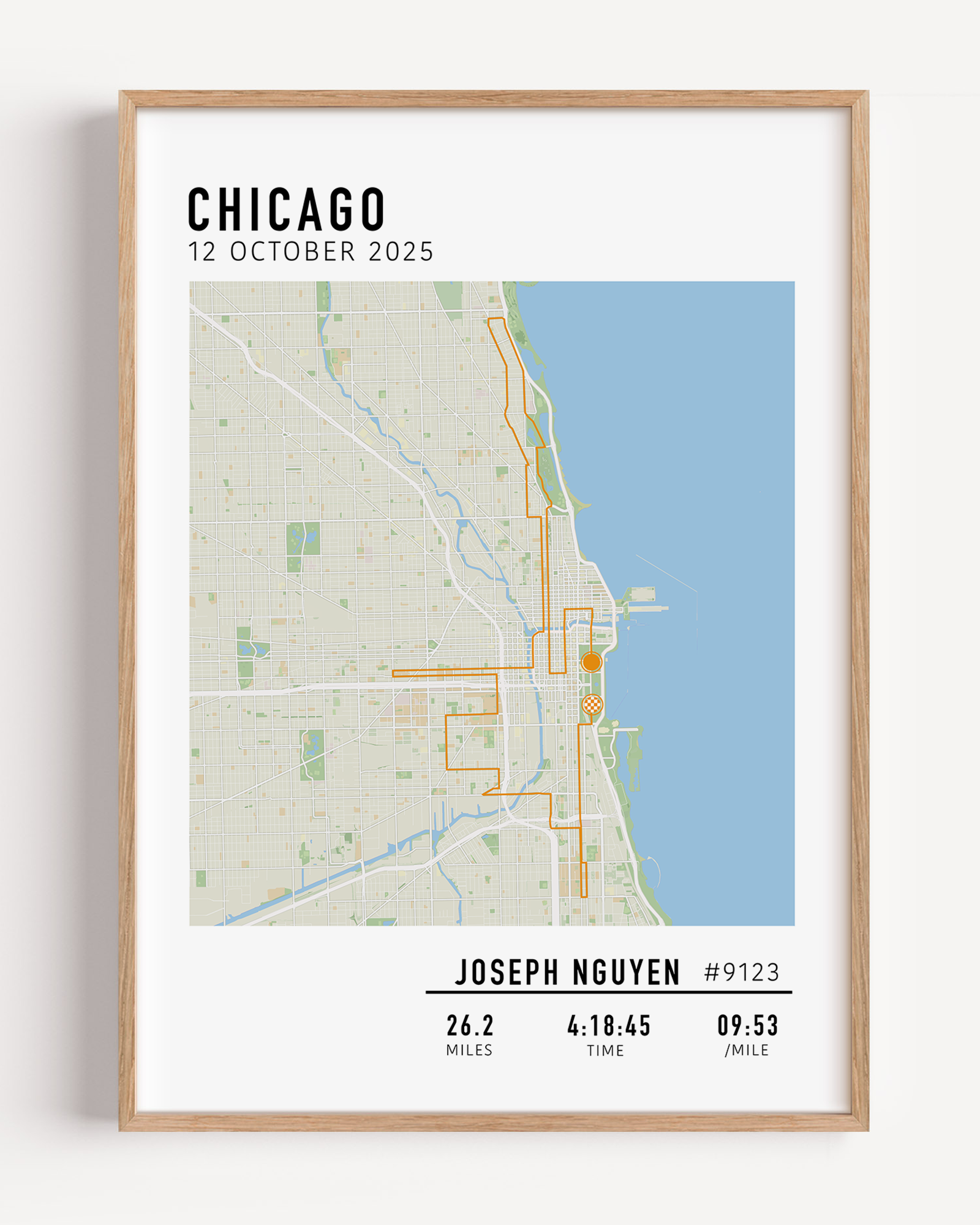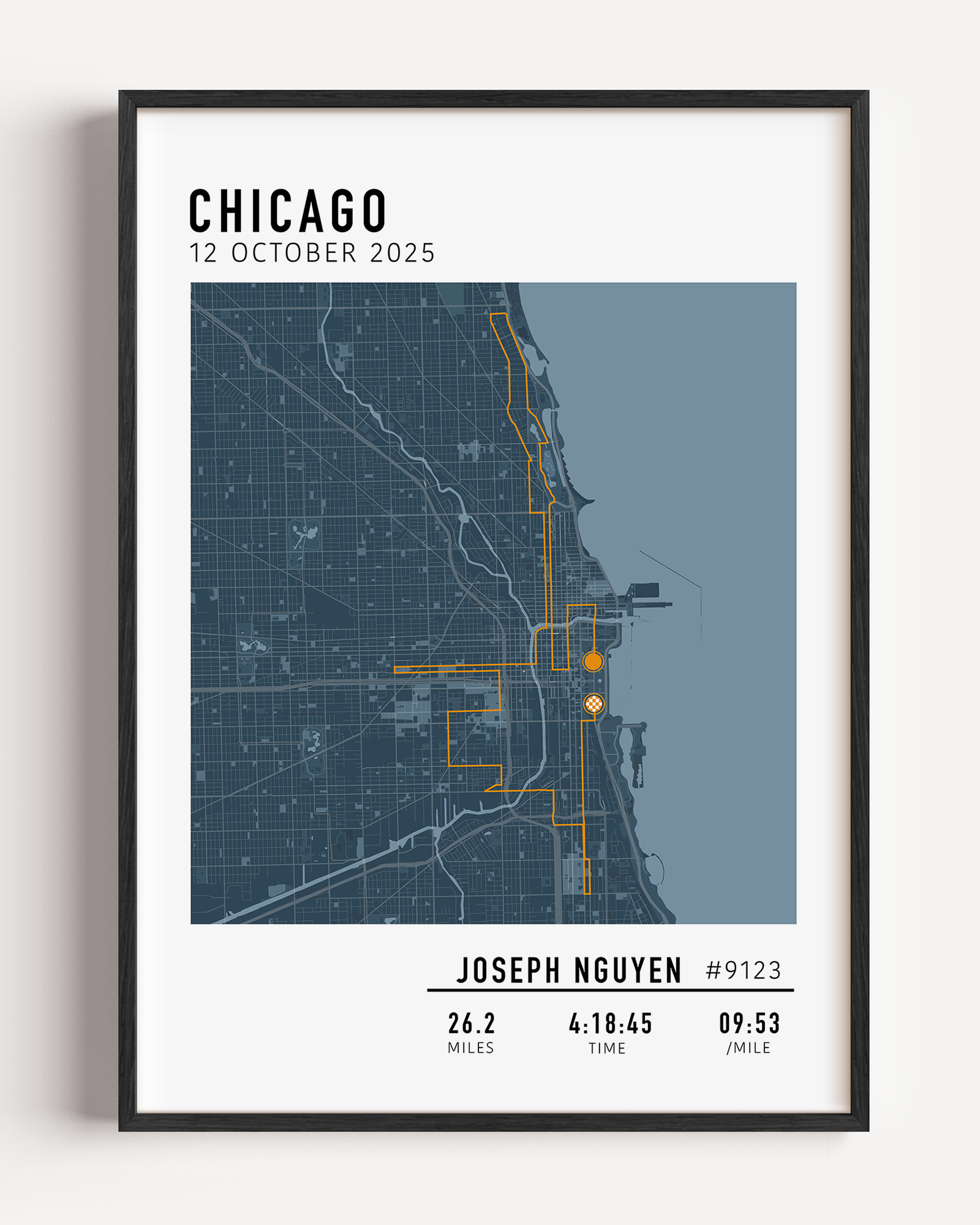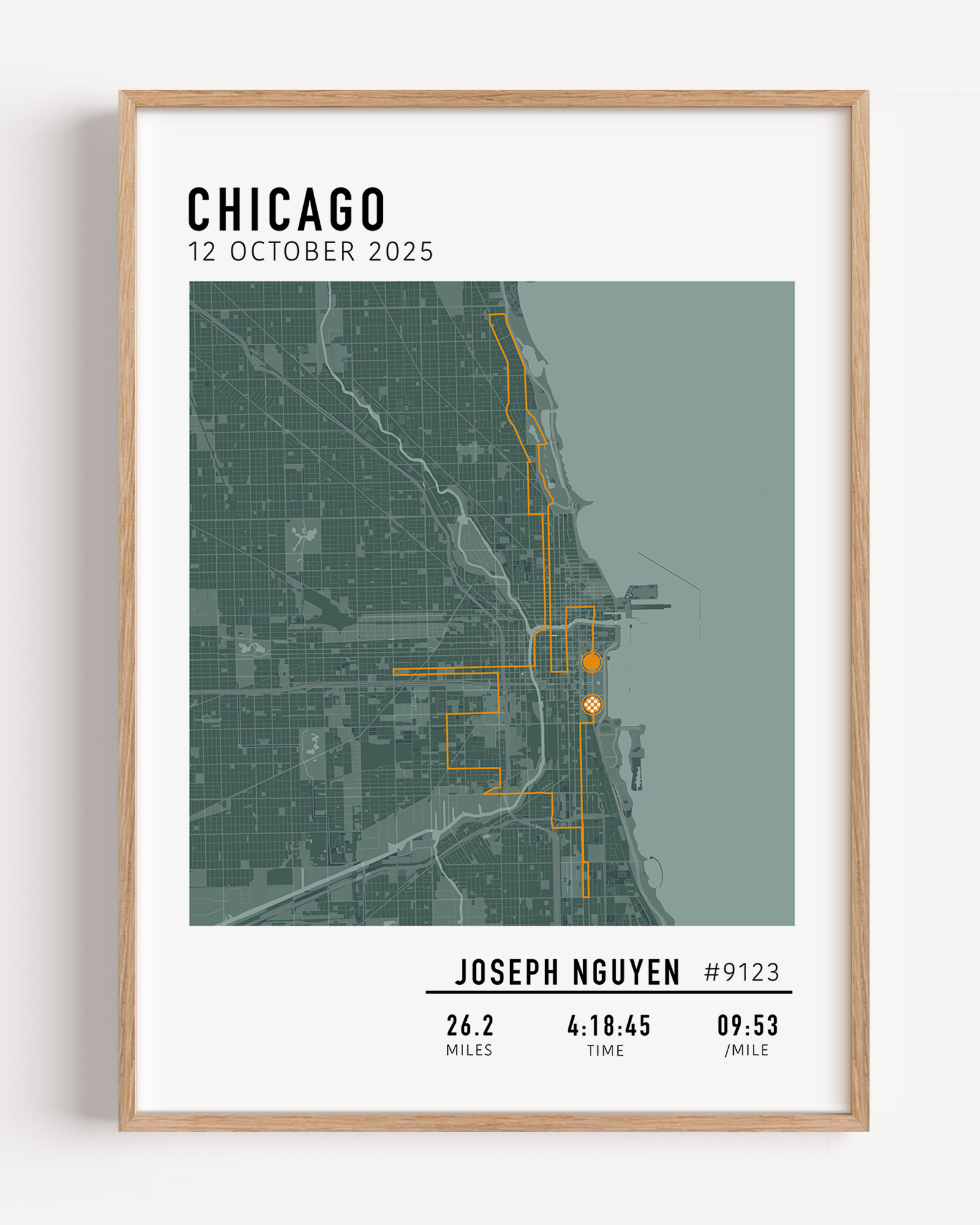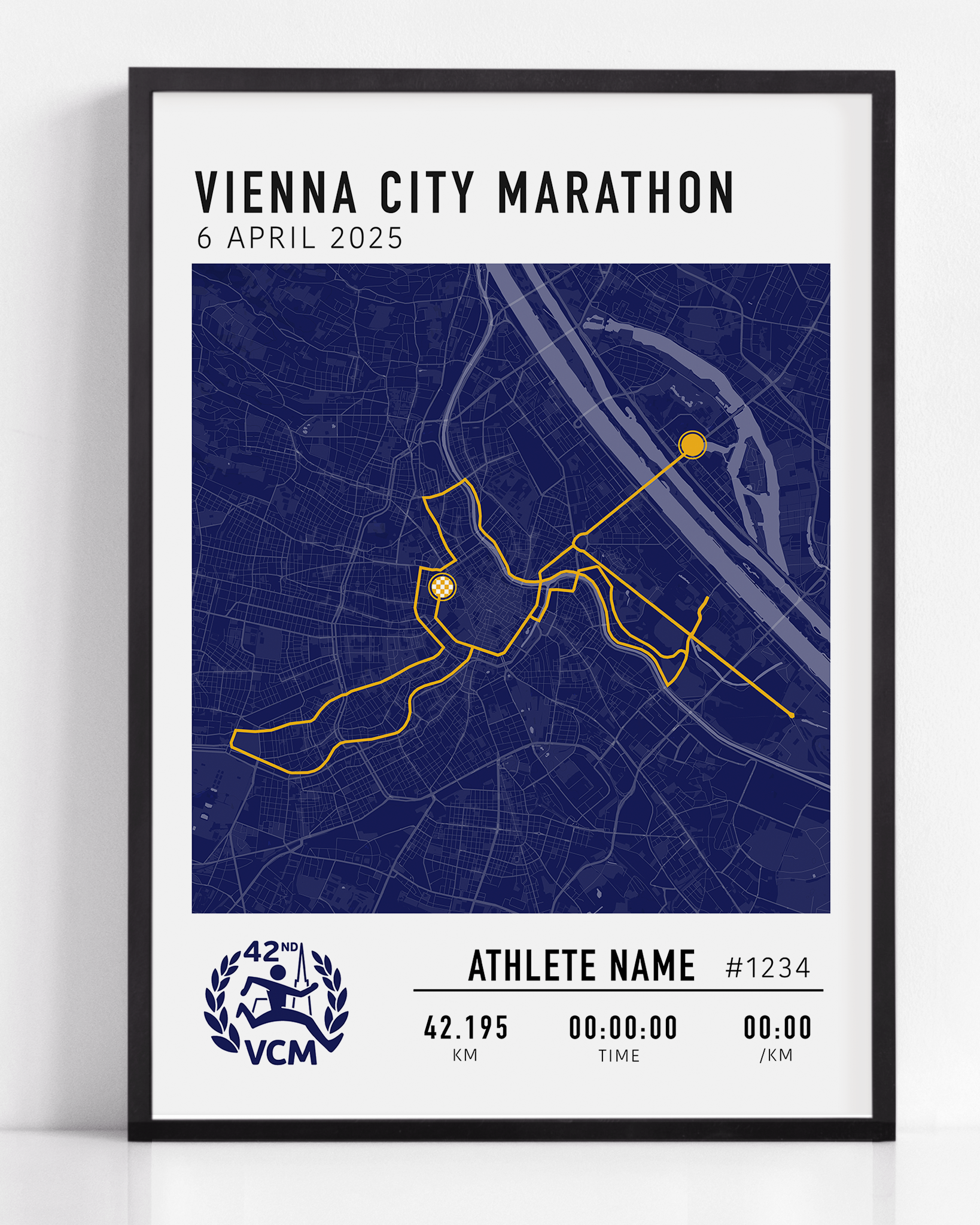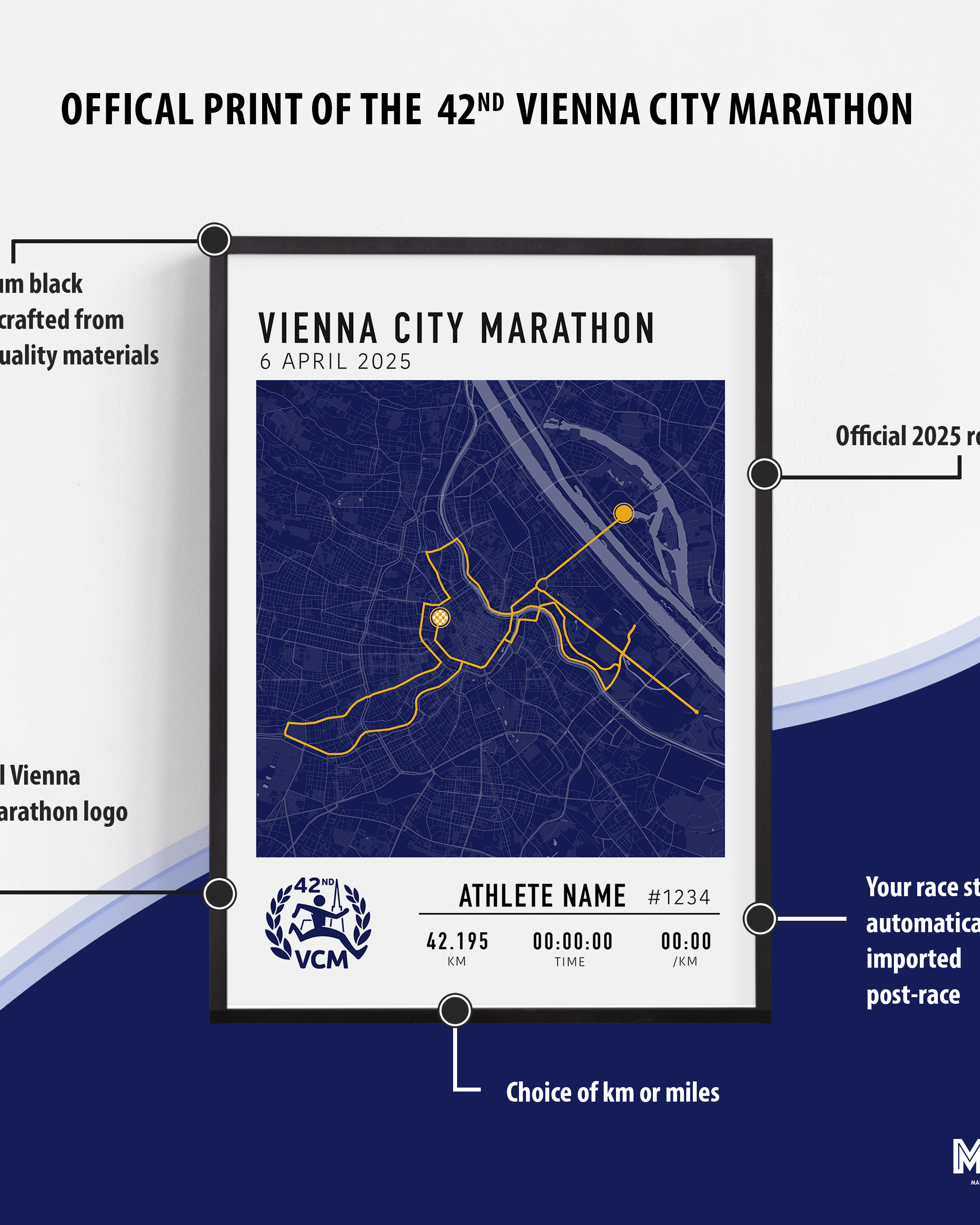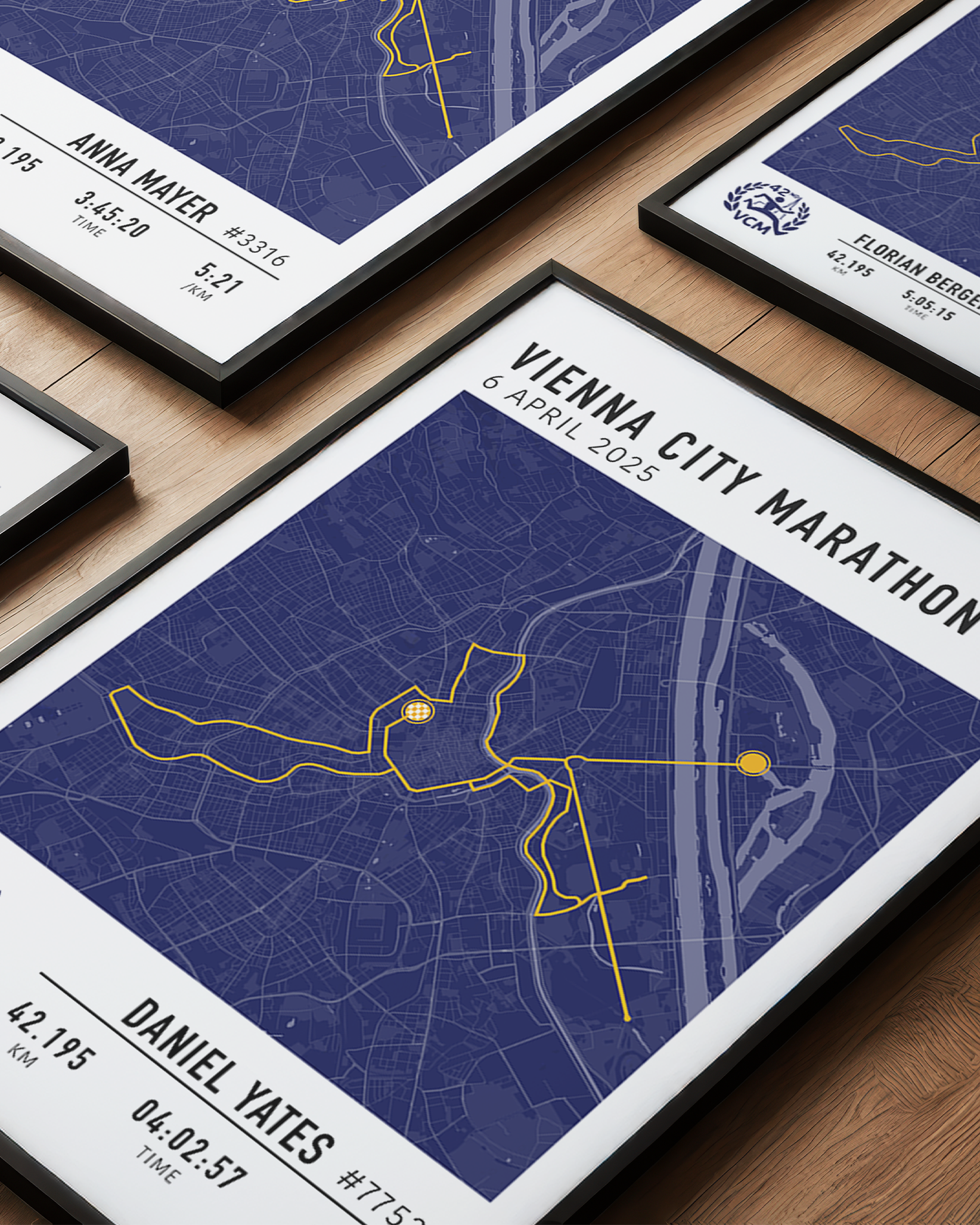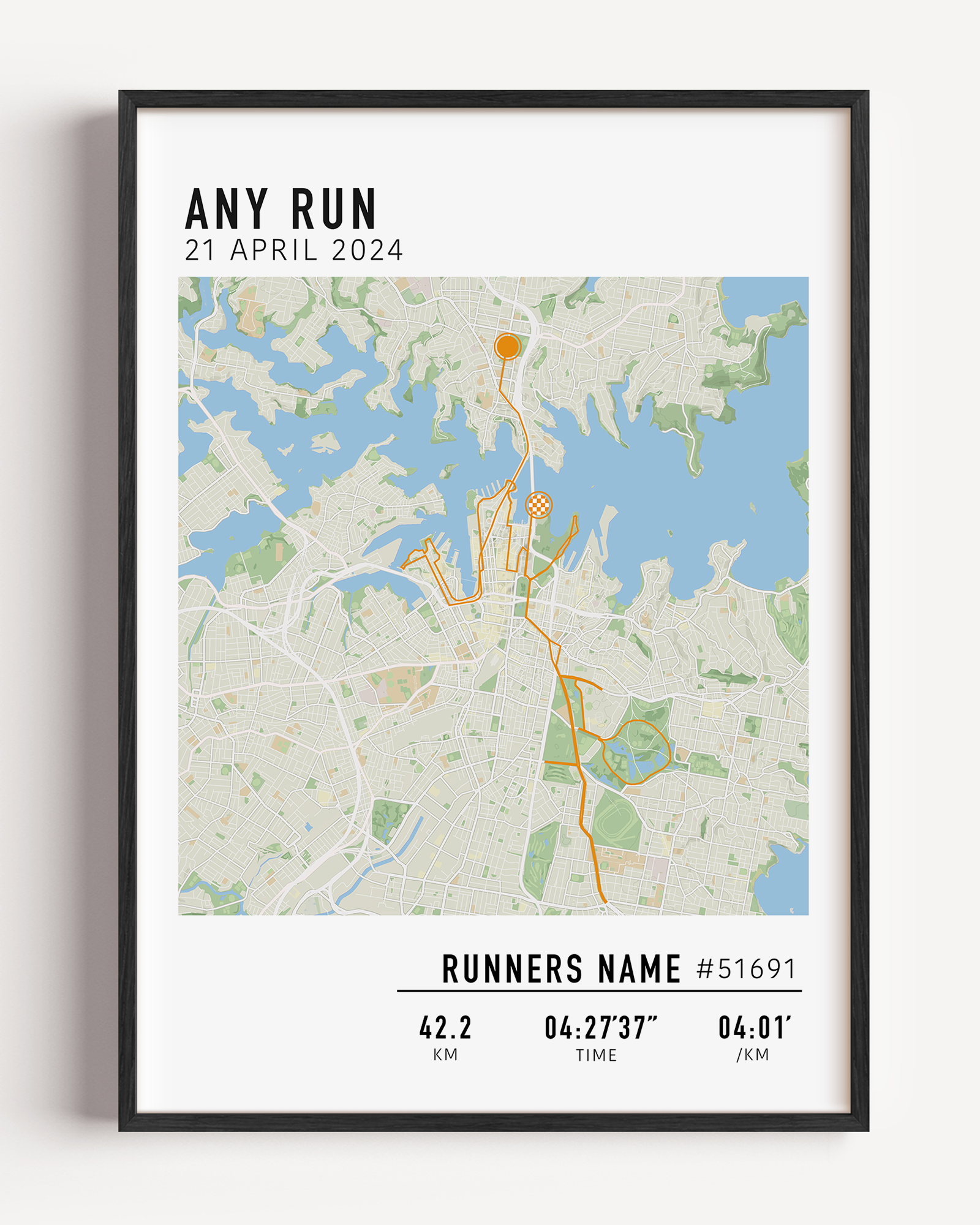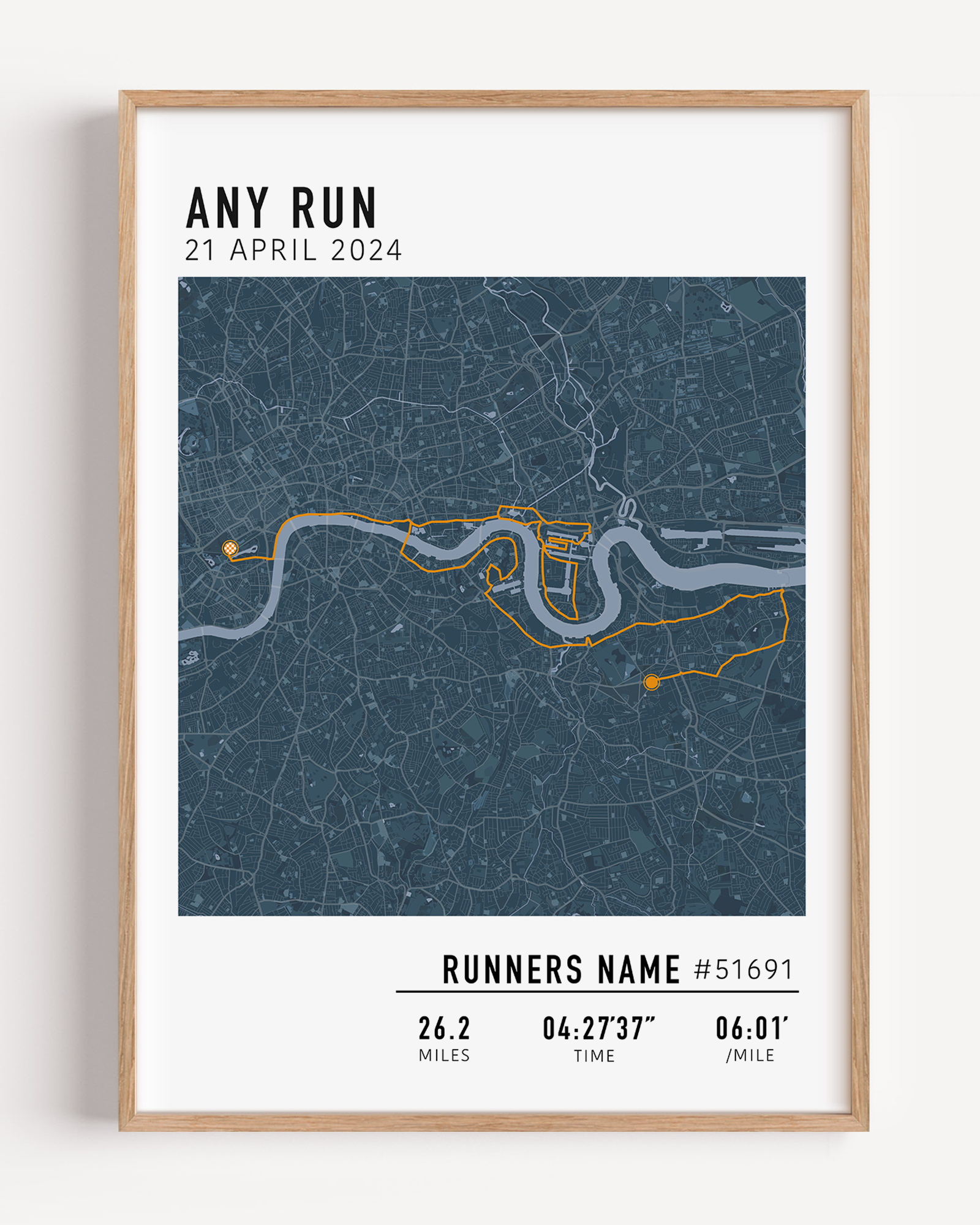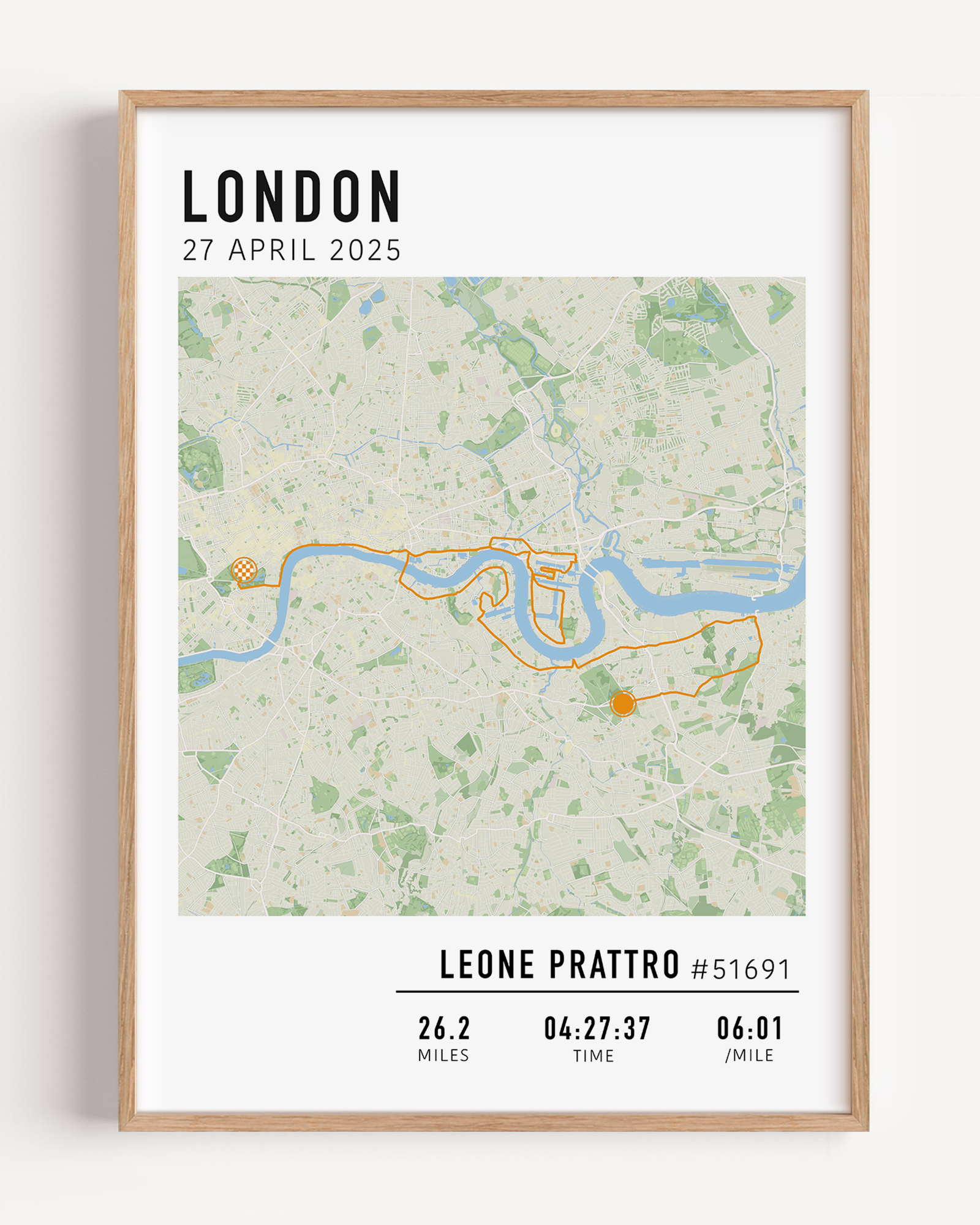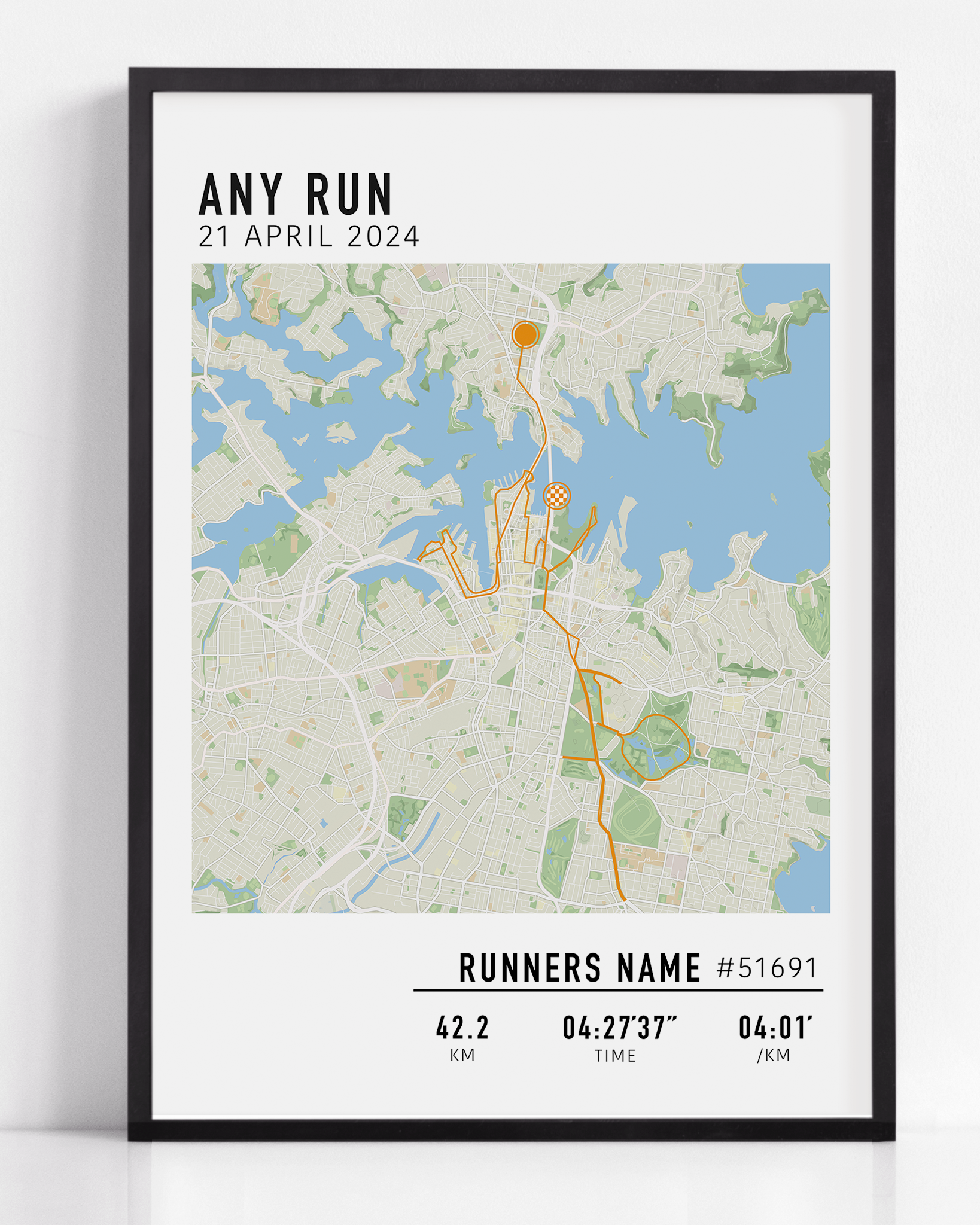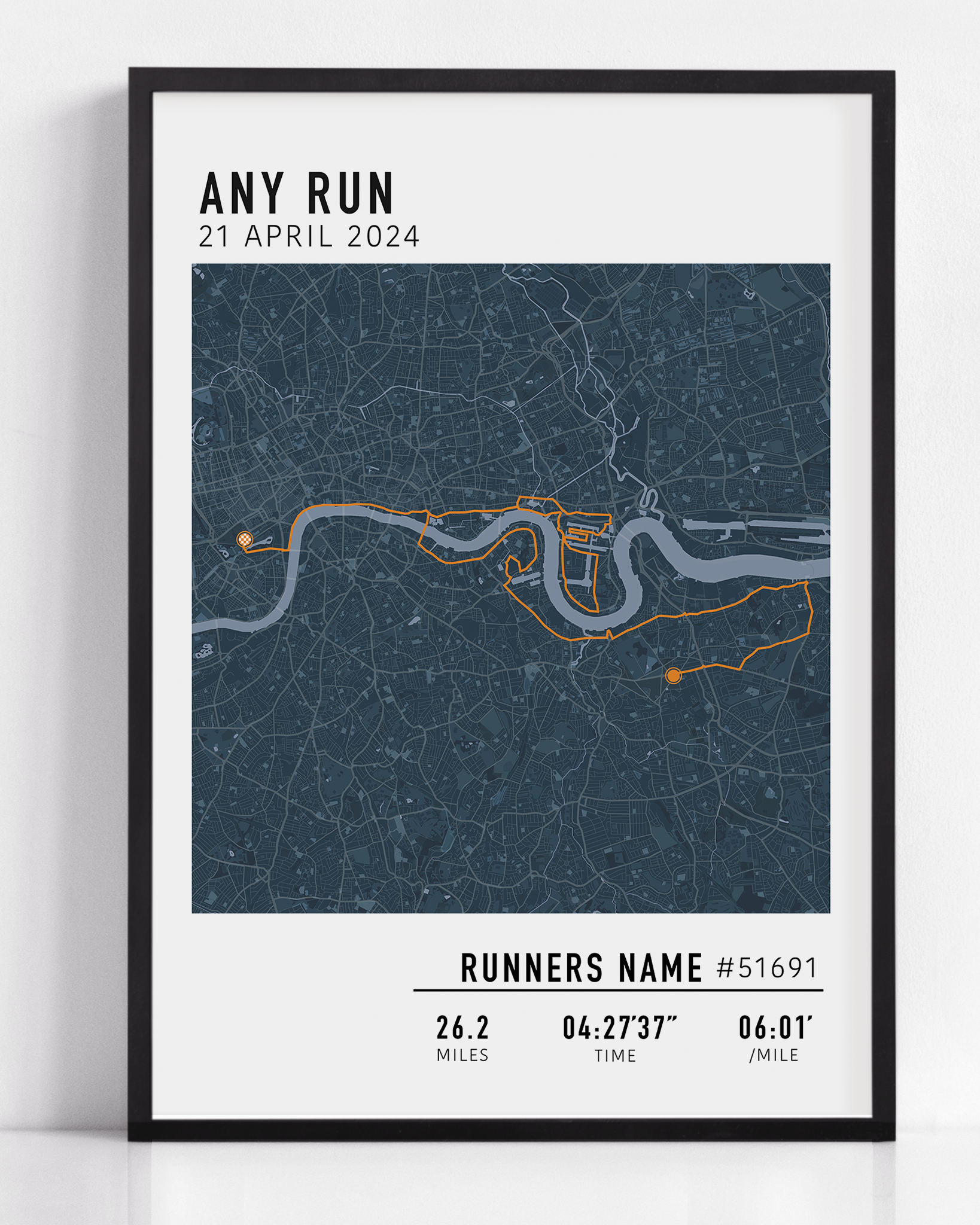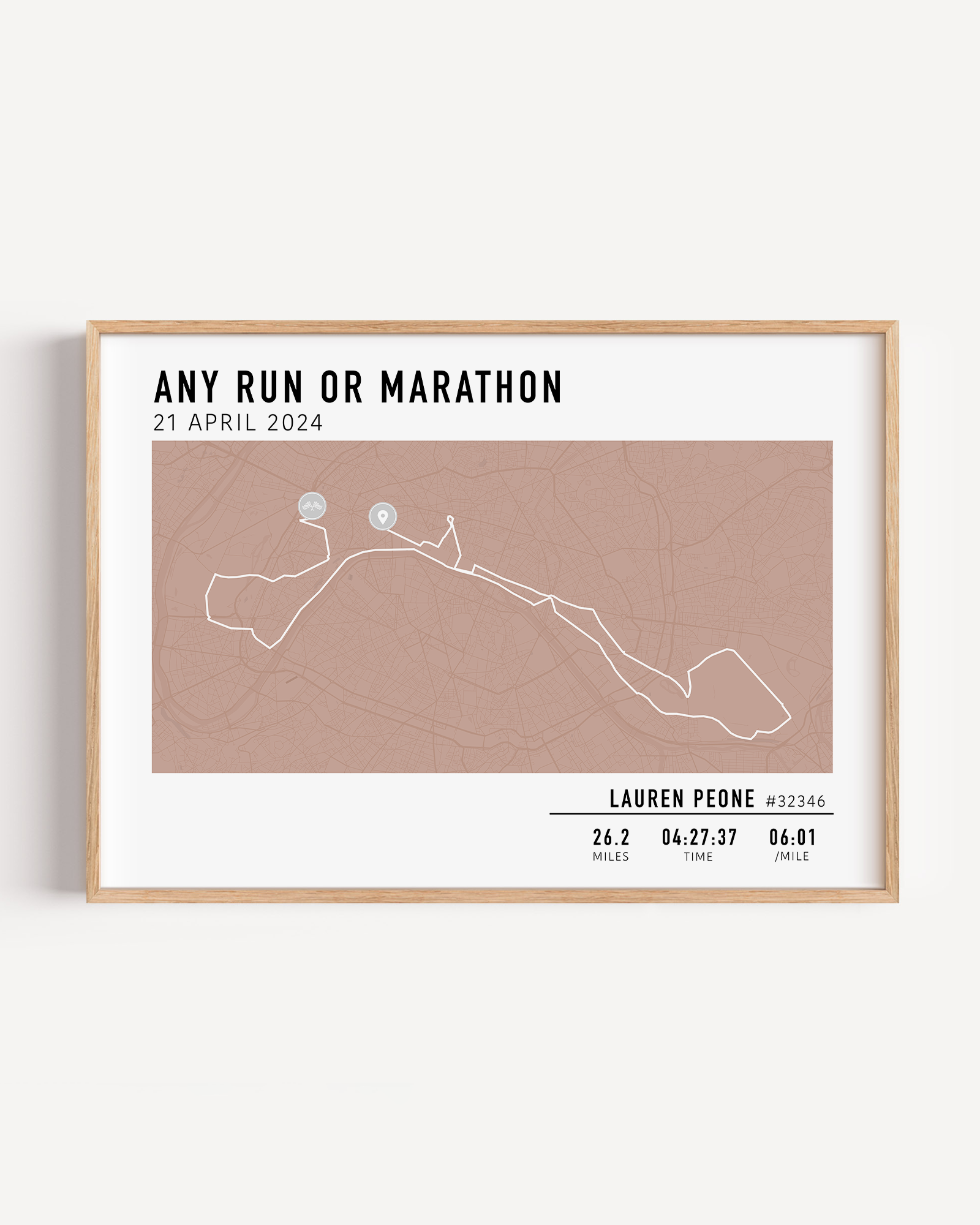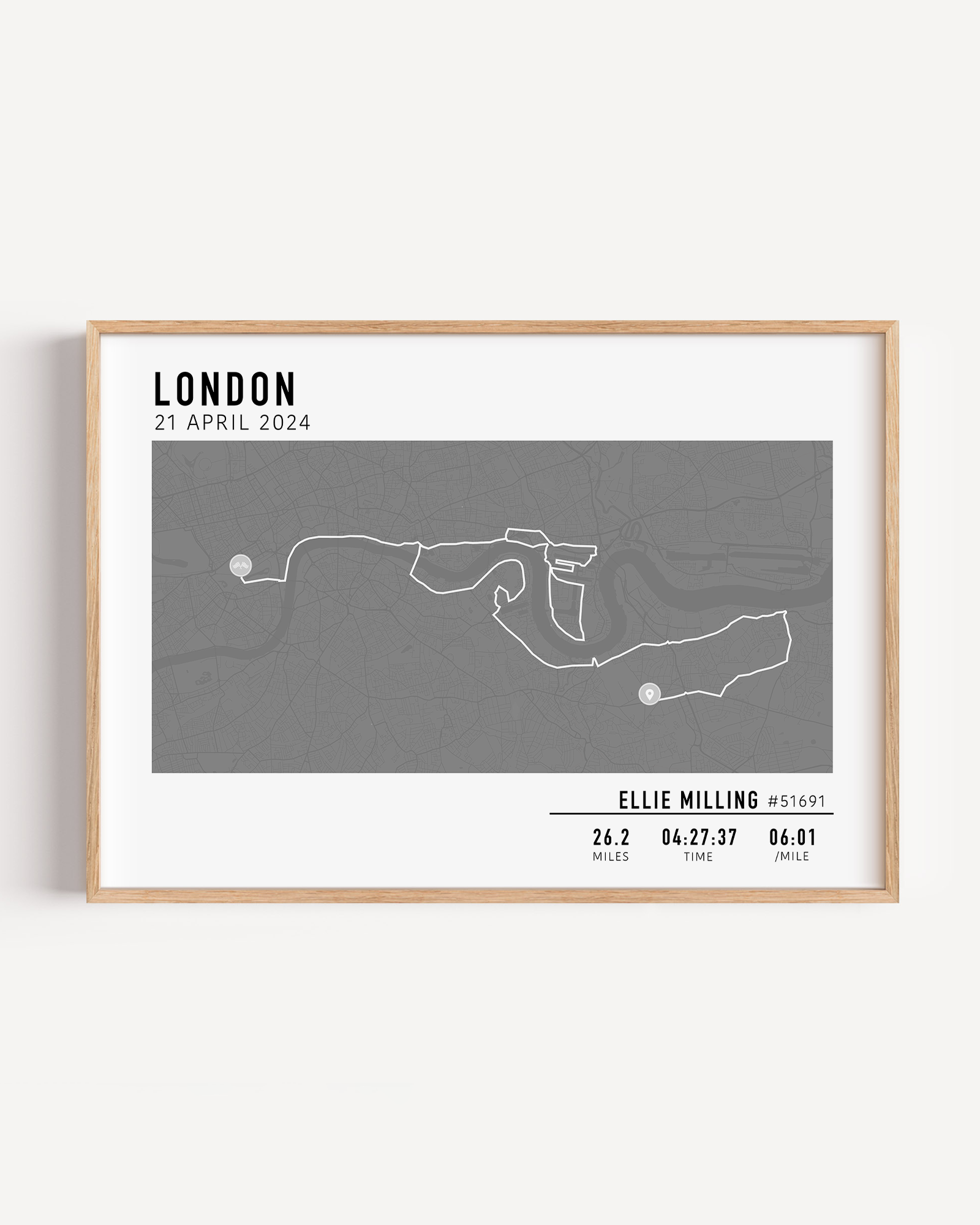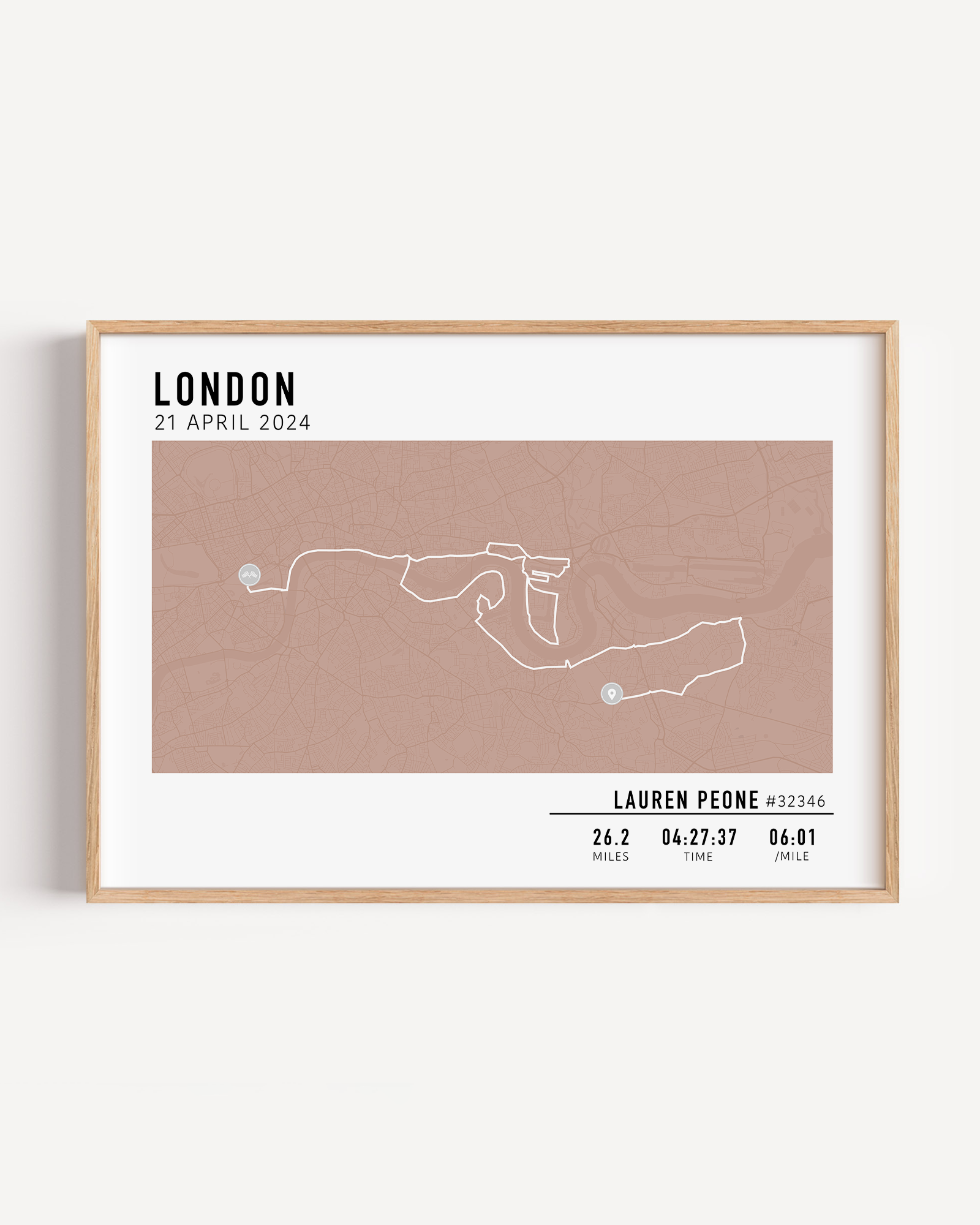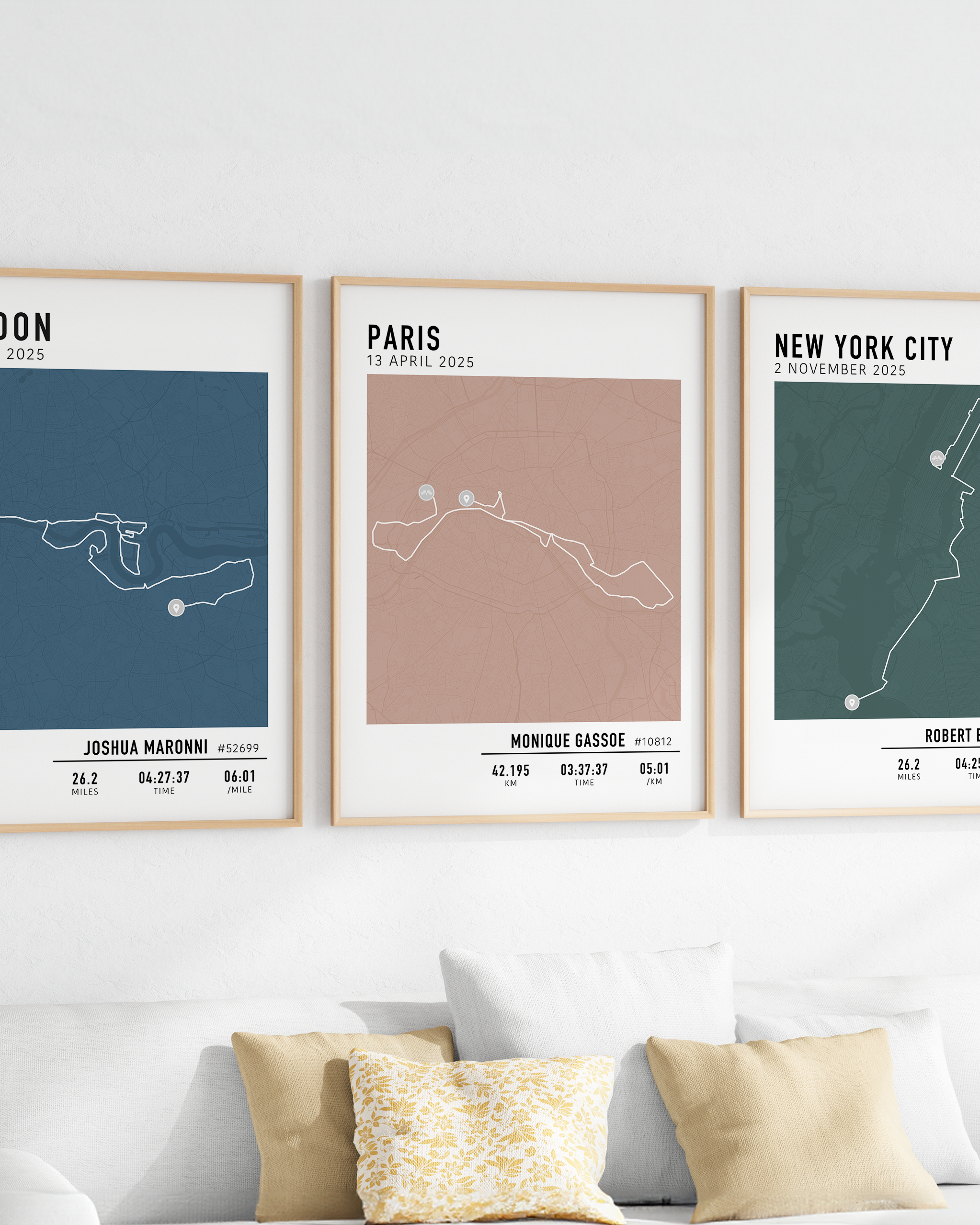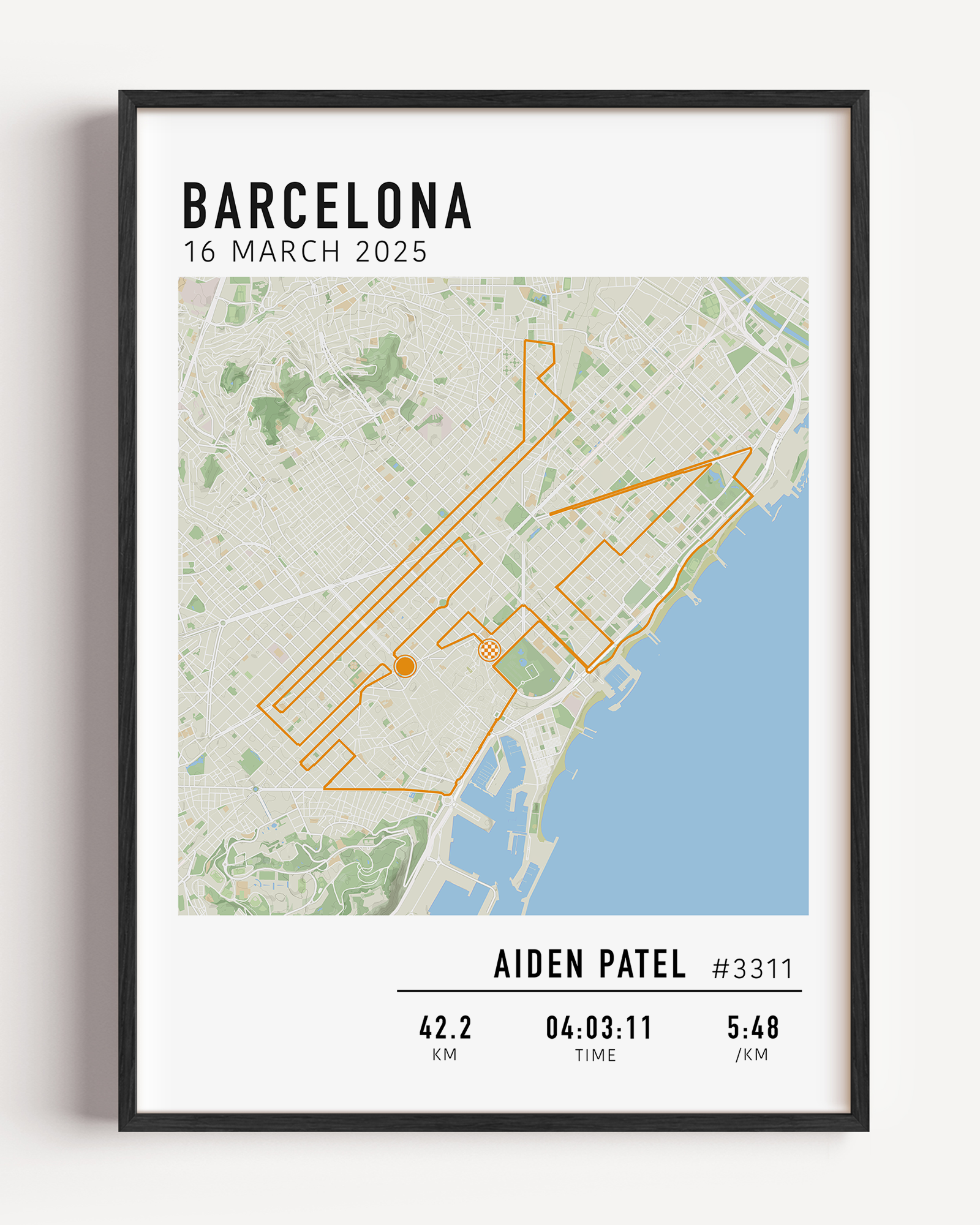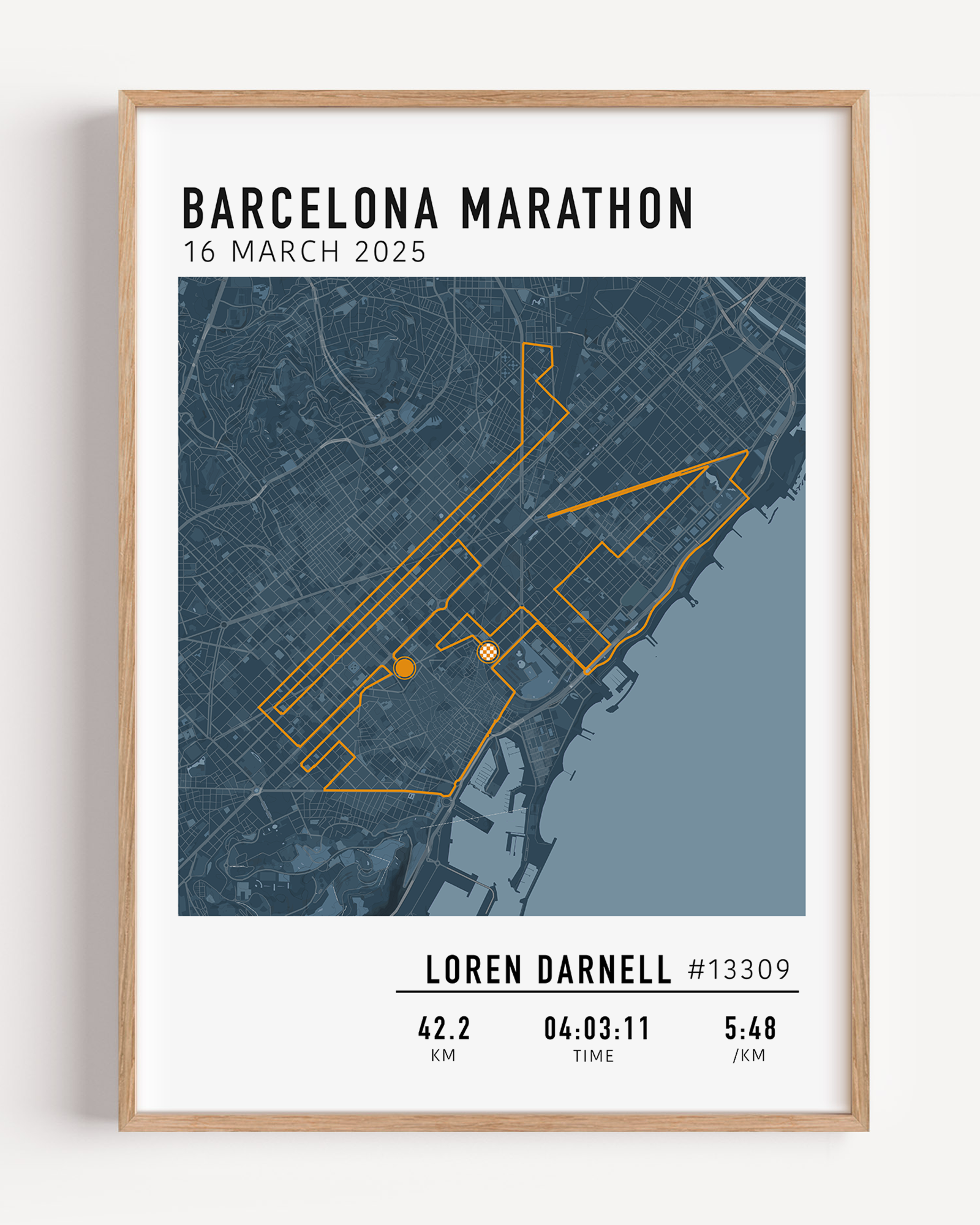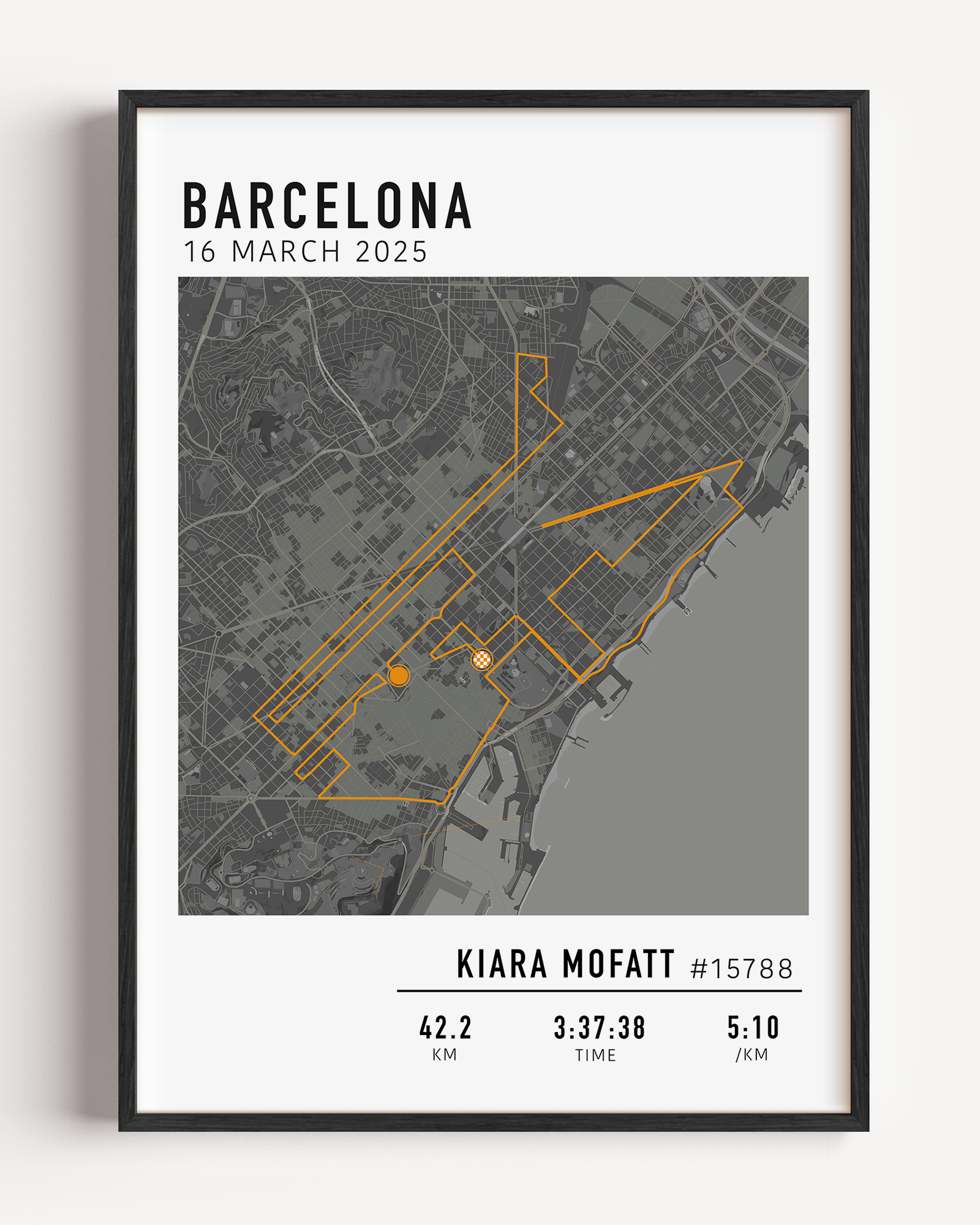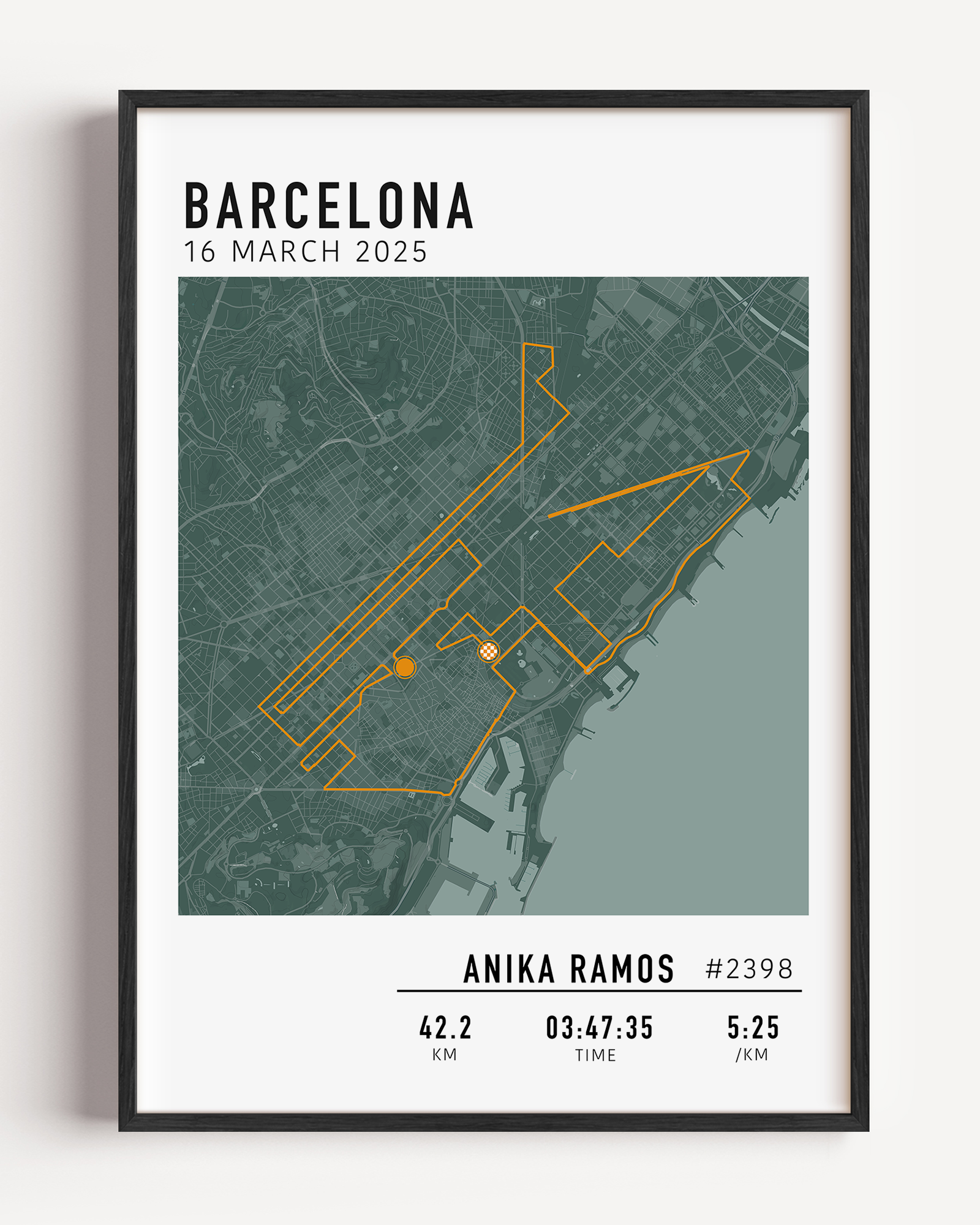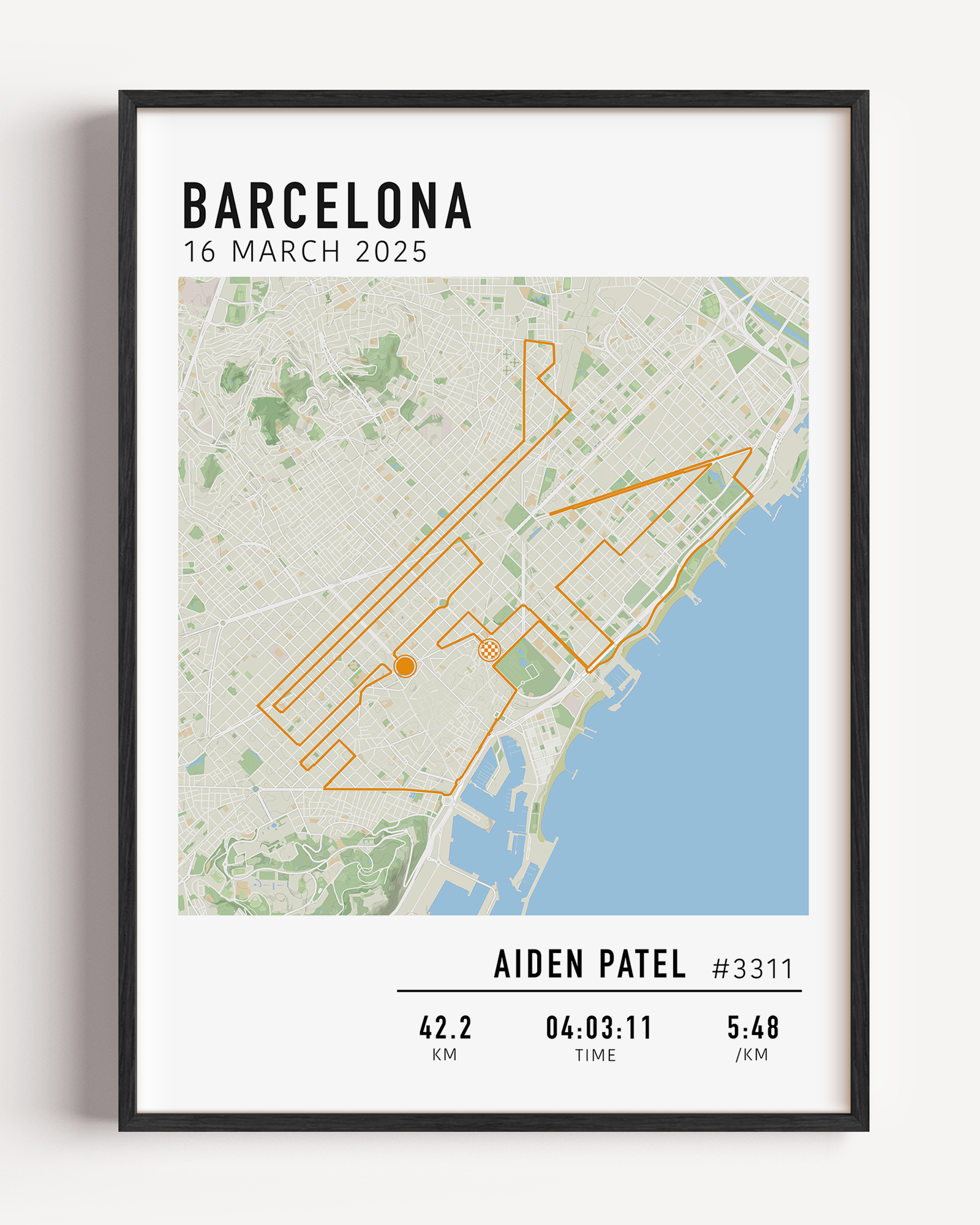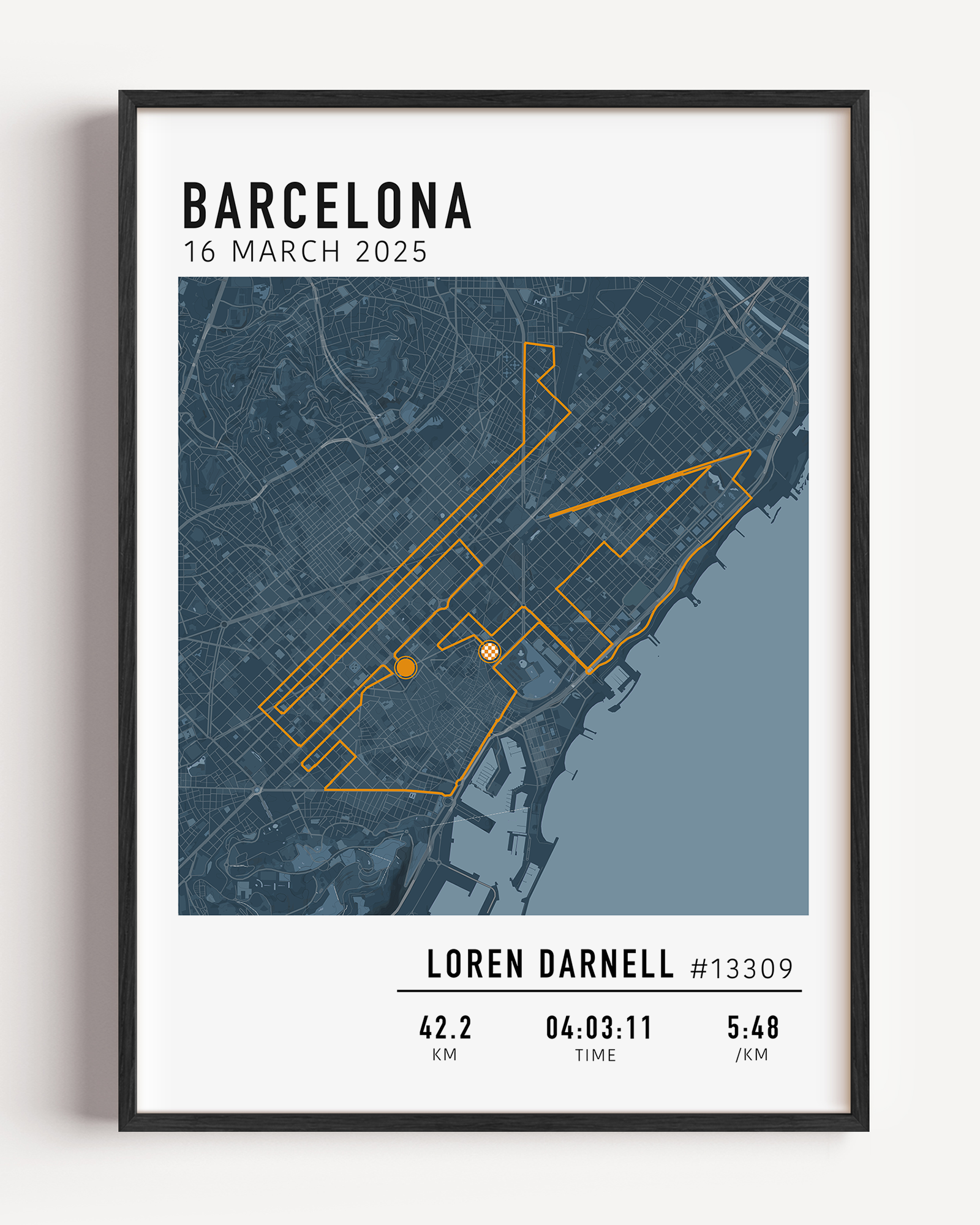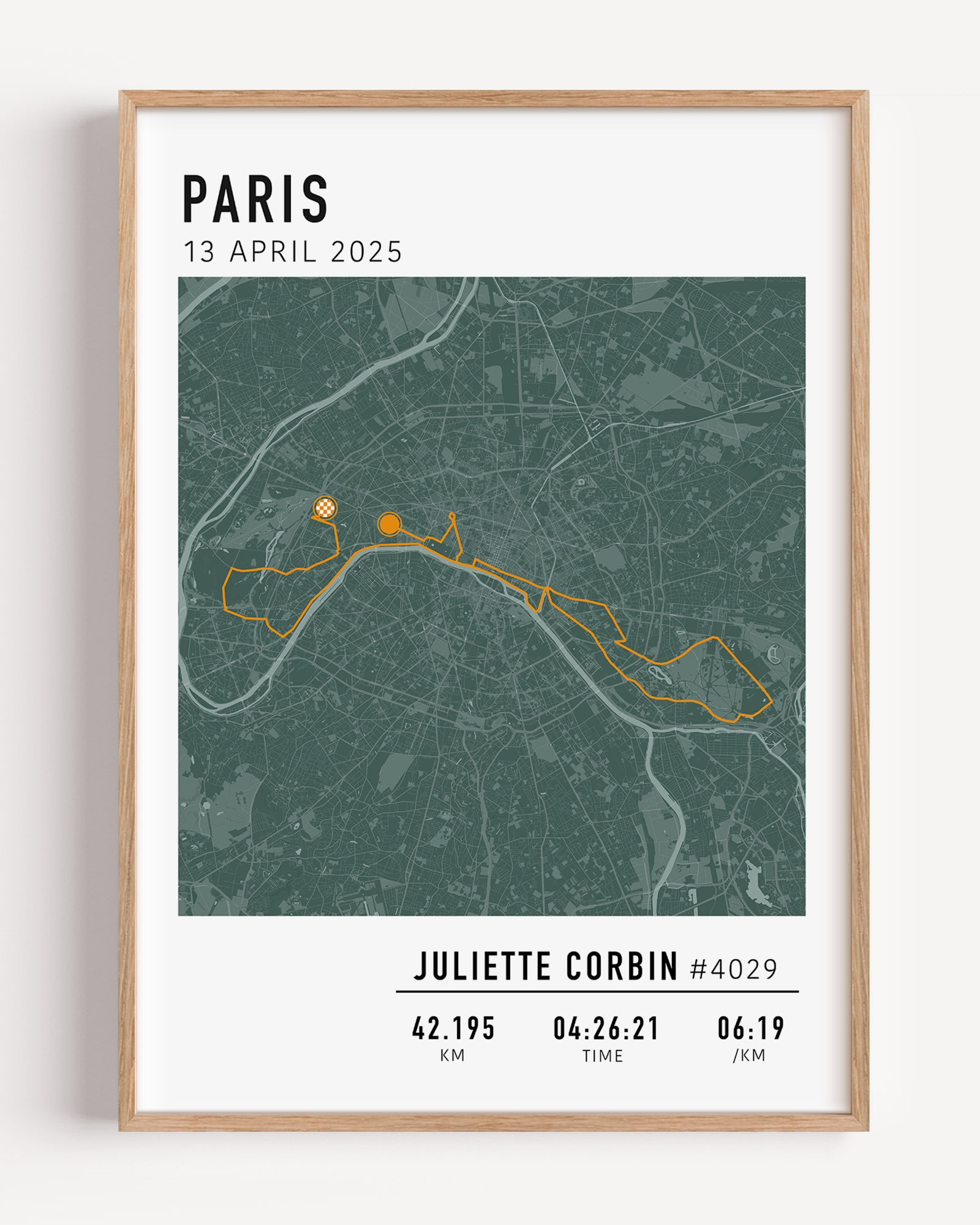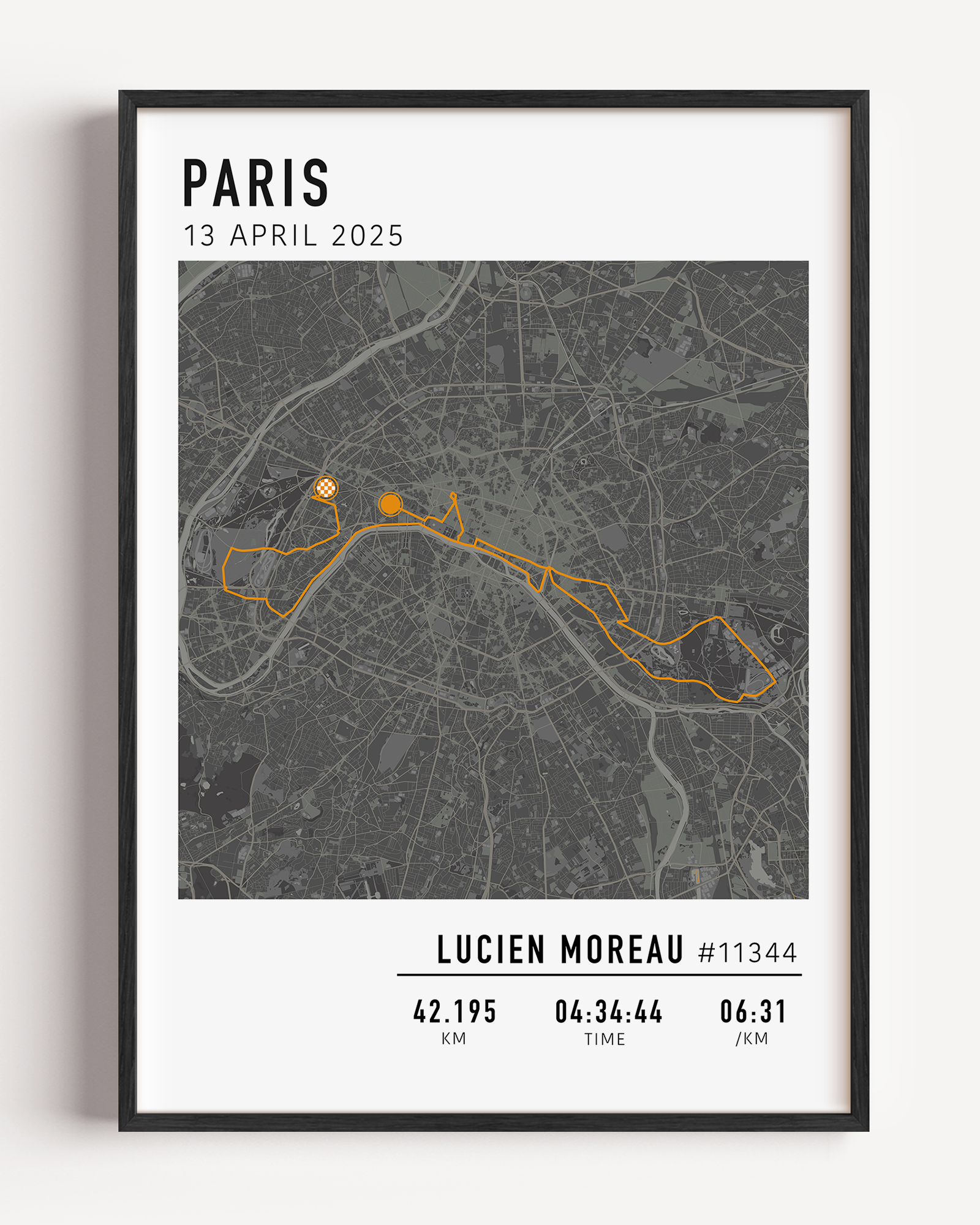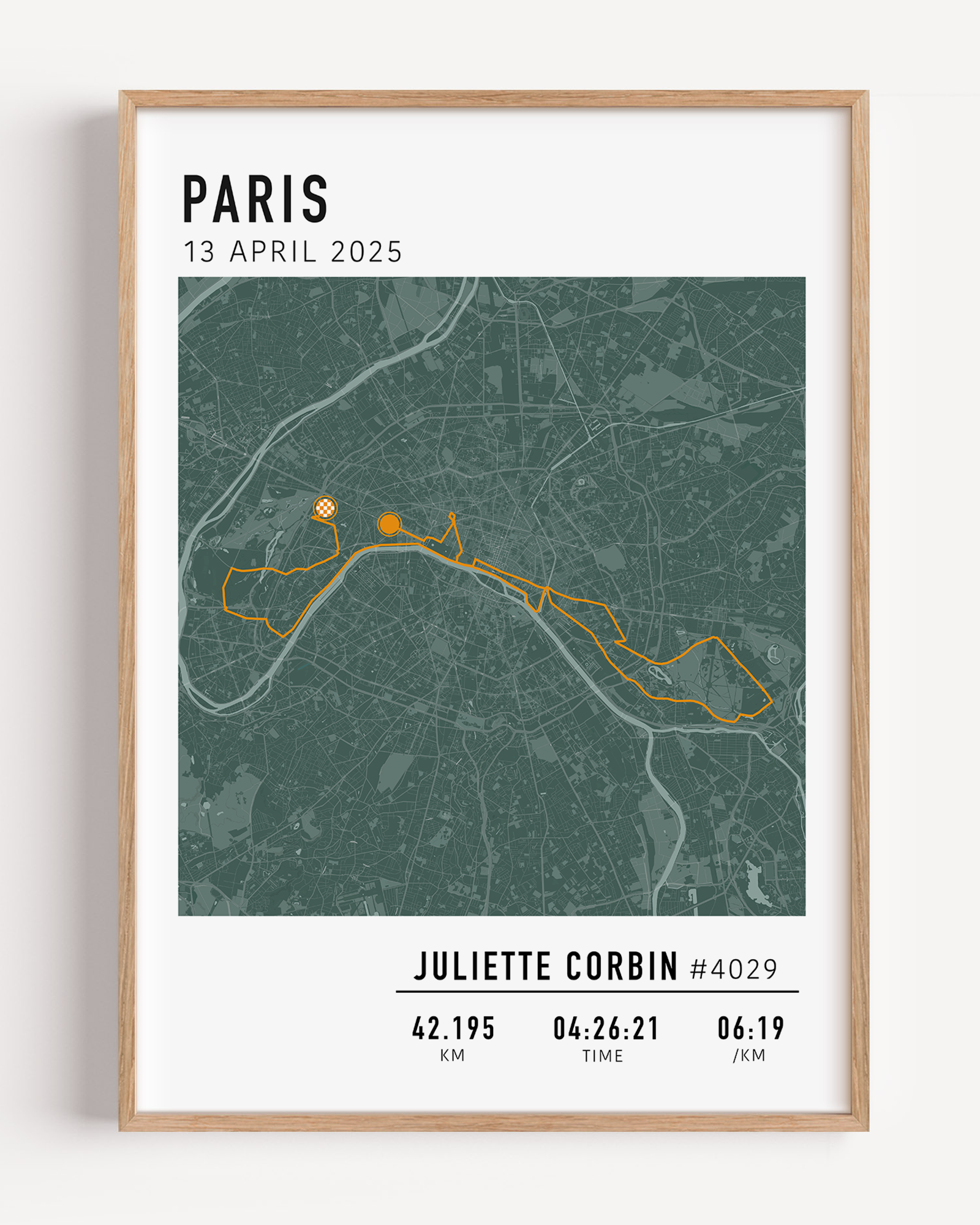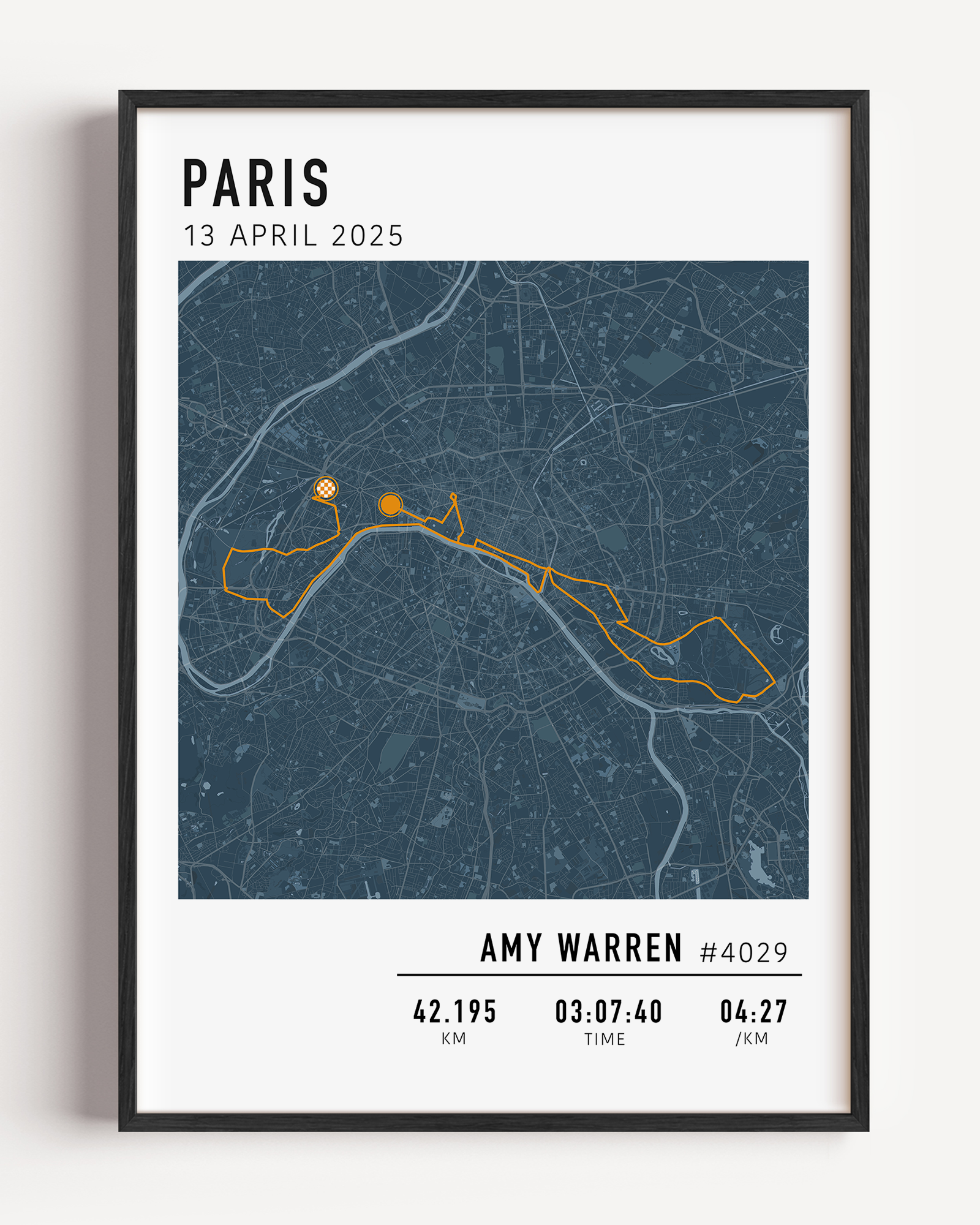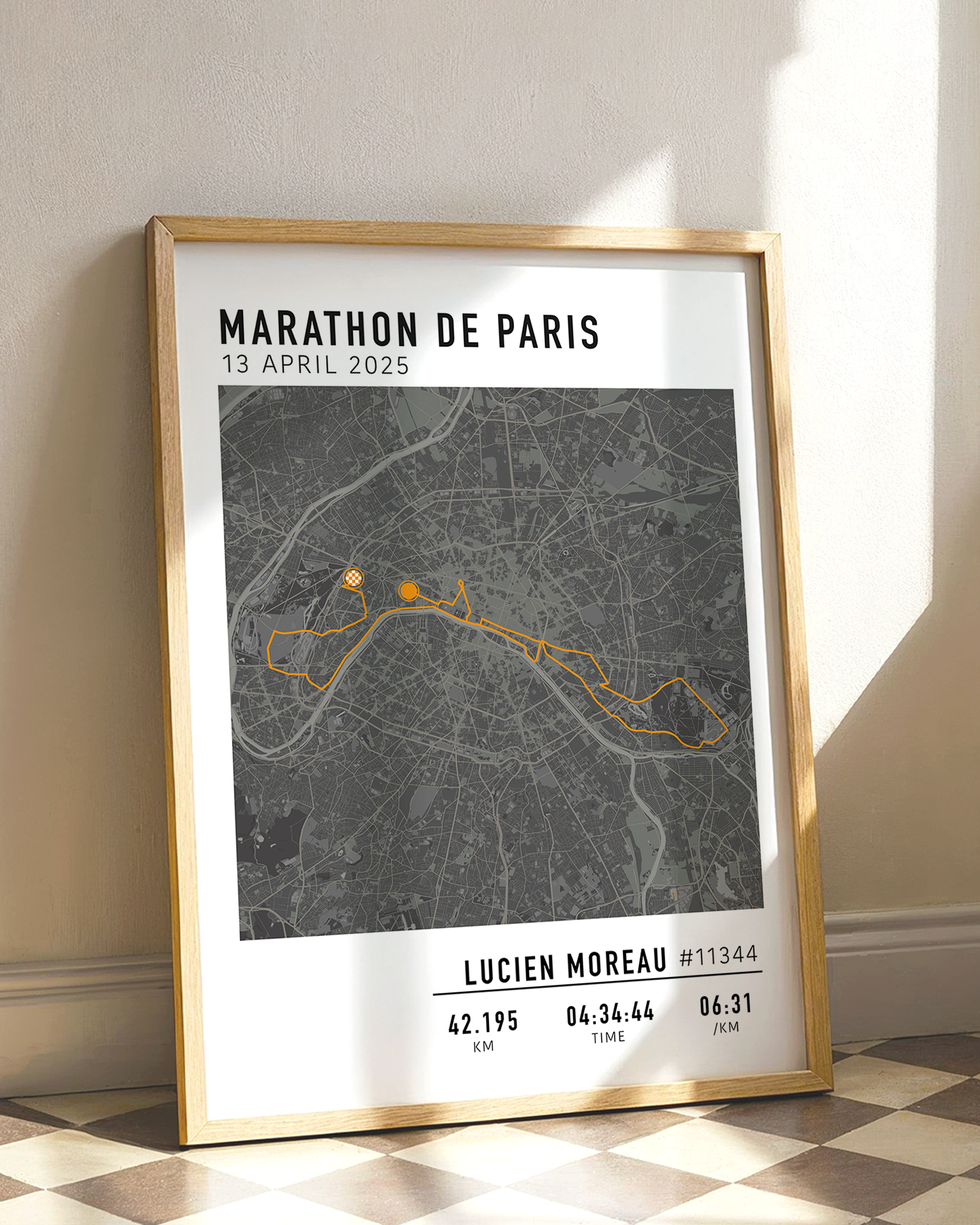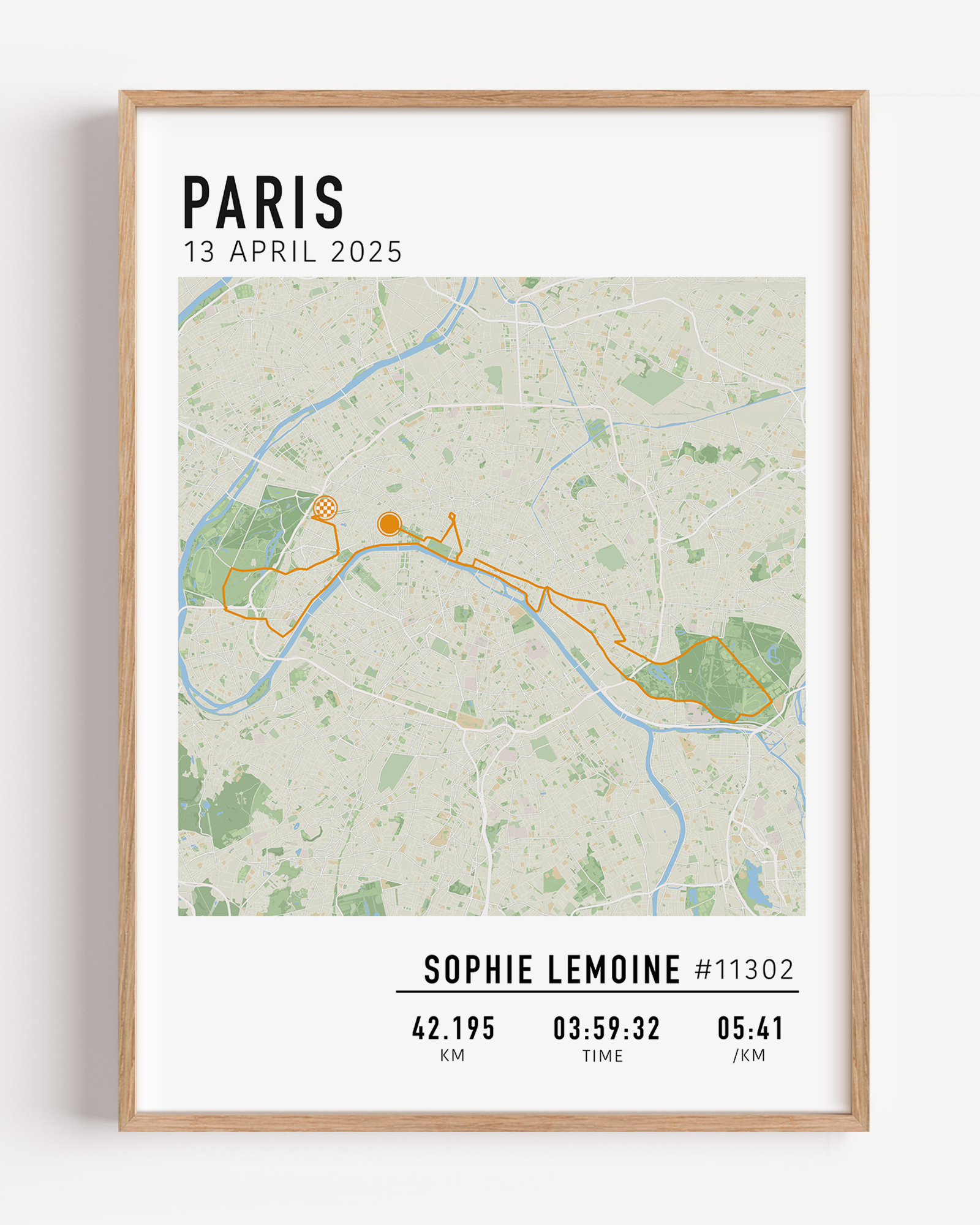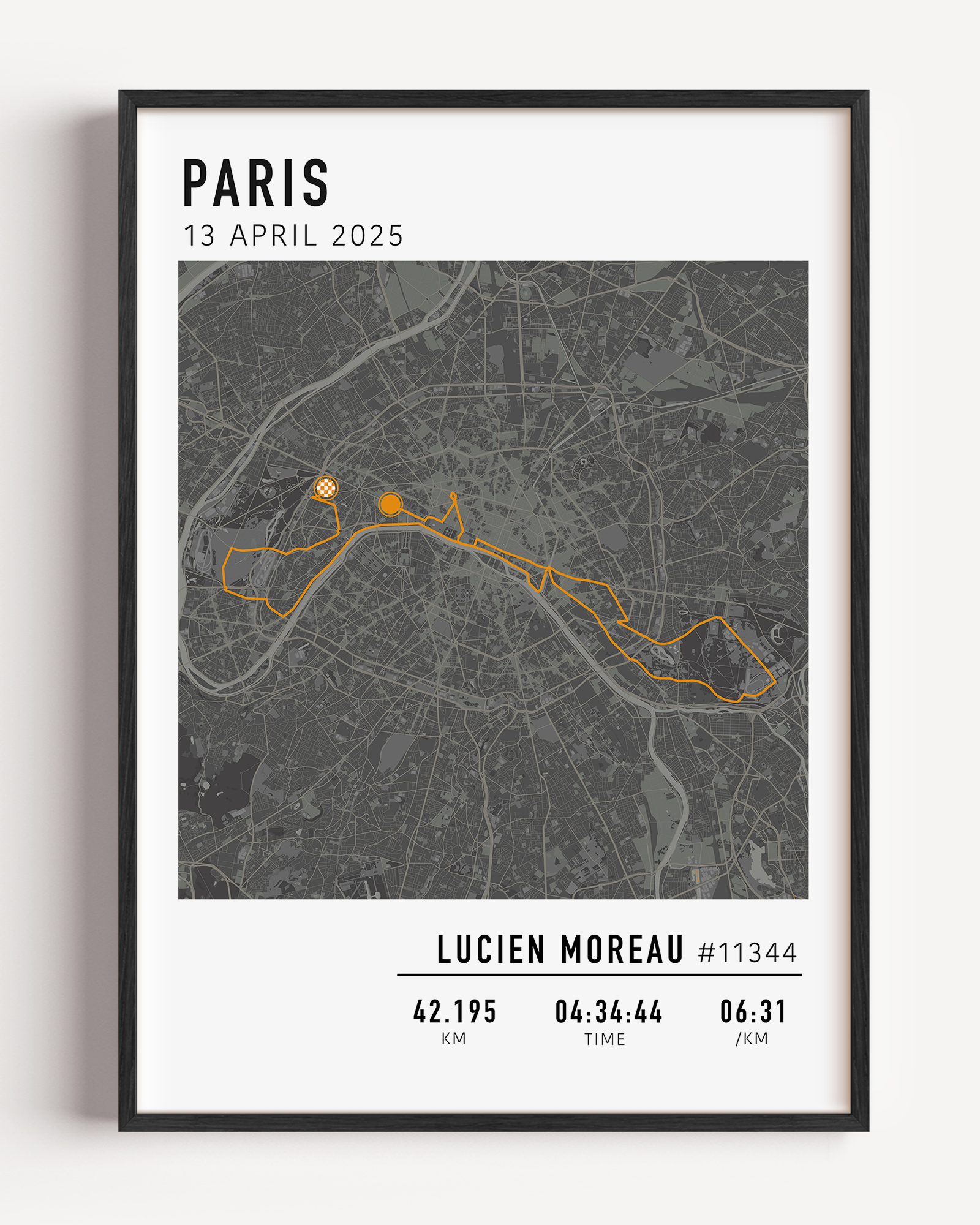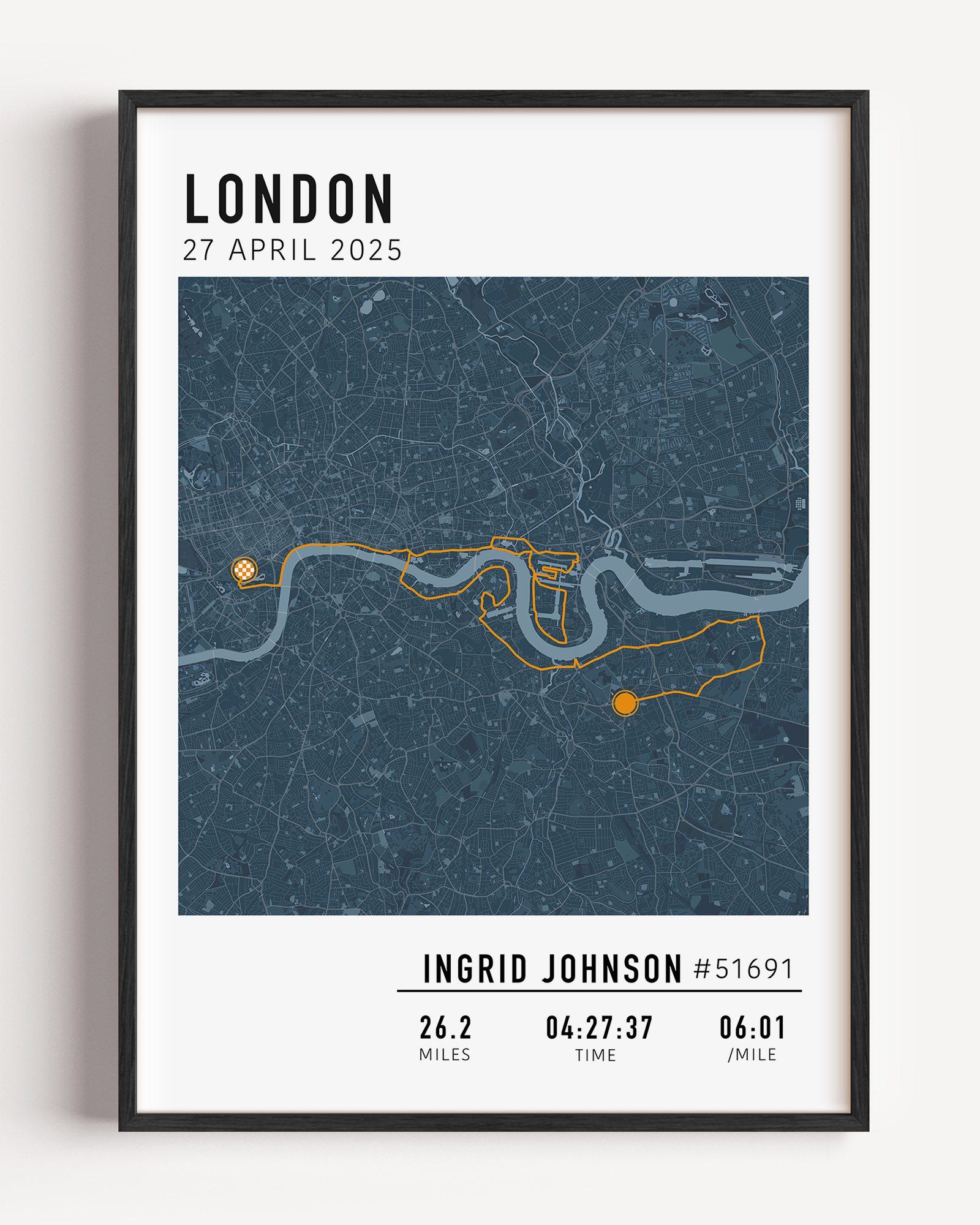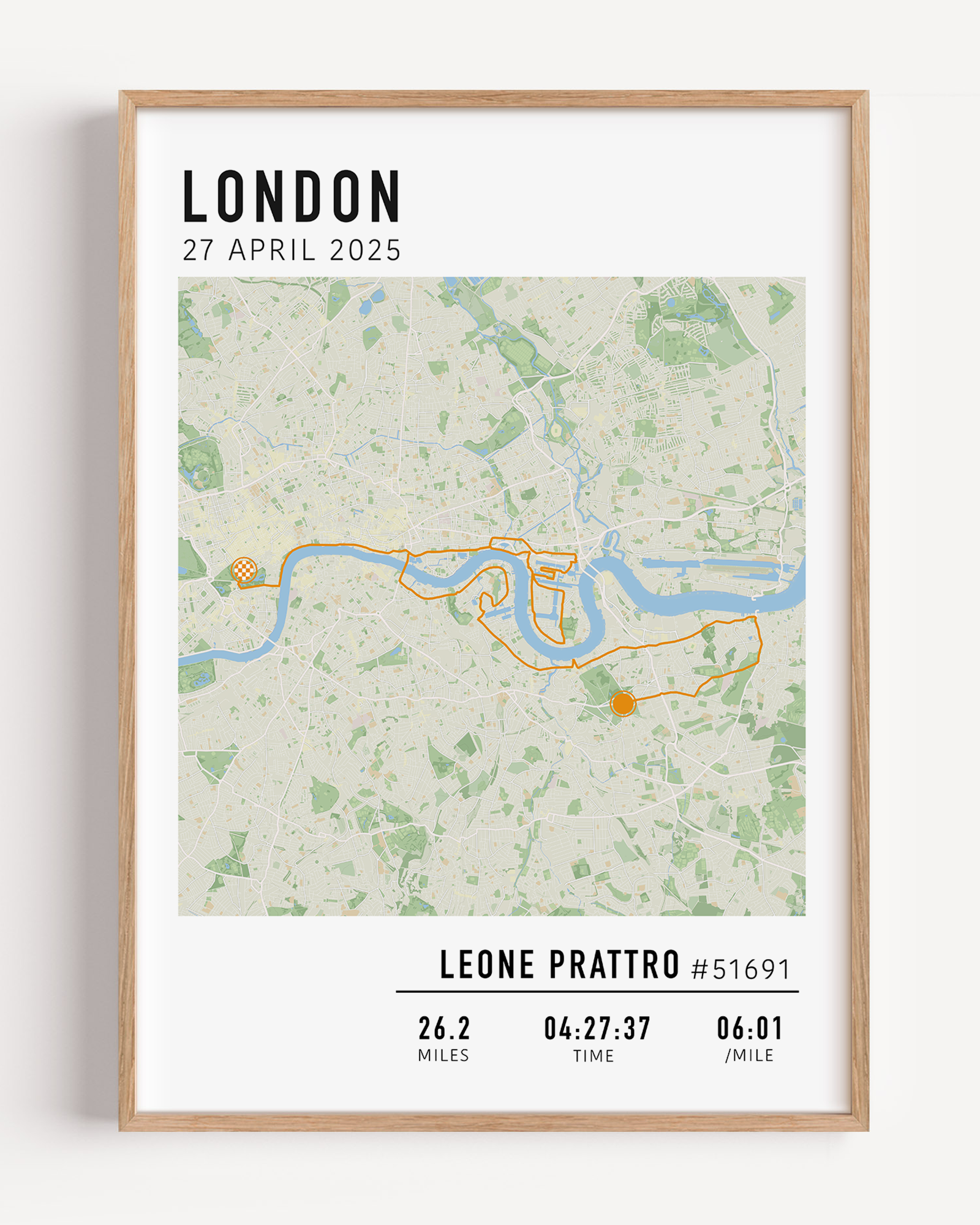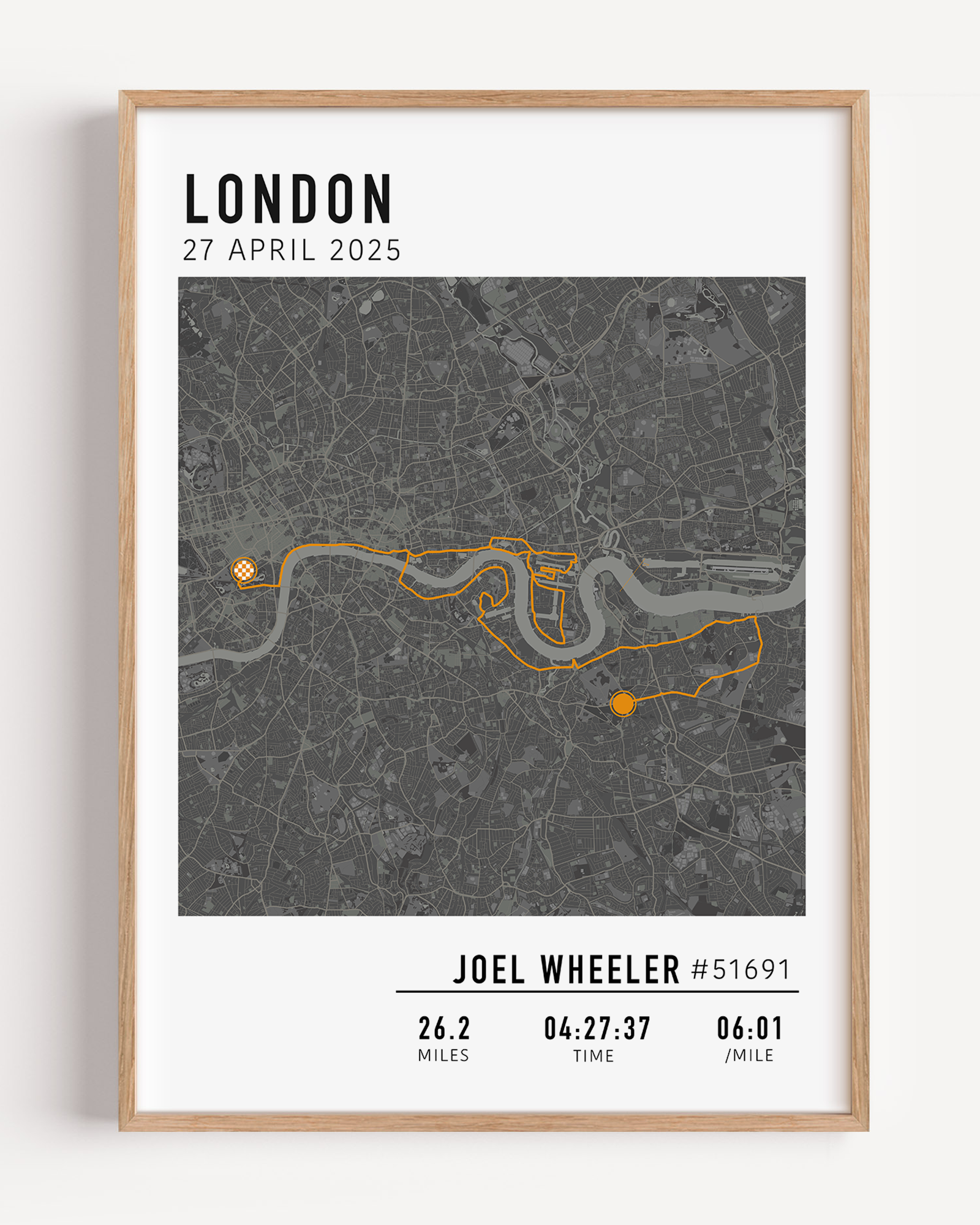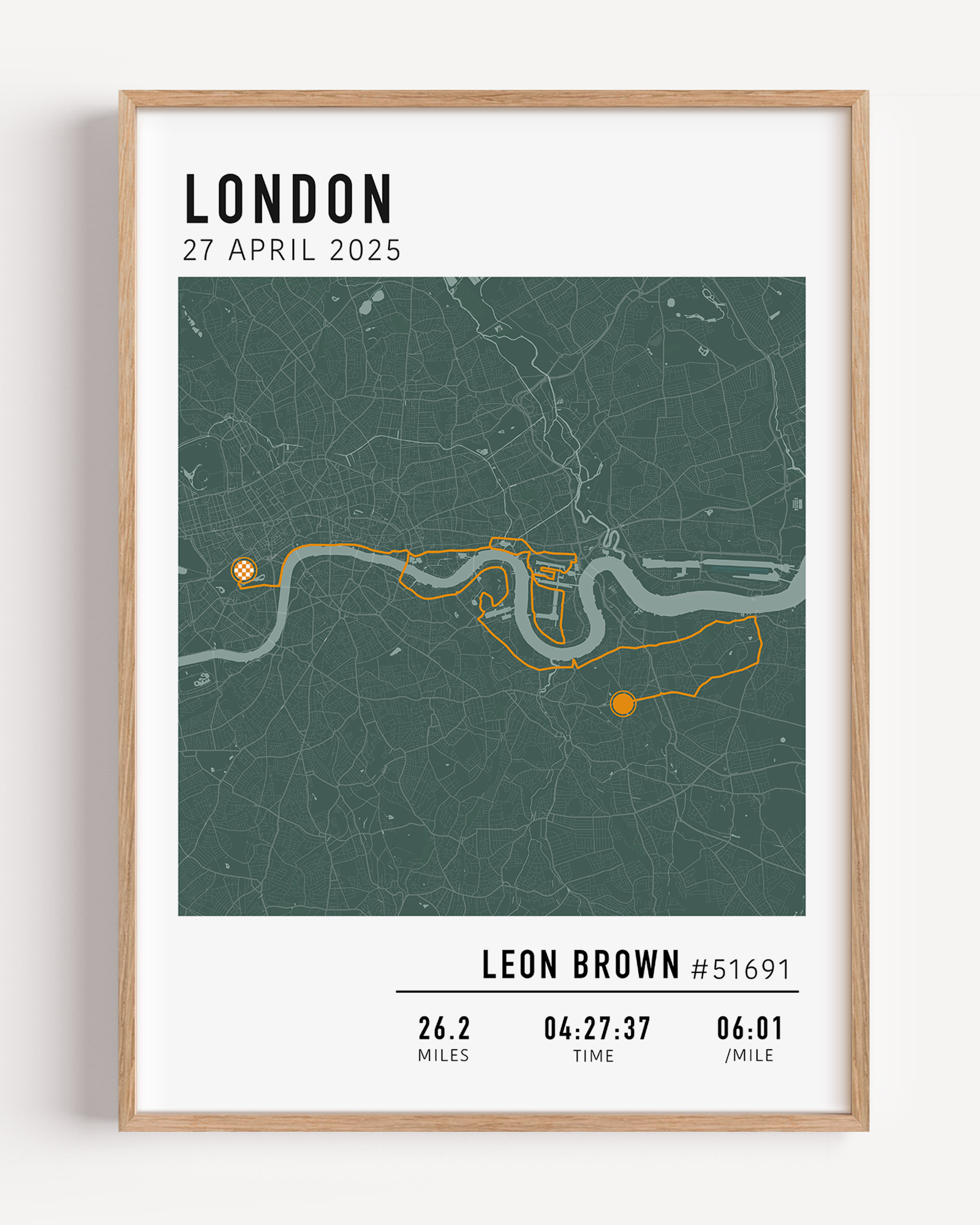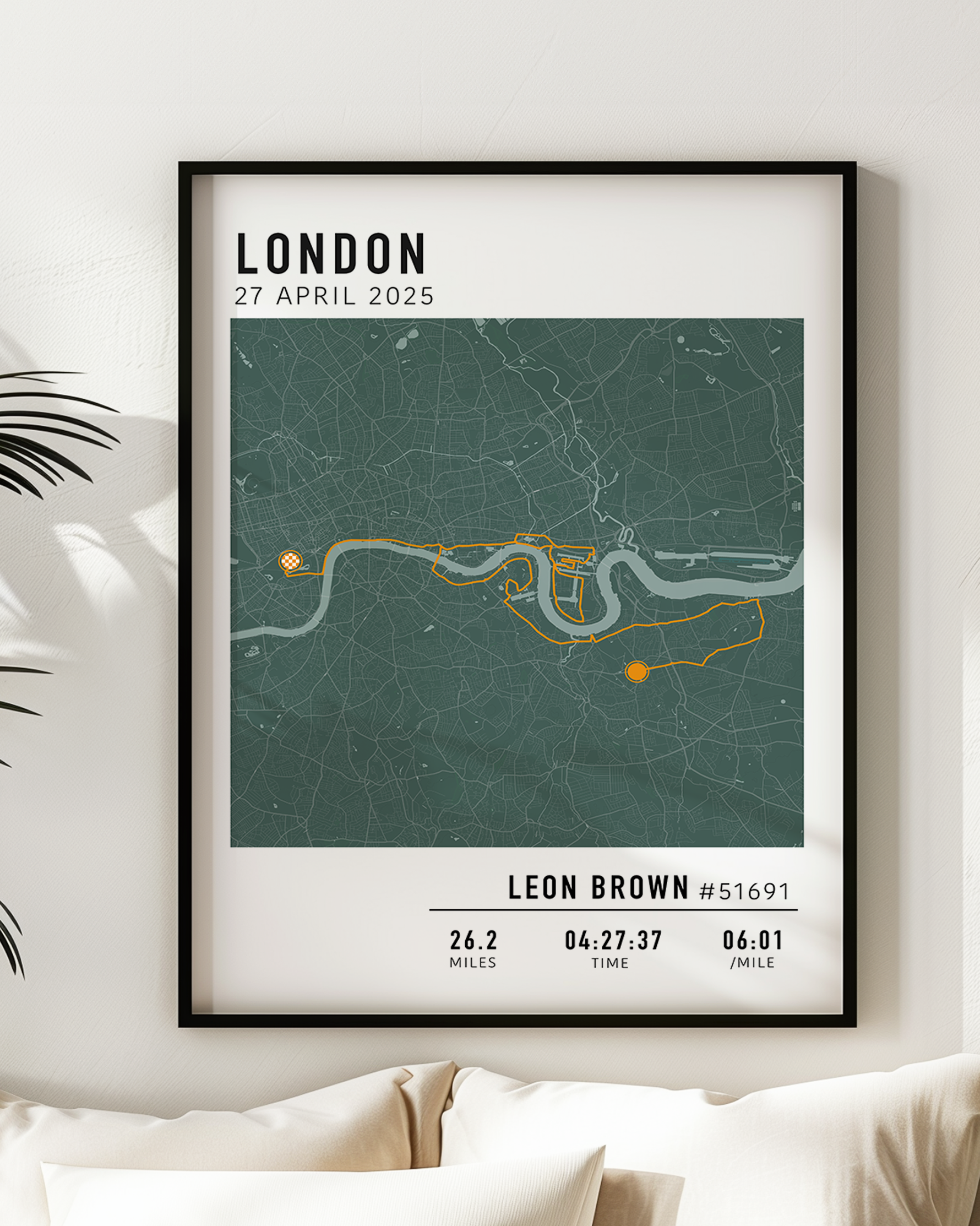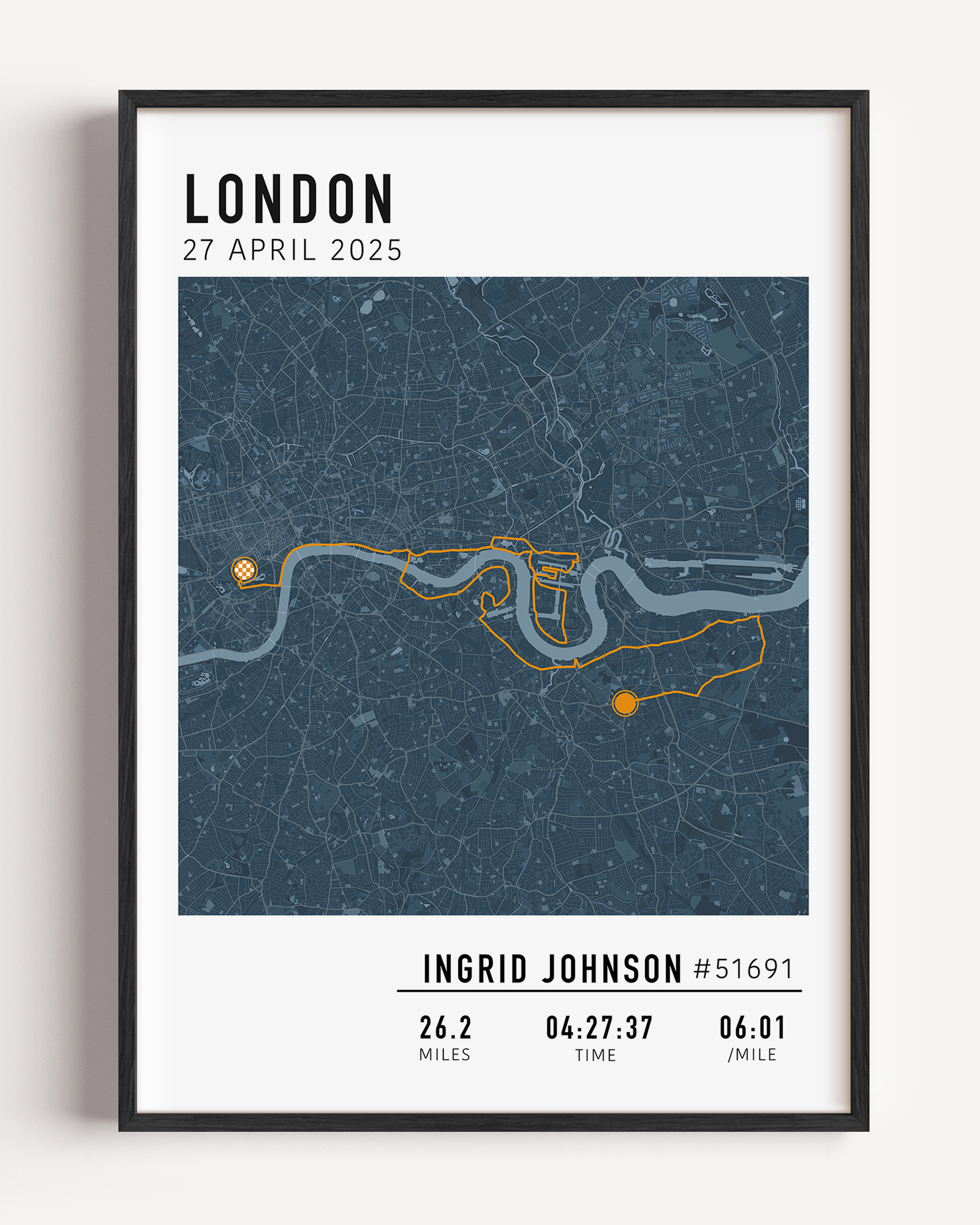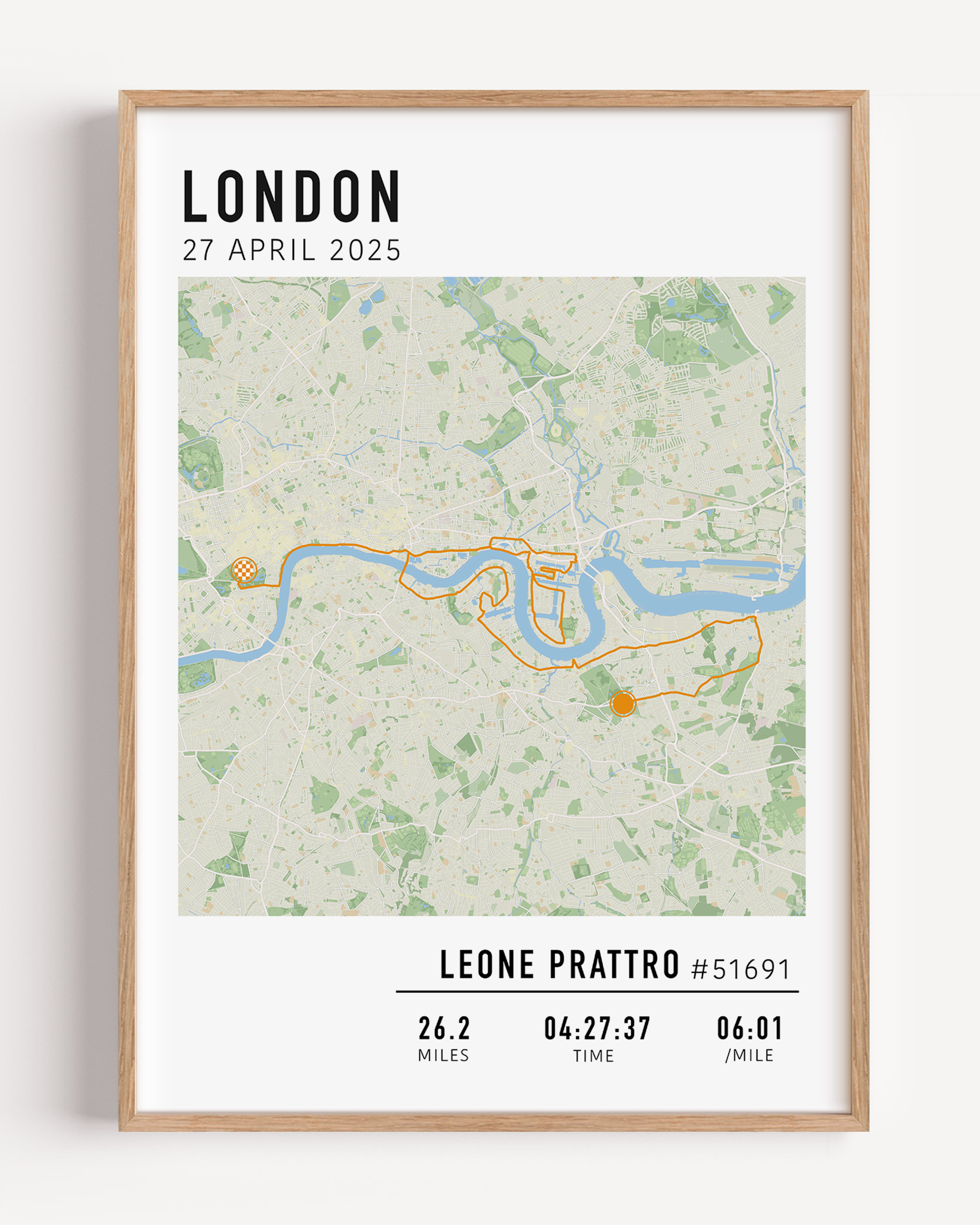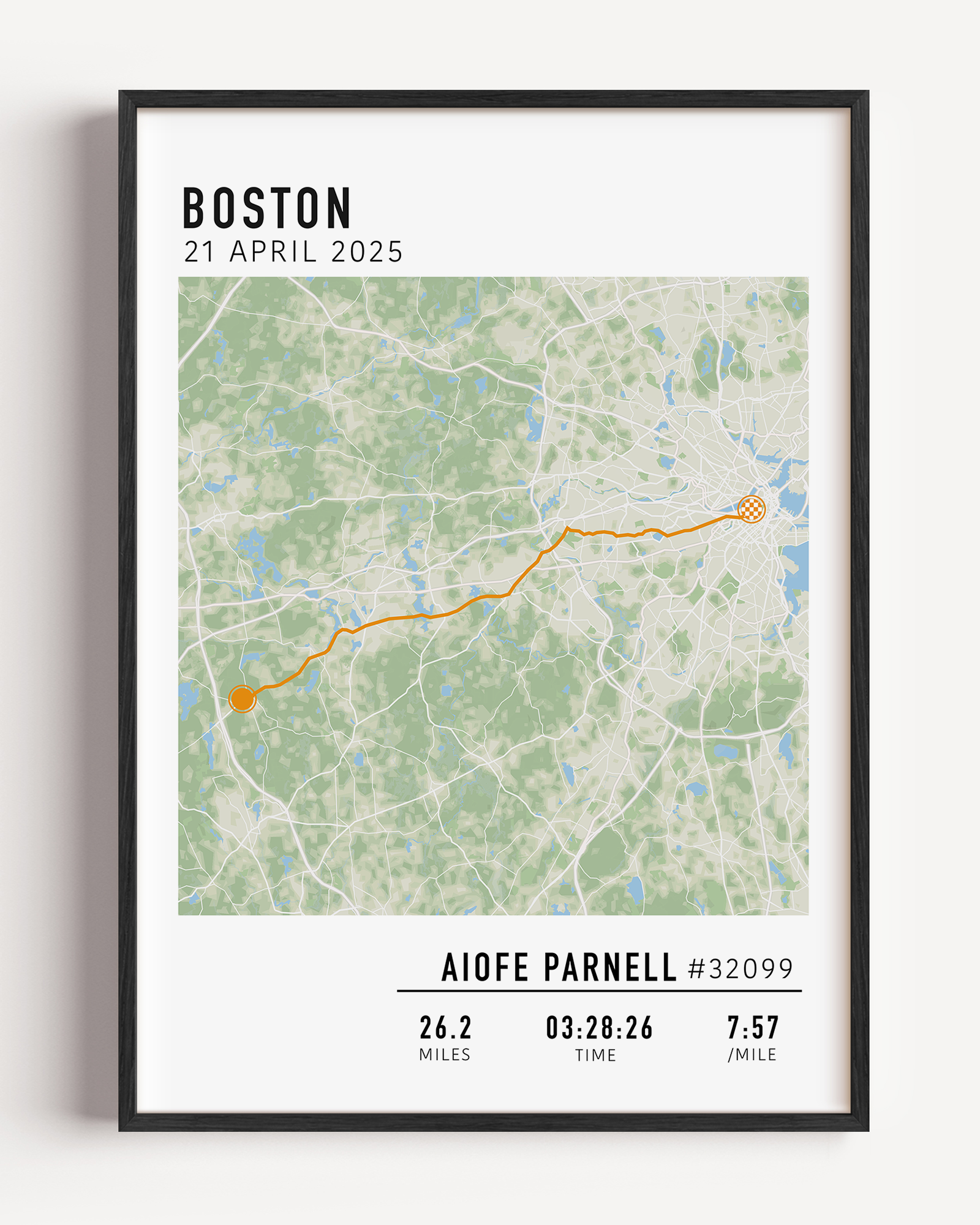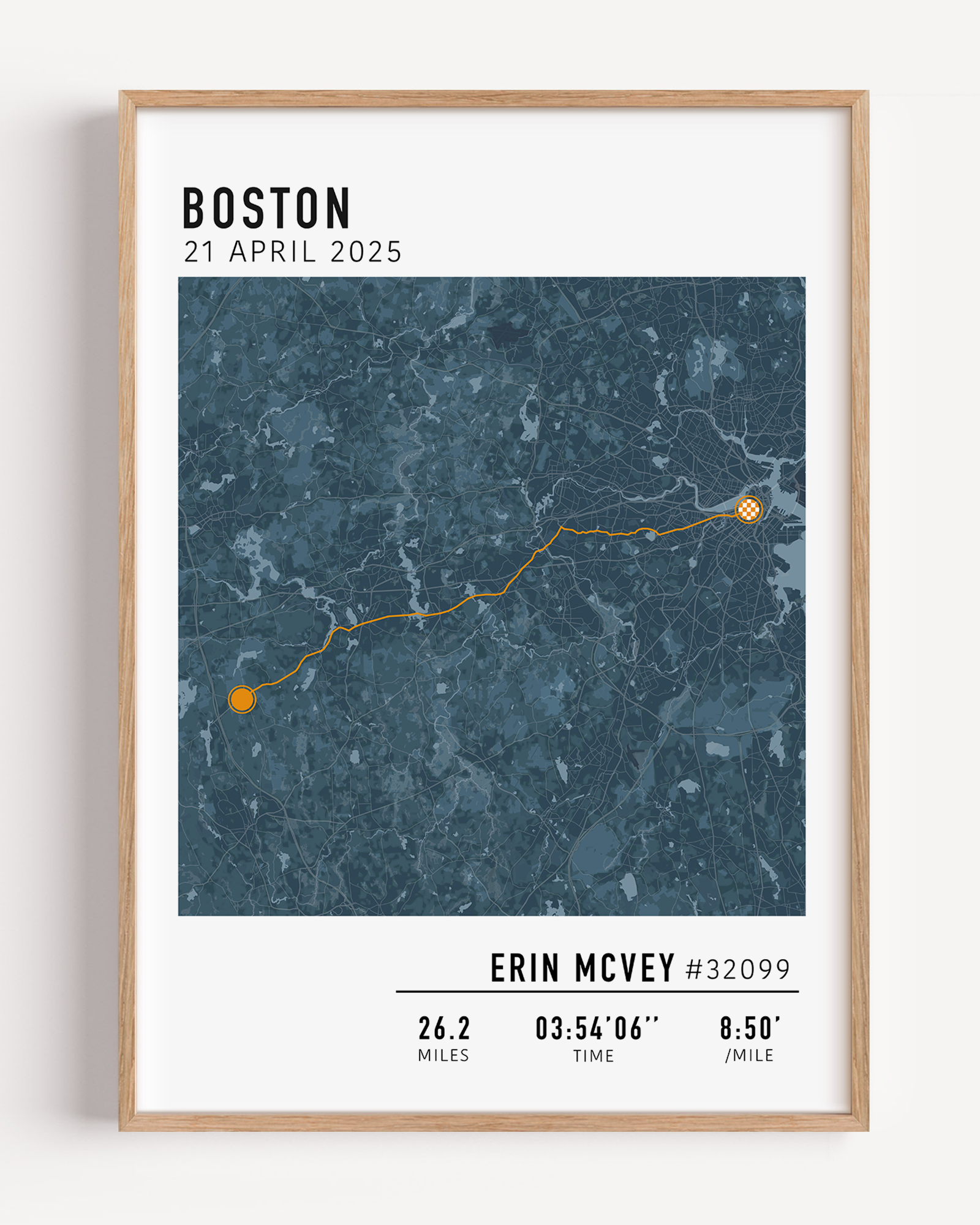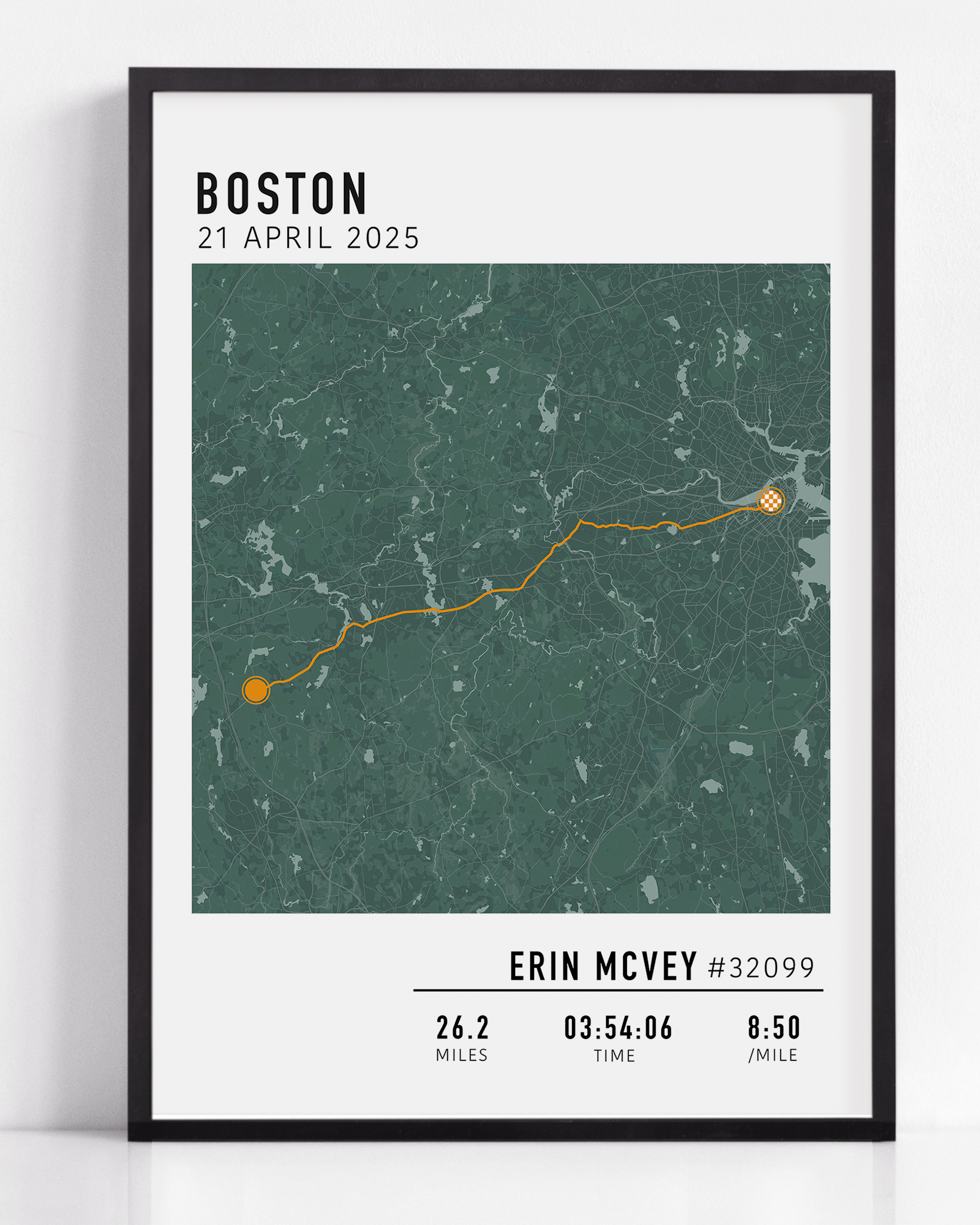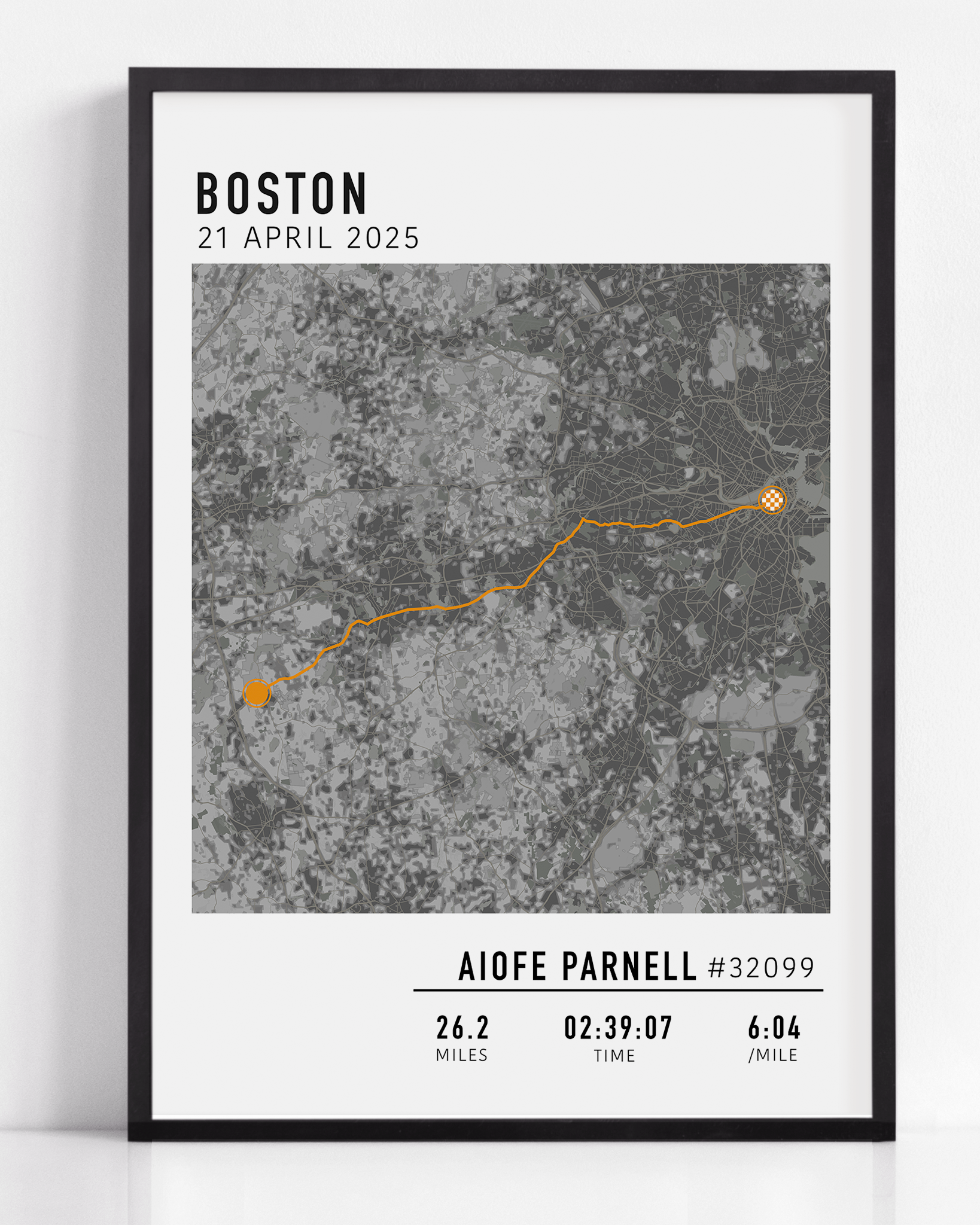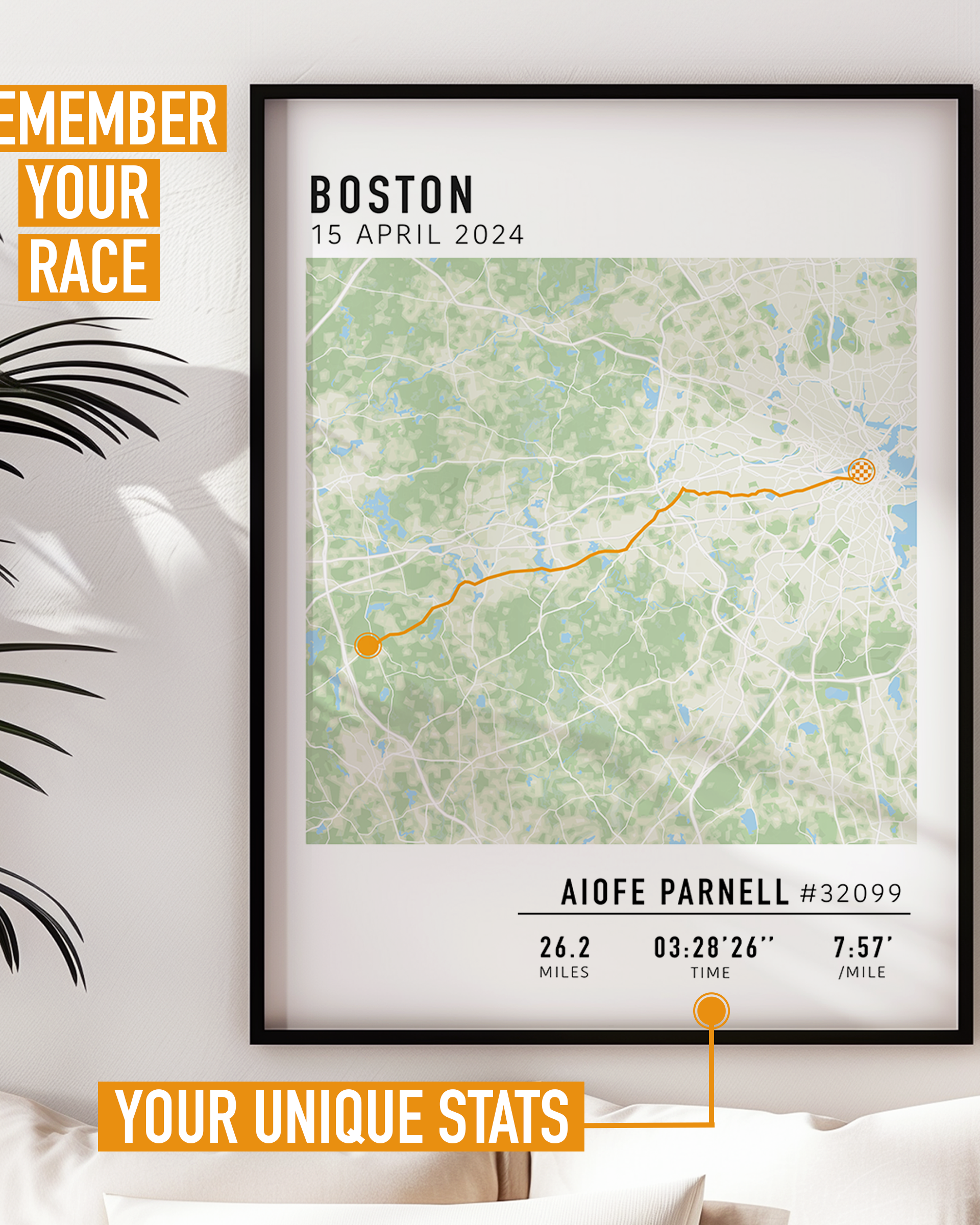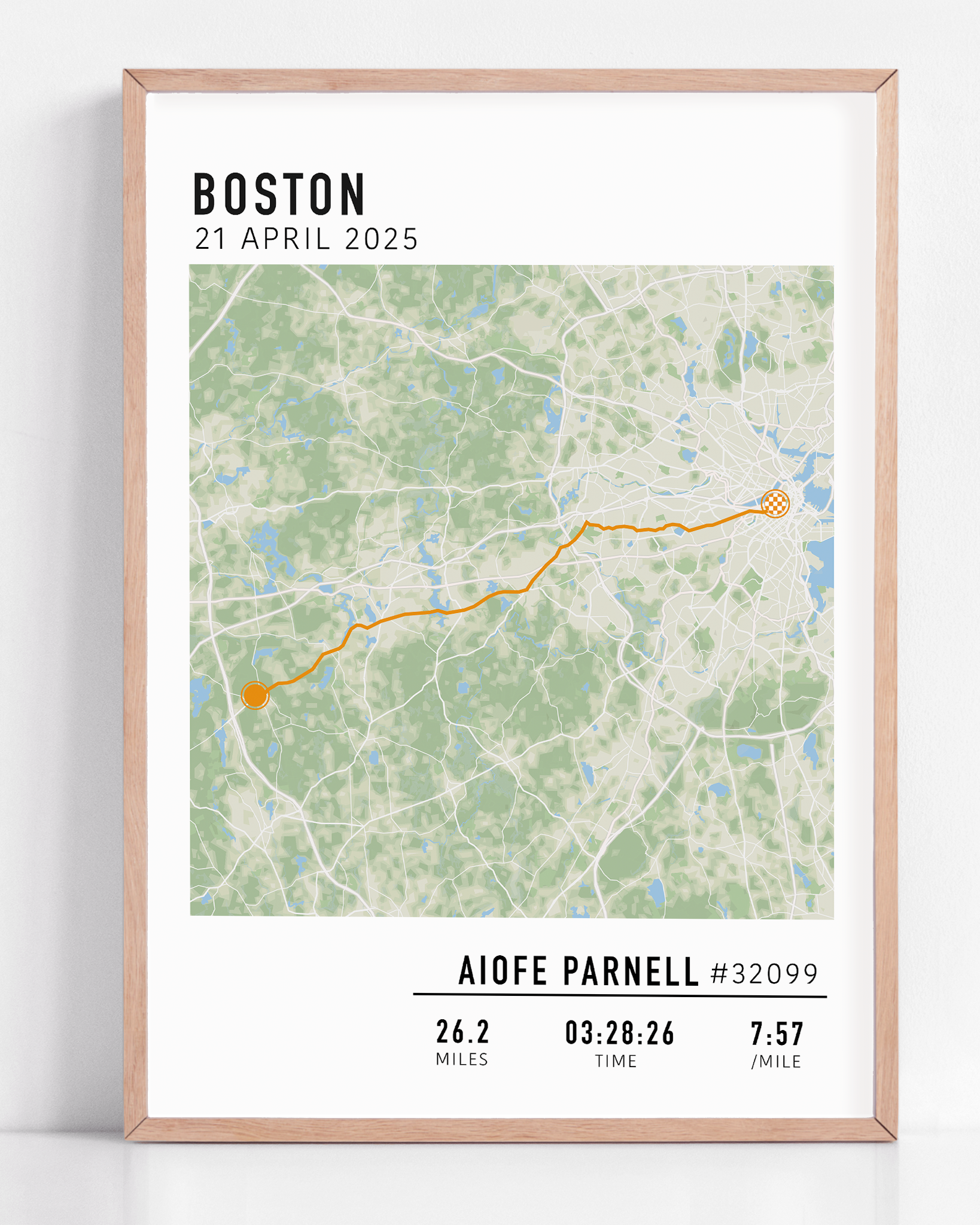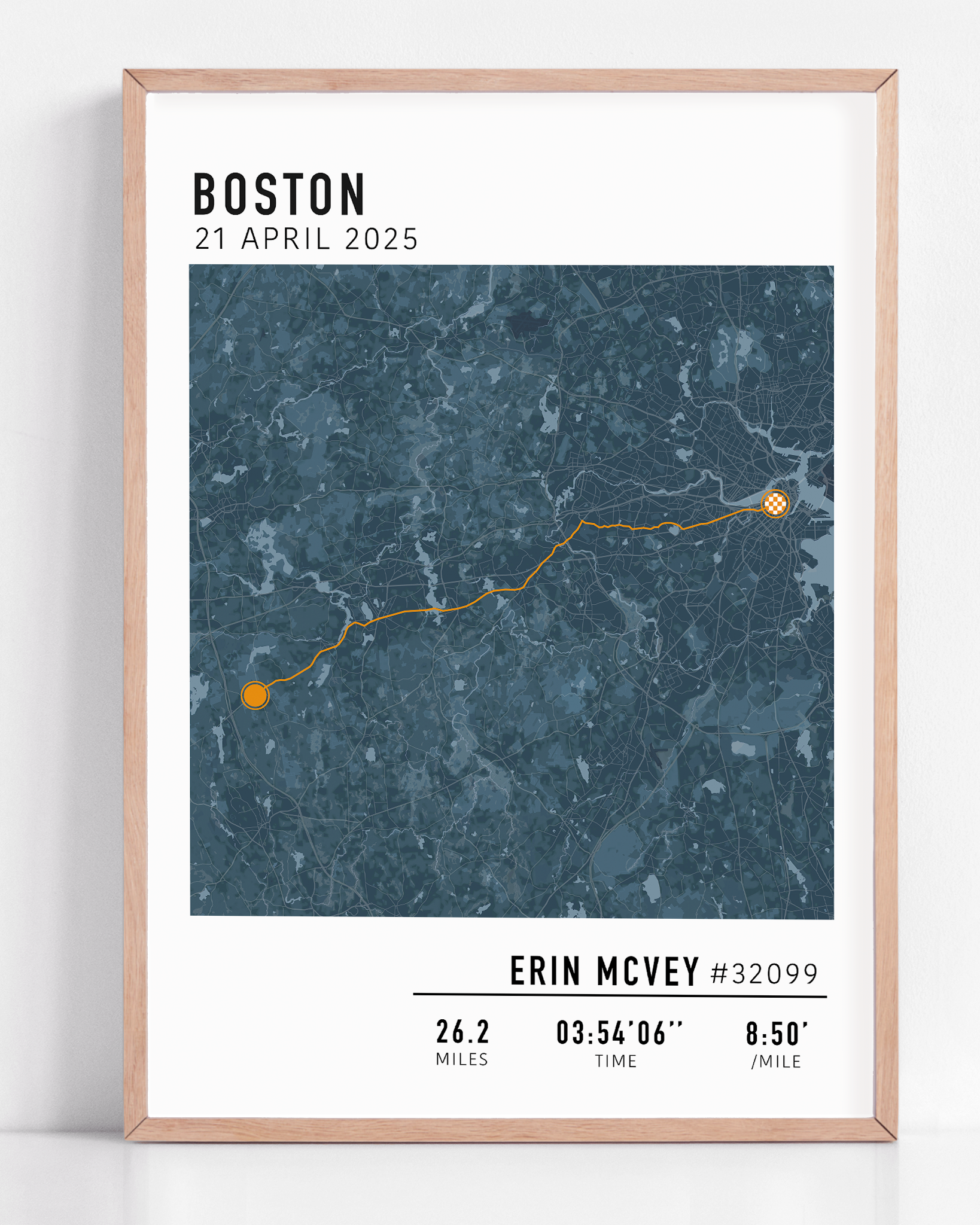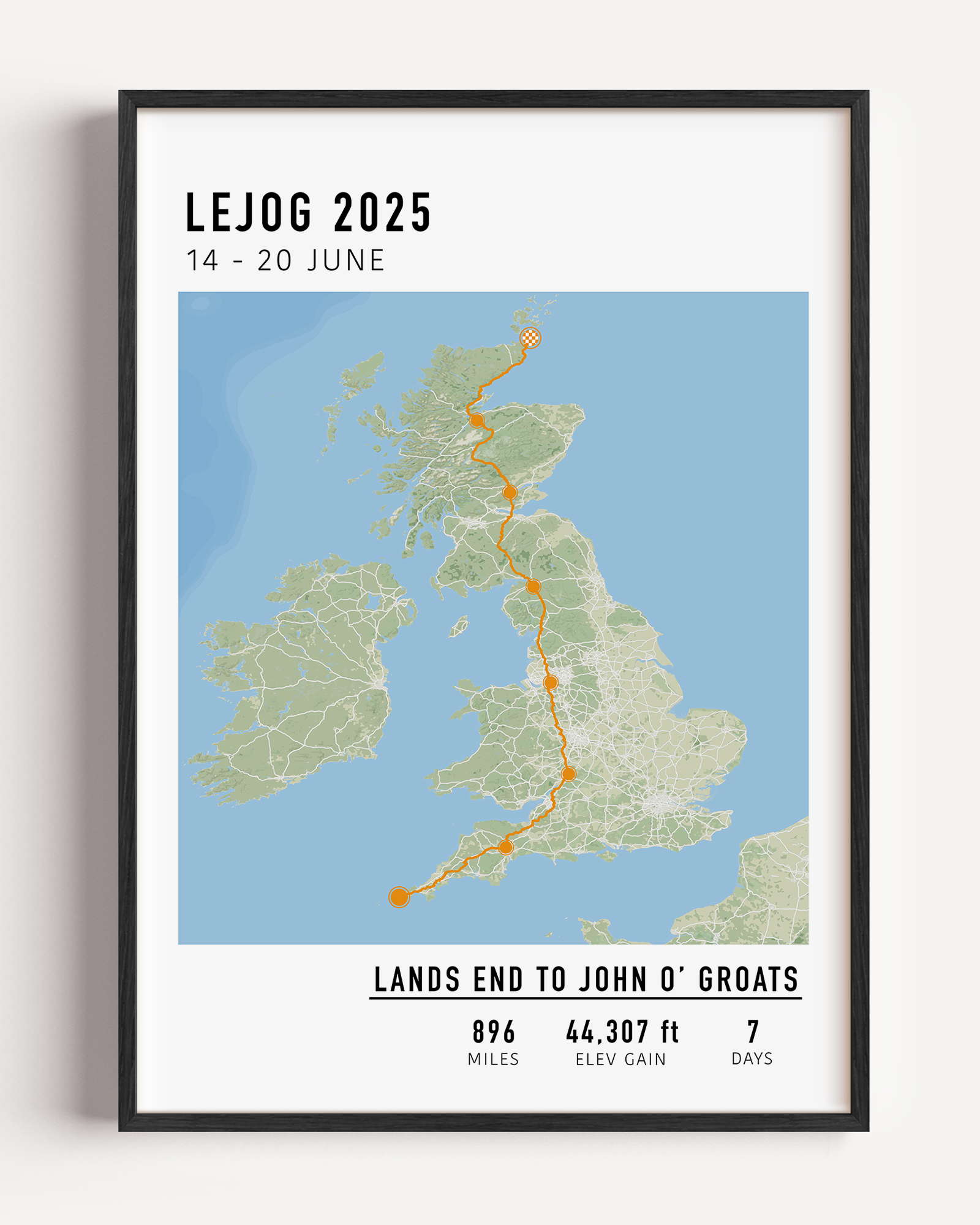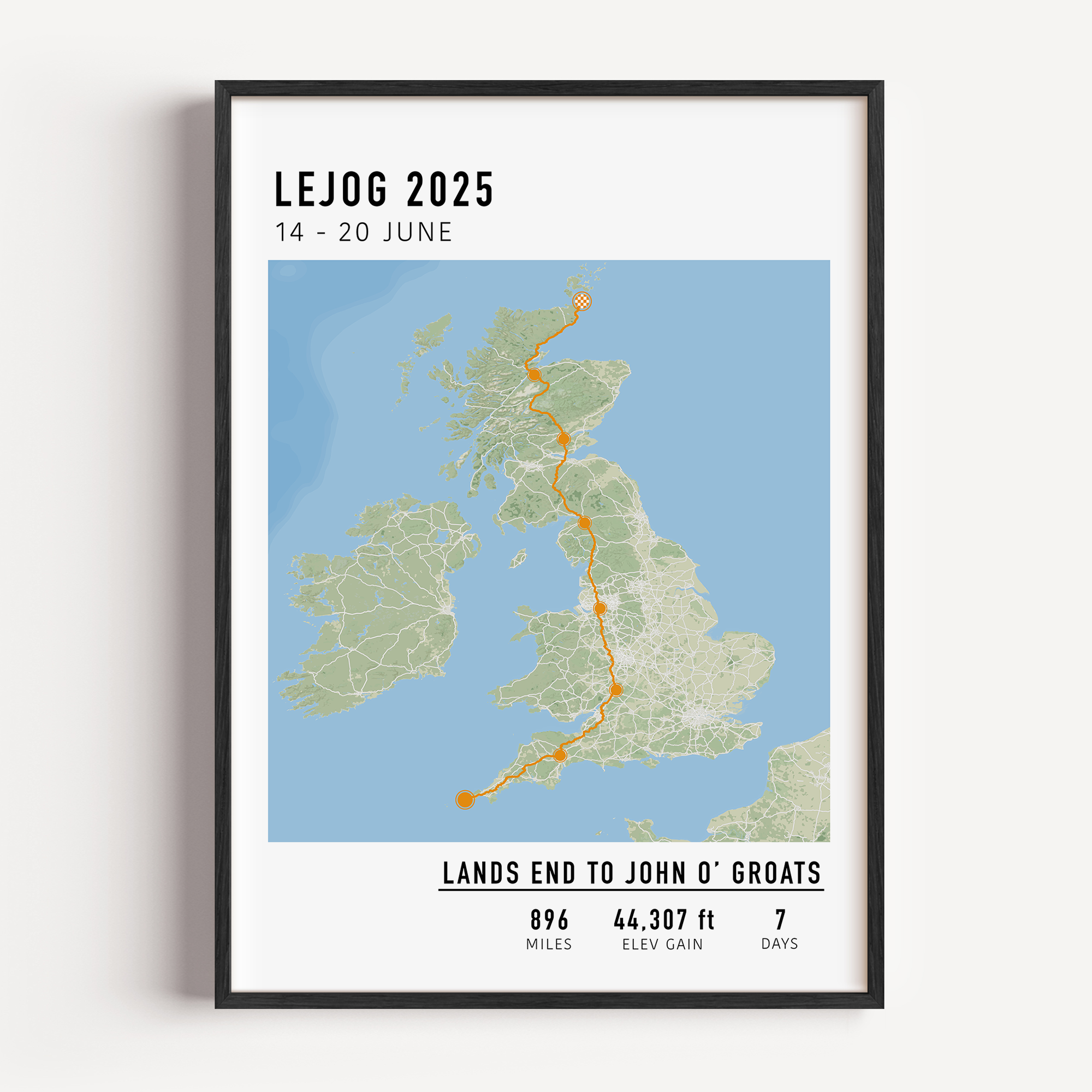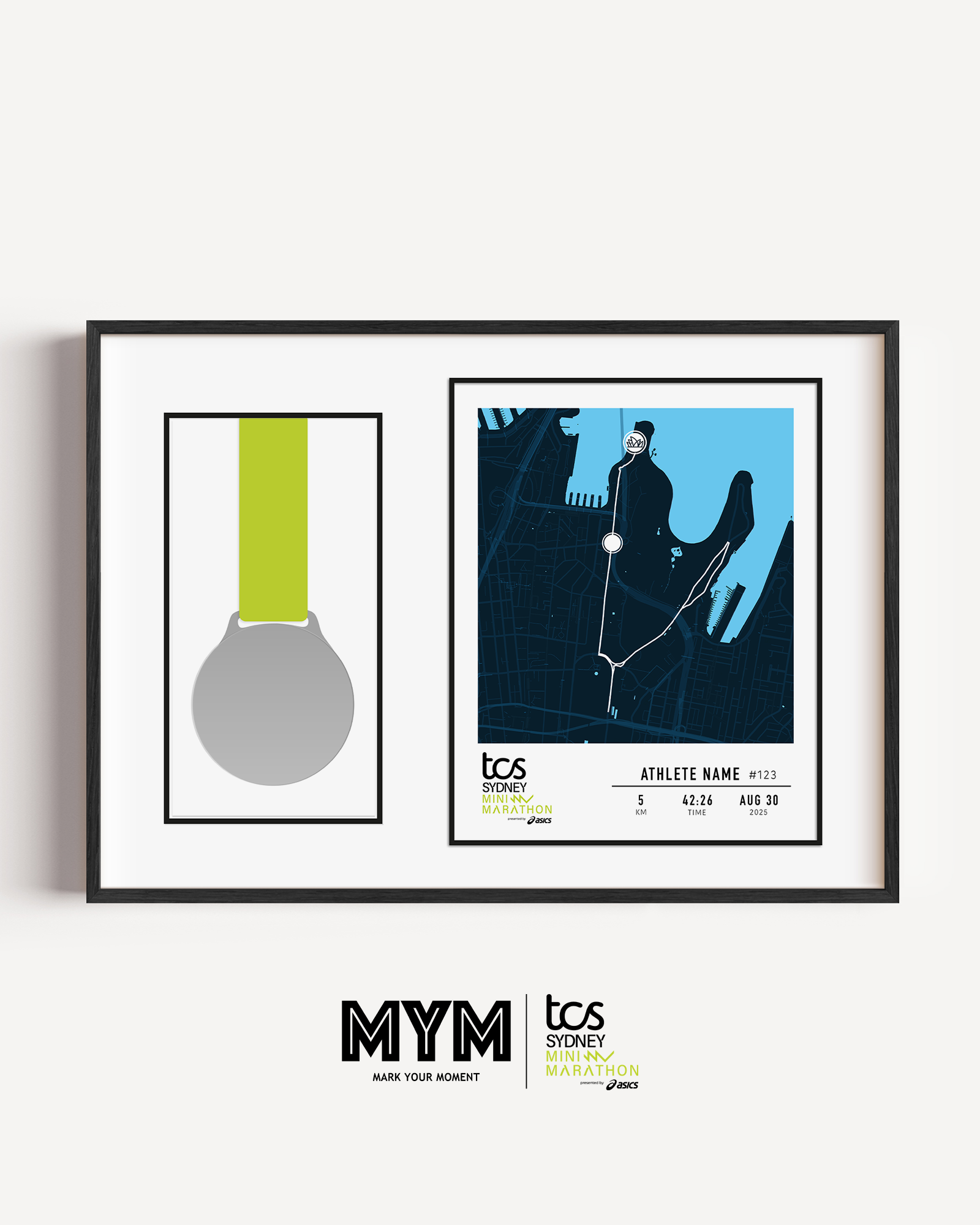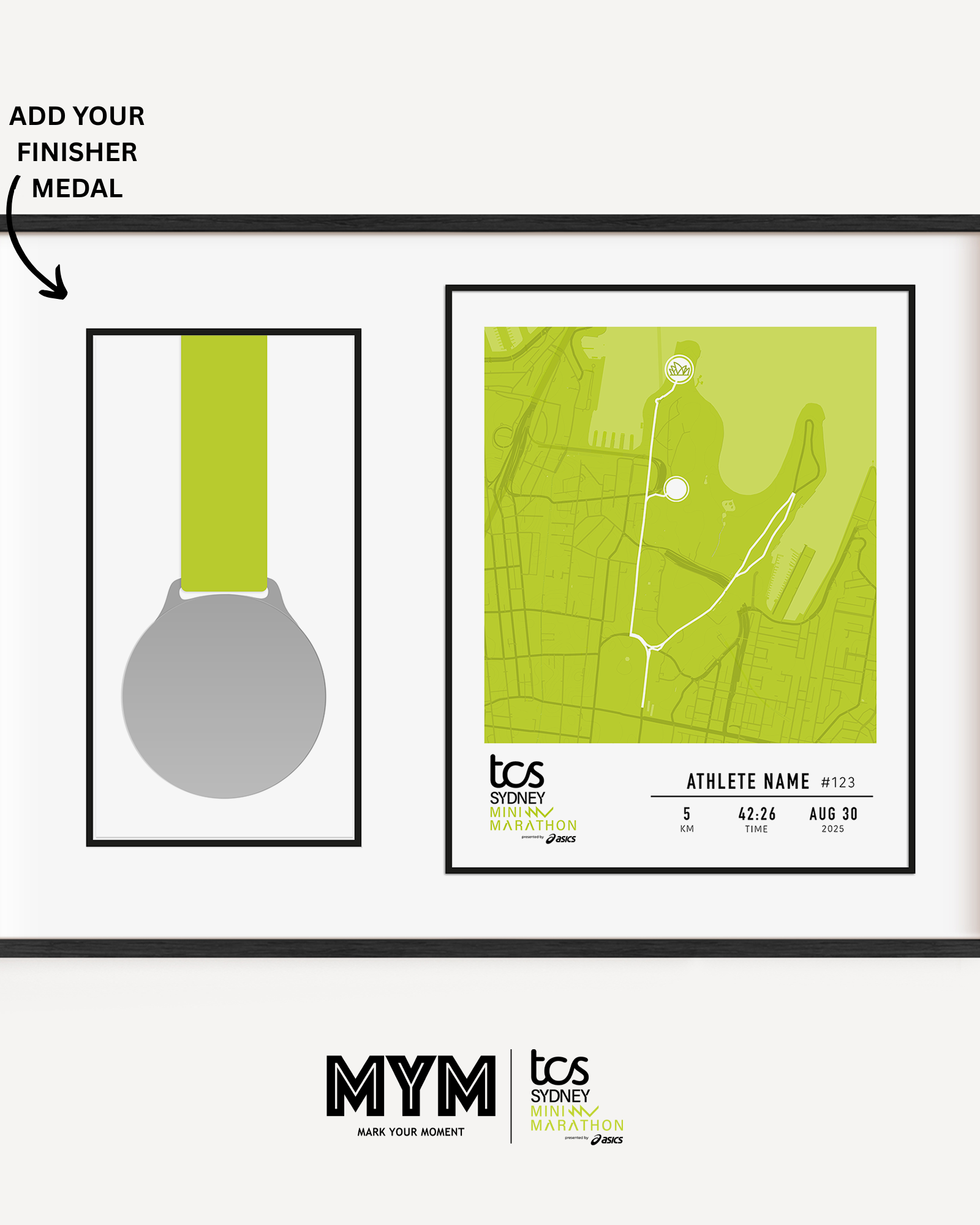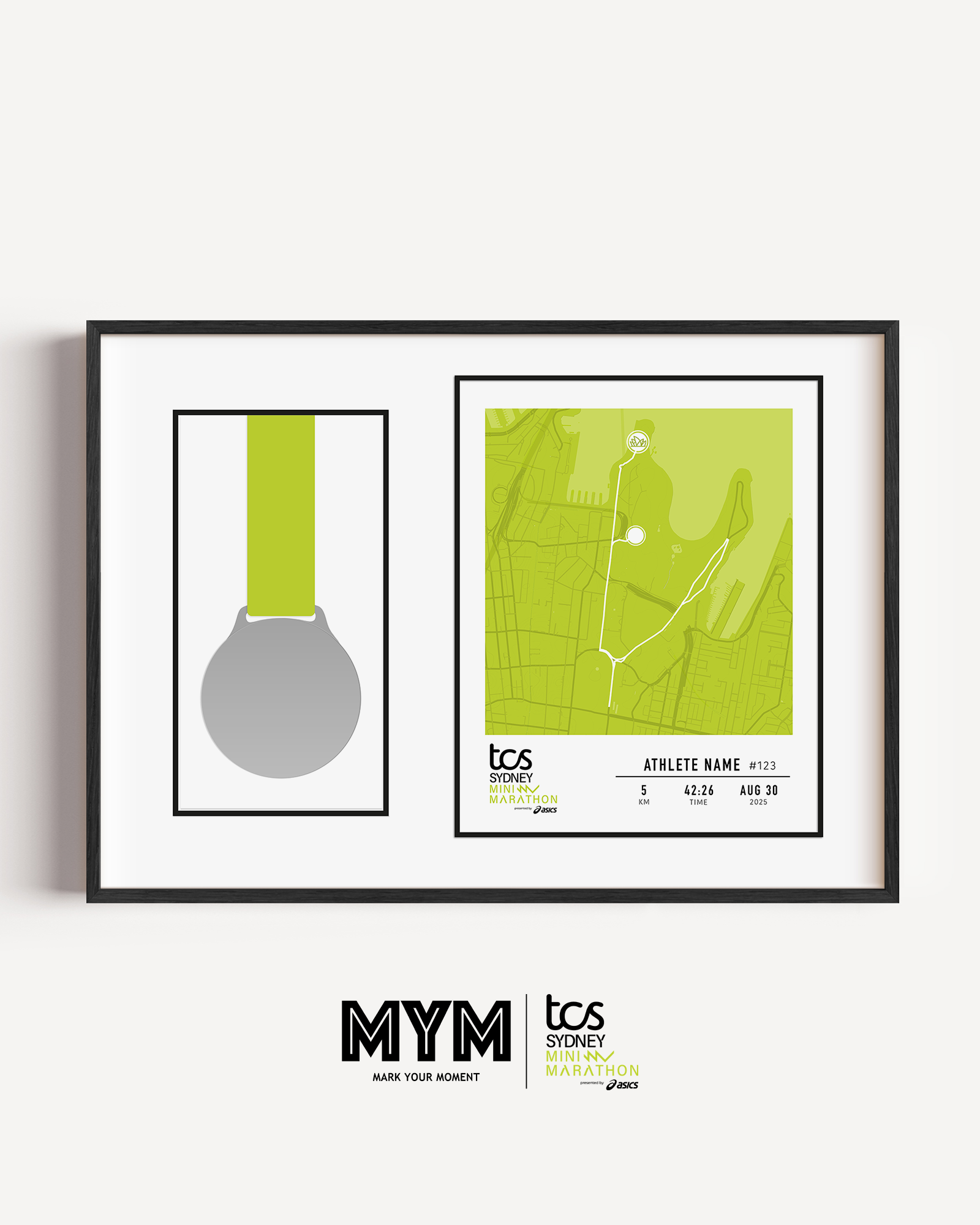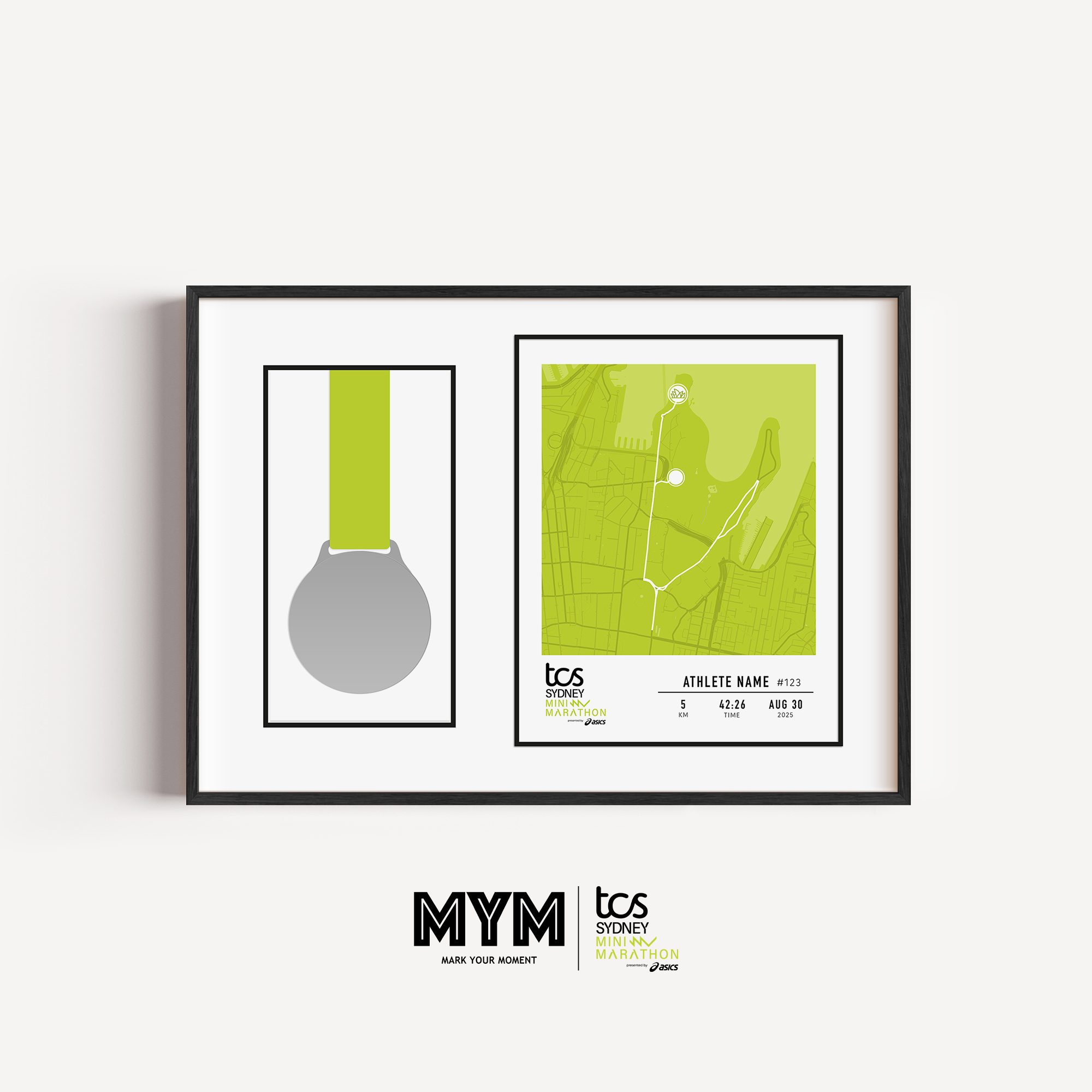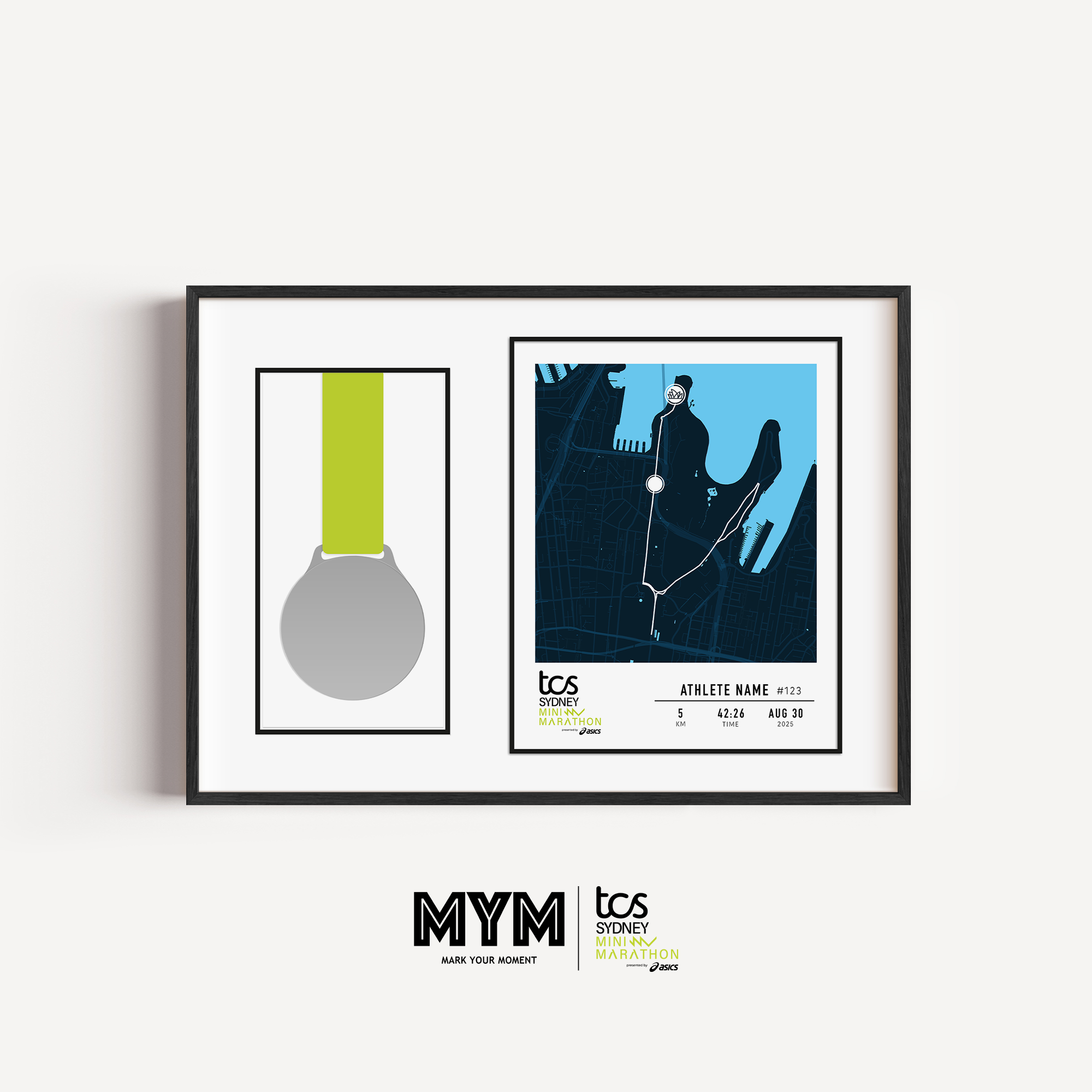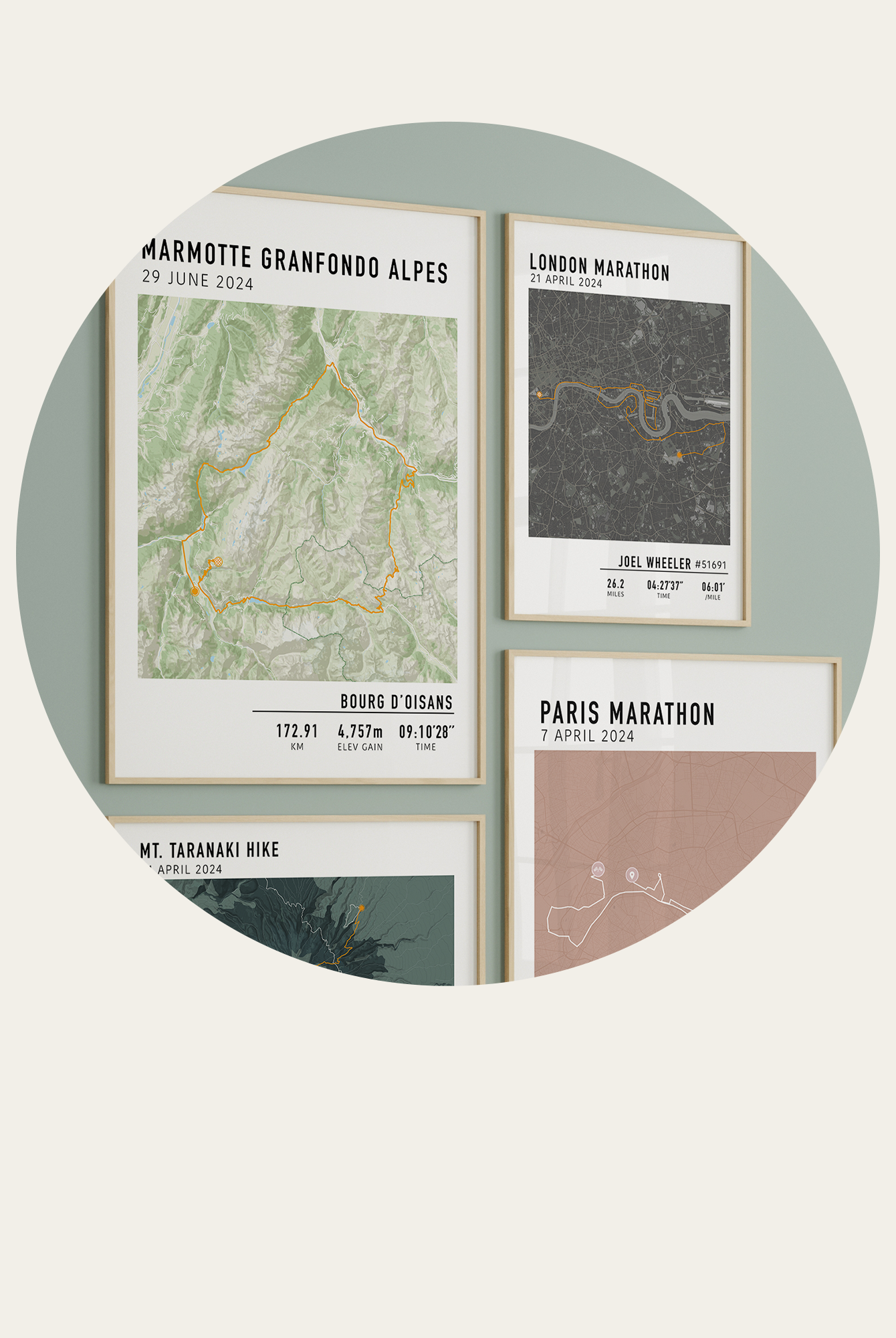




Whether you're planning your next route or commemorating a run, multi-day hike, or cycling adventure with a custom print from Mark Your Moment, the first step is accessing your GPX file. A GPX (GPS Exchange Format) file stores your route data—like distance, elevation, and GPS coordinates—and is essential for creating personalised map artwork.
In this guide, we’ll show you how to export a GPX file from the most popular tracking platforms, including Strava, Garmin Connect, Komoot, Suunto, Polar Flow, and Apple Fitness/Watch.
What Is a GPX File and Why Do You Need One?
A GPX file is a universal format for storing GPS data. It includes:
- Route or track path
- Waypoints and elevation
- Time and distance
How to Export GPX Files from Popular Fitness Platforms
Click on your platform to jump ahead:
Strava | Garmin | Komoot | Suunto | Polar | Apple Watch
Strava
On Desktop (not available on mobile App):
- Go to your activity at strava.com.
- Click the “More” button (three dots) below the title.
- Select Export GPX.
- Your file will automatically download.
You must use the desktop version to export a GPX file.
Garmin Connect
Steps:
- Visit connect.garmin.com and log in.
- Click Activities > All Activities.
- Open the activity you'd like to export.
- Click the gear icon, then choose Export to GPX.
Komoot
- Open your completed Tour at komoot.com.
- Click Download GPX.
- Choose the format (for GPS or planning) and save.
Suunto App
There’s no direct GPX export in the Suunto app. Instead:
- Sync your account with Strava or Komoot.
- Then export the file from one of those platforms.
Polar Flow
- Log in to flow.polar.com.
- Click Diary and open the activity.
- Scroll down and select Export > GPX.
Apple Watch / Apple Fitness
Apple doesn’t natively support GPX exports. To work around this:
- Install a third-party app like RunGap or Workout Export.
- Sync with Apple Health/Fitness.
- Use the app to export the GPX file and save or email it to yourself.
Other Platforms: Look for Export Options
Most GPS-based fitness apps will let you export your activity data. Look for options like:
- Export GPX
- Download Route
- Export for GPS Device
If you can’t find the option, check the platform’s help section or reach out to us—we’re happy to help.
Use Your GPX File to Create a Custom Print
Once you've downloaded your GPX file, you're ready to turn it into a custom route map with our custom editor. Upload your file and we’ll create a personalised artwork that captures your journey.
Whether it’s a marathon route, a cycling tour, or your favourite hiking trail, your story deserves to be marked in style.


Need help with your GPX file?
Our team is here to support you—just contact us and we’ll guide you through it.